This diagram shows the internals of the CYW43xxx chip in simplified form; the important point is that the chip has its own CPU, RAM and ROM; it is a computer-within-a-computer.
In part 2 I mentioned the lack of documentation, and now this becomes a major issue; how to program this complex chip, with no data on its internals. Cypress have partially solved this problem by issuing a standard binary ‘blob’ (roughly 300K bytes) that contains all the code for the embedded CPU; we’ll just be feeding data and control messages into that program, not knowing (or caring) what it is doing to the chip hardware.
I say the problem is ‘partially’ solved because we have to set up the chip to receive this program, upload the code into its RAM, then configure the chip to run it.. a sizeable task, as I’ve discovered.
First steps
The first task is to get the WiFi chip to respond to our commands. The SD and SDIO specifications offer plenty of flowcharts that describe how such a device might be initialised, but I had minimal success with these; they may be applicable to older chips, but maybe the later incarnations of the CYW43xxx just treat the SDIO bus as a convenient parallel interface, rather than slavishly following a specification that was designed for plug-in SD cards.
Then there are the timing issues; a quick glance at the existing code shows many instances where SDIO commands are artificially delayed; after you change something within the chip, it needs time to react before receiving the next command – and if that is sent too quickly, the chip just ignores it, with no error response.
The best way I could find to tackle these problems is to capture all the SDIO commands, responses & data when the Linux driver is running. The capture method is described in the previous part of this blog, and it results in a sizeable file: over 5 gigabytes as a CSV. It contains over 2,200 commands and 13,000 data blocks, so I wrote an application (‘sd_decoder’) to decode the file and display the commands. It turns out that there is a lot of redundancy (for example, the driver loads the 300K binary into the chip, then reads it all back again) so by focusing purely on one WiFi chip, we can make major simplifications.
Fragments of the simplified command sequence can then be replayed into the chip, and eventually, it starts to respond – the first time you get a response from a new chip is a happy day! Here are the first few commands the Linux driver uses to start up the chip:
To explain the format; firstly the time in seconds, then 6 command/response bytes, ‘*’ to indicate CRC is correct, or ‘?’ if incorrect, then a partial decode.
A few points to note:
The first 4 commands produce no responses.
There are jumps in the timestamp, presumably caused by intentional delays.
CMD5 is described in the SDIO specification as enabling I/O mode, but the response we get has an incorrect CRC.
The CMD3 – CMD7 sequence is described in the SD specification; it is the way that a host selects one card from multiple card slots; CMD3 gets a Relative Card Address (RCA), then command 7 selects the card using that address.
It’d be nice to understand why two of the commands have failed CRCs, but the Linux driver ignores that error, so I will as well. The above sequence is implemented in my code as follows:
Note the time delays; it is tempting to reduce them, but I have found from bitter experience that this can result in major problems much later on (as a critical setting has been ignored), so I wouldn’t recommend doing that.
Raspberry Pi I/O
Now it is necessary to translate the SDIO commands into hardware I/O cycles. The good news about bare-metal programming is that is isn’t necessary to use a fancy driver, or seek permission from the operating system; we can just control the I/O directly.
The primary source of information is the ‘BCM2835 ARM Peripherals’ document; armed with that and knowledge of the I/O base address (0x20000000 for the Pi ZeroW) we can create suitable low-level functions.
Configuring a pin as an input or output is done by setting a 3-bit values. Writing 1 or 0 to a pin is (sadly) done using separate set & clear registers; this does make any speed-optimisations (e.g. direct DMA to I/O ports) significantly harder, so I haven’t tried this yet.
Running under Linux
Although the whole purpose of this project is to run without Linux, after I’d written the above code, I did wonder whether it’d speed up development if I ran it under Linux with the WiFi interface shut down, using mmap() to gain access to the devices at low level.
This experiment failed; I never got reliable communications with the WiFi chip, and the operating system had a tendency to crash after my code was run. This isn’t too surprising, since the whole point of the OS is to control the hardware, and having a user-mode program controlling it as well, is really asking for trouble.
Timer
In addition to I/O cycles, we need a microsecond timing reference, that can be used to provide accurate delays. Fortunately there is a 32-bit register clocked at 1 MHz that is ideal for the purpose.
#define USEC_BASE       (REG_BASE + 0x3000)
#define USEC_REG()      ((uint32_t *)(USEC_BASE+4))

// Delay given number of microseconds
void usdelay(int usec)
{
    int ticks;

    ustimeout(&ticks, 0);
    while (!ustimeout(&ticks, usec)) ;
}

// Return non-zero if timeout
int ustimeout(int *tickp, int usec)
{
    int t = *USEC_REG();

    if (usec == 0 || t - *tickp >= usec)
    {
        *tickp = t;
        return (1);
    }
    return (0);
}
SDIO output
The Raspberry Pi CPU is sufficiently fast that we can easily toggle the clock line at 500 kHz, while shifting the command bits out.
#define SD_CLK_DELAY    1   // Clock on/off time in usec

// Write command to SD interface
void sdio_cmd_write(uint8_t *data, int nbits)
{
   uint8_t b, n;

    gpio_mode(SD_CMD_PIN, GPIO_OUT);
    for (n=0; n<nbits; n++)
    {
        if (n%8 == 0)
            b = *data++;
        gpio_out(SD_CMD_PIN, b & 0x80);
        b <<= 1;
        usdelay(SD_CLK_DELAY);
        gpio_out(SD_CLK_PIN, 1);
        usdelay(SD_CLK_DELAY);
        gpio_out(SD_CLK_PIN, 0);
    }
    gpio_mode(SD_CMD_PIN, GPIO_IN);
}
This code could be made much faster, by eliminating the delays. When writing the data output function I took a more aggressive approach to the timing; the transfers are error-free with a 2 MHz clock (8 Mbit/s of data) and could go faster with some optimisation.
Reception is a lot more tricky, handling command responses, data on CMD53 read-cycles, and acknowledgements on write-cycles. This requires multiple state-machines, triggered by the clock edges and ‘start’ bit detection; see the source code for details.
The 7- and 16-bit CRC calculations for commands & data have already been explained in part 2 of this blog.
I’m starting this project with the Raspberry Pi ZeroW, which uses the Cypress WiFi chip CYW43438. It interfaces to the ARM processor using Secure Digital I/O (SDIO), which consists of the following signals:
Clock (1 line, O/P from CPU)
Command (1 line, I/O)
Data (4 lines, I/O)
Later in this blog, I’ll be describing what these pins do, in case you are a newcomer to the strange world of SDIO.
The I/O bit numbers are defined in the DeviceTree file for the board:
The ‘pull’ settings show that pullup resistors are enabled for pin 23 to 27 hex (GPIO35 to 39), and an initial guess would be that these pins are the command and data, while 22 hex (GPIO34) is the clock.
The datasheet mentions a power-on signal, and a quick trawl on the Web suggests that this could be GPIO41, which must be high to power up the WiFi interface. There is also mention of a low-speed (32 kHz) clock that may be needed when waking up the chip from low-power mode; it turns out this is on GPIO43. This can be verified by dumping the I/O configuration registers when the WiFi interface is running:
Each pin has a 3-bit mode value, that shows whether it being used for simple input, output, or is connected to an internal peripheral (ALT0 – 5). The values above can be decoded by referring to the ‘BCM2835 ARM Peripherals’ data sheet, but an easier way is to use the ‘pigs’ front-end for the PIGPIO library, thus:
sudo pigpiod   [load PIGPIO daemon]
pigs mg 34     [get mode of GPIO pin 34]
7              [returned value 7: pin is ALT3]
pigs mg 43     [get mode of GPIO pin 43]
4              [returned value 4: pin is ALT0]
Pins 34 to 39 are all set to ALT3, which is unhelpfully labelled in the BCM2835 datasheet as ‘reserved’; in reality this means they are connected to the (undocumented) Arasan SD controller. GPIO43 is configured as ALT0, which is the clock source GPCLK2, configured for 32.768 kHz.
Attaching a logic analyser
To understand what the Linux driver is doing, I need to attach a logic analyser to the SDIO bus. This isn’t easy on most boards; the interface runs very fast (up to 50 MHz) so the only means of attachment is by soldering onto extremely small surface-mount components, that can easily be damaged.
However, the Pi Zerow has some interesting pads on the underside.
SDIO pads
Those 7 gold circles are clearly attached to some internal signals, since they have conductive holes (known as ‘vias’) to tracks on other layers. Also, they’re in the right area for the SDIO interface, and it is possible they’re needed for testing the WiFi/ Bluetooth interface after the PCB is assembled. Monitoring these signals with WiFi running proved that they do have almost all of the SDIO signals, aside from the most important one: the clock. Further probing suggested that the only way to pick up that signal is on the other side of the board at a resistor, but connecting to this point is tricky; you need good surface-mount soldering skills to avoid damaging the board.
SDIO clock connection
The main problem with the logic analyser interface is the sheer volume of data that’ll be accumulated. The boot process takes around a minute, with sporadic activity on the SDIO interface; catching all that, with a data rate of 50 MHz, would require a very complicated and/or expensive setup. Fortunately, the Raspberry Pi has an ‘overclocking’ setting in the boot file config.txt, which sets the clock rate to be used when the OS requests 50 MHz. This doesn’t just speed up the interface; a value of 1 or 2 MHz can be used to slow it right down, e.g.
# Add to /boot/config.txt:
dtparam=sdio_overclock=2
This allows a lower-cost analyser to be used (see part 1 of this blog for details) – and surprisingly, the change doesn’t make a lot of difference to the boot-time, since there are long pauses in SDIO activity, where the OS is doing other things. This can be seen by zooming the analyser display out to the maximum, showing 50 seconds of data:
SDIO activity during Linux boot
The bottom trace is the clock, the next is the command (CMD) line, then there are the 4 data lines. Despite the long periods with no activity, there is a lot going on: over 2,200 commands and 13,000 data blocks are being exchanged between the CPU and the WiFi chip.
SDIO protocol
If, like me, you have some experience of the Serial Peripheral Interface (SPI), you may expect SDIO to be similar, in that it uses a clock line to synchronise the sender & receiver; the rising edge of the clock indicates that the data is stable, and can be read by the receiver.
However, there are a few key differences:
Bi-directional. All the lines, apart from the clock, are bi-directional; either side can drive them.
Command and data lines. There are separate lines for commands and data, and the 4 data lines act as a 4-bit parallel bus.
Start & end bits. Instead of the SPI chip-select, the data and command lines idle high, then go low to signal the start of a transfer; this is referred to as a ‘start bit’, and is a single bit-time with a value of zero. At the end of the transfer there is a single bit with a value of 1, an ‘end bit’.
Format. The format of SDIO commands and responses is standardised, with specific meaning to the transferred bytes.
It is well worth reading the SDIO specification; at the time of writing, the latest version that is available from the SD Association is “SD Specifications Part E1, SDIO Simplified Specification Version 3.00”. For a few of the commands you need to refer back to the “SD Specifications Part 1 Physical Layer Simplified Specification”, for example:
SD command and response
This is SD command 3 (generally abbreviated to CMD3) and response 6 (R6) from the target (WiFi chip). Both are specified at being 48 bits long, and you can see they begin with a 0 start-bit, and finish with a 1 end-bit. Between the two, the command line is briefly idle. It is a bit confusing that the reply to a command 3 is not a response 3; this is because there are a lot of commands (over 50) but many of them share the same response format, so only 7 possible responses have been defined.
The most common commands used in the SDIO interface are CMD52 and 53. Command 52 is used to read or write a single 8-bit value, while CMD53 transfers blocks of data, either singly or in batches. The following trace shows command 53 reading a single block of 4 data bytes; the command and response look similar to command 52, but there is also activity on the data lines, starting with a 4-bit value of zero, and ending with F hex.
SDIO command 53
SDIO interface code
In the absence of the necessary documentation, writing code for the ‘Arasan’ SD controller on the Raspberry Pi would be quite fraught, so I decided to use direct control (‘bit-bashing’ or ‘bit-banging’) of the I/O lines. The more experienced among you might be thinking this is a really bad idea, as it can be very CPU-intensive and slow, but I believe that the end-result (for example, booting the WiFi chip from scratch in 1 second) vindicates my decision – and if you want to use the controller, you can modify my code to do so.
The bit-patterns within the SDIO commands and responses are quite complex, and the code I’ve seen makes heavy use of bit-masking and shifting to combine the individual values into a single message. I’m not a fan of this approach, and prefer to use C language bitfields. For example, CMD52 has the following fields in the 6-byte message:
Start:             1 bit  (always 0)
Direction:         1 bit  (1 for command, 0 for response)
Command index:     6 bits (52 decimal for command 52)
R/W flag:          1 bit  (0 for read, 1 for write)
Function number:   3 bits (select the bus, backplane or radio interface)
RAW flag:          1 bit  (1 to read back result of write)
Unused:            1 bit
Register address: 17 bits (128K address space)
Unused:            1 bit
Data value:        8 bits (byte to be written, unused if read cycle)
CRC:               7 bits (cyclic redundancy check)
End:               1 bit  (always 1)
You’ll see that the values don’t all line up on convenient 8-bit boundaries; furthermore the data sheet defines the values with most-significant value first, whereas standard C structures have least-significant first.
My solution is to use macros to reverse the order of bits in the byte, so the command structure looks similar to the specification. These are used to create structures for the commands and responses, which are combined in a union.
#define BITF1(typ, a)             typ a
#define BITF2(typ, a, b)          typ b, a
#define BITF3(typ, a, b, c)       typ c, b, a
..and so on..

typedef struct
{
    BITF3(uint8_t,  start:1, cmd:1,   num:6);
    BITF5(uint8_t,  wr:1,    func:3,  raw:1, x1:1, addrh:2);
    BITF1(uint8_t,  addrm);
    BITF2(uint8_t,  addrl:7, x2:1);
    BITF1(uint8_t,  data);
    BITF2(uint8_t,  crc:7,   stop:1);
} SDIO_CMD52_STRUCT;

typedef union
{
    SDIO_CMD52_STRUCT   cmd52;
    SDIO_RSP52_STRUCT   rsp52;
    SDIO_CMD53_STRUCT   cmd53;
    uint8_t             data[MSG_BYTES+2];
} SDIO_MSG;
The code to split the 17-bit address into 3 bytes is still a bit messy, but the structure definition does simplify the process of creating a command:
// Send SDIO command 52, get response, return 0 if none
int sdio_cmd52(int func, int addr, uint8_t data, int wr, int raw, SDIO_MSG *rsp)
{
    SDIO_MSG cmd={.cmd52 = {.start=0, .cmd=1, .num=52,
        .wr=wr, .func=func, .raw=raw, .x1=0, .addrh=(uint8_t)(addr>>15 & 3),
        .addrm=(uint8_t)(addr>>7 & 0xff), .addrl=(uint8_t)(addr&0x7f), .x2=0,
        .data=data, .crc=0, .stop=1}};

    return(sdio_cmd_rsp(&cmd, rsp));
}
For speed, the CRC is created using a byte-wide lookup table in RAM, which is computed on startup:
#define CRC7_POLY    (uint8_t)(0b10001001 << 1)

uint8_t crc7_table[256];

// Initialise CRC7 calculator
void crc7_init(void)
{
    for (int i=0; i<256; i++)
        crc7_table[i] = crc7_byte(i);
}

// Calculate 7-bit CRC of byte, return as bits 1-7
uint8_t crc7_byte(uint8_t b)
{
    uint16_t n, w=b;

    for (n=0; n<8; n++)
    {
        w <<= 1;
        if (w & 0x100)
            w ^= CRC7_POLY;
    }
    return((uint8_t)w);
}

// Calculate 7-bit CRC of data bytes, with l.s.bit as stop bit
uint8_t crc7_data(uint8_t *data, int n)
{
    uint8_t crc=0;

    while (n--)
        crc = crc7_table[crc ^ *data++];
    return(crc | 1);
}
Data CRC
The data transfer includes a CRC for every line, for example this is the transfer of the 4 bytes A6, A9, 41, and 15 hex.
Command 53 data read
A total of 12 bytes are transferred, because each data line has an added 16-bit CRC. This was a bit of a headache, since splitting the 4-bit data into individual 1-bit values for CRC calculation would considerably slow down the command generation & checking. Fortunately there is a easy way to calculate & check the CRC for each line, while still keeping the 4 values together. This comes from the realisation that the exclusive-or operation in the CRC doesn’t care what order the bits are in; we can rearrange the bits to match our data. So we can compute all 4 CRCs using a single 64-bit value:
Bit 0: bit 0 of 1st CRC
Bit 1: bit 0 of 2nd CRC
Bit 2: bit 0 of 3rd CRC
Bit 3: bit 0 of 4th CRC
Bit 4: bit 1 of 1st CRC
..and so on, up to..
Bit 63: bit 15 of 4th CRC
Once they have been computed, the 4 CRCs are transmitted by just shifting out the next 4 bits of the 64-bit value. To speed up the calculation, a 4-bit lookup table is initialised on startup:
#define CRC16R_POLY  (1<<(15-0) | 1<<(15-5) | 1<<(15-12))

uint64_t qcrc16r_poly, qcrc16r_table[16];

// Initialise bit-reversed CRC16 lookup table for 4-bit values
void qcrc16r_init(void)
{
    qcrc16r_poly = quadval(CRC16R_POLY);
    for (int i=0; i<(1<<SD_DATA_PINS); i++)
        qcrc16r_table[i]  = (i & 8 ? qcrc16r_poly<<3 : 0) |
                            (i & 4 ? qcrc16r_poly<<2 : 0) |
                            (i & 2 ? qcrc16r_poly<<1 : 0) |
                            (i & 1 ? qcrc16r_poly<<0 : 0);
}

// Spread a 16-bit value to occupy 64 bits
uint64_t quadval(uint16_t val)
{
    uint64_t ret=0;

    for (int i=0; i<16; i++)
        ret |= val & (1<<i) ? 1LL<<(i*4) : 0;
    return(ret);
}
Now when transmitting, the 64-bit (i.e. 4 x 16-bit) CRC is updated with every 4-bit value:
uint64_t qcrc=0;

// For each 4-bit value 'd':
qcrc = (qcrc >> 4) ^ qcrc16r_table[(d ^ (uint8_t)qcrc) & 0xf];
After the data has been sent, the CRC values are transmitted:
Command 53 can be used to transfer a single block (where the block size is specified in the command) or multiple blocks (where the block size has previously been set, and the number of blocks is specified in the command).
If the CPU is sending a single command, then writing multiple blocks to the WiFi chip, how does it check that the blocks are being received and processed OK? The answer is that when writing blocks, the recipient generates a brief acknowledgement back. Here is an example of a CMD53 write.
Command 53 write
It is a bit difficult to see what is going on; the command and response are similar to all the others, but then (after a surprisingly long pause) the data is transferred from the CPU to the WiFi chip. Zooming in on that data:
Command 53 write data
4 bytes with the values 3, 0, 0, 0, are being transferred, then 8 bytes of CRC. However, after that, the recipient acknowledges the received data by driving the least-significant data line with a bit value of 00101000 00111111 (28 3F hex). To be honest, I haven’t been able to find a proper description of these bits; I assume there is a single byte value, then the recipient holds the line low until it has finished processing, but the meaning of the byte bits isn’t at all clear. So for the time being, my code reads in the byte value, then waits for the line to go high, effectively treating it as a ‘busy bit’.
Clock polarity
A small but significant detail is the relationship between the data changes and the clock edges – when is the data stable so it can be read? I previously suggested that the data is read on the positive clock-edge, but look at this trace showing the transition between the command and the response:
Command and response clocking
For the command, the data changes on the negative-going clock edge, so can be read on the positive-going edge. The response appears to be the opposite way around, with the data changing on the positive-going edge – what is going on?
The answer is that the WiFi chip has been set to ‘SDIO High-Speed’ mode; the data changes very shortly after the positive-going edge of the clock, so as to enable fast transfers. The timing is described in the chip data sheet if you want to know the details, but the end result is that the logic analyser isn’t fast enough to capture the gap between clock & data changes, so the software that analyses the logic traces has to use the last state before the clock goes high.
Bit bashing
The bit-bash (or bit-bang) code was quite difficult to write; it has to toggle the clock line, feed out the single-bit command, then get the response whilst simultaneously sending or receiving the 4-bit data. Also, although the examples above show the data being shorter than the response, in reality it can be considerably longer, up to 512 bytes, so will finish long after the activity on the command line. Then there is the issue of the acknowledgements of block data writes, and the need for a timeout in case the chip goes unresponsive…
There is no point describing the code here; if you are interested, take a look at the source. In theory, it’d be a good idea to replace it with a driver for the Arasan SD controller, but I’m not sure there would be a large speed gain – the Linux driver seems to spend a lot of time idle, waiting for the SD controller to complete a task. Also the bit-bashing code is more universal: it shouldn’t be too difficult to port it to other processors such as the STM32, which is frequently paired with the Cypress chip in a standalone module.
SPI interface
For completeness, I need to mention that according to the data sheet, the WiFi chip has a Serial Peripheral Interface (SPI), that can be used instead of SDIO. This is enabled by sending a reset command to the chip, while certain I/O lines are held in specific states.
I originally thought this interface would be easier to use than SDIO, but all my attempts to get it working failed. Also, the SPI connections don’t seem to line up with the SPI master in the BCM2835, so the interface would have to be bit-bashed, which would be really slow as the data bus is only 1-bit-wide. So I abandoned SPI, and focused exclusively on SDIO.
The WiFi chips on the Raspberry Pi boards are from the Broadcom BCM43xxx range, which has been taken over by Cypress, and renamed CYW43xxx. The Pi ZeroW uses the CYW43438, the PDF data sheet is here.
The obvious starting point for creating a new driver is the existing Linux driver, known as ‘Broadcom Full MAC’, or BRCMFMAC. The source is available here.
A more recent driver is included in the Cypress WICED development system. This is based on Eclipse, and is very comprehensive, covering a wide range of wireless chips and functionality.
A more compact version of the code is available as the Cypress Wifi Host Driver, which is intended for integration in real-time systems.
Another (highly unusual) WiFi driver is available for the Plan9 operating system, contained within a single file ether4330.c. This has a large number of unconventional operating-system dependencies, and would require significant modifications to run on a bare-metal platform, but is interesting as the author has succeeded in creating some remarkably compact code.
To see an example of an SPI interface with a CYW43439, take a look at my Zerowi standalone driver for the Raspberry Pi Pico W here.
It is great to have such a range of source-code available, but in practice it has been of minimal use in this project; even the simplest versions are exceedingly complex, with hidden dependencies & timing issues, so rather than simplifying existing code, I have written all the code from scratch.
Documentation on the Broadcom/Cypress chips is very limited; the data sheet gives minimal information about the chip internals. There is a programming manual, but that only available from Cypress under a confidentiality agreement. I haven’t had access to that document, as it would place severe restrictions on what I can write in this blog. So I have just used freely-available information, logic analysis, and a lot of trial-and-error.
With regard to a logic analyser, the requirements for this project are a bit demanding. The Raspberry Pi ZeroW takes nearly a minute to boot, so a recording of the hardware activity will be quite long, overflowing the memory of most logic analysers. So it is necessary to using a ‘streaming’ analyser, that can send data continuously to a PC’s hard disk; I’ve been using the DSLogic Basic from DreamSourceLab, as it can stream 8-bit values at 20 megasamples per second, and has an easy-to-use GUI based on Sigrok, but a simpler device streaming 10 megasamples per second might be adequate for most analysis tasks.
Sigrok pulseview (the open-source logic analyser GUI) has a built-in Secure Digital (SD) decoder, but this is of limited use on the Secure Digital I/O (SDIO) interface of the Broadcom/Cypress chips, so for analysis I export the data as a very large CSV file (over 5 gigabytes!), then use my own software tools written in the C language to analyse it – Python would be much too slow.
A variant of this analysis code has been used to draw the logic analyser diagrams for this blog – they are all derived from real-world data.
The data analysis tools run on a Windows PC, and have been compiled using gcc 7.4.0 or 8.2.0 from the cygwin project. I suspect the code would also run under Linux with minimal modifications, but haven’t had the time to try this out. The programs can be compiled directly from the command-line, e.g. to produce sd_decoder.exe:
gcc -Wall -o sd_decoder sd_decoder.c
If you want to understand the SDIO interface, the specifications are essential reading; they are available at the SD Association.
‘Bare-metal’ is programming without an operating system – running the code directly on the hardware, without the usual device drivers.
I’ve been developing a bare-metal driver for the WiFi chip on the Raspberry Pi ZeroW, and needed a method of downloading & debugging the code. Alpha by Farjump seemed ideal for the purpose; it is a small remote GDB server, that can be controlled by a Windows or Linux PC, using a simple 2-wire serial link.
In this blog I’ll describe how to set up Alpha, and give some tips to maximise the functionality of this excellent application. I’ve been using Windows as a development platform, so this text is biased in that direction, but much of the information is applicable to Linux as well.
Limitations
So far, I have only had success running Alpha on the original Pi version 1, and the ZeroW; for example, it didn’t work on version 3 hardware. This may be due to errors on my part; I’m not sure which board versions are actually supported by the current release.
Hardware connection
You need a 3-wire serial connection (ground, transmit & receive) at 3.3-volt logic levels. Any USB-to-serial adaptor should work, so long as it has a 3.3V output, not 5 volt or RS-232.
I use an FTDI cable for the purpose, the TTL-232R-RPi, which has just black, yellow and red wires connected as follows:
Raspberry Pi Alpha connections
These are labelled from the perspective of the Raspberry Pi, so the Txd line will go to Rxd on your serial adaptor, and vice-versa. Take care when connecting, due to the closeness of the 5 volt power pins; they could cause serious damage.
You just need 4 files in the root directory of the SDHC card that is plugged into the Raspberry Pi:
An install script for Linux is provided (scripts/install-rpi-boot.sh) but I had no luck with this, so had to do a manual install. Alpha.bin and config.txt come from the Alpha distribution ‘boot’ directory, bootcode.bin and start.elf are copied from the root directory of a Raspbian distribution.
The Raspberry Pi boot directory is FAT32 formatted, so you don’t have to run Linux; you can plug the SDHC card into a USB adaptor on a Windows PC, and copy the required files across.
When you boot the system, nothing seems to happen; you need to use the serial link to check alpha is working.
Compiler
The compiler I’ve been using is gcc-arm-none-eabi, version 7-2018-q2-update. Installation on Raspbian Buster just requires:
sudo apt install gcc-arm-none-eabi
On Windows, download from here; this places the tools in the directory
C:\Program Files (x86)\GNU Tools Arm Embedded\7 2018-q2-update\bin
Check that this directory in included in your search path by opening a command window, and typing
arm-none-eabi-gcc -v
arm-none-eabi-gdb -v
If not found, close the window, add to the PATH environment variable, and retry.
For more complicated projects, you’ll probably be using Makefiles, and on Windows, will need to install ‘make’ from here. As with GCC, check that it is included in your executable path by opening a new command window, and typing
make -v
Building a project
The SDK files are in the sdk sub-directory of the Alpha distribution; for simplicity, you can just copy it to create an identical sdk sub-directory in your project directory.
We need something to compile, so here is a simple program alpha_test.c to flash the LED on a Pi ZeroW at 1 Hz.
// Simple test of Raspberry Pi bare-metal I/O using Alpha
// From iosoft.blog, copyright (c) Jeremy P Bentham 2020

#include <stdint.h>
#include <stdio.h>

#define REG_BASE    0x20000000      // Pi Zero

#define GPIO_BASE   (REG_BASE + 0x200000)
#define GPIO_MODE0  (uint32_t *)GPIO_BASE
#define GPIO_SET0   (uint32_t *)(GPIO_BASE + 0x1c)
#define GPIO_CLR0   (uint32_t *)(GPIO_BASE + 0x28)
#define GPIO_LEV0   (uint32_t *)(GPIO_BASE + 0x34)

#define GPIO_REG(a) ((uint32_t *)a)

#define USEC_BASE   (REG_BASE + 0x3000)
#define USEC_REG()  ((uint32_t *)(USEC_BASE+4))

#define GPIO_IN     0
#define GPIO_OUT    1

#define LED_PIN     47

void gpio_mode(int pin, int mode);
void gpio_out(int pin, int val);
uint8_t gpio_in(int pin);
int ustimeout(int *tickp, int usec);

int main(int argc, char *argv[])
{
    int ticks=0;

    gpio_mode(LED_PIN, GPIO_OUT);
    ustimeout(&ticks, 0);
    printf("\nAlpha test");
    while (1)
    {
        if (ustimeout(&ticks, 500000))
        {
            gpio_out(LED_PIN, !gpio_in(LED_PIN));
            putchar('.');
            fflush(stdout);
        }
    }
}

// Set input or output
void gpio_mode(int pin, int mode)
{
    uint32_t *reg = GPIO_REG(GPIO_MODE0) + pin / 10, shift = (pin % 10) * 3;

    *reg = (*reg & ~(7 << shift)) | (mode << shift);
}

// Set an O/P pin
void gpio_out(int pin, int val)
{
    uint32_t *reg = (val ? GPIO_REG(GPIO_SET0) : GPIO_REG(GPIO_CLR0)) + pin/32;

    *reg = 1 << (pin % 32);
}

// Get an I/P pin value
uint8_t gpio_in(int pin)
{
    uint32_t *reg = GPIO_REG(GPIO_LEV0) + pin/32;

    return (((*reg) >> (pin % 32)) & 1);
}

// Return non-zero if timeout
int ustimeout(int *tickp, int usec)
{
    int t = *USEC_REG();

    if (usec == 0 || t - *tickp >= usec)
    {
        *tickp = t;
        return (1);
    }
    return (0);
}

// EOF
For details of the built-in peripherals, see the ‘BCM2835 ARM Peripherals’ document, available here.
My code polls a microsecond time register, toggling the LED when it reaches a certain value. This allows the CPU to do other things while waiting for a timeout, for example, polling other peripherals. It uses a really handy 32-bit counter that is clocked at 1 MHz; surprisingly, the same counter can be used on Linux, though in that case, you have to ask for permission from the OS to use it (e.g. using mmap).
To build the program, a makefile isn’t essential, it can be done with a single command line:
This produces the executable file alpha_test.elf. If your project involves other source files, they can be appended to the command line.
Running the program
Alpha provides the functionality of a remote gdb server, so we need to run a local instance of arm-none-eabi-gdb in remote mode. It is convenient to group all the gdb settings in a single file, named run.gdb:
source sdk/alpha.gdb
set serial baud 115200
target remote COM7
load
continue
On Linux, the serial port will be something like /dev/ttyUSB0 and you may need to set specific permissions for a user-mode program to access it.
We can now execute the code by running gdb with the settings, and executable filename:
arm-none-eabi-gdb -x run.gdb alpha_test.elf
If all is well, the code should load and run, flashing the ZeroW on-board LED at 1 Hz:
Hit ctrl-C to halt the program, then ‘q’ to quit from GDB.
Unfortunately, if all is not well, there are no helpful error messages. If the target system is completely unresponsive, gdb will stall after the ‘reading symbols’ message; if it sees incorrect characters on the serial link it might report ‘a problem internal to GDB has been detected’; either way, the only option is to re-check the files on the SDHC card, and the serial connections.
Speedup
The upload is quite slow, so I wanted to speed it up. The limiting factor is the 115 kbaud serial speed, which is hard-coded into Alpha. However, gdb does have full access to all the on-chip registers, so it is possible to change the baud rate using GDB remote commands before downloading.
The commands have to be sent at 115 kbit/s to change the rate, and GDB must be reconfigured to use the serial link at the high speed. There are various ways this can be done; I decided to write a small program, alpha_speedup.py, that is compatible with Python 2.7 and 3.x:
# Utility for RPi Alpha to increase remote GDB baud rate
# From iosoft.blog, copyright (c) Jeremy P bentham 2020
# Requires pyserial package

import sys, serial, time

# Defaults
serport  = "COM7"
verbose  = False

# Settings
OLD_BAUD    = 115200
NEW_BAUD    = 921600
TIMEOUT     = 0.2
SYS_CLOCK   = 250e6

# BCM2835 UART baud rate divisor
uart_div    = int(round((SYS_CLOCK / (8 * NEW_BAUD)) - 1))

# GDB remote commands
high_speed  = "mw32 0x20215068 %u" % uart_div
qsupported  = "qSupported"

# Send command, return response
def cmd_resp(ser, cmd):
    txd = frame(cmd)
    if verbose:
        print("Tx: %s" % txd)
    ser.write(txd.encode('latin'))
    rxd = str(ser.read(1468))
    if verbose:
        print("Rx: %s" % rxd)
    resp = rxd.partition('$')
    return resp[2].partition('#')[0]

# Acknowledge a response
def ack_resp(ser):
    ser.write('+'.encode('latin'))
    if verbose:
        print("Tx: +")

# Return string, given hex values
def hex_str(hex):
    return bytearray.fromhex(hex).decode()

# Return remote hex command string
def cmd_hex(cmd):
    return "qRcmd,%s" % "".join([("%02x" % ord(c)) for c in cmd])

# Return framed data
def frame(data):
    return "$%s#%02x" % ("".join([escape(c) for c in data]), csum(data))

# Escape a character in the message
def escape(c):
    return c if c not in "#$}" else '}'+chr(ord(c)^0x20)

# GDB checksum calculation
def csum(data):
    return 0xff & sum([ord(c) for c in data])

# Open serial port
def ser_open(port, baud):
    try:
        ser = serial.Serial(port, baud, timeout=TIMEOUT)
    except:
        print("Can't open serial port %s" % port)
        sys.exit(1)
    return ser

# Close serial port
def ser_close(ser):
    if ser:
        ser.close()

if __name__ == "__main__":
    opt = None
    for arg in sys.argv[1:]:
        if len(arg)==2 and arg[0]=="-":
            opt = arg.lower()
            if opt == "-v":
                verbose = True
                opt = None
        elif opt == '-c':
            serport = arg
            opt = None
    print("Opening serial port %s at %u baud" % (serport, OLD_BAUD))
    ser = ser_open(serport, OLD_BAUD);
    cmd_resp(ser, "")
    ack_resp(ser)
    if cmd_resp(ser, qsupported):
        ack_resp(ser)
        print("Setting %u baud" % NEW_BAUD)
        cmd_resp(ser, cmd_hex(high_speed))
    time.sleep(0.01)
    print("Reopening at %u baud" % NEW_BAUD)
    ser_close(ser)
    ser = ser_open(serport, NEW_BAUD);
    ack_resp(ser)
    if cmd_resp(ser, qsupported):
        ack_resp(ser)
        print("Target system responding OK")
        time.sleep(0.01)
    else:
        print("No response from target system")
#EOF
For details of the commands, see the GDB remote specification. One unusual feature is that all responses from the target system have to be acknowledged with a ‘+’ character, otherwise they are re-sent 14 times. This is a bit awkward since the baud-rate change command acts immediately, so although it is sent at 115 kbit/s, the response is at 921600; we need to quickly close & reopen the port at the higher speed to send the acknowledgement.
I’ve hard-coded a Windows port (COM7) which will need to be changed for your setup, or use the command-line -c option to set something else (e.g. /dev/ttyUSB0). The -v option enables a verbose mode, that shows the commands and responses.
The second line of the GDB configuration file run.gdb needs to be changed to reflect the increased speed:
set serial baud 921600
The speedup program must always be run before gdb:
Here are some things I’ve discovered about Alpha that might be useful:
ctrl-C: in my experimentation, you can only use ctrl-C to interrupt the program if it is printing to the console. There is presumably a way round this (apart from adding unnecessary print statements) but I don’t know what that is.
Console output: this works well, any print statements are echoed to the GDB console, but it does slow down the code a lot; if you need high speed, it is best to buffer the serial output in your program, then print it at the end.
GDB break: if you just want to quickly run a program, see the result, and exit GDB, this can be done by setting a breakpoint on a specific function, and setting an action when that is triggered, e.g. add the following lines to the end of run.gdb:
break gdb_break
commands 1
  kill
  quit
end
Now when the function ‘gdb_break’ is executed, GDB will exit back to the command-line. I add a matching dummy function to the C code:
// Dummy function to trigger gdb breakpoint
void gdb_break(void)
{
} // Trigger GDB break
..and just call this function if I want to halt the program and exit.
Copyright (c) Jeremy P Bentham 2020. Please credit this blog if you use the information or software in it.
I’ve been looking for a system that can provide fast & accurate position measurement within a defined area; this is generally known as an RTLS (Real Time Location System).
My previous experiments have involved optical measurements, which have good accuracy, but are constrained by line-of-sight and range issues. So why not use wireless, and measure the time it takes for a radio pulse to travel from transmitter to receiver? Given the speed of light is roughly 300 mm (or 1 foot) per nanosecond, it may seem impossible to get an accurate position that way, but Decawave claim that their DW1000 time-of-flight chip gives measurements around 100 mm (4 inch) accuracy, using an Ultra Wideband (UWB) radio.
The DWM1000 module is bottom-left in the photo above, and consists of the DW1000 chip with a crystal reference, voltage regulator and on-board antenna. The other two boards use the same wireless chip, in different form-factors, but with additional embedded CPUs. I wanted to experiment with the DW1000 chip in a wide range of scenarios, and fully understand its low-level operation, so decided to use the simpler DWM1000 module, driven by my own Python code.
Decawave provide a large amount of documentation on their chip, and several software packages, but these are quite large: for example, their DecaRanging application has over 20,000 lines of C and C++ source code, which is a bit intimidating if you’re a newcomer to sub-nanosecond radio timing.
So I’ve created a Python test framework from scratch; at under 1000 lines of code, it can’t compete with the Decawave packages, but hopefully it’ll give an insight as to how the chip works, and enable you to experiment with this interesting technology.
Ultra Wideband
You may not have seen this RF technology before, but it has been around a while; the IEEE standard 802.15.4a is dated 2007. Just because it is part of the 802.15.4 family, you may think it is similar to Zigbee or 6LoWPAN, but that is not true. The RF operation is completely different: instead of transmitting on a single frequency, it covers a wide spectrum. This makes it much more resistant to single-frequency interferers, but of course raises the prospect that the UWB transmitter could interfere with other radio systems nearby.
For this reason, there are some quite complex rules about which frequencies can be used, the permissible power-levels, and the transmit repetition-rate. So it is possible that the RF emissions generated by my software are not permitted in your locality. If in doubt, consult a suitably-qualified RF engineer before doing any UWB testing.
Tags and Anchors
Real Time Location System
The standard Location System consists of several ‘anchors’, which are positioned at known locations, and ‘tags’ which move around a defined area; they determine their position by measuring the transit-time of the signals from several anchors.
This scheme works well for, say, locating people within a shopping mall; their mobile phones can be the tags, displaying the location within that mall – and non-coincidentally, the Apple iPhone 11 does have an UWB capability.
An alternative scenario is where the tags are fitted to vehicles in a warehouse, allowing a management system to track their whereabouts. There are two ways this can be achieved; either a tag just transmits a simple beacon message, and the anchors share their time-measurements to establish its position, or alternatively the tag measures its distance from the nearest anchors, and transmits the result for forwarding to the management system.
Implicitly, a tag is a battery powered device that only transmits occasionally, but in reality there are many other ways to configure a location network, depending on the overall requirements.
This flexibility comes from the fact that the ranging messages can also carry data (up to 127 bytes as standard), so there are numerous ways the RTLS can be structured. In this first post, I’m ignoring all that complexity, and just focusing on the distance measurement between two systems, which could be tags, anchors, or anything else you decide.
Ranging
Ranging is the process whereby two UWB radio systems can measure the distance between themselves. Simplistically, one might think that it is just necessary for the transmitter to note the time of a message transmission, and the receiver to note the time it is received: subtract the two and you get a time-difference, which is directly proportional to the distance between them.
However, it isn’t quite that simple, because:
The measurement has to be very accurate; a radio wave travels at around 300,000,000 metres per second (1 foot per nanosecond) so to achieve any degree of accuracy, we need a time measurement in picoseconds (10-12 seconds).
In this method, the time-clocks of the transmitter and receiver have to be very accurately synchronised, and that isn’t easy.
To keep hardware costs down, each of the units will have an inexpensive quartz crystal as the timing reference, and we have to accommodate variations in the crystal frequency due to its tolerance, temperature drift, etc.
The radio wave that arrives at the receiver won’t be an accurate copy of what is transmitted; there will be distortions due to the radio circuitry, and reflections from nearby objects.
Fortunately, these problems can be addressed by using a technique called ‘Asymmetric Two Way Ranging’:
Use very fast, high-resolution timers; the sampling clock on the the DW1000 runs at 63.8976 GHz, and feeds a 40-bit counter.
Don’t synchronise the clocks in the transmitter and receiver; let them just free-run.
Measure the difference in crystal frequency, and compensate for it.
Use Ultra-Wideband (UWB) which is more resilient than conventional radio systems.
Asymetric Two-Way Ranging
In the diagram above, there are 3 messages passing between two units; unit A transmits messages 1 and 3, unit B sends message 2. Each unit records a timestamp when the message was sent or received, so we have a total of 6 timestamps, from which to determine the transit time, and hence the distance.
Simplistically the transit time can be measured by comparing Rx2 – Tx1 with Tx2 – Rx1, but you’ll see that the time clocks for units A and B are running at different speeds. In reality they’ll only differ by a few parts per million (the difference has been greatly magnified for the illustration) but a small difference creates in a large position error, so we need a method to compensate for it. This is done by getting the two units to make the same measurement, and comparing the result; the obvious candidate is the time between the two transmissions (Tx3 – Tx1) and the time between the two receptions (Rx3 – Rx1). These should be equal, so the ratio of the times will be the ratio of their clock frequencies.
The final formula for the transit time (taken from Decwave’s APS013 application note) is:
rnd1 = Rx2 - Tx1 # Round-trip 1 to 2
rep1 = Tx2 - Rx1 # Reply time 1 to 2
rnd2 = Rx3 - Tx2 # Round-trip 2 to 3
rep2 = Tx3 - Rx2 # Reply time 2 to 3
time = (rnd1 × rnd2 - rep1 * rep2) / (rnd1 + rnd2 + rep1 + rep2)
Hardware
DWM1000 module on carrier board
The Decawave DW1000 chip can be purchased from electronic distributors, but unless you’re into microwave PCB design, you’ll want to buy a pre-packaged module. The simplest of these is the DWM1000, which includes the necessary power circuitry and ceramic chip antenna. It has no on-board CPU, so is driven by an external processor over a 4-wire Serial Peripheral Interface (SPI).
You could solder wires direct to the package, but I used an adaptor board that brings out the connections to a breadboard-friendly 0.1″ pitch. The adaptor is the “DWM1000 Breakout-01”, available from OSH Park.
Aside from the SPI interface (CLK, MISO, MOSI and CS) you only have to provide 3.3V power and ground, though I also connected reset (RST) and interrupt (IRQ) signals. Reset is very useful to clear down the chip before programming, and the interrupt saves the chip from frenetic polling during transmission or reception (which can disrupt the RF section of some chips).
Which CPU to drive the module? Any microcontroller would do, but I’d like to control the modules using a single Python program on a PC; this is much easier than updating multiple copies of the software on different CPUs. So I’m attaching each module to a Raspberry Pi, to act as a relatively dumb network-to-SPI converter; I can then send streams of SPI commands from the PC program over a WiFi network to 2 or more UWB modules, without having to reprogram their CPUs.
Pi ZeroW and DWM1000 module
SPI port 0 or 1 can be used on the RPi, so long as it is enabled in /boot/config/txt. The pin numbers are:
I have provided a positive-going reset signal (RESET) and negative-going (NRST). This is because my early hardware had a transistor inverter in the reset line, so needed a positive-going signal. If you are connecting the RPi pin direct to the module, use the NRST signal. [And in case you’re wondering, I realise that the RPi mustn’t drive the module reset line high; my software does not do this, it drives the line low to reset, or lets it float.]
A useful extra is to fit an LED indicator to the module interrupt line (with a current-limiting resistor of a few hundred ohms to ground). This will flash in a recognisable pattern when ranging is working correctly, which is very useful when testing the module’s operational limits.
The module with a Pi ZeroW and USB power pack is a neat package; I had some concerns about taking 3.3V power from the RPi, due to possible electrical noise issues, but it seems to work fine, providing you keep the cable to the module short – I’d suggest a maximum of 100 mm (4 inches) if you want to avoid problems.
Raspberry Pi Software
Ranging test system
We need a simple way of sending commands to the network nodes from the PC; since each command is a small data block, and we have to wait for the command to be executed before sending the next, the logical choice is User Datagram Protocol (UDP). This is an ‘unreliable’ protocol, as it has no mechanism for retrying any lost transmissions, or eliminating any duplicates, so I’ve added a lightweight client-server error-handling layer. Each data block (‘datagram’ in UDP parlance) has a 1-byte sequence number, a 1-byte length, and a payload of up to 255 bytes. The client (PC system) increments the sequence number with each new transmission; the server (Raspberry Pi) checks whether that sequence number has already been received. If so, the data is ignored, and the previous response is just resent; if not, the data is sent to the UWB module over the SPI interface, and the response is returned to the client.
Network Server
The code on the Raspberry Pi has been kept simple; it is single-threaded by using the ‘select’ mechanism to poll the socket for incoming data, with a timeout that allows the interrupt indicator to be polled:
import socket, select

# Simple UDP server
class Server(object):
    def __init__(self):
        self.rxdata, self.txdata = [], []
        self.sock = self.addr = None

    # Open socket
    def open(self, portnum):
        self.sock = socket.socket(socket.AF_INET, socket.SOCK_DGRAM)
        self.sock.setsockopt(socket.SOL_SOCKET, socket.SO_REUSEADDR, 1)
        self.sock.bind(('', portnum))
        return self.sock

    # Receive incoming data with timeout
    def recv(self, maxlen=MAXDATA, timeout=SOCK_TIMEOUT):
        rxdata = []
        socks = [self.sock]
        rd, wr, ex = select.select(socks, [], [], timeout)
        for s in rd:
            rxdata, self.addr = s.recvfrom(maxlen)
        return rxdata

    # Receive incoming request, return iterator for data blocks
    # If sequence number is unchanged, resend last transmission
    def receive(self):
        self.rxdata = bytearray(self.recv(MAXDATA))
        if len(self.rxdata) > SEQLEN:
            if len(self.txdata)>SEQLEN and self.rxdata[0]==self.txdata[0]:
                self.xmit(self.txdata)
            else:
                self.txdata = [self.rxdata[0]]
                rxd = self.rxdata[SEQLEN-1:]
                while len(rxd)>1 and len(rxd)>rxd[0]:
                    n = rxd[0] + 1
                    yield(rxd[1:n])
                    rxd = rxd[n:]

    # Add response data to list
    def send(self, data):
        self.txdata += [len(data)] + data

    # Transmit responses
    def xmit(self, txdata, suffix=''):
        if self.addr and len(txdata)>SEQLEN:
            txd = bytearray(txdata)
            self.sock.sendto(txd, self.addr)
SPI interface
This consists of a clock line, data from the RPi to the module (MOSI: Master Out Slave In), data from the module (MISO: Master In Slave Out) and a Chip Select (CS) line that frames each transmission.
For protocol details, see the Decawave DW1000 datasheet. The most significant bit of the first byte indicates a read or write cycle; a read cycle returns one or more garbage bytes (depending on the addressing mode) followed by the actual data; my software returns all of these bytes back to the PC. A write-cycle returns no useful data (it is generally all-ones) but this is still passed back to the PC, as an acknowledgement that the write command has been received.
The clock speed of 2 MHz is well within the specified limits for the module. The interrupt (IRQ) line is high when asserted, so positive-edge-detection is used; the callback just sets a global variable that is polled in the main loop.
Running code on startup
It is convenient for the SPI server code to automatically run when the RPi boots; there are various ways to do this, which are beyond the scope of this blog. I used systemd as follows:
sudo systemctl edit --force --full spi_server.service

# Add the following to spi_server.service..
 [Unit]
   Description=SPI server
   Wants=network-online.target
   After=network-online.target
 [Service]
   Type=simple
   User=pi
   WorkingDirectory=/home/pi/uwb
   ExecStart=/usr/bin/python spi_server.py
 [Install]
   WantedBy=multi-user.target

# Enable the service using:
sudo systemctl enable spi_server.service
sudo systemctl start spi_server.service  # ..or 'stop' to stop it

# To check if service is running..
systemctl status spi_server
Main Program
This Python program (dw1000_range.py) runs on a PC, feeding command strings over the network to the Raspberry Pi UDP-to-SPI adaptors.
Device Initialisation
The bulk of the main program is involved in device initialisation, as the DW1000 has a remarkably large number of registers – my software defines 106, and that isn’t all of them. To add to the complexity, they vary in size between 1 and 14 bytes, have multiple bitfields within them, and are accessed by a multi-level addressing scheme.
By any measure, this is a complex chip, and is a very easy for the software to degenerate into endless sequences of ANDing SHIFTing and ORing to insert new data into a register. To avoid this, the C language has bitfields, and the equivalent in Python is ‘ctypes’, indeed this library was created to allow Python to access DLLs written in C.
I’ve used ctypes in a novel way to give a clean way of reading & writing one or more fields of a register, without any cumbersome logic operations.
To give a simple example, DW1000 register 0 is 32 bits wide, containing a 4-bit revision number in the least significant bits, then a 4-bit version, 8-bit model, and a 16-bit tag number.
from ctypes import LittleEndianStructure as Structure, Union
from ctypes import c_uint as U32, c_ulonglong as U64

# DW1000 register class
class Reg(object):
    def __init__(self, regdef, val=0):
        self.name, self.value = regdef, val
        self.id, self.len, self.sub, self.fields = globals()[regdef]
        class struct(Structure):
            _fields_ = self.fields
        class union(Union):
            _fields_ = [("reg", struct), ("value", U64)]
        self.u = union()
        self.u.value = val
        self.reg = self.u.reg

    # Read register value
    def read(self, spi):
        # [Do SPI read cycle]
        return self

    # Write register value
    def write(self, spi):
        # [Do SPI write cycle]
        return self

# Set a field within a register
    def set(self, field, val):
        if hasattr(self.reg, field):
            setattr(self.reg, field, val)
        else:
            print("Unknown attribute: '%s'" % field)
        self.value = self.u.value
        return self
The union overlays an array of bytes on top of the register value; this provides a byte data-stream to be used by the SPI read & write functions.
Instantiating the class gives us a local copy of the DW1000 register, and the ‘read’ method populates the copy with values from the remote register, e.g.
r = Reg('DEV_ID')
r.read(spi)
print("%X" % r.reg.RIDTAG)
Note that the class methods return ‘self’, so can be chained; for example, here is a read-modify-write cycle that sets the transmit frame length, which is in the bottom 7 bits of the 40-bit register 8:
‘spi’ in these examples is a class instance that contains the code to read or write the SPI interface; in my test framework, this is actually a network interface that sends the data to a Raspberry Pi, and obtains the response. This is necessary because I have one Python program controlling two (or more) DW1000 modules, so I need a class instance for each SPI interface, giving an IP address and UDP port number, e.g.
# Class for an SPI interface
class Spi(object):
    def __init__(self, spif, ident='1'):
        self.spif, self.ident = spif, ident
        self.txseq = 0
        self.verbose = self.interrupt = False
        self.sock = socket.socket(socket.AF_INET, socket.SOCK_DGRAM)
        if self.sock:
            self.sock.connect(spif[1:])
            print("Connected to %s:%u" % spif[1:])
        else:
            print("Can't open socket")

SPIF = "UDP", "10.1.1.226", 1401
print("Connecting to %s port %s:%u" % SPIF)
spi = Spi(SPIF)
Before leaving the subject of device initialisation, it is worth mentioning that I’ve used several Python dictionaries (as lookup tables) to simplify the underlying logic: for example, the transmitter analog setting RF_TXCTRL, which depends on the channel number (1 – 7, excluding 6)
The register class is instantiated using a value from the dictionary, then that value is written to the hardware.
There is a drawback to my approach; the maximum size of any register is limited to 64 bits (c_ulonglong). Fortunately there are only 2 registers longer than this (RX_TIME: 14 bytes, TX_TIME: 10 bytes) and these can be split into sections to come within the 8-byte limit.
Frame Format
A transmitted message (‘frame’) consists of a preamble that the receiver will synchronise to, a start-of-frame delimiter (SFD), and the data payload. The preamble & SFD are automatically inserted by the DW1000, and are used by the timing logic to produce an accurate timestamp, so generally the recommended values will be used. The data payload, however, can be anything; if you want to inter-operate with other UWB 802.15.4 devices it can be a maximum of 127 bytes and must have a standardised header; if not, it can be any format up to 1023 bytes.
Normally, the payload would be used to convey timing information from a tag to an anchor, but in my case the main Python program has visibility of all data through the Wifi network, so I don’t need to send any data across UWB. Arbitrarily, I chose to send the data of an 802.15.4 ‘blink’, which is a very short message containing a 1-byte prefix, 1-byte sequence number and 8-byte address.
# Blink frame with IEEE EUI-64 tag ID
BLINK_FRAME_CTRL = 0xc5
BLINK_MSG=(('framectrl',   U8),
           ('seqnum',      U8),
           ('tagid',       U64))
This is instantiated using a Frame class that is similar to the Reg class described above, allowing us to refer to the fields individually, or collectively as a stream of bytes.
The timing-specific information is handled automatically, so the precise time of the transmission (specifically, the timing of the SFD) can be determined by a single function call:
    # Get Tx timestamp
    def tx_time(self):
        return Reg('TX_TIME1').read(self.spi).reg.TX_STAMP
You can set the hardware to generate an interrupt (IRQ signal) when transmission is complete, but I haven’t found this necessary.
Reception
To receive a frame, the preamble, SFD and data must be decoded; the data must pass a CRC check, and the address must match the filtering criteria if these are enabled. Success or failure is signalled by various bits in the SYS_STATUS register; these bits can also be used to signal an interrupt, if enabled in the SYS_MASK register. In my code, the following signals are enabled as interrupts:
RXPHE: phy header error
RXFCG: receiver frame check good
RXFCE: receiver frame check eror
RXRFSL: receiver frame sync loss
RXRFTO: receiver frame wait timeout
RXSFDTO: receive SFD timeout
AFFREJ: automatic frame filtering reject
The most important signals are RXFCG / RXFCE to signal a good frame, or an error condition. The Decawave code has complex error handling, to tackle some ways in which the chip might lock up, and stop responding. Since we have one master program controlling both transmission and reception, we can adopt a simplistic approach to error handling, and if a chip fails to receive several consecutive transmissions, it is reset and re-initialised.
Assuming reception is successful, the data and timestamp can be read out; in our case, we’re only really interested in the time:
    # In DW1000 class..
    def get_rxdata(self):
        rxdata = []
        if self.check_interrupt():
            status = Reg('SYS_STATUS').read(self.spi)
            if status.reg.RXDFR:
                rxdata = self.rx_data()
        return rxdata

    # Get Rx timestamp
    def rx_time(self):
        return Reg('RX_TIME1').read(self.spi).reg.RX_STAMP
...
rxdata = dw1.get_rxdata()
dt1 = dw1.rx_time() - dw1.tx_time()
dt2 = dw2.tx_time() - dw2.rx_time()
dw1000_regs.py: classes describing the UWB chip internals
dw1000_spi.py: SPI-over-UDP interface
Raspberry Pi:
spi_server.py
The files are compatible with Python 2.7 or 3.x
I didn’t get around to providing a neat UI on the main program, so at the top of dw1000_range.py you have to enter the IP addresses of the two RPi units, e.g.
There is an optional verbose ‘-v’ command-line flag that enables the display of all the incoming & outgoing data. This includes a modulo-10-second timestamp with 1 millisecond resolution, which is useful for tracking down timing problems.
The SPI server running on the RPi units has a similar ‘-v’ option for verbose mode, and an optional port number that also changes the SPI interface, so port 1401 can be SPI0, and 1402 can be SPI1.
To run the test, first make sure the SPI servers are running on the 2 RPis; you can run them from ssh consoles, but I have found that this noticeably degrades the UDP response times on a Pi Zero (see the ‘potential problems’ section below) so once you’ve proved they work, I’d recommend running the code on startup, as described above.
Then run the main program; you should see a stream of ranging results, e.g.
Connected to 10.1.1.226:1401
Connected to 10.1.1.230:1401
147.136 156.569
146.991 156.616
147.127 156.602
146.053 156.555
144.017 156.555
146.001 156.588
..and so on..
This is from 2 units 2 metres (6.5 feet) apart. The first column is the distance in metres for simple 2-message ranging with no measurement of the difference in clock frequencies; the second column is for full asymmetric ranging, that uses a total of 3 messages to compensate for clock inaccuracies.
I’ve said that the units are 2 metres apart, so you’d expect a value of 2 to be displayed, not 147 or 156. The reason for this discrepancy is that the RF circuitry adds a very large time-delay to the signal, that has to be subtracted from the final result. The best way to calculate this compensation value is to measure several known distances, and adjust the multiplier and constant values to produce the right answers.
I haven’t done this calibration process yet, so the un-adjusted result is displayed. The main focus of my current test is to see how repeatable the results are, i.e. how much jitter there is in the position value.
Taking 1000 readings, at distances between 2 and 6 metres, (roughly 6.5 to 20 feet) produces the following histogram of the error between the actual distance (as indicated by the average of all the samples) and the reported distance:
You’ll see the error doesn’t get much greater as the distance increases, i.e. it is not a percentage of the distance measured. This shows that (under good-signal conditions) the main error source is the jitter in the capture and measurement of the incoming wave, as discussed in the Decawave literature, and this is relatively constant irrespective of distance.
The above tests are in good line-of-sight conditions, so to degrade the signal I did a 9 metre (30 foot) range test obstructed by a sizeable brick wall (1900-vintage, not a flimsy modern partition) and a few items of furniture. To my surprise, the error histogram didn’t show very much degradation.
It is also worth noting that despite the convoluted control and measurement process (PC talking to Raspberry Pis), around 5 ranging results are returned per second. Using local CPUs (as in many of the Decawave demonstration systems) will produce a major speed improvement, and a simple rolling average would markedly improve the position accuracy.
Potential problems
Here are some issues you may encounter:
Power supply. In my experience, the most common problem is with the power supply. When receiving or transmitting, the Decawave module takes around 160 milliamps, which is more than some simple 3.3V supplies can handle. Also, the module may appear to work, even if the power supply is completely disconnected; the startup current is sufficiently low that the module can power itself from the I/O lines, and return a valid ID across the SPI interface, even though it is unpowered. Of course it will fail as soon as any real operations start, but the initial SPI response may lead you to look for complex bugs in your code, rather than a simple power supply fault.
IRQ. The software does include a check that the interrupt (IRQ) line is operational, by setting it as an output, then toggling it; see the ‘pulse_irq’ method. If this check fails, there is no point proceeding with the tests.
Missed interrupts. After each transmission, the main software waits for 50 milliseconds to get an interrupt from the receiving unit; if this doesn’t arrive, it polls the receiver’s status register, and if an interrupt is pending (i.e. the message has been received), it reports ‘missed interrupt’. This is harmless, and could be disabled; the reason is that the Raspberry Pi networking stack occasionally adds a long delay to UDP transmissions. To see this in action, try sending flood pings from the RPi to a fast server; I’ve seen round-trip times vary between 3 and 80 msec, even if the WiFi network is very lightly loaded, and the RPi is doing nothing else.
Hardware Reset. Whilst not essential for the testing, if the reset line isn’t connected, things can get confusing, since the chip won’t be cleared down between tests, and the software does assume a ‘clean slate’ at the start of the test.
Status display. If reception fails with error flags set, I display the receiver status; this information is useful in formulating an error-handling strategy.
Bursts of failures. Sometimes when seeing a poor signal, the units stop communicating, and rack up continuous errors. If my software detects 10 such errors, it resets the two units, then carries on as normal. This is not the correct approach; if you look at the Decawave source code, they check the status register to look for potential lock-up conditions, and take appropriate action; they don’t wait for multiple failures.
RF performance. Another weakness of my approach is that it doesn’t represent an accurate simulation of the RF performance of the Decawave chips. Radio circuitry needs decent RF design, and putting a module with an adaptor PCB on a breadboard is not good from an RF perspective. It is credit to the Decwave designers that their module tolerates this approach, producing reasonable results – but if they fall short of expectations, don’t be too surprised; to get the best from the chips and modules, proper hardware design is required.
Ultra-Wideband is a remarkable technology, and I’ve only scratched the surface of what it can do; now see what you can make of it…
Copyright (c) Jeremy P Bentham 2019. Please credit this blog if you use the information or software in it.
The nRF52832 is an ARM Cortex M4 chip with an impressive range of peripherals, including an on-chip 2.4 GHz wireless transceiver. Nordic supply a comprehensive SDK with plenty of source-code examples; they are fully compatible with the GCC compiler, but there is little information on how to program and debug a target system using open-source tools such as the GDB debugger, or the OpenOCD JTAG/SWD programmer.
This blog will show you how to compile, program and debug some simple examples using the GNU ARM toolchain; the target board is the NRF52832 Breakout from Sparkfun, and the programming is done via a Nordic development board, or OpenOCD on a Raspberry Pi. Compiling & debugging is with GCC and GDB, running on Windows or Linux.
Source files
All the source files are in an ‘nrf_test’ project on GitHub; if you have Git installed, change to a suitable project directory and enter:
git clone https://github.com/jbentham/nrf_test
Alternatively you can download a zipfile from github here. You’ll also need the nRF5 15.3.0 SDK from the Nordic web site. Some directories need to be copied from the SDK to the project’s nrf5_sdk subdirectory; you can save disk space by only copying components, external, integration and modules as shown in the graphic above.
Windows PC hardware
Cortex Debug Connection to a Nordic evaluation board.
The standard programming method advocated by Nordic is to use the Segger JLink adaptor that is incorporated in their evaluation boards, and the Windows nRF Command Line Tools (most notably, the nrfjprog utility) that can be downloaded from their Web site.
Connection between the evaluation board and target system can be a bit tricky; the Sparkfun breakout board has provision for a 10-way Cortex Debug Connector, and adding the 0.05″ pitch header does require reasonable soldering skills. However, when that has been done, a simple ribbon cable can be used to connect the two boards, with no need to change any links or settings from their default values.
One quirk of this arrangement is that the programming adaptor detects the 3.3V power from the target board in order to switch the SWD interface from the on-board nRF52 chip to the external device. This has the unfortunate consequence that if you forget to power up the target board, you’ll be programming the wrong device, which can be confusing.
The JLink adaptor isn’t the only programming option for Windows; you can use a Raspberry Pi with OpenOCD installed…
Raspberry Pi hardware
Raspberry Pi SWD interface (pin 1 is top right in this photo)
In a previous blog, I described the use of OpenOCD on the raspberry Pi; it can be used as a Nordic device programmer, with just 3 wires: ground, clock and data – the reset line isn’t necessary. The breakout board needs a 5 volt supply which could be taken from the RPi, but take care: accidentally connecting a 5V signal to a 3.3V input can cause significant damage.
Rasberry Pi SWD connectionsNRF52832 breakout SWD connections
Install OpenOCD as described in the previous blog; I’ve included the RPi and SWD configuration files in the project openocd directory, so for the RPi v2+, run the commands:
cd nrf_test
sudo openocd -f openocd/rpi2.cfg -f openocd/nrf52_swd.cfg
The response should be..
BCM2835 GPIO config: tck = 25, tms = 24, tdi = 23, tdo = 22

Info : Listening on port 6666 for tcl connections
Info : Listening on port 4444 for telnet connections
Info : BCM2835 GPIO JTAG/SWD bitbang driver
Info : JTAG and SWD modes enabled
Info : clock speed 1001 kHz
Info : SWD DPIDR 0x2ba01477
Info : nrf52.cpu: hardware has 6 breakpoints, 4 watchpoints
Info : Listening on port 3333 for gdb connections
The DPIDR value of 0x2BA01477 is correct for the nRF52832 chip; if any other value appears, there is a problem: check the wiring.
Windows development tools
The recommended compiler toolset for the SDK files is gcc-arm-none-eabi, version 7-2018-q2-update, available here. This places the tools in the directory
C:\Program Files (x86)\GNU Tools Arm Embedded\7 2018-q2-update\bin
Check that this directory in included in your search path by opening a command window, and typing
arm-none-eabi-gcc -v
If not found, close the window, add to the PATH environment variable, and retry.
You will also need to install Windows ‘make’ from here. At the time of writing, the version is 3.81, but I suspect most modern versions would work fine. As with GCC, check that it is included in your executable path by opening a new command window, and typing
make -v
Linux development tools
A Raspberry Pi 2+ is quite adequate for compiling and debugging the test programs.
Although RPi Linux already has an ARM compiler installed, the executable programs it creates are heavily dependant on the operating system, so we also need to install a cross-compiler: arm-none-eabi-gcc version 7-2018-q2-update. The easiest way to do this is to click on Add/Remove software in the Preferences menu, then search for arm-none-eabi. The correct version is available on Raspbian ‘Buster’, but probably not on earlier distributions.
The directory structure is the same as for Windows, with the SDK components, external, integration and modules directories copied into the nrf5_sdk subdirectory.
As with Windows, it is worth typing
arm-none-eabi-gcc -v
..to make sure the GCC executable is installed correctly.
nrf_test1.c
This is in the nrf_test1 directory, and is as simple as you can get; it just flashes the blue LED at 1 Hz.
// Simple LED blink on nRF52832 breakout board, from iosoft.blog

#include "nrf_gpio.h"
#include "nrf_delay.h"

// LED definitions
#define LED_PIN      7
#define LED_BIT      (1 << LED_PIN)

int main(void)
{
    nrf_gpio_cfg_output(LED_PIN);

    while (1)
    {
        nrf_delay_ms(500);
        NRF_GPIO->OUT ^= LED_BIT;
    }
}

// EOF
An unusual feature of this CPU is that the I/O pins aren’t split into individual ports, there is just a single port with a bit number 0 – 31. That number is passed to an SDK function to initialise the LED O/P pin, and I could have used another SDK function to toggle the pin, but instead used an exclusive-or operation on the hardware output register.
The SDK delay function is implemented by performing dummy CPU operations, so isn’t particularly accurate.
Compiling
For both platforms, the method is the same: change directory to nrf_test1, and type ‘make’; the response should be similar to:
Assembling ../nrf5_sdk/modules/nrfx/mdk/gcc_startup_nrf52.S
 Compiling ../nrf5_sdk/modules/nrfx/mdk/system_nrf52.c
 Compiling nrf_test1.c
 Linking build/nrf_test1.elf
    text    data     bss     dec     hex filename
..for Windows..
    1944     108      28    2080     820 build/nrf_test1.elf
..or for Linux..
    2536     112     172    2820     b04 build/nrf_test1.elf
If your compile-time environment differs from mine, it shouldn’t be difficult to change the Makefile definitions to match, but there are some points to note:
The main changeable definitions are towards the top of the file. Resist the temptation to rearrange CFLAGS or LNFLAGS, as this can create a binary image that crashes the target system.
You can add files to the SRC_FILES definition, they will be compiled and linked in; the order of the files isn’t significant, but I generally put gcc_startup_nrf52.S first, so Reset_Handler is at the start of the executable code. Similarly, INC_FOLDERS can be expanded to include any other folders with your .h files.
The task definitions toward the bottom of the file use the tab character for indentation. This is essential: if replaced with spaces, the build process will fail.
ELF, HEX and binary files are produced in the ‘build’ subdirectory; ELF is generally used with GDB, while HEX is required by the JLink flash programmer.
I’ve defined the jflash and ocdflash tasks, that do flash programming after the ELF target is built; you can add your own custom programming environment, using a similar syntax.
The makefile will re-compile any C source files after they are changed, but will not automatically detect changes to the ‘include’ files, or the makefile itself; when these are edited, it will be necessary to force a re-make using ‘make -B’.
If a new image won’t run on the target system, the most common reason is an un-handled exception, and it can be quite difficult to find the cause. So I’d recommend that you expand the code in relatively small steps, making it easier to backtrack if there is a problem.
Device programming
Having built the binary image, we need to program it into Flash memory on the target device. This can be done by:
JLink adaptor on an evaluation board (Windows PC only)
Directly driving OpenOCD (RPi only)
Using the GNU debugger GDB to drive OpenOCD (both platforms)
Device programming using JLink
Set up the hardware and install the Nordic nRF Command Line Tools as described above, then the nrfjflash utility can be used to program the target device with a hex file, e.g.
The second line resets the chip after programming, to start the program running. This is done via the SWD lines, a hardware reset line isn’t required; alternatively you can just power-cycle the target board.
The above commands have been included in the makefile, so if you enter ‘make jflash’, the programming commands will be executed after the binary image is built.
An additional usage of the JLink programmer is to restore the original Arduino bootloader, that was pre-installed on the Sparkfun board. To do this, you need to get hold of the softdevice and DFU files from the Sparkfun repository, combine them using the Nordic merge utility, then program the result using a whole-chip erase:
OpenOCD can be used to directly program the target device, providing the image has been built on the Raspberry Pi, or the ELF file has been copied from the development system. Install and test OpenOCD as described in the Raspberry Pi Hardware section above (check the DPIDR value is correct), hit ctrl-C to terminate it, then enter the command:
 ** Programming Started **
 Info : nRF52832-QFAA(build code: E0) 512kB Flash
 Warn : using fast async flash loader. This is currently supported
 Warn : only with ST-Link and CMSIS-DAP. If you have issues, add
 Warn : "set WORKAREASIZE 0" before sourcing nrf51.cfg/nrf52.cfg to disable it
 ** Programming Finished **
 ** Verify Started **
 ** Verified OK **
 ** Resetting Target **
 shutdown command invoked
Note the warnings: by default, OpenOCD uses a ‘fast async flash loader’ that achieves a significant speed improvement by effectively sending a write-only data stream. Unfortunately the Nordic chip occasionally takes exception to this, and returns a ‘wait’ response, which can’t be handled in fast async mode, so the programming fails – in my tests with small binary images, it does fail occasionally. As recommended in the above text, I’ve tried adding ‘set WORKAREASIZE 0’ to nrf52_swd.cfg (before ‘find target’), but this caused problems when using GDB. By the time you read this, the issue may well have been solved; if not, you might have to do some experimentation to get reliable programming.
The makefile includes the OpenOCD direct programming commands, just run ‘make ocdflash’.
Device programming using GDB and OpenOCD
The primary reason for using GDB is to debug the target program, but it can also serve as a programming front-end for OpenOCD. This method works with PC host, or directly on the RPi, as shown in the following diagram.
GDB OpenOCD debugging
In both cases we are using the GB ‘target remote’ command; on the development PC we have to specify the IP address of the RPi: for example, 192.168.1.2 as shown above. If in doubt as to the address, it is displayed if you hover the cursor over the top-right network icon on the RPi screen. By default, OpenOCD only responds to local GDB requests, so the command ‘bindto 0.0.0.0’ must be added to the configuration. This means anyone on the network could gain control of OpenOCD, so use with care: consider the security implications.
Alternatively, the Raspberry Pi can host both GDB and OpenOCD, in which case the ‘localhost’ address is used, and there is no need for the additional ‘bindto’.
The commands for the PC-hosted configuration are:
# On the RPi:
  sudo openocd -f ../openocd/rpi2.cfg -f ../openocd/nrf52_swd.cfg -c "bindto 0.0.0.0"

# On the Windows PC:
arm-none-eabi-gdb -ex="target remote 192.168.1.2:3333" build\nrf_test1.elf -ex "load" -ex "det" -ex "q"
The PC connects to the OpenOCD GDB remote server on port 3333, loads the file into the target flash memory, detaches from the connection, and exits. The response will be something like:
I have experienced occasional failures with the message “Error finishing flash operation”, in which case the command must be repeated; see my comments on the ‘fast async flash loader’ above.
The Rpi-hosted command sequence is similar:
# On the RPi (first terminal):
sudo openocd -f ../openocd/rpi2.cfg -f ../openocd/nrf52_swd.cfg

# On the RPi (second terminal):
gdb -ex="target remote localhost" build\nrf_test1.elf -ex "load" -ex "det" -ex "q"
Note that the GDB programming cycle does not include a CPU reset, so to run the new program the target reset button must be pressed, or the board power-cycled.
nrf_test2.c
There are many ways the first test program can be extended, I chose to add serial output (including printf), and also a timeout function based on the ARM systick timer, so the delay function doesn’t hog the CPU. The main loop is:
int main(void)
{
    uint32_t tix;

    mstimeout(&tix, 0);
    init_gpio();
    init_serial();
    printf("\nNRF52 test\n");
    while (1)
    {
        if (mstimeout(&tix, 500))
        {
            NRF_GPIO->OUT ^= LED_BIT;
            putch('.');
        }
        poll_serial();
    }
}
I encountered two obstacles; firstly, I ran out of time trying to understand how to create a non-blocking serial transmit routine using the SDK buffering scheme, so implemented a simple circular buffer that is polled for transmit characters in the main program loop.
The second obstacle was that the CPU systick is a 24-bit down-counter clocked at 64 MHz, which means that it wraps around every 262 milliseconds. So we can’t just use the counter value to check when 500 milliseconds has elapsed, it needs some creative coding to measure that length of time; with hindsight, it might have been better to use a conventional hardware timer.
To build the project just change directory to nrf_test2, and use ‘make’ as before. The source code is fairly self explanatory, but the following features are a bit unusual:
For printf serial output, the Arduino programming link on the 6-way connector can’t be used, so we have to select an alternative.
A remarkable feature of the UART is that we can choose any unused pin for I/O; the serial signals aren’t tied to specific pins. I’ve arbitrarily chosen I/O pin 15 for output, 14 for input.
The method of initialising the UART and the printf output is also somewhat unusual, in that it involves a ‘context’ structure with the overall settings, in addition to the configuration structure.
Viewing serial comms
Serial I/O pins used by nrf_test2Raspberry Pi SWD and serial connections
The serial output from the target system I/O pin 15 is a 3.3V signal, that is compatible with the serial input pin 10 (BCM 15) on the RPi (TxD -> RxD). To enable this input, launch the Raspberry Pi Configuration utility, select ‘interfaces’, enable the serial port, disable the serial console, and reboot.
To view the serial data, you could install a comms program such as ‘cutecom’, or just enter the following command line in a terminal window (ctrl-C to exit):
stty -F /dev/ttyS0 115200 raw; cat /dev/ttyS0
Debugging
We have already used GDB to program the target system, a similar setup can be used for debugging. Some important points:
You’ll be working with 2 binary images; one that is loaded into GDB, and another that has been programmed into the target, and these two images must be identical. If in doubt, you need to reprogram the target.
The .elf file that is loaded into GDB contains the binary image and debug symbols, i.e.the names and addresses of your functions & variables. You can load in a .hex file instead, but that has no symbolic information, so debugging will be very difficult.
Compiler optimisation is normally enabled (using the -O3 option) as it generates efficient code, but this code is harder to debug, since there isn’t a one-to-one correspondence between a line of source and a block of instructions. Disabling optimisation will make the code larger and slower, but easier to debug; to do this, comment out the OPTIMISE line in the makefile (by placing ‘#’ at the start) and rebuild using ‘make -B’
OpenOCD must be running on the Raspberry Pi, configured for SWD mode and the NRF52 processor (files rpi2.cfg and nrf52_swd.cfg). It will be fully remote-controlled from GDB, so won’t require any other files on the RPi.
GDB must be invoked in remote mode, with “target remote ADDR:3333” where ADDR is the IP address of the Raspberry Pi, or localhost if GDB and OpenOCD are running on the same machine.
GDB commands can be abbreviated providing there is no ambiguity, so ‘print’ can be shortened to ‘p’. Some commands can be repeated by hitting the Enter key, so if the last command was ‘step’, just hit Enter to do another step.
When stepping through code, the main command letters you need to remember are ‘s’ for a single source-line step, ‘n’ for the next source line (executing any intervening function calls, but not stopping in them) and ‘f’ to execute the current function to its finish, and halt on return to the caller.
Here is a sample debugging session (user commands in bold):
# On the RPi:
sudo openocd -f ../openocd/rpi2.cfg -f ../openocd/nrf52_swd.cfg -c "bindto 0.0.0.0"

# On the PC, if RPi is at 192.168.1.2:
arm-none-eabi-gdb -ex="target remote 192.168.1.2:3333" build/nrf_test2.elf
Target system halts, current source line is shown

# Program binary image into target system
load
Loading section .text, size 0x215c lma 0x0
Loading section .log_const_data, size 0x10 lma 0x215c
..and so on..

# Print Program Counter (should be at reset handler)
p $pc
$1 = (void (*)()) 0x2b4 <Reset_Handler>

# Execute program (continue)
c

# Halt program: hit ctrl-C, target reports current location
ctrl-C
Program received signal SIGINT, Interrupt.
 main () at nrf_test2.c:72
 72              poll_serial();

# Print millisecond tick count
p msticks
$3 = 78504

# Print O/P port value in hex
p/x NRF_GPIO->OUT
$4 = 0x8080

# Toggle LED pin on O/P port
set NRF_GPIO->OUT ^= 1<<7

# Restart the program from scratch, with breakpoint
set $pc=Reset_Handler
b putch
c
Breakpoint 1, putch (c=13) at nrf_test2.c:149
 149         int in=ser_txin+1;

# Single-step, and print a local variable
s
151         if (in >= SER_TX_BUFFLEN)
p in
$5 = 46

# Detach from remote, and exit
det
quit
Next step
I guess the next step is to get wireless communications working, watch this space…
Copyright (c) Jeremy P Bentham 2019. Please credit iosoft.blog if you use the information or software in here.
You may not have heard the word ‘fiducial’ before; outside the world of robotics (or electronics manufacture) it is little known. It refers to an easily-detected optical marker that is added to an object, so its position can be determined by an image-processing system.
It is similar to a 2-dimensional QR barcode, but has a much simpler structure, so can be detected at a distance; the tags in the photo above are only 12 mm (0.5 inch) in size, but I’ve successfully detected them in an HD image at a distance of 1.6 metres (over 5 feet).
The image analysis returns the x,y position of the tag centre, and the coordinates of its 4 corners, which can be used to highlight the tag outline in the camera image display; there is also a ‘goodness factor’ that indicates how well the tag has been matched; this can be used to filter out some spurious detections.
There isn’t just one type of fiducial; several organisations have developed their own formats. The type directly supported by OpenCV is known as ArUco, but I’ve opted for a rival system developed by the University of Michigan, called AprilTag. They have a full set of open-source software to generate & decode the tags; the decoder is written in C, with Python bindings, so can easily be integrated into a Raspberry Pi image processing system.
The AprilTag package has several tag ‘families’, that are characterised by two numbers; the number of data bits in a square, and the hamming distance between adjacent tags, e.g. 16h5 is a 4-by-4 data square, with a hamming distance of 5. The hamming distance is used to remove similar-looking tags that might easily be confused for each other, including rotations, so although 16h5 has 16 data bits, there are only 30 unique tags in that family.
I’m using 3 of the simpler families: 16h5, 25h9 and 36h11. Here are the tag values of 0 to 2 for each of them:
Generating Apriltag images
The original Apriltag generator here is written in Java, with the option of auto-generating C code. For simplicity, I’ve completely rewritten it in Python, with the option of outputting a bitmap (PNG/JPEG) or vector (SVG) file. The vector format allows us to generate tags with specific dimensions, that can accurately be reproduced by a low-cost laser printer.
To generate the tags, we need some ‘magic numbers’ that indicate which bits are set for a given tag. I got these numbers from the original Java code, for example Tag16h5.java has the lines:
public class Tag16h5 extends TagFamily
{
  public Tag16h5()
  {
    super(16, 5, new long[] { 0x231bL, 0x2ea5L, 0x346aL etc..
  }
}
I’ve copied the first 10 data entries from Tag16h5, 25h9 and 36h11 Java files:
If you need more than 10 different tags of a given family, just copy more data values.
In my code, a tag is created as a 2-dimensional Numpy array, where ‘0’ is a black square, and ‘1’ is white. The source data is a right-justified bit-stream, for example the above value of 231b hex is decoded as follows:
There is a 1-bit solid black frame around the data bits, and an (invisible) 1-bit white frame round that. The encoder steps are:
Calculate the number of data bits per row by taking the square root of the area
Load the data for the required tag as an 8-byte big-endian value, convert it to a linear array of byte values
Convert the byte array into bits, discard the unused left-most bits, and reshape into a square array
Add a black (0) frame around the array
Add a white (1) frame around the black frame
# Generate a tag with the given value, return a numpy array
def gen_tag(tag, val):
area, minham, codes = tag
side = int(math.sqrt(area))
d = np.frombuffer(np.array(codes[val], ">i8"), np.uint8)
bits = np.unpackbits(d)[-area:].reshape((-1,side))
bits = np.pad(bits, 1, 'constant', constant_values=0)
return np.pad(bits, 2, 'constant', constant_values=1)
We now have a numpy array with the desired binary pattern, that needs to be turned into a graphic.
Bitmap output
The extension on the output filename (.png, .jpg, .pgm, or .svg) determines the output file format. If a bitmap is required, Python Imaging Library (PIL, or the fork ‘pillow’) is used to convert the list of tag arrays into graphic objects. The binary bits only need to be multiplied by 255 to provide the full monochrome value, then are copied into the image. This creates one-pixel squares that are invisible without zooming, so the whole image is scaled up to a reasonable size.
# Save numpy arrays as a bitmap
def save_bitmap(fname, arrays):
img = Image.new('L', (IMG_WD,IMG_HT), WHITE)
for i,a in enumerate(arrays):
t = Image.fromarray(a * WHITE)
img.paste(t, (i*TAG_PITCH,0))
img = img.resize((IMG_WD*SCALE, IMG_HT*SCALE))
img.save(fname, FTYPE)
PGM output is an old uncompressed binary format, that is rarely encountered nowadays: it can be useful here because it is compatible with the standard apriltag_demo application, which I’ll be describing later.
Vector output
The vector (SVG) version uses the ‘svgwrite’ library, that can be installed using pip or pip3 as usual. The tag size is specified by setting the document and viewport sizes:
This means each square in the tag will be 2 x 2 mm, so 4 x 4 data bits plus a 1-bit black frame makes the visible tag size 12 x 12 mm.
The background is defined as white, so only the black squares need to be drawn; the numpy ‘where’ operator is used to return a list of bits that are zero.
# Save numpy arrays as a vector file
def save_vector(fname, arrays):
dwg = svgwrite.Drawing(fname, DWG_SIZE, viewBox=VIEW_BOX, debug=False)
for i,a in enumerate(arrays):
g = dwg.g(stroke='none', fill='black')
for dy,dx in np.column_stack(np.where(a == 0)):
g.add(dwg.rect((i*TAG_PITCH + dx, dy), (1, 1)))
dwg.add(g)
dwg.save(pretty=True)
Each tag is defined as a separate SVG group, which is convenient if it has to be copy-and-pasted into another image. If you are unfamiliar with SVG, take a look at my blog on the subject.
Source code for Apriltag generator
The source code (apriltag_gen.py) is compatible with Python 2.7 or 3.x, and can run on Windows or Linux. It requires numpy, svgwrite, and PIL/pillow to be installed using pip or pip3 as usual:
# Apriltag generator, from iosoft.blog
import sys, math, numpy as np, svgwrite
from PIL import Image
filename = 'test.svg' # Default filename (.svg, .png, .jpeg or .pgm)
family = 'tag16h5' # Default tag family (see tag_families)
NTAGS = 10 # Number of tags to create
TAG_PITCH = 10 # Spacing of tags
WHITE = 255 # White colour (0 is black)
# First 10 values of 3 tag families
tag16h5 =  16, 5,(0x231b,0x2ea5,0x346a,0x45b9,0x79a6,
                  0x7f6b,0xb358,0xe745,0xfe59,0x156d)
tag25h9  = 25, 9,(0x155cbf1,0x1e4d1b6,0x17b0b68,0x1eac9cd,0x12e14ce,
                  0x3548bb,0x7757e6,0x1065dab,0x1baa2e7,0xdea688)
tag36h11 = 36,11,(0xd5d628584,0xd97f18b49,0xdd280910e,0xe479e9c98,0xebcbca822,
                  0xf31dab3ac,0x056a5d085,0x10652e1d4,0x22b1dfead,0x265ad0472)
tag_families = {"tag16h5":tag16h5, "tag25h9":tag25h9, "tag36h11":tag36h11}
# Set up the graphics file, given filename and tag family
def set_graphics(fname, family):
global FTYPE, IMG_WD, IMG_HT, SCALE, DWG_SIZE, VIEW_BOX
FTYPE = fname.split('.')[-1].upper()
FTYPE = FTYPE.replace("PGM", "PPM").replace("JPG", "JPEG")
IMG_HT = int(math.sqrt(family[0])) + 6
IMG_WD = (NTAGS-1)*TAG_PITCH + IMG_HT
# Vector definitions
if FTYPE == "SVG":
SCALE = 2
DWG_SIZE = "%umm"%(IMG_WD*SCALE),"%umm"%(IMG_HT*SCALE)
VIEW_BOX = "0 0 %u %s" % (IMG_WD, IMG_HT)
# Bitmap definitions
else:
SCALE = 10
# Generate a tag with the given value, return a numpy array
def gen_tag(tag, val):
area, minham, codes = tag
dim = int(math.sqrt(area))
d = np.frombuffer(np.array(codes[val], ">i8"), np.uint8)
bits = np.unpackbits(d)[-area:].reshape((-1,dim))
bits = np.pad(bits, 1, 'constant', constant_values=0)
return np.pad(bits, 2, 'constant', constant_values=1)
# Save numpy arrays as a bitmap
def save_bitmap(fname, arrays):
    img = Image.new('L', (IMG_WD,IMG_HT), WHITE)
    for i,a in enumerate(arrays):
        t = Image.fromarray(a * WHITE)
        img.paste(t, (i*TAG_PITCH,0))
    img = img.resize((IMG_WD*SCALE, IMG_HT*SCALE))
    img.save(fname, FTYPE)
# Save numpy arrays as a vector file
def save_vector(fname, arrays):
    dwg = svgwrite.Drawing(fname, DWG_SIZE, viewBox=VIEW_BOX, debug=False)
    for i,a in enumerate(arrays):
        g = dwg.g(stroke='none', fill='black')
        for dy,dx in np.column_stack(np.where(a == 0)):
            g.add(dwg.rect((i*TAG_PITCH + dx, dy), (1, 1)))
        dwg.add(g)
    dwg.save(pretty=True)
if __name__ == '__main__':
opt = None
for arg in sys.argv[1:]: # Process command-line arguments..
if arg[0]=="-":
opt = arg.lower()
else:
if opt == '-f': # '-f family': tag family
family = arg
else:
filename = arg # 'filename': graphics file
opt = None
if family not in tag_families:
print("Unknown tag family: '%s'" % family)
sys.exit(1)
tagdata = tag_families[family]
set_graphics(filename, tagdata)
print("Creating %s, file %s" % (family, filename))
tags = [gen_tag(tagdata, n) for n in range(0, NTAGS)]
if FTYPE == "SVG":
save_vector(filename, tags)
else:
save_bitmap(filename, tags)
Decoding Apriltags
For the decoder, I’m using the standard Apriltag ‘C’ code, which includes a Python library, so no knowledge of the C programming language is required. The code is Linux-specific, so will run on the Raspberry Pi, but not on Windows unless you install the Microsoft ‘Windows Subsystem for Linux’, which can compile & run the text-based decoder, but sadly not the graphical display.
On the raspberry pi, I’m using the Raspbian Buster distribution; the Apriltag build process may not be compatible with older distributions. I’ve had no success building on a Pi Zero, due to the RAM size being too small, so had to compile on a larger board, and transfer the files across.
The commands to fetch and compile the code are:
sudo apt install cmake
cd ~
git clone https://github.com/AprilRobotics/apriltag
cd apriltag
cmake .
make
sudo make install
make apriltag_demo
The installation command returns an error with the Python library, but succeeds in installing the other application files.
You can now run my Python tag encoder, and feed the output into the demonstration decoder supplied in the Apriltag package, for example:
You should be rewarded with a swathe of text, such as:
loading test.jpg
 detection   0: id (16x 5)-0   , hamming 0, margin  203.350
 detection   1: id (16x 5)-1   , hamming 0, margin  246.072
 detection   2: id (16x 5)-2   , hamming 0, margin  235.426
 ..and so on..
The -0, -1, -2 sequence shows the decoded tag numbers, and the large ‘margin’ value indicates there is a high degree of confidence that the decode is correct. The time taken by the various decoder components is also displayed, which is useful if you’re trying to optimise the code.
If the decode fails, check that you’ve entered the tag family & filename correctly; the decoder application doesn’t accept JPEG files with a .jpeg extension, it has to be .jpg.
Python tag decoder
To use the Python library interface, you have to tell Python where to find the library file, for example at the command prompt:
This can be a bit of a nuisance; a quick (but rather inefficient) alternative is to copy the ‘.so’ library file from the compiled Apriltag package into the current directory. For my current build, the command would be:
You can now run a simple Python console program to exercise the library. It uses Python OpenCV, which needs to be installed using ‘apt’; see this blog for more information. File apriltag_decode.py:
# Simple test of Apriltag decoding from iosoft.blog

import cv2
from apriltag import apriltag

fname = 'test.jpg'
image = cv2.imread(fname, cv2.IMREAD_GRAYSCALE)
detector = apriltag("tag16h5")
dets = detector.detect(image)
for det in dets:
    print("%s: %6.1f,%6.1f" % (det["id"], det["center"][0], det["center"][1]))
You will need to run this under python3, as the Apriltag library isn’t compatible with Python 2.x. The output is somewhat uninspiring, just showing the tag value, and the x & y positions of its centre, but is sufficient to show the decoder is working:
A better test is to take video from the Raspberry Pi camera, detect the value and position of the tags, and overlay that information onto the display. Here is the source code (apriltag_view.py):
# Detect Apriltag fiducials in Raspbery Pi camera image
# From iosoft.blog

import cv2
from apriltag import apriltag

TITLE      = "apriltag_view"  # Window title
TAG        = "tag16h5"        # Tag family
MIN_MARGIN = 10               # Filter value for tag detection
FONT       = cv2.FONT_HERSHEY_SIMPLEX  # Font for ID value
RED        = 0,0,255          # Colour of ident & frame (BGR)

if __name__ == '__main__':
    cam = cv2.VideoCapture(0)
    detector = apriltag(TAG)
    while cv2.waitKey(1) != 0x1b:
        ret, img = cam.read()
        greys = cv2.cvtColor(img, cv2.COLOR_BGR2GRAY)
        dets = detector.detect(greys)
        for det in dets:
            if det["margin"] >= MIN_MARGIN:
                rect = det["lb-rb-rt-lt"].astype(int).reshape((-1,1,2))
                cv2.polylines(img, [rect], True, RED, 2)
                ident = str(det["id"])
                pos = det["center"].astype(int) + (-10,10)
                cv2.putText(img, ident, tuple(pos), FONT, 1, RED, 2)
        cv2.imshow(TITLE, img)
    cv2.destroyAllWindows()
To test the code, create a tag16h5 file in SVG format:
python3 apriltag_gen.py -f tag16h5 test.svg
This vector file can be printed out using Inkscape, to provide an accurately-sized set of paper tags, or just displayed on the Raspberry Pi screen, by double-clicking in File Manager. Then run apriltag_view:
python3 apriltag_view.py
With the camera pointed at the screen, you can position the decoded images and original tags so they are both in view. Note that the camera doesn’t need to be at right-angles to the screen, the decoder can handle oblique images. The MIN_MARGIN value may need to be adjusted; it can be increased to suppress erroneous detections, but then some distorted tags may be missed.
To terminate the application, press the ESC key while the decoder display has focus.
The application is a bit slower than I’d like, with a noticeable lag on the image display, so the code needs to be optimised.
Copyright (c) Jeremy P Bentham 2019. Please credit this blog if you use the information or software in it.
There are many ways to sense the position of an object, and they’re generally either expensive or low-resolution. Laser interferometers are incredibly accurate, but the complex optics & electronics make the price very high. Hand-held laser measures are quite cheap, but they use a time-of-flight measurement method which limits their resolution, as light travels at roughly 1 foot (300 mm) per nanosecond, and making sub-nanosecond measurements isn’t easy (but do check out my post on Ultra Wideband ranging, which does use lightspeed measurements). Lidar (light-based radar) is currently quite expensive, and has similar constraints. Ultrasonic methods benefit from the fact that sound waves travel at a much slower speed; they work well in constrained environments, such as measuring the height of liquid in a tank, but multipath reflections are a problem if there is more than one object in view.
Thanks to the smartphone boom, high-resolution camera modules are quite cheap, and I’ve been wondering whether they could be used to sense the position of an object to a reasonable accuracy for everyday measurements (at least 0.5 mm or 0.02 inches).
To test the idea I’ve set up 2 low-cost webcams at right-angles, to sense the X and Y position of an LED. To give a reproducible setup, I’ve engraved a baseboard with 1 cm squares, and laser-cut a LED support, so I can accurately position the LED and see the result.
The webcams are Logitech C270, that can provide an HD video resolution of 720p (i.e. 1280 x 720 pixels). For image analysis I’ll be using Python OpenCV; it has a wide range of sophisticated software tools, that allow you to experiment with some highly advanced methods, but for now I’ll only be using a few basic functions.
The techniques I’m using are equally applicable to single-camera measurements, e.g. tracking the position of the sun in the sky.
Camera input
My camera display application uses PyQt and OpenCV to display camera images, and it is strongly recommended that you start with this, to prove that your cameras will work with the OpenCV drivers. It contains code that can be re-used for this application, so is imported as a module.
Since we’re dealing with multiple cameras and displays, we need a storage class to house the data.
import sys, time, threading, cv2, numpy as np
import cam_display as camdisp

IMG_SIZE    = 1280,720          # 640,480 or 1280,720 or 1920,1080
DISP_SCALE  = 2                 # Scaling factor for display image
DISP_MSEC   = 50                # Delay between display cycles
CAP_API     = cv2.CAP_ANY       # API: CAP_ANY or CAP_DSHOW etc...

# Class to hold capture & display data for a camera
class CamCap(object):
    def __init__(self, cam_num, label, disp):
        self.cam_num, self.label, self.display = cam_num, label, disp
        self.imageq = camdisp.Queue.Queue()
        self.pos = 0
        self.cap = cv2.VideoCapture(self.cam_num-1 + CAP_API)
        self.cap.set(cv2.CAP_PROP_FRAME_WIDTH, IMG_SIZE[0])
        self.cap.set(cv2.CAP_PROP_FRAME_HEIGHT, IMG_SIZE[1])
The main window of the GUI is subclassed from cam_display, with the addition of a second display area, and storage for the camera capture data:
As with cam_display, a separate thread is used to fetch data from the cameras:
    # Grab camera images (separate thread)
    def grab_images(self):
        while self.capturing:
            for cam in self.camcaps:
                if cam.cap.grab():
                    retval, image = cam.cap.retrieve(0)
                    if image is not None and cam.imageq.qsize() < 2:
                        cam.imageq.put(image)
                    else:
                        time.sleep(DISP_MSEC / 1000.0)
                else:
                    print("Error: can't grab camera image")
                    self.capturing = False
        for cam in self.camcaps:
            cam.cap.release()
Image display
A timer event is used to fetch the image from the queue, convert it to RGB, do the image processing, and display the result.
    # Fetch & display camera images
    def show_images(self):
        for cam in self.camcaps:
            if not cam.imageq.empty():
                image = cam.imageq.get()
                if image is not None and len(image) > 0:
                    img = cv2.cvtColor(image, cv2.COLOR_BGR2RGB)
                    cam.pos = colour_detect(img)
                    self.display_image(img, cam.display, DISP_SCALE)
                    self.show_positions()

    # Show position values given by cameras
    def show_positions(self, s=""):
        for cam in self.camcaps:
            s += "%s=%-5.1f " % (cam.label, cam.pos)
        self.label.setText(s)
Image processing
We need to measure the horizontal (left-to-right) position of the LED for each camera. If the LED is brighter than the surroundings, this isn’t difficult; first we create a mask that isolates the LED from the background, then extract the ‘contour’ of the object with the background masked off. The contour is a continuous curve that marks the boundary between the object and the background; for the illuminated LED this will approximate to a circle. To find an exact position, the contour is converted to a true circle, which is drawn in yellow, and the horizontal position of the circle centre is returned.
LOWER_DET   = np.array([240,  0,  0])       # Colour limits for detection
UPPER_DET   = np.array([255,200,200])

# Do colour detection on image
def colour_detect(img):
    mask = cv2.inRange(img, LOWER_DET, UPPER_DET)
    ctrs = cv2.findContours(mask, cv2.RETR_TREE,
                            cv2.CHAIN_APPROX_SIMPLE)[-2]
    if len(ctrs) > 0:
        (x,y),radius = cv2.minEnclosingCircle(ctrs[0])
        radius = int(radius)
        cv2.circle(img, (int(x),int(y)), radius, (255,255,0), 2)
        return x
    return 0
This code is remarkably brief, and if you’re thinking that I may have taken a few short-cuts, you’d be right:
Colour detection: I’ve specified the upper and lower RGB values that are acceptable; because this is a red LED, the red value is higher than the rest, being between 240 and 255 (the maximum is 255). I don’t want to trigger on a pure white background so I’ve set the green and blue values between 0 and 200, so a pure white (255,255,255) will be rejected. This approach is a bit too simplistic; if the LED is too bright it can saturate the sensor and appear completely white, and conversely another bright light source can cause the camera’s auto-exposure to automatically reduce the image intensity, such that the LED falls below the required level. The normal defence against this is to use manual camera exposure, which can be adjusted to your specific environment. Also it might be worth changing the RGB colourspace to HSV for image matching; I haven’t yet tried this.
Multiple contours: the findContours function returns a list of contours, and I’m always taking the first of these. In a real application, there may be several contours in the list, and it will be necessary to check them all, to find the most likely – for example, the size of the circle to see if it is within an acceptable range.
However, the measurement method does show some very positive aspects:
Complex background: as you can see from the image at the top of this blog, it works well in a normal office environment – no need for a special plain-colour background.
No focussing: most optical applications require the camera to be focussed, but in this case there is no need. I’ve deliberately chosen a target distance of approximately 4 inches (100 mm) that results in a blurred image, but OpenCV is still able to produce an accurate position indication.
Sub-pixel accuracy: with regard to measurement accuracy, the main rule for the camera is obviously “the more pixels, the better”, but also OpenCV can compute the position to within a fraction of a pixel. My application displays the position (in pixels) to one decimal place; at 4 inches (100 mm) distance, the Logitech cameras’ field of view is about 3.6 inches (90 mm), so if the position can be measured within, say, 0.2 of a pixel, this would be a resolution of 0.0006 inch (0.015 mm).
Of course these figures are purely theoretical, and the resolution will be much reduced in a real-world application, but all the same, it does suggest the technique may be capable of achieving quite good accuracy, at relatively low cost.
Single camera
With minor modifications, the code can be used in a single-camera application, e.g. tracking the position of the sun in the sky.
The code scans all the cameras in the ‘camcaps’ list, so will automatically adapt if there is only one.
The colour_detect function currently returns the horizontal position only; this can be changed to return the vertical as well. The show_positions method can be changed to display both of the returned values from the single camera.
Then you just need a wide-angle lens, and a suitable filter to stop the image sensor being overloaded. Sundial, anyone?
Source code
The ‘campos’ source code is available here, and is compatible with Windows and Linux, Python 2.7 and 3.x, PyQt v4 and v5. It imports my cam_display application, and I strongly recommended that you start by running that on its own, to check compatibility. If it fails, read the Image Capture section of that blog, which contains some pointers that might be of help.
Copyright (c) Jeremy P Bentham 2019. Please credit this blog if you use the information or software in it.
OpenCV is an incredibly powerful image-processing tool, but it can be difficult to know where to start – how do you grab an image from a camera, and display it in a user-friendly GUI? This post describes such an application, that runs unmodified on a PC or Raspberry Pi, Windows or Linux, Python 2.7 or 3.x, and PyQt v4 or v5.
Installation
On Windows, the OpenCV and PyQt5 libraries can be installed using pip:
pip install numpy opencv-python PyQt5
If pip isn’t available, you should be able to run the module from the command line by invoking Python, e.g. for Python 3:
py -3 -m pip install numpy opencv-python PyQt5
Installing on a Raspberry Pi is potentially a lot more complicated; it is generally recommended to install from source, and for opencv-python, this is a bit convoluted. Fortunately there is a simpler option, if you don’t mind using versions that are a few years old, namely to load the binary image from the standard repository, e.g.
At the time of writing, the most recent version of Raspbian Linux is ‘buster’, and that has OpenCV 3.2, which is quite usable. The previous ‘stretch’ distribution has python-opencv version 2.4, which is a bit too old: my code isn’t compatible with it.
With regard to cameras, all the USB Webcams I’ve tried have worked fine on Windows without needing to have any extra driver software installed; they also work on the Raspberry Pi, as well as the standard Pi camera with the ribbon-cable interface.
PyQt main window
Being compatible with PyQt version 4 and 5 requires some boilerplate code to handle the way some functions have been moved between libraries:
import sys, time, threading, cv2
try:
    from PyQt5.QtCore import Qt
    pyqt5 = True
except:
    pyqt5 = False
if pyqt5:
    from PyQt5.QtCore import QTimer, QPoint, pyqtSignal
    from PyQt5.QtWidgets import QApplication, QMainWindow, QTextEdit, QLabel
    from PyQt5.QtWidgets import QWidget, QAction, QVBoxLayout, QHBoxLayout
    from PyQt5.QtGui import QFont, QPainter, QImage, QTextCursor
else:
    from PyQt4.QtCore import Qt, pyqtSignal, QTimer, QPoint
    from PyQt4.QtGui import QApplication, QMainWindow, QTextEdit, QLabel
    from PyQt4.QtGui import QWidget, QAction, QVBoxLayout, QHBoxLayout
    from PyQt4.QtGui import QFont, QPainter, QImage, QTextCursor
try:
    import Queue as Queue
except:
    import queue as Queue
The main window is subclassed from PyQt, with a simple arrangement of a menu bar, video image, and text box:
There is a horizontal box layout called ‘displays’, that seems to be unnecessary as it only has one display widget in it. This is intentional, since much of my OpenCV experimentation requires additional displays to show the image processing in action; this can easily be done by creating more ImageWidgets, and adding them to the ‘displays’ layout.
Similarly, there is a redundant QLabel below the displays, which isn’t currently used, but is handy for displaying static text below the images.
Text display
It is convenient to redirect the ‘print’ output to the text box, rather than appearing on the Python console. This is done using the ‘text_update’ signal that was defined above:
    # Handle sys.stdout.write: update text display
    def write(self, text):
        self.text_update.emit(str(text))
    def flush(self):
        pass

    # Append to text display
    def append_text(self, text):
        cur = self.textbox.textCursor()     # Move cursor to end of text
        cur.movePosition(QTextCursor.End)
        s = str(text)
        while s:
            head,sep,s = s.partition("\n")  # Split line at LF
            cur.insertText(head)            # Insert text at cursor
            if sep:                         # New line if LF
                cur.insertBlock()
        self.textbox.setTextCursor(cur)     # Update visible cursor
The use of a signal means that print() calls can be scattered about the code, without having to worry about which thread they’re in.
Image capture
A separate thread is used to capture the camera images, and put them in a queue to be displayed. The camera may produce images faster than they can be displayed, so it is necessary to check how many images are already in the queue; if more than 1, the new image is discarded. This prevents a buildup of unwanted images.
IMG_SIZE    = 1280,720          # 640,480 or 1280,720 or 1920,1080
CAP_API     = cv2.CAP_ANY       # or cv2.CAP_DSHOW, etc...
EXPOSURE    = 0                 # Non-zero for fixed exposure

# Grab images from the camera (separate thread)
def grab_images(cam_num, queue):
    cap = cv2.VideoCapture(cam_num-1 + CAP_API)
    cap.set(cv2.CAP_PROP_FRAME_WIDTH, IMG_SIZE[0])
    cap.set(cv2.CAP_PROP_FRAME_HEIGHT, IMG_SIZE[1])
    if EXPOSURE:
        cap.set(cv2.CAP_PROP_AUTO_EXPOSURE, 0)
        cap.set(cv2.CAP_PROP_EXPOSURE, EXPOSURE)
    else:
        cap.set(cv2.CAP_PROP_AUTO_EXPOSURE, 1)
    while capturing:
        if cap.grab():
            retval, image = cap.retrieve(0)
            if image is not None and queue.qsize() < 2:
                queue.put(image)
            else:
                time.sleep(DISP_MSEC / 1000.0)
        else:
            print("Error: can't grab camera image")
            break
    cap.release()
The choice of image size will depend on the camera used; all cameras support VGA size (640 x 480 pixels), more modern versions the high-definition standards of 720p (1280 x 720) or 1080p (1920 x 1080).
The camera number refers to the position in the list of cameras collected by the operating system; I’ve defined the first camera as number 1, but the OpenCV call defines the first as 0, so the number has to be adjusted.
The same parameter is also used to define the capture API setting; by default this is ‘any’, which usually works well; my Windows 10 system defaults to the MSMF (Microsoft Media Foundation) backend, while the Raspberry Pi defaults to Video for Linux (V4L). Sometimes you may need to force a particular API to be used, for example, I have a Logitech C270 webcam that works fine on Windows 7, but fails on Windows 10 with an ‘MSMF grab error’. Forcing the software to use the DirectShow API (using the cv2.CAP_DSHOW option) fixes the problem.
If you want to check which backend is being used, try:
print("Backend '%s'" % cap.getBackendName())
Unfortunately this only works on the later revisions of OpenCV.
Manual exposure setting can be a bit hit-and-miss, depending on the camera and API you are using; the default is automatic operation, and setting EXPOSURE non-zero (e.g. to a value of -3) generally works, however it can be difficult to set a webcam back to automatic operation: sometimes I’ve had to use another application to do this. So it is suggested that you keep auto-exposure enabled if possible.
[Supplementary note: it seems that these parameter values aren’t standardised across the backends. For example, the CAP_PROP_AUTO_EXPOSURE value in my source code is correct for the MSMF backend; a value of 1 enables automatic exposure, 0 disables it. However, the V4L backend on the Raspberry Pi uses the opposite values: automatic is 0, and manual is 1. So it looks like my code is incorrect for Linux. I haven’t yet found any detailed documentation for this, so had to fall back on reading the source code, namely the OpenCV videoio ‘cap’ files such as cap_msmf.cpp and cap_v4l.cpp.]
A timer event is used to trigger a scan of the image queue. This contains images in the camera format, which must be converted into the PyQt display format:
DISP_SCALE  = 2                 # Scaling factor for display image

    # Start image capture & display
    def start(self):
        self.timer = QTimer(self)           # Timer to trigger display
        self.timer.timeout.connect(lambda:
                    self.show_image(image_queue, self.disp, DISP_SCALE))
        self.timer.start(DISP_MSEC)
        self.capture_thread = threading.Thread(target=grab_images,
                    args=(camera_num, image_queue))
        self.capture_thread.start()         # Thread to grab images

    # Fetch camera image from queue, and display it
    def show_image(self, imageq, display, scale):
        if not imageq.empty():
            image = imageq.get()
            if image is not None and len(image) > 0:
                img = cv2.cvtColor(image, cv2.COLOR_BGR2RGB)
                self.display_image(img, display, scale)

    # Display an image, reduce size if required
    def display_image(self, img, display, scale=1):
        disp_size = img.shape[1]//scale, img.shape[0]//scale
        disp_bpl = disp_size[0] * 3
        if scale > 1:
            img = cv2.resize(img, disp_size,
                             interpolation=cv2.INTER_CUBIC)
        qimg = QImage(img.data, disp_size[0], disp_size[1],
                      disp_bpl, IMG_FORMAT)
        display.setImage(qimg)
This demonstrates the power of OpenCV; with one function call we convert the image from BGR to RGB format, then another is used to resize the image using cubic interpolation. Finally a PyQt function is used to convert from OpenCV to PyQt format.
Running the application
Make sure you’re using the Python version that has the OpenCV and PyQt installed, e.g. for the Raspberry Pi:
python3 cam_display.py
There is an optional argument that can be used if there are multiple cameras; the default first camera is number 1.
On Linux, some USB Webcams cause a constant stream of JPEG format errors to be printed on the console, complaining about extraneous bytes in the data. There is some discussion online as to the cause of the error, and the cure seems to involve rebuilding the libraries from source; I’m keen to avoid that, so used the simple workaround of suppressing the errors by redirecting STDERR to null:
python3 cam_display.py 2> /dev/null
Fortunately this workaround is only needed with some USB cameras; the standard Raspberry Pi camera with the CSI ribbon-cable interface works fine.
Real-time display in a Web browser, using data pushed from a server.
A basic Web interface has a simple request/response format; the browser requests a Web page, and the server responds with that item. The browser’s request may contain parameters to customise the request, but the requests always come from the browser (i.e. ‘client pull’) rather than the server sending data of its own accord (‘server push’).
As browser applications became more sophisticated, there was a need for general-purpose communication channel between server and browser, so if the server has dynamic data (e.g. constantly fluctuating stock price) it can immediately be ‘pushed’ to the client for display. This is achieved by various extensions to the underlying Web transfer protocol (HTTP), and the latest version of the protocol (HTTP/2) has full support for multiple data streams, but I’ll start by creating a minimal application using a simpler HTTP extension that is compatible with all modern browsers, namely Websockets.
What is a socket?
A socket is a logical endpoint for TCP/IP communications, consisting of an IP address and a port number. On servers, the port number implicitly refers to the service you require from that server; for example, an HTTP Web page request is normally sent to to port 80, or port 443 for the secure version HTTPS.
However, there is no law that says HTTP transactions have to be on port 80; if you are running your own local Web server, you may well have set it up to respond on port 8080, since this is easier than using port 80: port numbers below 1024 are generally for use by the operating system, not user-space programs. You can tell the browser to access a specific port on the server by appending a colon and its number to the Web address.
An additional complication is that communications over the Internet have to get past firewalls, most of which are programmed to block communications on unknown port numbers. For the time being I’ll assume that we are using a private local network, so port 8000 will be fine for the Web server, and port 8001 for the Websocket server. In case you wondered, there is no real rationale behind these numbers; anything above 1023 would do.
Websocket
The protocol starts with a normal HTTP request from browser to Websocket server, but it contains an ‘upgrade’ header to change the connection from HTTP to Websocket (WS). If the server agrees to the change, the connection becomes a transparent data link between client & server, without the usual restrictions on HTTP content.
So the elements we need for a simple demonstration are:
Web (HTTP) server
Websocket (WS) server
Web browser
Web page with JavaScript code for a Websocket client
This may sound rather complicated, but the reality is really quite easy, as I’ll show below.
Web & Websocket servers
It is tempting to think of combining the Web & Websocket servers into a single entity, but in reality there are two very different requirements; the Web server churns out largely-static pages fetched from disk, while the Websocket server contains application-specific code to organise the flow of non-standard data across the network.
So the solution I’ve adopted is to keep the two servers separate. The simplest possible Web server is included within Python as standard, you just need to run:
# For python 2.7:
  python -m SimpleHTTPServer
# ..or for python3:
  python3 -m http.server
This makes all the files in your current directory visible in the browser, so you can just click on an HTML file to run it. A word of warning: this is can be a major security risk, as an attacker could potentially manipulate the URL to access other information on your system; use with caution.
Next, the Websocket server: there are a few Python libraries containing the protocol negotiation; I’ve chosen SimpleWebSocketServer, which can be installed with ‘pip’ as usual. A minimum of code is needed to make a functioning server (file: websock.py).
# Websocket demo, from iosoft.blog

import signal, sys
from SimpleWebSocketServer import WebSocket, SimpleWebSocketServer

PORTNUM = 8001

# Websocket class to echo received data
class Echo(WebSocket):

    def handleMessage(self):
        print("Echoing '%s'" % self.data)
        self.sendMessage(self.data)

    def handleConnected(self):
        print("Connected")

    def handleClose(self):
        print("Disconnected")

# Handle ctrl-C: close server
def close_server(signal, frame):
    server.close()
    sys.exit()

if __name__ == "__main__":
    print("Websocket server on port %s" % PORTNUM)
    server = SimpleWebSocketServer('', PORTNUM, Echo)
    signal.signal(signal.SIGINT, close_server)
    server.serveforever()
Web page
The browser has a built-in Websocket client, so the Web page just needs to provide:
Buttons to open & close the Websocket connection
A display of connection status, and Websocket data
Some Javascript to link the buttons & display to the Websocket client
A data source, that will be echoed back by the Python server
Once the Web page has been received and displayed, the user will click a ‘connect’ button to contact the Websocket server. However, the client needs to know the address of the server in order to make the connection; we could just ask the user to fill in a text box with the value, but it is much nicer for the client to work this out, based on the Web server’s address.
Javascript provides a location.host variable that has the current IP address and port number, as shown above.
  // Client for Python SimpleWebsocketServer
  const portnum = 8001;
  var host, server, connected = false;

  // Display the given text
  function display(s)
  {
    document.myform.text.value += s;
    document.myform.text.scrollTop = document.myform.text.scrollHeight;
  }

  // Initialisation
  function init()
  {
    host = location.host ? String(location.host) : "unknown";
    host = host.replace("127.0.0.1", "localhost");
    server = host.replace(/:\d*\b/, ":" + portnum);
    document.myform.text.value = "Host " + host + "\n";
    window.setInterval(timer_tick, 1000);
  }
We use a regular expression to match the Web server port number, and change it to the Websocket server port, on the assumption that the two are hosted at the same IP address. There is also some code to handle the special case of an IP address 127.0.0.1. This address is used by a client, when it is running on the same system as the servers; it should be synonymous with ‘localhost’ but Windows seems to make a distinction between the two, so it is necessary to make a substitution.
Starting and stopping the Websocket connection is relatively straightforward:
  // Open a Websocket connection
  function connect()
  {
    var url = "ws://" + server + "/";
    display("Opening websocket " + url + "\n");
    websock = new WebSocket(url);
    websock.onopen    = function(evt) {sock_open(evt)};
    websock.onclose   = function(evt) {sock_close(evt)};
    websock.onmessage = function(evt) {sock_message(evt)};
    websock.onerror   = function(evt) {sock_error(evt)};
    connected = true;
  }
  // Close a Websocket connection
  function disconnect()
  {
    connected = false;
    websock.close();
  }
Once open, we can send data using a simple function call, and handle incoming data using the callback.
  // Timer tick handler
  function timer_tick()
  {
    if (connected)
      websock.send('*');
  }

  // Display incoming data
  function sock_message(evt)
  {
    display(evt.data);
  }
The resulting display shows the data that has been echoed back by the server:
Web page source
This is the complete source to the Web page (file: websock.html).
<!DOCTYPE html>
<meta charset="utf-8"/>
<title>WebSocket Test</title>
<script language="javascript" type="text/javascript">

  // Client for Python SimpleWebsocketServer
  const portnum = 8001;
  var host, server, connected = false;

  // Display the given text
  function display(s)
  {
    document.myform.text.value += s;
    document.myform.text.scrollTop = document.myform.text.scrollHeight;
  }

  // Initialisation
  function init()
  {
    host = location.host ? String(location.host) : "unknown";
    host = host.replace("127.0.0.1", "localhost");
    server = host.replace(/:\d*\b/, ":" + portnum);
    document.myform.text.value = "Host " + host + "\n";
    window.setInterval(timer_tick, 1000);
  }

  // Open a Websocket connection
  function connect()
  {
    var url = "ws://" + server + "/";
    display("Opening websocket " + url + "\n");
    websock = new WebSocket(url);
    websock.onopen    = function(evt) {sock_open(evt)};
    websock.onclose   = function(evt) {sock_close(evt)};
    websock.onmessage = function(evt) {sock_message(evt)};
    websock.onerror   = function(evt) {sock_error(evt)};
    connected = true;
  }
  // Close a Websocket connection
  function disconnect()
  {
    connected = false;
    websock.close();
  }

  // Timer tick handler
  function timer_tick()
  {
    if (connected)
      websock.send('*');
  }

  // Display incoming data
  function sock_message(evt)
  {
    display(evt.data);
  }

  // Handlers for other Websocket events
  function sock_open(evt)
  {
    display("Connected\n");
  }
  function sock_close(evt)
  {
    display("\nDisconnected\n");
  }
  function sock_error(evt)
  {
    display("Socket error\n");
    websock.close();
  }

  // Do initialisation when page is loaded
  window.addEventListener("load", init, false);

</script>
<form name="myform">
  <h2>Websocket test</h2>
  <p>
  <textarea name="text" rows="10" cols="60">
  </textarea>
  </p>
  <p>
  <input type="button" value="Connect" onClick="connect();">
  <input type="button" value="Disconnect" onClick="disconnect();">
  </p>
</form>
</html>
Running the demonstration
To run the demonstration, open 2 console windows on the server, and change to a suitable working directory containing the HTML and Python files websock.html and websock.py. In the first window, run the Web server of your choice; you can just run the built-in Python server:
# For python 2.7:
  python -m SimpleHTTPServer
# ..or for python3:
  python3 -m http.server
..but this is relatively insecure, so is only suitable for an isolated private network.
In the second console window, run the ‘websock.py’ application; the console should report:
Websocket server on port 8001
Now run a browser on any convenient system, and enter the address of the server, including the Web server port number after a colon, e.g.
10.1.1.220:8000
You should now see the home page of the Web server; if you are using the built-in Python server, there should be a list of files in the current directory. Click on websock.html, then the connect button; an asterisk should appear every second, having been generated by the Javascript client, and echoed back by the Websocket server. To stop the test, click the disconnect button.
In the next post, I will show how this technique can be expanded to provide a graphical real-time display of server data, watch this space…
Copyright (c) Jeremy P Bentham 2019. Please credit this blog if you use the information or software in it.
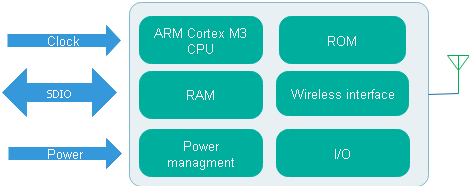

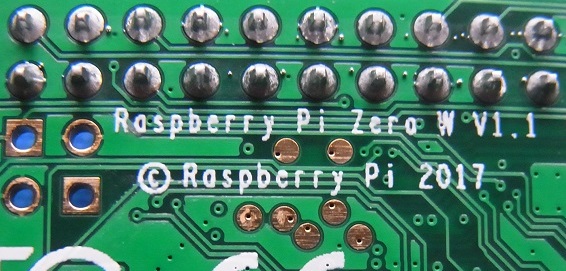
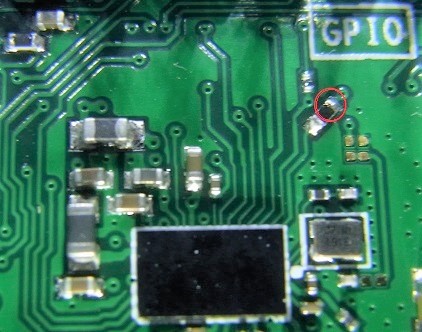
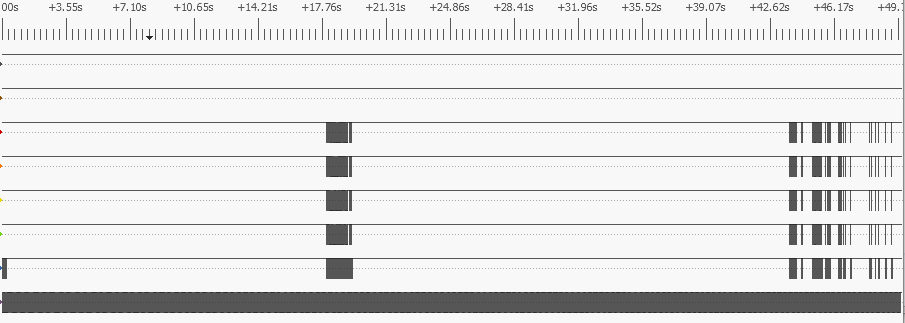
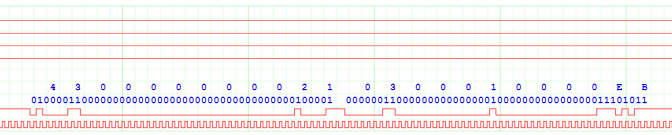

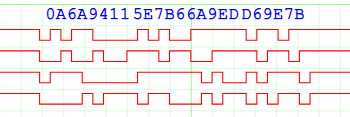


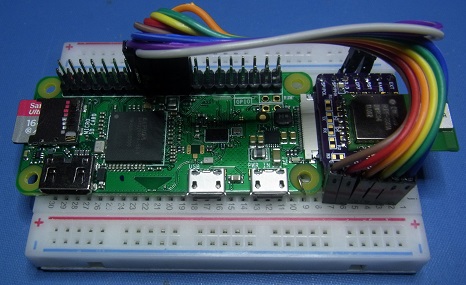


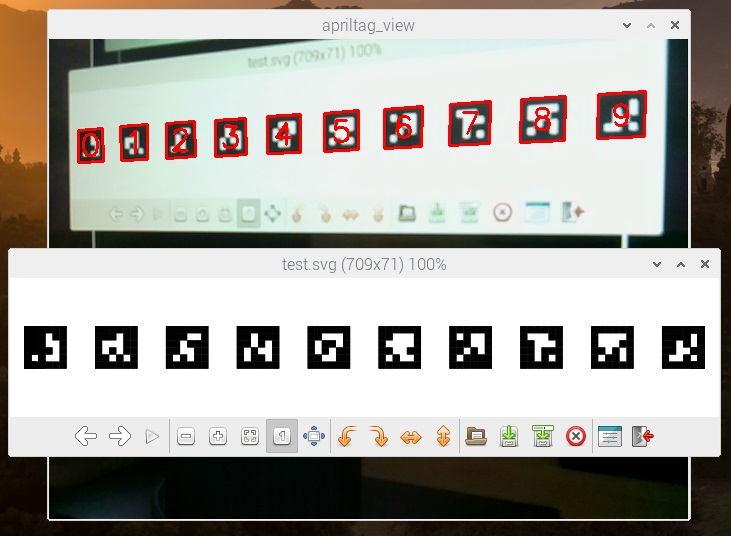






 Lean2
Lean2 