PicoWi part 2: initialisation

PicoWi initialisation steps

In part 1, I described the low-level hardware & software interface to the Broadcom / Cypress / Infineon CYW43439 WiFi chip, and its close relative, the CYW4343W.

Now we need to initialise the chip, so it is ready to receive network commands and data. This involves sending three files to the chip, and unfortunately there is no simple Application Programming Interface (API) to do this; it is necessary to send a detailed sequence of commands, and if there are any errors, you usually end up with a completely unresponsive WiFi chip.

The first step is to check the Active Low Power (ALP) clock; this involves setting a register, then waiting for the WiFi chip to acknowledge that setting.

bool wifi_init(void)
{
    wifi_reg_write(SD_FUNC_BAK, BAK_CHIP_CLOCK_CSR_REG, SD_ALP_REQ, 1);
    if (!wifi_reg_val_wait(10, SD_FUNC_BAK, BAK_CHIP_CLOCK_CSR_REG, 
                           SD_ALP_AVAIL, SD_ALP_AVAIL, 1))
        return(false);

This wait-and-loop scenario is quite common, so I’ve created a specific function for it:

// Check register value every msec, until correct or timeout
bool wifi_reg_val_wait(int ms, int func, int addr, uint32_t mask, uint32_t val, int nbytes)
{
    bool ok;
    
    while (!(ok=wifi_reg_read_check(func, addr, mask, val, nbytes)) && ms--)
        usdelay(1000);
    return(ok);
}

// Read & check a masked value, return zero if incorrect
bool wifi_reg_read_check(int func, int addr, uint32_t mask, uint32_t val, int nbytes)
{
    return((wifi_reg_read(func, addr, nbytes) & mask) == val);
}

A value is obtained from the register, masked with an AND-function, then compared with the required value. If the comparison is false, the code delays for one millisecond, then tries again, until the given time (in milliseconds) has expired.

This raises the question as to what the code should do when it encounters an error such as this; should it try to re-send the command? In practice, the timeout generally means that the internal state of the chip is incorrect; for example, there may have been a bug in the code, or a power glitch, and the only way to correct this situation is to re-power the chip, and start again – fortunately the initialisation process is quite fast (it only takes a few seconds) so this isn’t a major problem.

Assuming the ALP check passes, there are some more register write cycles that I can’t explain in detail, as I don’t have access to any information about the chip that isn’t publicly available.

We then make 2 writes to registers in banked memory, that do deserve more explanation.

#define BAK_BASE_ADDR           0x18000000
#define SRAM_BASE_ADDR          (BAK_BASE_ADDR+0x4000)
#define SRAM_BANKX_IDX_REG      (SRAM_BASE_ADDR+0x10)
#define SRAM_BANKX_PDA_REG      (SRAM_BASE_ADDR+0x44)

wifi_bak_reg_write(SRAM_BANKX_IDX_REG, 0x03, 4);
wifi_bak_reg_write(SRAM_BANKX_PDA_REG, 0x00, 4);

The backplane function can only access a 32K block in the WiFi RAM, so the two addresses we’re writing (18004010 and 18004044 hex) are outside its access range, and we have to use bank-switching. There is a simple check to see if the bank has changed since the last access, in which case no switching is needed:

#define SB_32BIT_WIN    0x8000
#define SB_ADDR_MASK    0x7fff
#define SB_WIN_MASK     (~SB_ADDR_MASK)

// Set backplane window if address has changed
void wifi_bak_window(uint32_t addr)
{
    static uint32_t lastaddr=0;

    addr &= SB_WIN_MASK;
    if (addr != lastaddr)
        wifi_reg_write(SD_FUNC_BAK, BAK_WIN_ADDR_REG, addr>>8, 3);
    lastaddr = addr;
}

// Write a 1 - 4 byte value via the backplane window
int wifi_bak_reg_write(uint32_t addr, uint32_t val, int nbytes)
{
    wifi_bak_window(addr);
    return(wifi_reg_write(SD_FUNC_BAK, addr, val, nbytes));
}

We can now load the binary ARM firmware into the WiFi processor; it is in a file that is unique to the specific Wifi chip, so different files are needed for the CYW43439 and CYW4343w; these are the only differences in the way the chips are programmed.

const unsigned char fw_firmware_data[] = {
0x00,0x00,0x00,0x00,0x65,0x14,0x00,0x00,0x91,0x13,0x00,0x00,0x91,0x13,0x00,0x00,0x91,0x13,0x00,0x00,0x91,0x13,0x00,0x00,0x91,0x13,0x00,0x00,0x91,0x13,0x00,0x00,0x91,0x13,0x00,0x00,0x91,0x13,0x00,0x00,
..and so on..
}
const unsigned int fw_firmware_len = sizeof(fw_firmware_data);

wifi_data_load(SD_FUNC_BAK, 0, fw_firmware_data, fw_firmware_len);

As previously mentioned, the backplane can only access a 32K block, and each SPI access to the backplane is limited to 64 bytes, so the data loading function walks though the memory in 64-byte blocks, and when 32K is reached, the access window is moved up, and the loading resumes at address 0.

#define MAX_BLOCKLEN    64

// Load data block into WiFi chip (CPU firmware or NVRAM file)
int wifi_data_load(int func, uint32_t dest, const unsigned char *data, int len)
{
    int nbytes=0, n;
    uint32_t oset=0;
    
    wifi_bak_window(dest);
    dest &= SB_ADDR_MASK;
    while (nbytes < len)
    {
        if (oset >= SB_32BIT_WIN)
        {
            wifi_bak_window(dest+nbytes);
            oset -= SB_32BIT_WIN;
        }
        n = MIN(MAX_BLOCKLEN, len-nbytes);
        wifi_data_write(func, dest+oset, (uint8_t *)&data[nbytes], n);
        nbytes += n;
        oset += n;
    }
    return(nbytes);
}

After a delay to allow the WiFi chip to settle, the next item to be loaded is the non-volatile RAM (NVRAM) data. This is in the form of a C character array, with each entry being null-terminated, e.g.

const unsigned char fw_nvram_data[0x300] = {
    "manfid=0x2d0"  "\x00"
    "prodid=0x0727" "\x00"
    "vendid=0x14e4" "\x00"
    ..and so on..
}
const unsigned int fw_nvram_len = sizeof(fw_nvram_data);

Loading this file uses the same function as the firmware, with a different base, and a write-cycle to confirm the file length:

#define NVRAM_BASE_ADDR     0x7FCFC

wifi_data_load(SD_FUNC_BAK, NVRAM_BASE_ADDR, fw_nvram_data, fw_nvram_len);
n = ((~(fw_nvram_len / 4) & 0xffff) << 16) | (fw_nvram_len / 4);
wifi_reg_write(SD_FUNC_BAK, SB_32BIT_WIN | (SB_32BIT_WIN-4), n, 4);

Now it is necessary to reset the WiFi processor core, wait for the indication that the High Throughput (HT) clock is available, then wait for an ‘event’ that signals the device is ready. The most common fault I experienced when developing the code was that it gets stuck at this point, waiting for a confirmation that never comes.

// Reset, and wait for High Throughput (HT) clock ready
wifi_core_reset(false);
if (!wifi_reg_val_wait(50, SD_FUNC_BAK, BAK_CHIP_CLOCK_CSR_REG, 
                              SD_HT_AVAIL, SD_HT_AVAIL, 1))
    return(false);
// Wait for backplane ready
if (!wifi_rx_event_wait(100, SPI_STATUS_F2_RX_READY))
    return(false);

Events are the main way that the WiFi chip sends signals or data asynchronously to the RP2040; for a detailed description of how they work, see the next part.

Once the system has signalled it is ready, the Country Locale Matrix (CLM) file has to be loaded. This binary file limits the WiFi parameters (e.g. transmit power level) to be within the regulatory constraints for the specific RF hardware and locale.

const unsigned char fw_clm_data[] = {
	0x42,0x4C,0x4F,0x42,0x3C,0x00,0x00,0x00,0xFA,0x69,0xE0,0xBB,
	0x01,0x00,0x00,0x00,0x02,0x00,0x00,0x00,0x00,0x00,0x00,0x00,
    ..and so on..
};
const unsigned int fw_clm_len = sizeof(fw_clm_data);

wifi_clm_load(fw_clm_data, fw_clm_len);

The loading function uses a specific structure to send IOCTL data blocks to the WiFi chip, with flags to mark the beginning & end of the sequence:

#define MAX_LOAD_LEN        512

typedef struct {
	uint16_t flag;
	uint16_t type;
	uint32_t len;
	uint32_t crc;
} CLM_LOAD_HDR;

typedef struct {
    char req[8];
    CLM_LOAD_HDR hdr;
} CLM_LOAD_REQ;

// Load CLM
int wifi_clm_load(const unsigned char *data, int len)
{
    int nbytes=0, oset=0, n;
    CLM_LOAD_REQ clr = {.req="clmload", .hdr={.type=2, .crc=0}};
    
    while (nbytes < len)
    {
        n = MIN(MAX_LOAD_LEN, len-nbytes);
        clr.hdr.flag = 1<<12 | (nbytes?0:2) | (nbytes+n>=len?4:0);
        clr.hdr.len = n;
        ioctl_set_data2((void *)&clr, sizeof(clr), 1000, (void *)&data[oset], n);
        nbytes += n;
        oset += n;
    }
    return(nbytes);
}

Example program

To show all this code in action, we can run our first complete program;

// PicoWi blinking LED test

#include <stdint.h>
#include <stdbool.h>
#include <stdio.h>
#include "picowi_pico.h"
#include "picowi_spi.h"
#include "picowi_init.h"

int main() 
{
    uint32_t led_ticks;
    bool ledon=false;
    
    io_init();
    printf("PicoWi LED blink\n");
    set_display_mode(DISP_INFO);
    if (!wifi_setup())
        printf("Error: SPI communication\n");
    else if (!wifi_init())
        printf("Error: can't initialise WiFi\n");
    else
    {
        ustimeout(&led_ticks, 0);
        while (1)
        {
            if (ustimeout(&led_ticks, 500000))
                wifi_set_led(ledon = !ledon);
        }
    }
}

This sets up the WiFi chip as described above, prints the 6-byte MAC address, then just loops, flashing the LED that is attached to the Wifi chip at 1 Hz.

The display_mode function controls how much diagnostic information you might want to see, using a bitfield so you can combine multiple options:

// Display mask values
#define DISP_NOTHING    0       // No display
#define DISP_INFO       0x01    // General information
#define DISP_SPI        0x02    // SPI transfers
#define DISP_REG        0x04    // Register read/write
#define DISP_SDPCM      0x08    // SDPCM transfers
#define DISP_IOCTL      0x10    // IOCTL read/write
#define DISP_EVENT      0x20    // Event reception
#define DISP_DATA       0x40    // Data transfers

This can potentially provide a lot of diagnostic information, the main limitation being the speed of the console display – I use a serial link at 460800 baud, since the default of 9600 is much too slow. To see some of the internal workings of PicoWi, try:

set_display_mode(DISP_INFO|DISP_REG|DISP_IOCTL);

You can call this function multiple times with different mode values, to concentrate the diagnostic information on a specific area of interest, and avoid displaying a lot of unwanted information while the WiFi chip is being initialised.

The other unusual feature is the use of the ustimeout function, which I’ve used it in place of the more conventional delay function call, as I don’t want the delay to block all other CPU activity. In a simple program this isn’t an issue, but in later examples I want to do other things (such as checking for events) while waiting for the LED to blink, so can’t use a simple delay.

The ustimeout function takes two arguments; a pointer to a variable, and a timeout value in microseconds (zero if immediate). When the specified time has elapsed, the function returns a non-zero value and reloads the variable with the current time. So you can add extra function calls to the main loop, without affecting the LED blinking.

The code to control the LED uses a single Device I/O Control (IOCTL) call with 2 arguments; the first is a bit-mask, and the second is the value:

#define SD_LED_GPIO     0

// Set WiFi LED on or off
void wifi_set_led(bool on)
{
    ioctl_set_intx2("gpioout", 10, 1<<SD_LED_GPIO, on ? 1<<SD_LED_GPIO : 0);
}

For details on how to build & run this example program, see the introduction.

IOCTL calls are the primary mechanism for high-level communication with the WiFi chip; see the next part for a detailed description.

Project links
IntroductionProject overview
Part 1Low-level interface; hardware & software
Part 2Initialisation; CYW43xxx chip setup
Part 3IOCTLs and events; driver communication
Part 4Scan and join a network; WPA security
Part 5ARP, IP and ICMP; IP addressing, and ping
Part 6DHCP; fetching IP configuration from server
Part 7DNS; domain name lookup
Part 8UDP server socket
Part 9TCP Web server
Part 10Web camera
Source codeFull C source code

Copyright (c) Jeremy P Bentham 2022. Please credit this blog if you use the information or software in it.
PicoWi part 1: low-level interface

Pi Pico W wireless architecture

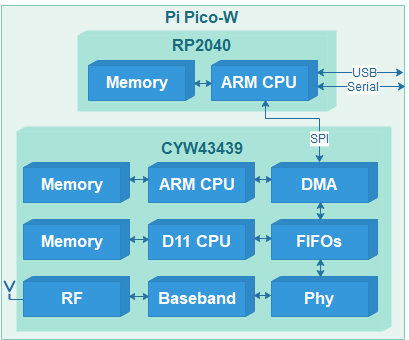
The WiFi interface on the Pico W uses the Broadcom/Cypress/Infineon CYW43439; this is a ‘full’ Media Access and Control (MAC) chip, so in theory you can just tell it to join a network, or send a block of data, and it’ll handle all the low-level operations.

However, in practice there is a lot more complication than that, and it takes a very large number of carefully-timed commands before the chip will start up, let alone do anything useful. This is because it actually contains two processors (ARM M3 and D11), each with their own memory and I/O, and they both have to be programmed before any network operations can start.

The CYW43439 is part of a large family of 43xxx wireless interfaces; most use PCI, USB or SDIO interface for communications with a host processor, but in this case communications is via a Serial Peripheral Interface (SPI) that is half-duplex, i.e. a single wire is used to carry commands & data to the WiFi chip, and also the responses from that chip, as described in the device datasheet.

SPI interface

Pi Pico W interface to CYW43439

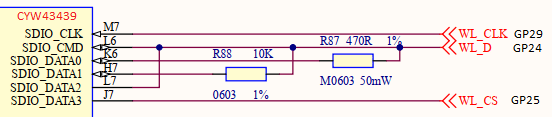
This excerpt from the Pico-W circuit diagram shows the interface between the CYW43439 WiFi chip and the RP2040 CPU. The connections on the WiFi chip are labelled as if there were an SDIO interface, since they are dual-function:

SDIO functionSPI functionRP2040 pin
WL_REG_ONPower up (ON)GP23
SDIO_CLKClock (CLK)GP29
SDIO_CMDData in (MOSI)GP24
SDIO_DATA0Data out (MISO)GP24 via 470R
SDIO_DATA1Interrupt (IRQ)GP24 via 10K
SDIO_DATA2Mode select (SEL)GP24
SDIO_DATA3Chip select (CS)GP25

On chips with dual interfaces, the state of DATA2 at power-up determines which interface is to be used; for SPI, this pin must be held low, before REG_ON is set high to power up the chip.

A single data line is shared between CMD for commands & data going to the WiFi chip, and DATA0 for the returned responses. Just in case there is a clash of I/O (e.g. both the CPU and WiFi chip transmitting at the same time) there is a 470 ohm protection resistor in series with DATA0.

The chip-select line is as usual for SPI interfaces; when it is high, the WiFi interface is disconnected from the data lines. This allows the over-worked data line to be used for a third purpose, namely interrupt request (IRQ) to the RP2040 CPU; when the interface is idle, IRQ is normally low, but goes high when the WiFi chip has some data to send (e.g. a new data packet has been received). To ensure that the IRQ line doesn’t interfere with communications, it is connected via a 10K resistor.

Debug with CYW4343W

When developing this software, there was a major problem; the Pico-W components and PCB tracks are so fine that I couldn’t attach an oscilloscope or logic analyser to the SPI connections. This makes debugging the low-level drivers very difficult, especially when programming the PIO peripheral in the RP2040.

The solution I adopted was to add a second CYW43xxx interface to the Pico; unfortunately I couldn’t find a convenient CYW43439 module, but Avnet sell an FPGA add-on board (part number AES-PMOD-MUR-1DX-G) with a Murata 1DX module containing a CYW4343W. This is sufficiently similar to the 43439 that no code modifications are required, just a different firmware file, as described in part 2 of this post.

Circuitry to add Murata 1DX (CYW4343W) module to Pi Pico

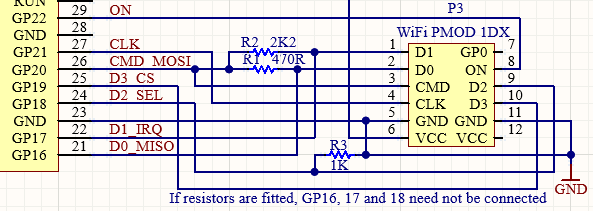
I’ve had to tweak the resistor values slightly; this is because D0 – D4 pins on the module have 10K pullup resistors, so R2 has to be lower to compensate.

The choice of GPIO pins is completely arbitrary, since the code can work with any pin taking any function; I chose D0 – D3 as GP16 – GP19, since it will allow me to experiment with an SDIO interface at a future date. If you are only interested in emulating the standard Pico-W interface, then the connections to GP16 – GP18 can be omitted, since the SPI select line (D2) has a pull-down resistor.

The resulting circuitry fits very neatly onto a Pico prototyping board; by keeping the connections short, it works fine with SPI speeds up to 16 MHz. The only problems I encountered in constructing the hardware were that the PMOD connector has an unusual pin-numbering, and is mis-labelled as Bluetooth.

Pi Pico with Murata 1DX (CYW4343W) add-on module

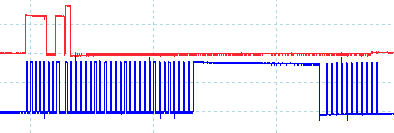
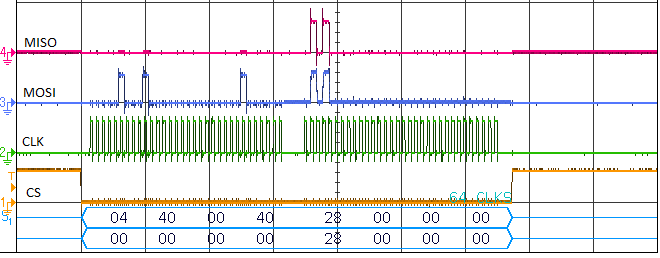
Using this setup, it is easy to capture the SPI waveforms; here is an oscilloscope trace using a (relatively leisurely) 2 MHz clock for clarity.

SPI transfer waveforms

This shows a 4-byte command on the MOSI line, followed by a 4-byte MISO response, which also appears on the MOSI line, due to the 470 ohm resistor linking the two.

SPI software

Normally we’d just use the RP2040 built-in SPI controller to access the WiFi chip, but that has specific sets of pins it can use, which differ from those that are connected to the chip. This isn’t a major problem, as we can use the built-in Programmble I/O (PIO) to do the transfers, but initially I’d just like to check that the hardware works, before diving into PIO programming. So the first step is to write a ‘bit-bashed’ driver, that uses direct access to the I/O bits.

The write-cycle is quite conventional, where a bit (most-significant bit first) is put onto the data line, and the clock is toggled high then low:

// Write data to SPI interface
void spi_write(uint8_t *data, int nbits)
{
    uint8_t b=0;
    int n=0;

    io_mode(SD_CMD_PIN, IO_OUT);
    usdelay(SD_CLK_DELAY);
    b = *data++;
    while (n < nbits)
    {
        IO_WR(SD_CMD_PIN, b & 0x80);
        IO_WR(SD_CLK_PIN, 1);
        b <<= 1;
        if ((++n & 7) == 0)
            b = *data++;
        IO_WR(SD_CLK_PIN, 0);
    }
    usdelay(SD_CLK_DELAY);
    io_mode(SD_CMD_PIN, IO_IN);
    usdelay(SD_CLK_DELAY);
}

If the command is a data-read, the data is read immediately, then the clock is toggled high and low. This is unusual, and can cause confusion in some protocol decoders:

// Read data from SPI interface
void spi_read(uint8_t *data, int nbits)
{
    uint8_t b;
    int n=0;

    data--;
    while (n < nbits)
    {
        b = IO_RD(SD_DIN_PIN);
        IO_WR(SD_CLK_PIN, 1);
        if ((n++ & 7) == 0)
            *++data = 0;        
        *data = (*data << 1) | b;
        IO_WR(SD_CLK_PIN, 0);
    }
 }

A write-cycle to the WiFi chip involves creating a command message as described in the data sheet, setting chip-select (CS) low, and transferring that message, followed by the data.

#define SWAP16_2(x) ((((x)&0xff000000)>>8) | (((x)&0xff0000)<<8) | \
                    (((x)&0xff00)>>8)      | (((x)&0xff)<<8))
#define SD_FUNC_BUS         0
#define SD_FUNC_BAK         1
#define SD_FUNC_RAD         2
#define SD_FUNC_SWAP        4
#define SD_FUNC_BUS_SWAP    (SD_FUNC_BUS | SD_FUNC_SWAP)
#define SD_FUNC_MASK        (SD_FUNC_SWAP - 1)

typedef struct
{
    uint32_t len:11, addr:17, func:2, incr:1, wr:1;
} SPI_MSG_HDR;

// SPI message
typedef union
{
    SPI_MSG_HDR hdr;
    uint32_t vals[2];
    uint8_t bytes[2048];
} SPI_MSG;

// Write a data block using SPI
int wifi_data_write(int func, int addr, uint8_t *dp, int nbytes)
{
    SPI_MSG msg={.hdr = {.wr=1, .incr=1, .func=func&SD_FUNC_MASK,
                         .addr=addr, .len=nbytes}};
    if (func & SD_FUNC_SWAP)
        msg.vals[0] = SWAP16_2(msg.vals[0]);
    io_out(SD_CS_PIN, 0);
    usdelay(SD_CLK_DELAY);
    if (nbytes <= 4)
    {
        memcpy(&msg.bytes[4], dp, nbytes);
        spi_write((uint8_t *)&msg, 64);
    }
    else
    {
        spi_write((uint8_t *)&msg, 32);
        usdelay(SD_CLK_DELAY);
        spi_write(dp, nbytes*8);
    }
    usdelay(SD_CLK_DELAY);
    io_out(SD_CS_PIN, 1);
    usdelay(SD_CLK_DELAY);
    return(nbytes);
}

The command header contains:

  • Length: byte-count of data
  • Address: location to receive the data
  • Function number: destination for the transfer
  • Increment: flag to enable address auto-increment
  • Write: flag to indicate a write-cycle

The unusual item is the function number, that selects which peripheral within the WiFi chip will receive the data; a value of 0 selects the SPI interface, 1 the backplane, and 2 the radio. Functions 0 & 1 are limited to a maximum size of 64 bytes, and are generally used for device configuration, whilst function 2 is used for transferring network data, which can be up to 2048 bytes. I’ve also created a dummy function 4, which is used to signal that a word-swap is required, when the chip is uninitialised.

The read cycle has a similar structure:

// Read data block using SPI
int wifi_data_read(int func, int addr, uint8_t *dp, int nbytes)
{
    SPI_MSG msg={.hdr = {.wr=0, .incr=1, .func=func&SD_FUNC_MASK,
                         .addr=addr, .len=nbytes}};
    uint8_t data[4];

    if (func & SD_FUNC_SWAP)
        msg.vals[0] = SWAP16_2(msg.vals[0]);
    else if (func == SD_FUNC_BAK)
        msg.hdr.len += 4;
    io_out(SD_CS_PIN, 0);
    usdelay(SD_CLK_DELAY);
    spi_write((uint8_t *)&msg, 32);
    io_mode(SD_CMD_PIN, IO_IN);
    usdelay(SD_CLK_DELAY);
    if (func == SD_FUNC_BAK)
        spi_read(data, 32);
    usdelay(SD_CLK_DELAY);
    spi_read(dp, nbytes*8);
    usdelay(SD_CLK_DELAY);
    io_mode(SD_CMD_PIN, IO_OUT);
    io_out(SD_CS_PIN, 1);
    return(nbytes);
}

When making a ‘backplane’ read, the first 4 return bytes are discarded; they are padding to give the remote peripheral time to respond.

Now that we have the necessary read/write functions, we can perform a simple check to see if the WiFi chip is responding. The data sheet describes several ‘gSPI registers’ and the ‘test read-only’ register at address 0x14 has the defined constant 0xFEEDBEAD. The first attempt to read this register generally fails, but subsequent reads should return the desired value:

#define SPI_TEST_VALUE 0xfeedbead
bool ok=0;
for (int i=0; i<4 && !ok; i++)
{
    usdelay(2000);
    val = wifi_reg_read(SD_FUNC_BUS_SWAP, 0x14, 4);
    ok = (val == SPI_TEST_VALUE);
}
if (!ok)
    printf("Error: SPI test pattern %08lX\n", val);

Next we need to configure the SPI interface to our preferences, using register 0, as described in the datasheet. The main change is to eliminate the awkward byte-swapping, but to do that, we need to send a byte-swapped command:

// Write a register using SPI
int spi_reg_write(int func, uint32_t addr, uint32_t val, int nbytes)
{
    if (func&SD_FUNC_SWAP && nbytes>1)
        val = SWAP16_2(val);
    return(wifi_data_write(func, addr, (uint8_t *)&val, nbytes));
}

wifi_reg_write(SD_FUNC_BUS_SWAP, SPI_BUS_CONTROL_REG, 0x204b3, 4);

Now we can re-read the test register without the awkward byte-swapping:

wifi_reg_read(SD_FUNC_BUS, 0x14, 4);

Another parameter we’ve set is ‘high-speed mode’, which means that reading & writing occur on the rising clock edge.

Using RP2040 PIO

To maximise the speed of SPI transfers, we need to use a peripheral within the RP2040 CPU. Normally this would be an SPI controller, but this can not control the pins that are connected to the WiFi chip, so we have to use the Programmable I/O (PIO) peripheral instead.

There are plenty of online tutorials explaining how PIO works; it is basically a small state-machine that is programmed in assembly-language. It operates in a highly deterministic fashion, at a rate of up to 125M instructions per second, so is ideally suited to handling the SPI interface.

I wanted to use the PIO as a direct replacement for the bit-bashed spi_read and spi_write functions described above, so the PIO program is:

; Pico PIO program for half-duplex SPI transfers
.program picowi_pio
.side_set 1
.wrap_target
.origin 0
public stall:               ; Stall here when transfer complete
    pull            side 0  ; Get byte to transmit from FIFO
loop1:
    nop             side 0  ; Idle with clock low
    in pins, 1      side 0  ; Fetch next Rx bit
    out pins, 1     side 0  ; Set next Tx bit 
    nop             side 1  ; Idle high
    jmp !osre loop1 side 1  ; Loop if data in shift reg
    push            side 0  ; Save Rx byte in FIFO
.wrap
; EOF

The origin statement ensures the program is loaded at address zero, rather than the default, which is to load it at the top of program memory.

The ‘pull’ instruction fetches an 8-bit value from the transmit first-in first-out (FIFO) buffer, then there is a loop to output & input the individual bits of that byte until the transmit shift register is empty, and the receive register is full, so the latter can be pushed onto the receive FIFO.

So for SPI write, the associated C code just needs to keep the 4-entry transmit FIFO topped up with the outgoing data, and discard the incoming data, so the receive FIFO doesn’t overflow.

static PIO my_pio = pio0;
uint my_sm = pio_claim_unused_sm(my_pio, true);
io_rw_8 *my_txfifo = (io_rw_8 *)&my_pio->txf[0];

// Write data block to SPI interface,
// When complete, set data pin as I/P (so it is available for IRQ)
void pio_spi_write(unsigned char *data, int len)
{
    config_output(1);
    pio_sm_clear_fifos(my_pio, my_sm);
    while (len)
    {
        if (!pio_sm_is_tx_fifo_full(my_pio, my_sm))
        {
            *my_txfifo = *data++;
            len --;
        }
        if (!pio_sm_is_rx_fifo_empty(my_pio, my_sm))
            pio_sm_get(my_pio, my_sm);
    }
    while (!pio_sm_is_tx_fifo_empty(my_pio, my_sm) || !pio_complete())
    {
        while (!pio_sm_is_rx_fifo_empty(my_pio, my_sm))
            pio_sm_get(my_pio, my_sm);
    }
    pio_sm_get(my_pio, my_sm);
    config_output(0);
}

The SPI read code fills the transmit FIFO with null bytes, and fetches the incoming data from the receive FIFO:

// Read data block from SPI interface
void pio_spi_read(unsigned char *data, int rxlen)
{
    int txlen=rxlen;
    pio_sm_clear_fifos(my_pio, my_sm);
    while (rxlen > 0 || !pio_complete())
    {
        if (txlen>0 && !pio_sm_is_tx_fifo_full(my_pio, my_sm))
        {
            *my_txfifo = 0;
            txlen--;
        }
        if (!pio_sm_is_rx_fifo_empty(my_pio, my_sm))
        {
            *data++ = pio_sm_get(my_pio, my_sm);
            rxlen--;
        }
    }
}

Since the reading of a WiFi register involves an SPI write cycle closely followed by a read cycle, it is important that the write cycle is complete before the read cycle starts. This issue proved to be the biggest problem with the PIO code; it is easy to detect when the transmit FIFO is empty, but the code must carry on waiting until the last bit of the last byte has been shifted out. This means that I have to use an explicitly-coded loop in the assembly language, with a check of shift-register-empty, rather than using the auto-load capability of the input & output instructions.

The other tricky issue was how the assembly-language program should signal to the C program that the output-shift is complete. In theory, I can use an IRQ flag to do this signalling, but in practice I could not make that work reliably – the technique would only work at specific clock frequencies, which suggested that there might be a critical race between the two sets of code. The problem with timing-sensitive code is that a small unrelated change to the main program (e.g. addition of an interrupt) can cause the code to fail in a manner that is very difficult to diagnose, so it is essential that the code works reliably over a wide range of SPI frequencies.

The solution I adopted is encapsulated in the pio_complete function:

// Check to see if PIO transfer complete (stalled at FIFO pull)
static inline int pio_complete(void)
{
    return(my_pio->sm[my_sm].addr == picowi_pio_offset_stall);
}

This compares the current PIO execution address with the ‘stall’ label in the PIO code; if the transmit FIFO is empty, and this comparison is true, then the PIO is stalled waiting for more data, having shifted out everything it was given.

In a single-threaded program, it won’t be too difficult to keep the transmit FIFO topped up, and the receive FIFO emptied, so there is no risk of an overflow or underflow causing problems. However, this is more difficult when the program is multi-tasking, so it will be necessary to add Direct Memory Access (DMA) transfers to the current code.

Update: increasing SPI speed

The code-update has a much-improved SPI interface driver, which can achieve an SPI speed up to 62 MHz. There were 2 obstacles to achieving this speed; the first was the absence of DMA, which is easily rectified, then there was a more complicated issue due to the way the hardware is designed.

Direct Memory Access

DMA isn’t difficult, since the Pico SDK provides some really helpful functions, e.g. to set up transmission from a PIO channel:

uint wifi_tx_dma_dreq, wifi_tx_dma_dreq;
dma_channel_config cfg;
   
wifi_tx_dma_dreq = pio_get_dreq(wifi_pio, wifi_sm, true);
wifi_tx_dma_chan = dma_claim_unused_channel(true);
cfg = dma_channel_get_default_config(wifi_tx_dma_chan);
channel_config_set_transfer_data_size(&cfg, DMA_SIZE_8);
channel_config_set_read_increment(&cfg, true);
channel_config_set_write_increment(&cfg, false);
channel_config_set_dreq(&cfg, wifi_tx_dma_dreq);
dma_channel_configure(wifi_tx_dma_chan, &cfg, &wifi_pio->txf[wifi_sm], NULL, 8, false);

Then to initiate a DMA transfer:

dma_channel_transfer_from_buffer_now(wifi_tx_dma_chan, dp, nbits / 8);
dma_channel_wait_for_finish_blocking(wifi_tx_dma_chan);

I’ve chosen to stall (‘block’) the CPU until the DMA transfer is complete, but it could carry on executing code while the transfer progresses.

SPI speedup

Pi Pico-W interface to CYW43439

To save on I/O pins, the Pi Pico designer decided to use one pin to carry the incoming data from the CPU, the outgoing data to the CPU, and the interrupt signal. To avoid the possibility of an I/O clash when handling these 3 signals, the incoming & outgoing data pins aren’t directly connected together; there is a 470 ohm resistor in series with the data input.

In the previous code, we could ignore this resistor, since at a low data rate it has no real effect. However, as we increase the speed, the series resistance combines with the parallel (‘shunt’) capacitance to slow down the edges of the received data, resulting in errors. The obvious way to handle this is to slow the clock down, but since most SPI drivers work on the principle of simultaneously sending and receiving each byte, this means that SPI transmission is slowed down as well.

My solution is to split the SPI code into 2 separate functions, so the PIO either transmits or receives, and the slower reception doesn’t hinder the faster transmission.

The resulting PIO transmit code is simplified, so is much faster:

.origin 0
public stall:                   ; Stall here when transfer complete

; Write data to SPI (42 MHz SPI clock, if divisor is set to 1)
public writer:
    pull                side 0  ; Get byte to transmit from FIFO
  wrloop:
    nop                 side 0  ; Delay (if deleted, SPI clock is 63 MHz)
    out pins, 1         side 0  ; Set next Tx bit 
    jmp !osre wrloop    side 1  ; Loop if data in shift reg
.wrap

One of the difficulties with transmission is how to determine when it has completely finished, i.e. with both the FIFO and the shift register empty. For this reason I use an OSRE (output shift register empty) loop, such that I can detect when the transfer is complete using the pio_complete function described above.

As written above, the SPI runs at 41.7 MHz (125 MHz / 3), but it will also work at 62.5 MHz (125 MHz / 2) by deleting one of the ‘nop’ instructions, though this does violate the timing specification of the CYW43439, which is limited to 50 MHz. [Note: I am aware of the ability of the fractional divider to generate a more exact 50 MHz frequency, however this is done by inserting occasional delays into PIO instructions, so although the net data rate is 50 MHz, there are peaks of 62 MHz, so this still violates the timing specification].

The PIO read code is a lot more relaxed:

; Read data from SPI (25 MHz SPI clock, if divisor is set to 1)
public reader:
    pull                side 0  ; Get byte count from host FIFO
    out x, 32           side 0  ; Copy into x register
  byteloop:
    set y, 7            side 0  ; For each bit in byte..
  bitloop:
    nop                 side 1  ; Delay
    nop                 side 1
    nop                 side 1
    in pins, 1          side 0  ; Input SPI data bit
    jmp y--, bitloop    side 0  ; Loop until byte received
    push                side 0  ; Put byte in host FIFO
    jmp x--, byteloop   side 0  ; Loop until all bytes received
    jmp reader          side 0  ; Loop to start next transfer

This is triggered by putting a byte-count (minus 1) in the FIFO, then the code fetches that number of bytes, and DMA is used to transfer them into from the FIFO into memory. The code needs quite a bit of padding to be slow enough, so I haven’t used auto-push.

I originally put the transmit & receive code in separate PIO instances, but ran into problems with the interaction between the two – I couldn’t get them to share control of the I/O pins. So now I just use a single PIO instance, and select which program to execute by forcing a PIO ‘jump’ command before executing the code, e.g. for writing:

// Write data block to SPI interface
void wifi_spi_write(uint8_t *dp, int nbits)
{
    pio_sm_clear_fifos(wifi_pio, wifi_sm);
    pio_sm_exec(wifi_pio, wifi_sm, pio_encode_jmp(picowi_pio_offset_writer));
    pio_sm_set_consecutive_pindirs(wifi_pio, wifi_sm, SD_CMD_PIN, 1, true);
    dma_channel_transfer_from_buffer_now(wifi_tx_dma_chan, dp, nbits / 8);
    dma_channel_wait_for_finish_blocking(wifi_tx_dma_chan);
}

..and for reading

void wifi_spi_read(uint8_t *dp, int nbits)
{
    int rxlen = nbits / 8;
    int reader = picowi_pio_offset_reader;
    pio_sm_exec(wifi_pio, wifi_sm, pio_encode_jmp(reader));
    dma_channel_transfer_to_buffer_now(wifi_rx_dma_chan, dp, nbits / 8);
    pio_sm_put(wifi_pio, wifi_sm, rxlen - 1);
    dma_channel_wait_for_finish_blocking(wifi_rx_dma_chan);
}

In the next part we’ll initialise the WiFi chip.

Project links
IntroductionProject overview
Part 1Low-level interface; hardware & software
Part 2Initialisation; CYW43xxx chip setup
Part 3IOCTLs and events; driver communication
Part 4Scan and join a network; WPA security
Part 5ARP, IP and ICMP; IP addressing, and ping
Part 6DHCP; fetching IP configuration from server
Part 7DNS; domain name lookup
Part 8UDP server socket
Part 9TCP Web server
Part 10 Web camera
Source codeFull C source code

Copyright (c) Jeremy P Bentham 2022. Please credit this blog if you use the information or software in it.
PicoWi: standalone WiFi driver for the Pi Pico W

Introduction

Raspberry Pi Pico W

The aim of this project is to provide a fast WiFi driver and TCP/IP stack for the CYW43439 chip on the Pi Pico W module, with C code running on the RP2040 processor; it can also be used with similar Broadcom / Cypress / Infineon chips that have an SPI interface, such as the CYW4343W.

It is based on my Zerowi project that performs a similar function on the Pi Zero device CYW43438, which has an SDIO interface. However, due to myriad difficulties getting the code running, the code has been restructured and simplified to emphasise the various stages in setting up the chip, and to provide copious run-time diagnostics.

The structured approach of the WiFi drivers is mirrored in the example programs, and the individual parts of this blog; they range from a simple LED-flash program, to one that provides TCP functionality.

A major problem with debugging Pico-W code is the difficulty attaching any hardware diagnostic tools, such as an oscilloscope or logic analyser; this has been addressed by supporting an add-on board with a Murata 1DX module and CYW4343W chip; full details are given in part 1 of this project.

Development environment

For simplicity, I use a Raspberry Pi 4 to build the code and program the Pico, with two I/O lines connected to the Pico SWD interface. This is really easy to set up, using a single script that installs the SDK and all the necessary software tools on the Pi 4:

wget https://raw.githubusercontent.com/raspberrypi/pico-setup/master/pico_setup.sh
chmod +x pico_setup.sh
./pico_setup.sh

For SWD programming, the Pico must be connected to the I/O pins on the Pi as follows:

Pico SWCLK   Pi pin 22 (GPIO 25)
Pico GND     Pi pin 20
Pico SWDIO   Pi pin 18 (GPIO 24)

The serial interface is used extensively for displaying diagnostic information; pin 1 of the Pico is the serial output, and pin 3 is ground. I use a 3.3 volt FTDI USB-serial adaptor to display the serial output on a PC, but the Pi 4 serial input could be used instead.

If you want to develop using a Windows PC, you can find several online guides as to how this might be set up, but I have experienced problems with the methods I tried. So far, the only good setup for Windows I’ve found is VisualGDB, which has a wide range of very useful features, but is not free.

The PicoWi source code is on github. To load it on the Pi 4:

cd ~
git clone http://github.com/jbentham/picowi
cd ~/picowi/build
chmod +x prog
chmod +x reset

I’ve included the necessary CMakeLists.txt, so the project can be built using the following commands:

cd ~/picowi/build
cmake ..      # create the makefiles
make picowi   # make the picowi library
make blink    # make the 'blink' application
./prog blink  # program the RP2040, and run the application

When building the current pico-SDK, there are some ‘parameter passing’ warnings when the pio assembler is compiled; these can be ignored.

Compilation is reasonably fast on the Pi 4; once the SDK libraries have been built, you can do a complete re-build of the PicoWi library and application within 10 seconds, and reprogram the RP2040 in under 3 seconds.

The ‘reset’ command is useful when you just want to restart the Pico, without loading any new code.

If OpenOCD reports ‘read incorrect DLIPDR’ then there is a problem with the wiring. I’ve set the SWD speed to 3 MHz, which should work error-free, providing the wires are sufficiently short (e.g. under 6 inches or 150 mm) and there are good power & ground connections between the Pi & Pico. I use a short USB cable to power the Pico from the Pi, and this is generally problem-free, though sometimes the Pi won’t boot with the Pico connected; this appears to be a USB communication problem.

Compile-time settings

There are two settings in the CMakeLists.txt file, one to choose between the on-board CYW43439 device, or an external CYW4343W module:

# Set to 0 for Pico-W CYW43439, 1 for Murata 1DX (CYW4343W)
set (CHIP_4343W 0)

The other enables or disables optimisation. It is necessary to disable compiler optimisation when debugging, as it makes the code execution difficult to follow, but it should be enabled for release code, as there is a significant speed improvement.

# Set debug or release version
set (RELEASE 1)

The Pico-specific settings are in picowi_pico.h:

#define USE_GPIO_REGS   0       // Set non-zero for direct register access
                                // (boosts SPI from 2 to 5.4 MHz read, 7.8 MHz write)
#define SD_CLK_DELAY    0       // Clock on/off delay time in usec
#define USE_PIO         1       // Set non-zero to use Pico PIO for SPI
#define PIO_SPI_FREQ    8000000 // SPI frequency if using PIO

These affect the way the SPI interface is driven; the default is to use the Pico PIO (programmable I/O) with the given clock frequency; 8 MHz is a conservative value, I have run it at 12MHz, and higher speeds should be possible with some tweaking of the I/O settings.

Setting USE_PIO to zero will enable a ‘bit-bashed’ (or ‘bit-banged’) driver; this can run over 7 MHz if using direct register writes, or 2 MHz if using normal function calls.

You’ll note that I haven’t included a driver for the SPI peripheral inside the RP2040; this would have been easier to use than the PIO peripheral, but the on-board CYW43439 chip isn’t connected to suitable I/O pins. The actual pins used are defined in picowi_pico.h:

#define SD_ON_PIN       23
#define SD_CMD_PIN      24
#define SD_DIN_PIN      24
#define SD_D0_PIN       24
#define SD_CS_PIN       25
#define SD_CLK_PIN      29
#define SD_IRQ_PIN      24

You’ll see that pin 24 is performing multiple functions; this hardware configuration is discussed in detail in the next part of this blog. If you are using an external module, the pin definitions can be modified to use any of the RP2040 I/O pins.

Diagnostic settings

My code makes extensive use of a serial console for diagnostic purposes, and I generally use an FTDI USB-serial adaptor connected to pin 1 of the Pico module to monitor this, at the default 115K baud.

You can use the Pico USB link instead; it must be enabled in the CMakeLists.txt, using the name of the main file, for example to enable it for the ‘ping’ example program:

pico_enable_stdio_usb(ping 1)

Then you can use a terminal program such as minicom on the Pi 4 to view the console:

# Run minicom, press ctrl-A X to exit. 
minicom -D /dev/ttyACM0 -b 115200

A disadvantage of this approach is that when the Pico is reprogrammed, its CPU is reset, which causes a failure of the USB link. After a few seconds, the link is re-established, but there will be a gap in the console display, which can be misleading. Also, the extra workload of maintaining a (potentially very busy) USB connection can cause timing problems, the CPU periodically going unresponsive while it services the USB link. So if you are making extensive use of the diagnostics, or are doing throughput tests, a hard-wired serial interface is strongly recommended.

You can control the extent to which diagnostic data is reported on the console; this is done by inserting function calls, rather than using compile-time definitions, to give fine-grained control. The display options are in a bitfield, so can be individually enabled or disabled, for example:

// Display SPI traffic details
set_display_mode(DISP_INFO|DISP_EVENT|DISP_SDPCM|
                 DISP_REG|DISP_JOIN|DISP_DATA);

// Display nothing
set_display_mode(DISP_NOTHING);

// Display ARP and ICMP data transfers
set_display_mode(DISP_ARP|DISP_IP|DISP_ICMP);

WiFi network

For the time being, the code does not support the Access Point functionality within the WiFi chip. It can only join a network that is unencrypted, or with WPA1 or WPA2 encryption, as set in the file picowi_join.h:

// Security settings: 0 for none, 1 for WPA_TKIP, 2 for WPA2
#define SECURITY            2

The network name (SSID) and password are defined in the ‘main’ file for each application, e.g. join.c or ping.c, which means they are insecure, as they can be seen by anyone with access to the source code or binary executable:

// Insecure password for test purposes only!!!
#define SSID                "testnet"
#define PASSWD              "testpass"

Other resources

The data sheets for the CYW43439 and CYW4343W are well worth a read, as they contain a good description of the low-level SPI interface, but contain nothing on the inner workings of these incredibly complicated chips. The Infineon WICED development environment has very comprehensive coverage of the WiFi chips, though it would take some work to port this code to the RP2040. The Pi Pico SDK contains the full source code to drive the CYW43439, with the lwIP (lightweight IP) open-source TCP/IP stack.

I’m using a different approach, with a completely new low-level driver, and a built-in TCP/IP stack to maximise throughput, as described in the following parts:

Project links
IntroductionProject overview
Part 1Low-level interface; hardware & software
Part 2Initialisation; CYW43xxx chip setup
Part 3IOCTLs and events; driver communication
Part 4Scan and join a network; WPA security
Part 5ARP, IP and ICMP; IP addressing, and ping
Part 6DHCP; fetching IP configuration from server
Part 7DNS; domain name lookup
Part 8UDP server socket
Part 9TCP Web server
Part 10 Web camera
Source codeFull C source code

I’ll be releasing updates with more TCP/IP functionality.

Copyright (c) Jeremy P Bentham 2022. Please credit this blog if you use the information or software in it.

Web display for Pi Pico oscilloscope

Web oscilloscope display

In part 1 of this series, I added WiFi connectivity to the Pi Pico using an ESP32 moduleand MicroPython. Part 2 showed how Direct Memory Access (DMA) can be used to get analog samples at regular intervals from the Pico on-board Analog Digital Converter (ADC).

I’m now combining these two techniques with some HTML and Javascript code to create a Web display in a browser, but since this code will be quite complicated, first I’ll sort out how the data is fetched from the Pico Web server.

Data request

The oscilloscope display will require user controls to alter the sample rate, number of samples, and any other settings we’d like to change. These values must be sent to the Web server, along with a filename that will trigger the acquisition. To fetch 1000 samples at 10000 samples per second, the request received by the server might look like:

GET /capture.csv?nsamples=1000&xrate=10000

If you avoid any fancy characters, the Python code in the server that extracts the filename and parameters isn’t at all complicated:

ADC_SAMPLES, ADC_RATE = 20, 100000
parameters = {"nsamples":ADC_SAMPLES, "xrate":ADC_RATE}

# Get HTTP request, extract filename and parameters
req = esp.get_http_request()
if req:
    line = req.split("\r")[0]
    fname = get_fname_params(line, parameters)

# Get filename & parameters from HTML request
def get_fname_params(line, params):
    fname = ""
    parts = line.split()
    if len(parts) > 1:
        p = parts[1].partition('?')
        fname = p[0]
        query = p[2].split('&')
        for param in query:
            p = param.split('=')
            if len(p) > 1:
                if p[0] in params:
                    try:
                        params[p[0]] = int(p[1])
                    except:
                        pass
    return fname

The default parameter names & values are stored in a dictionary, and when the URL is decoded, and names that match those in the dictionary will have their values updated. Then the data is fetched using the parameter values, and returned in the form of a comma-delimited (CSV) file:

if CAPTURE_CSV in fname:
    vals = adc_capture()
    esp.put_http_text(vals, "text/csv", esp32.DISABLE_CACHE)

The name ‘comma-delimited’ is a bit of a misnomer in this case, we just with the given number of lines, with one floating-point voltage value per line.

Requesting the data

Before diving into the complexities of graphical display and Javascript, it is worth creating a simple Web page to fetch this data.

The standard way of specifying parameters with a file request is to define a ‘form’ that will be submitted to the server. The parameter values can be constrained using ‘select’, to avoid the user entering incompatible numbers:

<html><!DOCTYPE html><html lang="en">
<head><meta charset="utf-8"/></head><body>
  <form action="/capture.csv">
    <label for="nsamples">Number of samples</label>
    <select name="nsamples" id="nsamples">
      <option value=100>100</option>
      <option value=200>200</option>
	  <option value=500>500</option>
      <option value=1000>1000</option>
    </select>
    <label for="xrate">Sample rate</label>
    <select name="xrate" id="xrate">
      <option value=1000>1000</option>
      <option value=2000>2000</option>
	  <option value=5000>5000</option>
      <option value=10000>10000</option>
    </select>
	<input type="submit" value="Submit">
  </form>
</body></html>

This generates a very simple display on the browser:

Form to request ADC samples

On submitting the form, we get back a raw list of values:

CSV data

Since the file we have requested is pure CSV data, that is all we get; the controls have vanished, and we’ll have to press the browser ‘back’ button if we want to retry the transaction. This is quite unsatisfactory, and to improve it there are various techniques, for example using a template system to always add the controls at the top of the data. However, we also want the browser to display the data graphically, which means a sizeable amount of Javascript, so we might as well switch to a full-blown AJAX implementation, as mentioned in the first part.

AJAX

To recap, AJAX originally stood for ‘Asynchronous JavaScript and XML’, where the Javascript on the browser would request an XML file from the server, then display data within that file on the browser screen. However, there is no necessity that the file must be XML; for simple unstructured data, CSV is adequate.

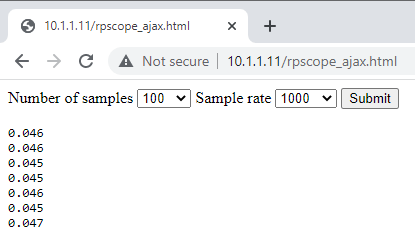
The HTML page is similar to the previous one, the main changes are that we have specified a button that’ll call a Javascript function when clicked, and there is a defined area to display the response data; this is tagged as ‘preformatted’ so the text will be displayed in a plain monospaced style.

  <form id="captureForm">
    <label for="nsamples">Number of samples</label>
    <select name="nsamples" id="nsamples">
      <option value=100>100</option>
      <option value=200>200</option>
	  <option value=500>500</option>
      <option value=1000>1000</option>
    </select>
    <label for="xrate">Sample rate</label>
    <select name="xrate" id="xrate">
      <option value=1000>1000</option>
      <option value=2000>2000</option>
	  <option value=5000>5000</option>
      <option value=10000>10000</option>
    </select>
    <button onclick="doSubmit(event)">Submit</button>
  </form>
  <pre><p id="responseText"></p></pre>

The button calls the Javascript function ‘doSubmit’ when clicked, with the click event as an argument. As this button is in a form, by default the browser would attempt to re-fetch the current document using the form data, so we need to block this behaviour and substitute the action we want, which is to wait until the response is obtained, and display it in the area we have allocated. This is ‘asynchronous’ (using a callback function) so that the browser doesn’t stall waiting for the response.

function doSubmit() {
  // Eliminate default action for button click
  // (only necessary if button is in a form)
  event.preventDefault();

  // Create request
  var req = new XMLHttpRequest();

  // Define action when response received
  req.addEventListener( "load", function(event) {
    document.getElementById("responseText").innerHTML = event.target.responseText;
  } );

  // Create FormData from the form
  var formdata = new FormData(document.getElementById("captureForm"));

  // Collect form data and add to request
  var params = [];
  for (var entry of formdata.entries()) {
    params.push(entry[0] + '=' + entry[1]);
  }
  req.open( "GET", "/capture.csv?" + encodeURI(params.join("&")));
  req.send();
}

The resulting request sent by the browser looks something like:

GET /capture.csv?nsamples=100&xrate=1000

This is created by looping through the items in the form, and adding them to the base filename. When doing this, there is a limited range of characters we can use, in order not to wreck the HTTP request syntax. I have used the ‘encodeURI’ function to encode any of these unusable characters; this isn’t necessary with simple parameters that are just alphanumeric values, but if I’d included a parameter with free-form text, this would be needed. For example, if one parameter was a page title that might include spaces, then the title “Test page” would be encoded as

GET /capture.csv?nsamples=100&xrate=1000&title=Test%20page

You may wonder why I am looping though the form entries, when in theory they can just be attached to the HTTP request in one step:

// Insert form data into request - doesn't work!
req.open("GET", "/capture.csv");
req.send(formdata);

I haven’t been able to get this method to work; I think the problem is due to the way the browser adapts the request if a form is included, but in the end it isn’t difficult to iterate over the form entries and add them directly to the request.

The resulting browser display is a minor improvement over the previous version, in that it isn’t necessary to use the ‘back’ button to re-fetch the data, but still isn’t very pretty.

Partial display of CSV data

Graphical display

There many ways to display graphic content within a browser. The first decision is whether to use vector graphics, or a bitmap; I prefer the former, since it allows the display to be resized without the lines becoming jagged.

There is a vector graphics language for browsers, namely Scalable Vector Graphics (SVG) and I have experimented with this, but find it easier to use Javascript commands to directly draw on a specific area of the screen, known as an ‘HTML canvas’, that is defined within the HTML page:

<div><canvas id="canvas1"></canvas></div>

To draw on this, we create a ‘2D context’ in Javascript:

var ctx1 = document.getElementById("canvas1").getContext("2d");

We can now use commands such as ‘moveto’ and ‘lineto’ to draw on this context; a useful first exercise is to draw a grid across the display.

var ctx1, xdivisions=10, ydivisions=10, winxpad=10, winypad=30;
var grid_bg="#d8e8d8", grid_fg="#40f040";
window.addEventListener("load", function() {
  ctx1 = document.getElementById("canvas1").getContext("2d");
  resize();
  window.addEventListener('resize', resize, false);
} );

// Draw grid
function drawGrid(ctx) {
  var w=ctx.canvas.clientWidth, h=ctx.canvas.clientHeight;
  var dw = w/xdivisions, dh=h/ydivisions;
  ctx.fillStyle = grid_bg;
  ctx.fillRect(0, 0, w, h);
  ctx.lineWidth = 1;
  ctx.strokeStyle = grid_fg;
  ctx.strokeRect(0, 1, w-1, h-1);
  ctx.beginPath();
  for (var n=0; n<xdivisions; n++) {
    var x = n*dw;
    ctx.moveTo(x, 0);
    ctx.lineTo(x, h);
  }
  for (var n=0; n<ydivisions; n++) {
    var y = n*dh;
    ctx.moveTo(0, y);
    ctx.lineTo(w, y);
  }
  ctx.stroke();
}

// Respond to window being resized
function resize() {
  ctx1.canvas.width = window.innerWidth - winxpad*2;
  ctx1.canvas.height = window.innerHeight - winypad*2;
  drawGrid(ctx1);
}

I’ve included a function that resizes the canvas to fit within the window, which is particularly convenient when getting a screen-grab for inclusion in a blog post:

All that remains is to issue a request, wait for the response callback, and plot the CSV data onto the canvas.

var running=false, capfile="/capture.csv"

// Do a single capture (display is done by callback)
function capture() {
  var req = new XMLHttpRequest();
  req.addEventListener( "load", display);
  var params = formParams()
  req.open( "GET", capfile + "?" + encodeURI(params.join("&")));
  req.send();
}

// Display data (from callback event)
function display(event) {
  drawGrid(ctx1);
  plotData(ctx1, event.target.responseText);
  if (running) {
    window.requestAnimationFrame(capture);
  }
}

// Get form parameters
function formParams() {
  var formdata = new FormData(document.getElementById("captureForm"));
  var params = [];
  for (var entry of formdata.entries()) {
    params.push(entry[0]+ '=' + entry[1]);
  }
  return params;
}

A handy feature is to have the display auto-update when the current data has been displayed; I’ve done this by using requestAnimationFrame to trigger another capture cycle, if the global ‘running’ variable is set. Then we just need some buttons to control this feature:

<button id="single" onclick="doSingle()">Single</button>
<button id="run"  onclick="doRun()">Run</button>
// Handle 'single' button press
function doSingle() {
  event.preventDefault();
  running = false;
  capture();
}

// Handle 'run' button press
function doRun() {
  event.preventDefault();
  running = !running;
  capture();
}

The end result won’t win any prizes for style or speed, but it does serve as a useful basis for acquiring & displaying data in a Web browser.

100 Hz sine wave

You’ll see that the controls have been rearranged slightly, and I’ve also added a ‘simulate’ checkbox; this invokes MicroPython code in the Pico Web server that doesn’t use the ADC; instead it uses the CORDIC algorithm to incrementally generate sine & cosine values, which are multiplied, with some random noise added:

# Simulate ADC samples: sine wave plus noise
def adc_sim():
    nsamp = parameters["nsamples"]
    buff = array.array('f', (0 for _ in range(nsamp)))
    f, s, c = nsamp/20.0, 1.0, 0.0
    for n in range(0, nsamp):
        s += c / f
        c -= s / f
        val = ((s + 1) * (c + 1)) + random.randint(0, 100) / 300.0
        buff[n] = val
    return "\r\n".join([("%1.3f" % val) for val in buff])
Distorted sine wave with random noise added

Running the code

If you haven’t done so before, I suggest you run the code given in the first and second parts, to check the hardware is OK.

Load rp_devices.py and rp_esp32.py onto the Micropython filesystem, not forgetting to modify the network name (SSID) and password at the top of that file. Then load the HTML files rpscope_capture, rpscope_ajax and rpscope_display, and run the MicroPython server rp_adc_server.py using Thonny. The files are on Github here.

You should then be able to display the pages as shown above, using the IP address that is displayed on the Thonny console; I’ve used 10.1.1.11 in the examples above.

When experimenting with alternative Web pages, I found it useful to run a Web server on my PC, as this allows a much faster development process. There are many ways to do this, the simplest is probably to use the server that is included as standard in Python 3:

python -m http.server 8000

This makes the server available on port 8000. If the Web browser is running on the same PC as the server, use the ‘localhost’ address in the browser, e.g.

http://127.0.0.1:8000/rpscope_display.html

This assumes the HTML file is in the same directory that you used to invoke the Web server. If you also include a CSV file named ‘capture.csv’, then it will be displayed as if the data came from the Pico server.

However, there is one major problem with this approach: the CSV file will be cached by the browser, so if you change the file, the display won’t change. This isn’t a problem on the Pico Web server, as it adds do-not-cache headers in the HTTP response. The standard Python Web server doesn’t do that, so will use the cached data, even after the file has changed.

One other issue is worthy of mention; in my setup, the ESP32 network interface sometimes locks up after it has transferred a significant amount of data, which means the Web server becomes unresponsive. This isn’t an issue with the MicroPython code, since the ESP32 doesn’t respond to pings when it is in this state. I’m using ESP32 Nina firmware v 1.7.3; hopefully, by the time you read this, there is an update that fixes the problem.

Copyright (c) Jeremy P Bentham 2021. Please credit this blog if you use the information or software in it.
Pi Pico ADC input using DMA and MicroPython

Analog data capture using DMA

This is the second part of my Web-based Pi Pico oscilloscope project. In the first part I used an Espressif ESP32 to add WiFi connectivity to the Pico, and now I’m writing code to grab analog data from the on-chip Analog-to-Digital Converter (ADC), which can potentially provide up to 500k samples/sec.

High-speed transfers like this normally require code written in C or assembly-language, but I’ve decided to use MicroPython, which is considerably slower, so I need to use hardware acceleration to handle the data rate, specifically Direct Memory Access (DMA).

MicroPython ‘uctypes’

MicroPython does not have built-in functions to support DMA, and doesn’t provide any simple way of accessing the registers that control the ADC, DMA and I/O pins. However it does provide a way of defining these registers, using a new mechanism called ‘uctypes’. This is vaguely similar to ‘ctypes’ in standard Python, which is used to define Python interfaces for ‘foreign’ functions, but defines hardware registers, using a very compact (and somewhat obscure) syntax.

To give a specific example, the DMA controller has multiple channels, and according to the RP2040 datasheet section 2.5.7, each channel has 4 registers, with the following offsets:

0x000 READ_ADDR
0x004 WRITE_ADDR
0x008 TRANS_COUNT
0x00c CTRL_TRIG

The first three of these require simple 32-bit values, but the fourth has a complex bitfield:

Bit 31:   AHB_ERROR
Bit 30:   READ_ERROR
..and so on until..
Bits 3-2: DATA_SIZE
Bit 1:    HIGH_PRIORITY
Bit 0:    EN

With MicroPython uctypes, we can define the registers, and individual bitfields within those registers, e.g.

from uctypes import BF_POS, BF_LEN, UINT32, BFUINT32
DMA_CHAN_REGS = {
    "READ_ADDR_REG":       0x00|UINT32,
    "WRITE_ADDR_REG":      0x04|UINT32,
    "TRANS_COUNT_REG":     0x08|UINT32,
    "CTRL_TRIG_REG":       0x0c|UINT32,
    "CTRL_TRIG":          (0x0c,DMA_CTRL_TRIG_FIELDS)
}
DMA_CTRL_TRIG_FIELDS = {
    "AHB_ERROR":   31<<BF_POS | 1<<BF_LEN | BFUINT32,
    "READ_ERROR":  30<<BF_POS | 1<<BF_LEN | BFUINT32,
..and so on until..
    "DATA_SIZE":    2<<BF_POS | 2<<BF_LEN | BFUINT32,
    "HIGH_PRIORITY":1<<BF_POS | 1<<BF_LEN | BFUINT32,
    "EN":           0<<BF_POS | 1<<BF_LEN | BFUINT32
}

The UINT32, BF_POS and BF_LEN entries may look strange, but they are just a way of encapsulating the data type, bit position & bit count into a single variable, and once that has been defined, you can easily read or write any element of the bitfield, e.g.

# Set DMA data source to be ADC FIFO
dma_chan.READ_ADDR_REG = ADC_FIFO_ADDR

# Set transfer size as 16-bit words
dma_chan.CTRL_TRIG.DATA_SIZE = 1

You may wonder why there are 2 definitions for one register: CTRL_TRIG and CTRL_TRIG_REG. Although it is useful to be able to manipulate individual bitfields (as in the above code) sometimes you need to write the whole register at one time, for example to clear all fields to zero:

# Clear the CTRL_TRIG register
dma_chan.CTRL_TRIG_REG = 0

An additional complication is that there are 12 DMA channels, so we need to define all 12, then select one of them to work on:

DMA_CHAN_WIDTH  = 0x40
DMA_CHAN_COUNT  = 12
DMA_CHANS = [struct(DMA_BASE + n*DMA_CHAN_WIDTH, DMA_CHAN_REGS)
    for n in range(0,DMA_CHAN_COUNT)]

DMA_CHAN = 0
dma_chan = DMA_CHANS[DMA_CHAN]

To add even more complication, the DMA controller also has a single block of registers that are not channel specific, e.g.

DMA_REGS = {
    "INTR":               0x400|UINT32,
    "INTE0":              0x404|UINT32,
    "INTF0":              0x408|UINT32,
    "INTS0":              0x40c|UINT32,
    "INTE1":              0x414|UINT32,
..and so on until..
    "FIFO_LEVELS":        0x440|UINT32,
    "CHAN_ABORT":         0x444|UINT32
}

So to cancel all DMA transactions on all channels:

DMA_DEVICE = struct(DMA_BASE, DMA_REGS)
dma = DMA_DEVICE
dma.CHAN_ABORT = 0xffff

Single ADC sample

MicroPython has a function for reading the ADC, but we’ll be using DMA to grab multiple samples very quickly, so this function can’t be used; we need to program the hardware from scratch. A useful first step is to check that we can produce sensible values for a single ADC sample. Firstly the I/O pin needs to be set as an analog input, using the uctype definitions. There are 3 analog input channels, numbered from 0 to 2:

import rp_devices as devs
ADC_CHAN = 0
ADC_PIN  = 26 + ADC_CHAN
adc = devs.ADC_DEVICE
pin = devs.GPIO_PINS[ADC_PIN]
pad = devs.PAD_PINS[ADC_PIN]
pin.GPIO_CTRL_REG = devs.GPIO_FUNC_NULL
pad.PAD_REG = 0

Then we clear down the control & status register, and the FIFO control & status register; this is only necessary if they have previously been programmed:

adc.CS_REG = adc.FCS_REG = 0

Then enable the ADC, and select the channel to be converted:

adc.CS.EN = 1
adc.CS.AINSEL = ADC_CHAN

Now trigger the ADC for one capture cycle, and read the result:

adc.CS.START_ONCE = 1
print(adc.RESULT_REG)

These two lines can be repeated to get multiple samples.

If the input pin is floating (not connected to anything) then the value returned is impossible to predict, but generally it seems to be around 50 to 80 units. The important point is that the value fluctuates between samples; if several samples have exactly the same value, then there is a problem.

Multiple ADC samples

Since MicroPython isn’t fast enough to handle the incoming data, I’m using DMA, so that the ADC values are copied directly into memory without any software intervention.

However, we don’t always want the ADC to run at maximum speed (500k samples/sec) so need some way of triggering it to fetch the next sample after a programmable delay. The RP2040 designers have anticipated this requirement, and have equipped it with a programmable timer, driven from a 48 MHz clock. There is also a mechanism that allows the ADC to automatically sample 2 or 3 inputs in turn; refer to the RP2040 datasheet for details.

Assuming the ADC has been set up as described above, the additional code is required. First we define the DMA channel, the number of samples, and the rate (samples per second).

DMA_CHAN = 0
NSAMPLES = 10
RATE = 100000
dma_chan = devs.DMA_CHANS[DMA_CHAN]
dma = devs.DMA_DEVICE

We now have to enable the ADC FIFO, create a 16-bit buffer to hold the samples, and set the sample rate:

adc.FCS.EN = adc.FCS.DREQ_EN = 1
adc_buff = array.array('H', (0 for _ in range(NSAMPLES)))
adc.DIV_REG = (48000000 // RATE - 1) << 8
adc.FCS.THRESH = adc.FCS.OVER = adc.FCS.UNDER = 1

The DMA controller is configured with the source & destination addresses, and sample count:

dma_chan.READ_ADDR_REG = devs.ADC_FIFO_ADDR
dma_chan.WRITE_ADDR_REG = uctypes.addressof(adc_buff)
dma_chan.TRANS_COUNT_REG = NSAMPLES

The DMA destination is set to auto-increment, with a data size of 16 bits; the data request comes from the ADC. Then DMA is enabled, waiting for the first request.

dma_chan.CTRL_TRIG_REG = 0
dma_chan.CTRL_TRIG.CHAIN_TO = DMA_CHAN
dma_chan.CTRL_TRIG.INCR_WRITE = dma_chan.CTRL_TRIG.IRQ_QUIET = 1
dma_chan.CTRL_TRIG.TREQ_SEL = devs.DREQ_ADC
dma_chan.CTRL_TRIG.DATA_SIZE = 1
dma_chan.CTRL_TRIG.EN = 1

Before starting the sampling, it is important to clear down the ADC FIFO, by reading out any existing samples – if this step is omitted, the data you get will be a mix of old & new, which can be very confusing.

while adc.FCS.LEVEL:
    x = adc.FIFO_REG

We can now set the START_MANY bit, and the ADC will start generating samples, which will be loaded into its FIFO, then transferred by DMA to the RAM buffer. Once the buffer is full (i.e. the DMA transfer count has been reached, and its BUSY bit is cleared) the DMA transfers will stop, but the ADC will keep trying to put samples in the FIFO until the START_MANY bit is cleared.

adc.CS.START_MANY = 1
while dma_chan.CTRL_TRIG.BUSY:
    time.sleep_ms(10)
adc.CS.START_MANY = 0
dma_chan.CTRL_TRIG.EN = 0

We can now print the results, converted into a voltage reading:

vals = [("%1.3f" % (val*3.3/4096)) for val in adc_buff]
print(vals)

As with the single-value test, the displayed values should show some dithering; if the input is floating, you might see something like:

['0.045', '0.045', '0.047', '0.046', '0.045', '0.046', '0.045', '0.046', '0.046', '0.041']

Running the code

If you are unfamiliar with the process of loading MicroPython onto the Pico, or loading files into the MicroPython filesystem, I suggest you read my previous post.

The source files are available on Github here; you need to load the library file rp_devices.py onto the MicroPython filesystem, then run rp_adc_test.py; I normally run this using Thonny, as it simplifies the process of editing, running and debugging the code.

In the next part I combine the ADC sampling and the network interface to create a networked oscilloscope with a browser interface.

Copyright (c) Jeremy P Bentham 2021. Please credit this blog if you use the information or software in it.

Pi Pico wireless Web server using ESP32 and MicroPython

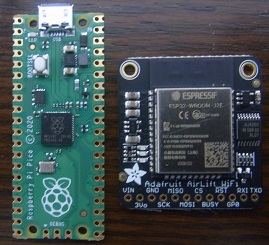
There are various ways that the Pi Pico (RP2040) can be given a wireless interface; in a previous post I used a Microchip ATWINC1500, now I’m using the Espressif ESP32 WROOM-32. The left-hand photo above shows an Adafruit Airlift ESP32 co-processor board which must be hand-wired to the Pico, whilst the right-hand is a Pimorini Wireless Pack that plugs directly into the Pico, either back-to-back, or (as in the photo) on an Omnibus baseboard that allows multiple I/O boards to be attached to a single Pico.

So you can add WiFi connectivity to your Pico without any additional wiring.

The resulting hardware would normally be programmed in C, but I really like the simplicity of MicroPython, so have chosen that language, but this raises an additional question; do I use the Pimorini MicroPython that is derived from the Pi Foundation version, or CircuitPython, which is a derivative created by Adafruit, with various changes?

CircuitPython includes a lot of I/O libraries as standard, but does lack some important features (such as direct access to memory) that are useful to the more advanced developer. So I’ll try to support both, but I do prefer the working with MicroPython.

SPI interface

The ESP32 does all the hard work of connection to the WiFi network and handling TCP/IP sockets, it is just necessary to send the appropriate commands over the SPI link. In addition to the usual clock, data and chip-select lines, there is a ‘reset’ signal from the Pico to the ESP, and a ‘ready’ signal back from the ESP to the Pico. This is necessary because the Pico spends much of its time waiting for the ESP to complete a command; instead of continually polling for a result, the Pico can wait until ‘ready’ is signalled then fetch the data.

My server code uses the I/O pins defined by the Adafruit Pico Wireless Pack:

Function            GPIO  Pin num
Clock               18    24
Pico Tx data (MOSI) 19    25
Pico Rx data (MISO) 16    21
Chip select (CS)     7    10
ESP32 ready         10    14
ESP32 reset         11    15

Software components

Pico software modules and ESP32 interface

ESP32 code

The ESP32 code takes low-level commands over the SPI interface, such as connecting and disconnecting from the wireless network, opening TCP sockets, sending and receiving data. The same ESP32 firmware works with both the MicroPython and CircuitPython code and I suggest you buy an ESP32 module with the firmware pre-loaded, as the re-building & re-flashing process is a bit complicated, see here for the code, and here for a guide to the upgrade process. I’m using 1.7.3, you can check the version in CircuitPython using:

import board
from digitalio import DigitalInOut
esp32_cs = DigitalInOut(board.GP7)
esp32_ready = DigitalInOut(board.GP10)
esp32_reset = DigitalInOut(board.GP11)
spi = busio.SPI(board.GP18, board.GP19, board.GP16)
esp = adafruit_esp32spi.ESP_SPIcontrol(spi, esp32_cs, esp32_ready, esp32_reset)
print("Firmware version", esp.firmware_version.decode('ascii'))

Note that some ESP32 modules are preloaded with firmware that provides a serial interface instead of SPI, using modem-style ‘AT’ commands; this is incompatible with my code, so the firmware will need to be re-flashed.

MicroPython or CircuitPython

This has to be loaded onto the Pico before anything else. There are detailed descriptions of the loading process on the Web, but basically you hold down the Pico pushbutton while making the USB connection. The Pico will then appear as a disk drive in your filesystem, and you just copy (drag-and-drop) the appropriate UF2 file onto that drive. The Pico will then automatically reboot, and run the file you have loaded.

The standard Pi Foundation MicroPython lacks the necessary libraries to interface with the ESP32, so we have to use the Pimorini version. At the time of writing, the latest ‘MicroPython with Pimoroni Libs’ version is 0.26, available on Github here. This includes all the necessary driver code for the ESP32.

If you are using CircuitPython, the installation is a bit more complicated; the base UF2 file (currently 7.0.0) is available here, but you will also need to create a directory in the MicroPython filesystem called adafruit_esp32spi, and load adafruit_esp32spi.py and adafruit_esp32spi_socket.py into it. The files are obtained from here, and the loading process is as described below.

Loading files through REPL

A common source of confusion is the way that files are loaded onto the Pico. I have already described the loading of MicroPython or CircuitPython UF2 images, but it is important to note that this method only applies to the base Python code; if you want to add files that are accessible to your software (e.g. CircuitPython add-on modules, or Web pages for the server) they must be loaded by a completely different method.

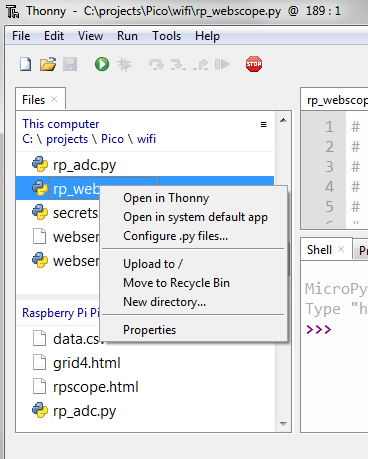
When Python runs, it gives you an interactive console, known as REPL (Read Evaluate Print Loop). This is normally available as a serial interface over USB, but can also be configured to use a hardware serial port. You can directly execute commands using this interface, but more usefully you can use a REPL-aware editor to prepare your files and upload them to the Pico. I use Thonny; Click Run and Select Interpreter, and choose either MicroPython (Raspberry Pi Pico) or CircuitPython (Generic) and Thonny will search your serial port to try and connect to Python running on the Pico. You can then select View | Files, and you get a window that shows your local (PC) filesystem, and also the remote Python files. You can then transfer files to & from the PC, and create subdirectories.

At the time of writing, Thonny can’t handle drag-and-drop between the local & remote directories; you have to right-click on a file, then select ‘upload’ to copy it to the currently-displayed remote directory. Do not attempt a transfer while the remote MicroPython program is running; hit the ‘stop’ button first.

In the case of CircuitPython, you need to create a subdirectory called adafruit_esp32spi, containing adafruit_esp32spi.py and adafruit_esp32socket.py.

Server code

To accommodate the differences between the two MicroPython versions, I have created an ESP32 class, with functions for connecting to the wireless network, and handling TCP sockets; it is just a thin wrapper around the MicroPython functions which send SPI commands to the ESP32, and read the responses.

Connecting to the WiFi network just requires a network name (SSID) and password; all the complication is handled by the ESP32. Then a socket is opened to receive the HTTP requests; this is normally on port 80.

def start_server(self, port):
    self.server_sock = picowireless.get_socket()
    picowireless.server_start(port, self.server_sock, 0)

There are significant differences between conventional TCP sockets, and those provided by the ESP32; there is no ‘bind’ command, and the client socket is obtained by a strangely-named ‘avail_server’ call, which also returns the data length for a client socket – a bit confusing. This is a simplified version of the code:

def get_client_sock(self, server_sock):
    return picowireless.avail_server(server_sock)

def recv_length(self, sock):
    return picowireless.avail_server(sock)

def recv_data(self, sock):
    return picowireless.get_data_buf(sock)

def get_http_request(self):
    self.client_sock = self.get_client_sock(self.server_sock)
    client_dlen = self.recv_length(self.client_sock)
    if self.client_sock != 255 and client_dlen > 0:
        req = b""
        while len(req) < client_dlen:
            req += self.recv_data(self.client_sock)
        request = req.decode("utf-8")
        return request
    return None

When the code runs, the IP address is printed on the console

Connecting to testnet...
WiFi status: connecting
WiFi status: connected
Server socket 0, 10.1.1.11:80

Entering the IP address (10.1.1.11 in the above example) into a Web browser means that the server receives something like the following request:

GET / HTTP/1.1
Host: 10.1.1.11
Connection: keep-alive
Cache-Control: max-age=0
Upgrade-Insecure-Requests: 1
User-Agent: Mozilla/5.0 (Windows NT 6.1; Win64; x64) AppleWebKit/537.36 (KHTML, like Gecko) Chrome/93.0.4577.82 Safari/537.36
Accept: text/html,application/xhtml+xml,application/xml;q=0.9,image/avif,image/webp,image/apng,*/*;q=0.8,application/signed-exchange;v=b3;q=0.9
Accept-Encoding: gzip, deflate
Accept-Language: en-GB,en-US;q=0.9,en;q=0.8

Most of this information is irrelevant to a tiny Web server, since there is little choice over the information it returns. The first line has the important information, namely the resource that is being requested, so instead of decoding the whole message, we can do simple tests to match the line to known resources:

DIRECTORY = "/"
INDEX_FNAME   = "rpscope.html"
DATA_FNAME    = "data.csv"
ICON_FNAME    = "favicon.ico"

DISABLE_CACHE = "Cache-Control: no-cache, no-store, must-revalidate\r\n"
DISABLE_CACHE += "Pragma: no-cache\r\nExpires: 0\r\n"

req = esp.get_http_request()
if req:
    r = req.split("\r")[0]
    if ICON_FNAME in r:
        esp.put_http_404()
    elif DATA_FNAME in r:
        esp.put_http_file(DIRECTORY+DATA_FNAME, "text/csv", DISABLE_CACHE)
    else:
        esp.put_http_file(DIRECTORY+INDEX_FNAME)

Since we are dealing with live data, that may change every time it is fetched, the browser’s caching mechanism must be disabled, hence the DISABLE_CACHE response, which aims to do so regardless of which browser version is in use.

Sending the response back to the browser should be easy, it just needs to be split into chunks of maximum 4095 bytes so as to not overflow the SPI buffers. However I had problems with unreliability of both the MicroPython and CircuitPython implementations; sometimes the network transfers would just stall. The solution seems to be to drastically reduce the SPI block size; some CircuitPython code uses 64-byte blocks, but I’ve found 128 bytes works OK. Further work is needed to establish the source of the problem, but this workaround is sufficient for now.

MAX_SPI_DLEN = const(128)
HTTP_OK = "HTTP/1.1 200 OK\r\n"
CONTENT_LEN = "Content-Length: %u\r\n"
CONTENT_TYPE = "Content-type %s\r\n"
HEAD_END = "\r\n"

def put_http_file(self, fname, content="text/html; charset=utf-8", hdr=""):
    try:
        f = open(fname)
    except:
        f = None
    if not f:
        esp.put_http_404()
    else:
        flen = os.stat(fname)[6]
        resp = HTTP_OK + CONTENT_LEN%flen + CONTENT_TYPE%content + hdr + HEAD_END
        self.send_data(self.client_sock, resp)
        n = 0
        while n < flen:
            data = f.read(MAX_SPI_DLEN)
            self.send_data(self.client_sock, data)
            n += len(data)
        self.send_end(self.client_sock)

Dynamic web server

A simple Web server could just receive a page request from a browser, match it with a file in the Pico filesystem, and return the page text to the browser. However, I’d like to report back some live data that has been captured by the Pico, so we need a method to return dynamically-changing values.

There are three main ways of doing this; server-side includes (SSI), AJAX, and on-demand page creation.

Server-side includes

A Web page that is stored in the server filesystem may include tags that trigger the server to perform specific actions, for example when the tag ‘$time’ is reached, the server replaces that text with the current time value. A slightly more sophisticated version embeds the tag in an HTML comment, so the page can be displayed without a Pico server, albeit with no dynamic data.

The great merit of this approach is its simplicity, and I used it extensively in my early projects. However, there is one major snag; the data is embedded in an HTML page, so is difficult to extract. For example, you may have a Web page that contains the temperature data for a 24-hour period, and you want to aggregate that into weekly and monthly reports; you could write a script that strips out the HTML and returns pure data, but it’d be easier if the Web server could just provide a data file for each day.

AJAX

Web pages routinely include Javascript code to perform various display functions, and one of these functions can fetch a data file from the server, and display its contents. This is commonly known as AJAX (Asynchronous Javascript and XML) though in reality there is no necessity for the data to be in XML format; any format will do.

For example, to display a graph of daily temperatures, the Browser loads a Web page with the main formatting, and Javascript code that requests a comma-delimited (CSV) data file. The server prepares that file dynamically using the current data, and returns it to the browser. The Javascript on the browser decodes the data, and displays it as a graph; it can also perform calculations on the data, such as reporting minimum and maximum values.

The key advantage is that the data file can be made available to any other applications, so a logging application can ignore all the Javascript processing, and just fetch the data file directly from the server.

With regard to the data file format, I prefer not to use XML if I can possibly avoid it, so use Javascript Object Notation (JSON) for structured data, and comma-delimited (CSV) for unstructured values, such as data tables.

The first ‘A’ in AJAX stands for Asynchronous, and this deserves some explanation. When the Javascript fetches the data file from the server, there will be a delay, and if the server is heavily loaded, this might be a substantial delay. This could result in the code becoming completely unresponsive, as it waits for data that may never arrive. To avoid this, the data fetching function XMLHttpRequest() returns immediately, but with a callback function that is triggered when the data actually arrives from the server – this is the asynchronous behaviour.

There is now a more modern approach using a ‘fetch’ function that substitutes a ‘promise’ for the callback, but the net effect is the same; keeping the Javascript code running while waiting for data to arrive from the server.

On-demand page creation

The above two techniques rely on the Web page being stored in a filesystem on the server, but it is possible for the server code to create a page from scratch every time it is requested.

Due to the complexity of hand-coding HTML, this approach is normally used with page templates, that are converted on-the-fly into HTML for the browser. However, a template system would add significant complexity to this simple demonstration, so I have used the hand-coding approach to create a basic display of analog input voltages, as shown below.

This data table is created from scratch by the server code, every time the page is loaded:

ADC_PINS = 26, 27, 28
ADC_SCALE = 3.3 / 65536
TEST_PAGE = '''<!DOCTYPE html><html>
    <head><style>table, th, td {border: 1px solid black; margin: 5px;}</style></head>
    <body><h2>Pi Pico web server</h2>%s</body></html>'''

adcs = [machine.ADC(pin) for pin in ADC_PINS]

heads = ["GP%u" % pin for pin in ADC_PINS]
vals = [("%1.3f" % (adc.read_u16() * ADC_SCALE)) for adc in adcs]
th = "<tr><th>" + "</th><th>".join(heads) + "</th></tr>"
tr = "<tr><td>" + "</td><td>".join(vals) + "</td></tr>"
table = "<table><caption>ADC voltages</caption>%s</table>" % (th+tr)
esp.put_http_text(TEST_PAGE % table)

Even in this trivial example, there is significant work in ensuring that the HTML tags are nested correctly, so for pages with any degree of complexity, I’d normally use the AJAX approach as described earlier.

Running the code

The steps are:

  • Connect the wireless module
  • Load the appropriate UF2 file
  • In the case of CircuitPython, load the add-on libraries
  • Get the Web server Python code from Github here. The file rp_esp32.py is for MicroPython with Pimoroni Libraries, and rp_esp32_cp.py is for CircuitPython.
  • Edit the top of the server code to set the network name (SSID) and password for your WiFi network.
  • Run the code using Thonny or any other MicroPython REPL interface; the console should show something like:
Connecting to testnet...
WiFi status: connecting
WiFi status: connected
Server socket 0, 10.1.1.11:80
  • Run a Web browser, and access test.html at the given IP address, e.g. 10.1.1.11/test.html. The console should indicate the socket number, data length, the first line of the HTTP request, and the type of request, e.g.
Client socket 1 len 466: GET /test.html HTTP/1.1 [test page]

The browser should show the voltages of the first 3 ADC channels, e.g.

The Web pages produced by the MicroPython and CircuitPython versions are very similar; the only difference is in the table headers, which either reflect the I/O pin numbers, or the analog channel numbers.

If a file called ‘index.html’ is loaded into the root directory of the MicroPython filesystem, it will be displayed in the browser by default, when no filename is entered in the browser address bar. A minimal index page might look like:

<!doctype html><html><head></head>
  <body>
    <h2>Pi Pico web server</h2>
    <a href="test.html">ADC test</a>
  </body>
</html>

So far, I have only presented very simple Web pages; in the next post I’ll show how to fetch high-speed analog samples using DMA, then combine these with a more sophisticated AJAX functionality to create a Web-based oscilloscope.

Copyright (c) Jeremy P Bentham 2021. Please credit this blog if you use the information or software in it.
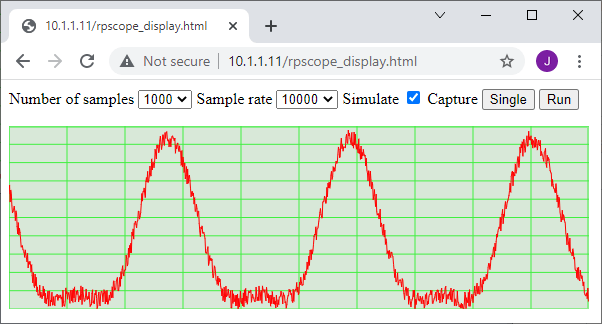
RP2040 WiFi using Microchip ATWINC1500 module: part 2

Server sockets

In part 1, we got as far as connecting an ATWINC1500 or 1510 module to a WiFi network; now it is time to do something vaguely useful with it.

Sockets

A network interface is frequently referred to as a ‘socket’ interface, so first I’d better define what that is.

A socket is a logical endpoint for network communication, and consists of an IP address, and a port number. The IP address is often assigned automatically at boot-time, using Dynamic Host Configuration Protocol (DHCP) as in part 1, but can also be pre-programmed into the unit (a ‘static’ address).

The 16-bit port number further subdivides the functionality within that IP address, so one address can support multiple simultaneous conversations (‘connections’). Furthermore, specific port numbers below 1024 are generally associated with specific functions; for example, an un-encrypted Web server normally uses port 80, whilst an encrypted server is on port 443. Port numbers 1024 and above are generally for user programs.

Clients and servers, UDP and TCP

A sever runs all the time, waiting for a client to contact it; the client is responsible for initiating the contact and providing some data, probably in the form of a request. The server returns an appropriate response, then either side may terminate the connection; the client may end it because it has received enough data, or the server because there are limits on the maximum number of simultaneous clients it can service.

There are 2 fundamental communication methods in TCP/IP: User Datagram Protocol (UDP) and Transmission Control Protocol (TCP).

UDP is the simpler of the two, and involves sending a block of data to a given socket (port and IP address) with no guarantee that it will arrive. TCP involves sending a stream of data to a socket; it includes sophisticated retry mechanisms to ensure that the data arrives.

There are those in the networking community who shun UDP, because they think the unreliability makes is useless; I disagree, and think there are various use-cases where the simple block-based transfer is perfectly adequate, possibly overlaid with a simple retry mechanism, so we’ll start with a simple UDP server.

UDP server

The simplest UDP server is stateless, i.e. it doesn’t store any information about the client; it just responds to any request it receives. This means that a single socket can handle multiple clients, unlike TCP which requires a unique socket for each client it is communicating with.

For a classic C socket interface, the steps would be:

  1. Create a datagram socket using socket()
  2. Bind to the socket to a specific port using bind()
  3. When a message is received on that port, get the data, return address and port number using recvfrom()
  4. Send response data to the remote address and port number using sendto()
  5. Go to step 3

The code driving the ATWINC1500 module does the same job, but the function calls are a bit different, as they reflect the messages sent to & received from the WiFi module:

  1. Initialise a socket structure for UDP
  2. Send a BIND command to the module, with the port number
  3. Receive a BIND response
  4. Send a RECVFROM command to the module
  5. Wait until a RECVFROM response is received, get the data, return address & port number
  6. Send a SENDTO command to the module with the response data, return address & port number
  7. Go to step 4

Note that there may be a very long wait between steps 4 and 5, if there are no clients contacting the server. Fortunately the module will signal the arrival of a message by asserting the interrupt request (IRQ) line, so the RP2040 CPU can proceed with other tasks while waiting.

UDP Reception

There are 4 steps when the module receives a packet (‘datagram’) from a remote client:

  1. Get the group ID and operation. This identifies the message type; for UDP it will generally be a response to a RECVFROM request, but it could be something completely different. My software combines the group ID and operation into a single 16-bit number.
  2. Get the operation-specific header. This is generally 16 bytes or less, and in the case of RECVFROM, gives the IP address and port number of the sender, also a pointer & offset to the user data in the buffer.
  3. Get the user data. The application doesn’t need to fetch all the incoming data; for example, in the case of a Web server, it might just get the first line of the page request, and discard all the other information.
  4. Handle socket errors. If there is an error, the data length-value will be negative, and the code must take appropriate action, such as closing and re-opening the server socket. Since a UDP socket is connectionless, it generally won’t see many errors, but a TCP socket will flag an error every time a client closes an active connection.

For RECVFROM, the step 1 & 2 headers are:

// HIF message header
typedef struct {
    uint8_t gid, op;
    uint16_t len;
} HIF_HDR;

// Operation-specific header
typedef struct {
    SOCK_ADDR addr;
    int16_t dlen; // (status)
    uint16_t oset;
    uint8_t sock, x;
    uint16_t session;
} RECV_RESP_MSG;

Having fetched these two blocks, control is passed to a state machine that takes appropriate action. If we’ve just received an indication that DHCP has succeeded, then we bind the server sockets.

    if (gop==GOP_DHCP_CONF)
    {
        for (sock=MIN_SOCKET; sock<MAX_SOCKETS; sock++)
        {
            sp = &sockets[sock];
            if (sp->state==STATE_BINDING)
                put_sock_bind(fd, sock, sp->localport);
        }
    }

When we get a message indicating the binding has succeeded, then if it is a TCP socket, we need to send a LISTEN command. If UDP, we can just send a RECVFROM, and wait for data to arrive. We can tell whether the socket is TCP or UDP by looking at the socket number; the lower numbers are TCP, and higher are UDP.

    else if (gop==GOP_BIND && (sock=rmp->bind.sock)<MAX_SOCKETS &&
             sockets[sock].state==STATE_BINDING)
    {
        sock_state(sock, STATE_BOUND);
        if (sock < MIN_UDP_SOCK)
            put_sock_listen(fd, sock);
        else
            put_sock_recvfrom(fd, sock);
    }

If a UDP server, we may now get a RECVFROM response, indicating that a packet (‘datagram’) has arrived. If so, we save the return socket address (IP and port number), call a handler function, then send another RECVFROM request.

    else if (gop==GOP_RECVFROM && (sock=rmp->recv.sock)<MAX_SOCKETS &&
             (sp=&sockets[sock])->state==STATE_BOUND)
    {
        memcpy(&sp->addr, &rmp->recv.addr, sizeof(SOCK_ADDR));
        if (sp->handler)
            sp->handler(fd, sock, rmp->recv.dlen);
        put_sock_recvfrom(fd, sock);
    }

A very simple handler just echoes back the incoming data:

uint8_t databuff[MAX_DATALEN];

// Handler for UDP echo
void udp_echo_handler(int fd, uint8_t sock, int rxlen)
{
    if (rxlen>0 && get_sock_data(fd, sock, databuff, rxlen))
        put_sock_sendto(fd, sock, databuff, rxlen);
}

UDP client for testing

For testing, I use a simple UDP client written in Python, that can run on a Raspberry Pi, or any PC running Linux or Windows. It sends a message every second, and checks for a response. You’ll need to change the IP address to match the DCHP value given by the module.

# Simple Python client for testing UDP server
import socket, time

ADDR = "10.1.1.11"
PORT = 1025
MESSAGE = b"Test %u"
DELAY = 1

def hex_str(bytes):
    return " ".join([("%02x" % int(b)) for b in bytes])

print("Send to UDP %s:%s" % (ADDR, PORT))
sock = socket.socket(socket.AF_INET, socket.SOCK_DGRAM)
sock.settimeout(0.2)
count = 1
while True:
    msg = MESSAGE % count
    sock.sendto(msg, (ADDR, PORT))
    print("Tx %u: %s" % (len(msg), hex_str(msg)))
    count += 1
    try:
        data = sock.recvfrom(1000)
    except:
        data = None
    if data:
        bytes, addr = data
        s = hex_str(bytes)
        print("Rx %u: %s\n" % (len(bytes), s))
    time.sleep(DELAY)

TCP server

A TCP connection is more complex than UDP, since the module firmware must keep track of the data that is sent & received, in order to correct any errors. The steps for a classic C socket interface would be:

  1. Create a ‘stream’ socket using socket()
  2. Bind to the socket to a specific port using bind()
  3. Set the socket to wait for incoming connections using listen()
  4. When a connection request is received on the main socket, open a new socket for the data using accept()
  5. When data arrives on the new socket, get it using recv()
  6. Send response data using send()
  7. If socket error or transfer complete, close socket. Otherwise go to step 5

The corresponding operations for the WiFi module are:

  1. Initialise a socket structure for TCP
  2. Send a BIND command to the module, with the port number
  3. Receive a BIND response
  4. Send a LISTEN command
  5. Receive a LISTEN response
  6. Receive an ACCEPT notification when a connection request arrives on the main socket. Save the new socket number.
  7. Send a RECV command on the new socket.
  8. Receive a RECV response when data arrives on the new socket
  9. Send response data using SEND
  10. Go to step 7, or close the new socket

TCP reception

The first step (binding a socket to a port number) is the same as for UDP, but then we send a LISTEN command, which activates the socket to receive incoming connections. When a client connects, we get an ACCEPT response containing 2 socket numbers; the first is the one that we used for the original BIND command, and the second is a new socket that will be used for the data transfer; we need to issue a RECV on this socket to get the user data.

    else if (gop==GOP_ACCEPT &&
             (sock=rmp->accept.listen_sock)<MAX_SOCKETS &&
             (sock2=rmp->accept.conn_sock)<MAX_SOCKETS &&
             sockets[sock].state==STATE_BOUND)
    {
        memcpy(&sockets[sock2].addr, &rmp->recv.addr, sizeof(SOCK_ADDR));
        sockets[sock2].handler = sockets[sock].handler;
        sock_state(sock2, STATE_CONNECTED);
        put_sock_recv(fd, sock2);
    }

When data is available, the RECV command will return, and we can call a data handler function, then send another RECV for more data. Alternatively, if the data length is negative, then there is an error, and the socket needs to be closed. This isn’t necessarily as bad as it sounds; the most common reason is that the client has closed the connection, and we just need to erase the 2nd socket for future use.

    else if (gop==GOP_RECV && (sock=rmp->recv.sock)<MAX_SOCKETS &&
            (sp=&sockets[sock])->state==STATE_CONNECTED)
    {
        if (sp->handler)
            sp->handler(fd, sock, rmp->recv.dlen);
        if (rmp->recv.dlen > 0)
            put_sock_recv(fd, sock);
    }

The TCP data handler is again a simple echo-back of the incoming data, but with an added complication: if the data length is negative, there has been an error. This isn’t as bad as it sounds; the most common error is that the client has closed the TCP connection, so the server must also close its data socket, to allow it to be re-used for a new connection.

// Handler for TCP echo
void tcp_echo_handler(int fd, uint8_t sock, int rxlen)
{
    if (rxlen < 0)
        put_sock_close(fd, sock);
    else if (rxlen>0 && get_sock_data(fd, sock, databuff, rxlen))
        put_sock_send(fd, sock, databuff, rxlen);
}

TCP client for testing

This is similar to the UDP client; it can run on a Raspberry Pi or PC, running Linux or Windows:

# Simple Python client for testing TCP server
import socket, time

ADDR = "10.1.1.11"
PORT = 1025
MESSAGE = b"Test %u"
DELAY = 1

def hex_str(bytes):
    return " ".join([("%02x" % int(b)) for b in bytes])

print("Send to TCP %s:%s" % (ADDR, PORT))
sock = socket.socket(socket.AF_INET, socket.SOCK_STREAM)
sock.settimeout(0.5)
sock.connect((ADDR, PORT))
count = 1
while True:
    msg = MESSAGE % count
    sock.sendall(msg)
    print("Tx %u: %s" % (len(msg), hex_str(msg)))
    count += 1
    try:
        data = sock.recv(1000)
    except:
        data = None
    if data:
        s = hex_str(data)
        print("Rx %u: %s\n" % (len(data), s))
    time.sleep(DELAY)
# EOF

Source files

The C source files are in the ‘part2’ directory on  Github here

The default network name and passphrase are “testnet” and “testpass”; these must be changed to match your network, then the code will need to be rebuilt & run using the standard Pico devlopment environment.

The default TCP & UDP port numbers are 1025, and the Python programs I’ve provided can be used to perform simple simple echo tests, providing the IP address is modified to match that given when the Pico joins the network.

python tcp_tx.py
Send to TCP 10.1.1.11:1025
Tx 6: 54 65 73 74 20 31
Rx 6: 54 65 73 74 20 31

Tx 6: 54 65 73 74 20 32
Rx 6: 54 65 73 74 20 32
..and so on..

python udp_tx.py
Send to UDP 10.1.1.11:1025
Tx 6: 54 65 73 74 20 31
Rx 6: 54 65 73 74 20 31

Tx 6: 54 65 73 74 20 32
Rx 6: 54 65 73 74 20 32
..and so on..

Copyright (c) Jeremy P Bentham 2021. Please credit this blog if you use the information or software in it.

PicoReg: real-time diagnostics for the Pi Pico using SWD

There is a newer version of this utility, that runs on Windows or Linux, and uses a USB debug adaptor in place of the direct I/O, see the PicoReg2 project here.

PicoReg PyQt display

The Raspberry Pi Pico CPU (RP2040) has a remarkably complex set of peripherals, and this is reflected in the very large number of control registers (1,116).

To debug a C or Python application, it can be very helpful to know the values in these registers; instead of adding ‘print’ calls, or using a heavyweight debugger, you can use a 3-wire connection between the Pico and a Raspberry Pi, and view the state of any register without modifying or disrupting the software. This magic is achieved using the Single Wire Debug (SWD) interface; it is mainly used for reprogramming the Flash memory of the Pico, but can do a lot more – it acts as a transparent window into the I/O subsystems, that is completely independent of the CPU.

This capability can be accessed using software tools such as OpenOCD, GDB, and Eclipse, but I wanted to create something much simpler, and easier to use. The end-result is PicoReg, which is a pure-Python program that runs on any Raspberry Pi. In addition to the SWD interface, it can access the standard System View Description (SVD) file, to give a description of every register in considerable detail.

The end-result is a simple-to-use software tool that gives a valuable insight into the inner workings of the Pico.

Installation

Hardware

Pi -to-Pico SWD connections

Only 3 wires are needed; a ground connection, SWCLK and SWDIO.

Any I/O pins on the Pi could be used; for ease of identification, I’ve chosen BCM pin numbers 20 and 21. These should be connected to the SWCLK and SWDIO pins on the edge of the Pico; keep the wires as short as possible, ideally a 150 mm (6 inches) or less.

The pins are defined at the top of picoreg_gpio.py, so can easily be changed to any others, but you need to be sure there is no conflict with other device drivers, such as serial, SPI etc.

# Clock and data BCM pin numbers
CLK_PIN         = 20
DAT_PIN         = 21

The Pico will need to be powered as normal, for example using a 5V supply into the USB socket, or if the Pico USB interface is not connected, linking the the 5V pin on the Pi to the VSYS pin on the Pico.

Software

There are 2 Python files, and one database file:

  • picoreg_gpio.py. The low-level interface code, with a very simple command-line interface.
  • picoreg_qt.py. A PyQt application with full GUI, that uses picoreg_gpio as a low-level interface.
  • rp2040.svd. The System View Description file provided by the Raspberry Pi organisation, that describes all the peripheral registers in XML format

The GUI translates register names (such as TIMER.ALARM3) into physical addresses (such as 0x4005401c) using the SVD file; if it is missing, the GUI won’t work. The software performs best on a Pi 3 or 4; it will work on earlier devices, but is a bit slower.

The files can be found on github here; copy them to any convenient directory, then install PyQt5 on the Pi. The current version at the time of writing is 5.11.3:

sudo apt update
sudo apt install python3-pyqt5

That is all you need to do!

Running the GUI

Start the GUI from a console:

python3 picoreg_qt.py

The application will respond “Loading rp2040.vsd”, then after a short delay, will show the GUI. You may also see some warning messages from PyQt, but these are harmless.

Picoreg initial display

The controls are:

  • Core number. The Pico is a 2-core device, and this allows you to select core 0 or 1. There is no practical difference when using Picoreg to look at I/O, since the peripheral registers are common to both cores.
  • Verbose. This allows you to see the SWD messages that Picoreg is sending, and the responses obtained; useful when there are problems with the link.
  • Connect. This starts communication with the Pico, and verifies the identity of the RP2040 CPU. When the link is broken, it is necessary to re-connect before doing any register accesses.
  • Single. When connected, this button takes a single reading from the highlighted register.
  • Run. When connected, this button starts a continuous cycle of reading from the highlighted register, at 5 readings per second.

Note that this initial display is not Raspberry-Pi-specific; it will run on any PC, even under Windows. This allows you to browse the register database on any convenient machine, though the low-level I/O code is Pi-specific (using the RPI.GPIO module), so the SWD code only runs on a Pi.

The upper display is a tree structure, containing the peripherals, registers, and fields within the registers. By default it is alphabetically sorted, click on the ‘base’ header, to sort by address. The lower display shows general information, and a description of the selected register.

If the SVD database file is damaged or missing, Picoreg will report a syntax error; check that the file is in the same directory as picroreg_qy.py, and restart.

Click on ‘connect’ and if all is well, the following will be displayed.

SWD connection restart
DPIDR 0x0bc12477

The Debug Port Identification Register value shows that Picoreg connection has succeeded. The software makes 3 attempts to do this, and if unsuccessful, the most likely cause is incorrect wiring, or the Pico board not being powered up.

You can navigate around the register display using mouse (single or double-click) or keyboard, as is usual for such tree displays.

If you have a new un-programmed Pico, try navigating to the TIMER.TIMELR register, and hit ‘Run’.

Viewing timer value

You should see a rapidly-changing display of the current timer value; you can then move the cursor to other registers, whilst the data collection is still running; the register value under the cursor will be updated, while previously-accessed register values are static. There is a flashing indication in the bottom-left corner of the window to show that data collection is running.

Debugging an application

Load the following MicroPython application onto the Pico

# Simple test of O/P and ADC
from machine import Pin, Timer, ADC
led = Pin(25, Pin.OUT)
temperature = ADC(4)
timer = Timer()

def blink(timer):
    led.toggle()
    print(temperature.read_u16())

timer.init(freq=2, mode=Timer.PERIODIC, callback=blink)

The on-board LED will flash at 1 Hz, and the console will report the ADC value on the temperature channel.

You can use PicoReg to display the raw ADC value, in the ADC.RESULT register:

The state of the I/O pins is in the SIO.SPIO_IN register:


You can even see activity on the USB link, as the data pins toggle high and low:

Potential issues

Styling

This proved to be a surprising headache; it has been remarkably difficult to get consistent styling. Some of the screenshots were taken on a Pi 3 running Qt 5.11.3, remote-controlled from a PC, using SSH:

export DISPLAY=:0.0
python3 picoreg_qt.py

The others are run directly from a Pi console, and look quite different (and not as nice, in my opinion).

I’ve already used some very limited styling to customise the tree display:

TREE_STYLE    = ("QTreeView{selection-color:#FF0000;} " +
                 "QTreeView{selection-background-color:#FFEEEE;} ")

self.tree.setStyleSheet(TREE_STYLE)

However, after many hours of experimentation, I still haven’t found a way of getting a consistent appearance – feel free to tackle this problem yourself!

Errors

PicoReg uses pure-python code; on the plus side, you get the convenience of not having to install any device-drivers, but on the minus-side the SWD timing is a bit unpredictable, and can be stretched out when a higher-priority task takes control of the CPU. This is particularly noticeable when resizing or repositioning the display window; the software makes 3 attempts to re-establish connection with the Pico, but may time out and disconnect.

This behaviour is harmless, and it is only necessary to click the ‘Connect’ button to re-establish communications.

Console interface

If there are problems running the graphical interface, the low-level drivers in can be run directly from the command line:

python3 picoreg_gpio.py [options] [address]
    options: -v Verbose mode
             -r Repeated access 
    address: hexadecimal address to be monitored

The default address to be monitored is the GPIO input 0xD0000004. The low-level driver can’t access the SVD database, so the address has to be specified in hexadecimal, e.g. to display the timer value:

python3 picoreg_gpio.py -r 0x4005400c
SWD connection restart
DPIDR 0x0bc12477
0x4005400c: 0xefa1b0d0
0x4005400c: 0xefa26046
0x4005400c: 0xefa30fc8
0x4005400c: 0xefa3bf32
0x4005400c: 0xefa46ec3
..and so on, use ctrl-C to exit

How it works

The SWD link has 2 wires: a clock line, and a bi-directional data line. All transactions are initiated by the Pi, the Pico only transmits on the data line when requested. The data is sent LSB (Least Significant Bit) first.

Each message starts with an 8-bit header, and the Pico responds with a 3-bit acknowledgement; if this is OK (bit value 1, 0, 0) then a 32-bit data value is transferred (sent or received), followed by a parity bit.

As there is only one data line, the Pi has to switch its direction from transmit to receive to get the acknowledgement, and then switch back to transmit (if it is a write cycle) or allow the Pico to send 32 bits of data (if it is a read cycle).

An extra complication that isn’t emphasised in the ARM documentation, is that the active edge changes as well; the Pi sends data that is stable on the rising clock edge, but the Pico data is stable on the falling clock edge, as shown in the following oscilloscope trace. [The response from the Pico has been amplified for clarity; normally it is the same magnitude as the outgoing signal from the Pi.]

SWD header transfer; blue trace is clock (1 MHz), red trace is data

The unusual elements of this protocol make it quite tricky to implement in pure Python, and I must admit the above trace wasn’t generated by my code; it comes from OpenOCD, with an FTDI USB adaptor. The following trace is generated by my code, the frequency is a bit lower (approximately 100 kHz) and is less symmetrical.

SWD header, using Python GPIO

The asymmetric waveform isn’t a problem, but a disadvantage of the pure-Python approach is that there are occasions when the CPU is performing other tasks, and it stop driving the SWD interface.

The trace below shows a 300 microsecond pause in the middle of a transfer, and unsurprisingly the Pico doesn’t like this, and returns an error response. Occasional errors like this aren’t a problem, as they are easily handled by the retry mechanism in the PicoReg code.

SWD transfer with gap in transmission

Error handling

When there is an error, the Pico completely stops communicating over the SWD interface, and ignores all subsequent commands; it is necessary to reset the SWD interface, to re-establish communication.

The reset process is deliberately quite complex, involving the transmission of:

  • 8 all-1 bits (FF hex)
  • 16 bytes of a specific polynomial
  • 4 all-0 bits (0 hex)
  • 1 byte to activate the SW-DP interface
  • At least 50 all-1 bits

If there are any errors in the process, the Pico will not respond, which makes debugging a bit tricky. Once reset, the connection has to re-established by, transmitting the ID of the core to be accessed; the RP2040 processor has two cores, that are selected using a value of 0x01002927 or 0x11002927. When browsing the peripheral registers, it doesn’t matter which core is selected; the results will be the same.

Higher-level protocol

You might think that, having established contact with the CPU, it would be easy to read the register values, but in reality the interface has several extra levels of complication; some of these I’ve already documented in a previous project, but if you are seeking more information, you really need to read the Arm Debug Interface Architecture Specification (ADI). At the time of writing the latest version (v6.0) is available here.

Copyright (c) Jeremy P Bentham 2021. Please credit this blog if you use the information or software in it.