In a previous post, I described ‘EDLA’, a WiFi-based logic analyser unit, that uses a Web-based display. That version used an ESP32 to provide WiFi connectivity; the PEDLA uses a Pi PicoW module instead.
Hardware
PEDLA circuit board
The hardware is similar to the previous version; aside from the CPU change, the main addition is a 24LC256 serial EEPROM, that is used to store the non-volatile configuration parameters. The Pico flash memory can’t be used for this task, since it is bulk-erased at the start of every programming cycle. The parameters are set using a simple serial console interface.
Firmware
The firmware is written in C; networking is implemented using the picowi WiFi driver, combined with the Mongoose TCP/IP stack; follow these links for more information. The source code is on github here.
Copyright (c) Jeremy P Bentham 2024. Please credit this blog if you use the information or software in it.
Analog signal capture at 60 megasamples per second
This project provides a simple way of capturing data using a Pi PicoW, and displaying it wirelessly on a Web browser, as either as a logic analyser, or an oscilloscope.
The digital capture is done using the Pico I/O lines; the analogue capture uses an AD9226 parallel ADC module, that can provide up to 65 megasamples per second. The same firmware is used for both; for speed, the data is sent over the network as raw 16-bit values.
Hardware
In its simplest form, the only hardware required is a Pi PicoW module.
Minimal logic analyser circuit diagram
This can monitor 16 (or more) input lines, but it is essential that the voltage remains between 0 and 3.3V, otherwise damage will result. To accommodate wider voltages, an attenuator & comparator can be used, as in the EDLA project.
High-speed analog input uses a AD9226 ADC module, that is readily available online.
AD9226 module
It requires a 5V supply, but can be directly connected to the Pico I/O lines.
Minimal analog capture circuit diagram
Although the ADC has 12-bit resolution, only 10 bits have been used. It is possible to use all 12 bits, with minor changes to the software.
Note that some AD9226 modules have the most-significant pin marked as D0, not D11; if in doubt refer to the device datasheet, and do a continuity check between the IC pins and the I/O connections.
The ADC clock pin is connected to two I/O lines; the clock is generated on GPIO22, and read back on GPIO17. The latter is used to track the number of pulses emitted, using the pulse-counter function of the Rp2040 PWM peripheral. Any other available GPIO pins could be used instead, except that the pulse-counter function only works on odd pin numbers, so if GPIO17 is changed, it must be to an odd pin number.
When running the ADC at high speed, it is essential to keep the wiring to the Pico short (maximum 2 inches, or 5 cm) with good-quality supply & ground connections.
The analog input to the ADC module is probably 50 ohms, so can not be used with conventional oscilloscope probes. To avoid excessive loading of the input signal source, a buffer amplifier may be required.
There is a serial console output using UART1 at 115 Kbaud on GPIO pins 20 (transmit) and 21 (receive). This can be changed to use the USB link instead, by modifying the settings at the bottom of CMakeLists.txt.
Firmware
The Pico firmware is written in C; networking is implemented using the picowi WiFi driver, combined with the Mongoose TCP/IP stack; follow these links for more information. The source code is on github here.
An HTTP request is used to set the parameters and initiate a capture, e.g.
GET /status.txt?xsamp=1000&xrate=100000&cmd=1
This selects a sample count of 1000 and sample rate of 100 kHz, and the inclusion of the ‘cmd’ parameter initiates the capture.
The response is in JSON format, confirming the current state:
This confirms that 1000 samples have been captured, and are ready for transfer; if the capture is taking a long time, it will be necessary to poll the interface using a plain “GET /status.txt”, checking the ‘nsamp’ value to see when the capture is complete. If the long capture needs to be terminated, a status request with ‘cmd=0’ can be used.
The data is fetched using:
GET /status.bin
The response is a binary block with the appropriate number of 16-bit samples. For large blocks, the transfer rate is around 2 Mbyte/s.
At the time of writing, the network details are hard-coded in the firmware, so the file ‘mg_wifi.c’ needs to be edited, to change the default network name (SSID) and password.
It may also be necessary to change the network security setting, the options are:
I have experienced difficulties with the auto-switching between protocol versions, e.g. WPA2_WPA and WPA3_WPA2; if in doubt, just use the PSK versions of WPA, WPA2 or WPA3.
When the unit powers up, the on-board LED will flash rapidly, and the serial console will display something similar to the following:
WiCap v0.26
Using dynamic IP (DHCP)
Detected WiFi chip
Loaded firmware addr 0x0000, len 228914 bytes
Loaded NVRAM addr 0x7FCFC len 768 bytes
MAC address 28:CD:C1:00:C7:D1
Joining network testnet
WiFi wl0: Nov 24 2022 23:10:29 version 7.95.59 (32b4da3 CY) FWID 01-f48003fb
Joining network testnet
WiFi wl0: Nov 24 2022 23:10:29 version 7.95.59 (32b4da3 CY) FWID 01-f48003fb
Joined network
IP state: UP
IP state: REQ
IP state: READY, IP: 192.168.43.78, GW: 192.168.43.1
The dynamic IP address will depend on the settings of your network Access Point.
Once the unit has connected to the WiFi network, the LED will flash more slowly (1 Hz), and it should respond to network pings. A quick test is to enter the unit’s IP address in the browser’s address bar, and the unit ID and software version should be displayed, e.g. ‘WiCap v0.26’
Display software
In the ‘test’ directory there is a Javascript application to request & display the data in analog (oscilloscope) or digital (logic analyser) mode.
10x zoom display of 60 MS/s analog signal
Logic analyser display
The controls are:
Single / repeat: control the data acquisition, with single or multiple captures
Sample count: number of samples required (max 100,000 for RP2040)
Sample rate: frequency of capture, up to 60 MHz for a Pico with a 120 MHz clock.
IP address: the address of the capture unit. This is printed out on the unit’s serial console at power-up.
Display: retrieve data from the unit without starting a new capture cycle.
Analogue/digital: select the number of logic analyser lines to display (8 or 16) or select the analog sensitivity (0.1, 0.2, 0.5 or 1.0 volts per division).
Zoom: Select the current zoom level; the trace can be dragged left or right to the required position.
The display code is in the ‘test’ directory on github here.
Alternative client software
An easy way to upload the data for further processing is to use WGET, e.g.
wget http://192.168.1.2/data.bin
This returns a file containing 16-bit binary data. Then the data can, for example, be plotted using GNUPlot:
gnuplot -e "set term png; set output 'data.png'; set grid; unset key; plot 'data.bin' binary array=10000 format='%uword' with lines;"
GNUplot of analog data
Copyright (c) Jeremy P Bentham 2024. Please credit this blog if you use the information or software in it.
In part 5, we joined a WiFi network, and used ‘ping’ to contact another unit on that network, but this was achieved by setting the IP address manually, which is generally known as using a ‘static’ IP.
The alternative is to use a ‘dynamic’ IP, that a central server (such as the WiFi Access Point) allocates from a pool of available addresses, using Dynamic Host Configuration Protocol (DHCP); this also provides other information such as a netmask & router address, to allow our unit to communicate with the wider Internet.
IP addresses and routing
So far, I’ve just said that an IP address consists of 4 bytes, that are usually expressed as decimal values with dotted notation, e.g. 192.168.1.2, but there is some extra complication.
Firstly it is important to note I’m using version 4 of the protocol (IPv4); there is a newer version (IPv6) with a much wider address range, but the older version is sufficient for our purposes, and easier to implement.
Next it is important to distinguish between a public and private IP address.
Public: an address that is accessible from the Internet, generally assigned by an Internet Service Provider (ISP)
Private: an address used locally within an organisation, that is not unique; generally assigned from the blocks 192.168.x.x, 172.16.x.x or 10.x.x.x
The address we’ll be getting from the DHCP server is probably private; if we are accessing the Internet, there will be one or more network devices (‘routers’) that perform public-to-private translation, and also security functions (‘firewalls’) to block malicious data.
If our unit has an IP address it wishes to contact, how does it know what to do? It just has to determine if the target address is local or remote by applying a netmask. For example if our unit is given the address 192.168.1.1 with netmask 255.255.255.0, then a logical AND of the two values means that our local network (known as a ‘subnet’) is 192.168.1. If the unit we’re contacting is on that subnet (i.e. the address begins with 192.168.1) then we just send out a local ARP request to convert their IP address into a MAC address, and start communicating.
If the target address isn’t on the same subnet (e.g. 192.168.2.1, 11.22.33.44, or anything else) then our unit contacts a router (using the address given in the DHCP response) and relies on the router to forward the data appropriately.
In the diagram above, there are networks with public addresses 11.22.33.44 and 22.33.44.55, and they both have private addresses in 192.168.1.x subnetworks; the job of the router is to move the data between these subnetworks by performing Network Address Translation (NAT) between them.
If unit 192.168.1.3 wants to contact 22.33.44.55 it will check the netmask, and because the target isn’t on the same subnetwork, the data will be sent to the router 192.168.1.1, which will forward it over the Internet.
If 192.168.1.3 wants to contact 192.168.1.2, ANDing with the netmask will show that they are both on the same subnet, so the data will be sent directly, bypassing using the router.
However, if 192.168.1.3 wants to send the data to 192.168.1.1 on the remote network, how does the router know what to do? The simple answer is “it doesn’t”, as addresses on the 192.168.1.x subnet aren’t unique, and there will be thousands (or millions!) of units with that same address around the world. Also the netmask clearly indicates that 192.168.1.1 must be on the same subnet as 192.168.1.3, so the data will be sent locally to 192.168.1.1, whether it exists or not; if it doesn’t exist, that’ll be flagged up by the ARP request failing.
There are various workarounds for this ‘NAT traversal’ problem, for example 192.168.1.3 sends the data to the router 22.33.44.55, which is configured to copy incoming data to 192.168.1.1, but there are major security risks associated with opening up a system to unfiltered Internet traffic, so for the purposes of this blog, I’m assuming that our unit will only be communicating with other units on the same subnetwork, or publicly-available systems on the Internet.
The above example assumes there is a single router for all outgoing traffic, and this is generally the case on a WiFi network, where the Access Point also acts as a router. However, on more complex networks there can be multiple routers to provide alternative routes to other networks or the Internet.
Client and server
The most common model for communication between two systems is client-server. The server runs continuously, waiting for a client to get in contact. The client uses a specific communications format (a ‘protocol’) to establish a link (‘connection’) to the server. The connection persists for as long as is needed to exchange the data, then it is closed by both sides.
Simpler protocols can dispense with the connection, but still retain the client-server model; for example, to fetch the time with Network Time Protocol (NTP) you just send a single message to a time server, and get a single message back with the time. This ‘connectionless’ approach means that a single ‘stateless’ server can handle very large numbers of clients, since it doesn’t have to track the state of its clients; an incoming request has all the information needed to send the response.
UDP message format
So there are two distinct ways for a client to communicate with a server; one creates a persistent connection, with both sides tracking the flow of data, and re-sending any data that is lost in transit: this is Transmission Control Protocol (TCP). The other way is User Datagram Protocol (UDP), which has no such tracking, or error correction; just send a block of data and hope it arrives.
This uncertainty means that, if faced with a choice, many programmers reject UDP as being too unreliable, however it does have a very important place in the suite of TCP/IP protocols, not least because it is used for DHCP.
A DHCP transmission consists of the following:
Ethernet header
IP header
UDP header
DHCP header
DHCP option data
We’ve already used the Ethernet and IP headers when sending an ICMP (ping) message, this time we’re stacking on a UDP header.
/* ***** UDP (User Datagram Protocol) header ***** */
typedef struct udph
{
    WORD  sport,            /* Source port */
          dport,            /* Destination port */
          len,              /* Length of datagram + this header */
          check;            /* Checksum of data, header + pseudoheader */
} UDPHDR;
There is a 16-bit length, which shows the total length of the header plus any data that follows, and a 16-bit checksum, which is calculated in an unusual manner; it incorporates the UDP header, parts of the IP header, and all the data that follows. The way this is calculated is to create a pseudo-header containing the relevant IP parts:
/* ***** Pseudo-header for UDP or TCP checksum calculation ***** */
/* The integers must be in hi-lo byte order for checksum */
typedef struct              /* Pseudo-header... */
{
    IPADDR sip,             /* Source IP address */
          dip;              /* Destination IP address */
    BYTE  z,                /* Zero */
          pcol;             /* Protocol byte */
    WORD  len;              /* UDP length field */
} PHDR;
So the UDP code has to prepare two headers, though the pseudo-header is only used for checksum calculation, and can be discarded after that is done.
Another notable feature of the UDP header is the source & destination port numbers, and these deserve some explanation.
A port number can identify a specific service on a server; for example port 80 identifies an HTTP web server, and 67 is a DHCP server. These are ‘well-known’ port numbers and are in the range 0 to 1023. Ports numbered 1024 to 49151 are also used for specific server functionality that isn’t part of the original set, so are known as ‘registered’. The remaining numbers 49152 to 65535 are ‘dynamic’ ports, that are used temporarily by client applications.
When a client wishes to communicate with a server, it will obtain a dynamic port from its operating system, and use that port for the duration of a transaction, releasing it when the transaction is complete. In contrast, a server will generally monopolise a well-known or registered port on a permanent basis, though some servers additionally open up a dynamic port on a short-term basis to handle a specific interaction with the client, such as a file transfer.
Unusually, the DHCP server & client are both assigned well-known numbers, namely UDP 67 and 68. You may see these identified as BOOTP ports, since DHCP is based on the older BOOTP protocol, with some additions.
DHCP message format
DHCP is a 4-step process:
Discover: the unit broadcasts a request asking for network parameters, such as an IP address it can use, also a router address, and subnet mask.
Offer: the server responds with some proposed values, that the unit can accept or reject.
Request: the unit signifies its acceptance of the proposed values
ACK: the server acknowledges the request, indicating that the parameters have been assigned to the unit.
Once the parameters have been assigned, the server will generally attempt to keep them unchanged, such that every time the unit boots, it will get the same IP address. However, this is not guaranteed, and a busy server with a lot of temporary clients will be forced to re-use addresses from units that haven’t been active for a while.
The message format is based on the older protocol BOOTP:
typedef struct {
  	BYTE  opcode;   			/* Message opcode/type. */
	BYTE  htype;				/* Hardware addr type (net/if_types.h). */
	BYTE  hlen;					/* Hardware addr length. */
	BYTE  hops;					/* Number of relay agent hops from client. */
	DWORD trans;				/* Transaction ID. */
	WORD secs;					/* Seconds since client started looking. */
	WORD flags;					/* Flag bits. */
	IPADDR ciaddr,				/* Client IP address (if already in use). */
           yiaddr,				/* Client IP address. */
           siaddr,				/* Server IP address */
           giaddr;				/* Relay agent IP address. */
	BYTE chaddr [16];		    /* Client hardware address. */
	char sname[SNAME_LEN];	    /* Server name. */
	char bname[BOOTF_LEN];		/* Boot filename. */
	BYTE cookie[DHCP_COOKIE_LEN];   /* Magic cookie */
} DHCPHDR;
When making the initial discovery request, many of these values are unused; the ‘cookie’ is filled in with a specific 4-byte value (99, 130, 83, 99) that signal this is a DHCP request, not BOOTP. Then there is a data field with ‘option’ values; each entry has one byte indicating the option type, one byte indicating data length, and that number of data bytes. The options I use in the discovery request are a byte value of 1, indicating it is a discovery message, and 4 parameter values, indicating what should be provided by the server (1 for subnet mask, 3 for router address, 6 for nameserver address and 15 for network name).
The resulting offer from the server probably includes much more than we asked for; this is what my server returns:
    Option: (53) DHCP Message Type (Offer)
    Option: (54) DHCP Server Identifier (192.168.1.254)
    Option: (51) IP Address Lease Time (7 days)
    Option: (58) Renewal Time Value (3 days, 12 hours)
    Option: (59) Rebinding Time Value (6 days, 3 hours)
    Option: (1) Subnet Mask (255.255.255.0)
    Option: (28) Broadcast Address (192.168.1.255)
    Option: (15) Domain Name ("home")
    Option: (6) Domain Name Server (192.168.1.254)
    Option: (3) Router (192.168.1.254)
    Option: (255) End
You’ll see that the Access Point 192.168.1.254 is acting as a router and nameserver; we’ll be looking at the Domain Name System (DNS) in the next part of this blog.
If the unit wants to accept these proposed settings, it must send a request containing the proposed IP address. This can have the same format as the discovery, with a byte value of 3, indicating it is a request message, and a the 4-byte address value:
// DHCP request options
DHCP_MSG_OPTS dhcp_req_opts =
   {53, 1, 3,               // Msg len 1 type 3: request
    50, 4, {0, 0, 0, 0},    // Address len 4 (copied from offer)
    255};                   // End
Assuming all is OK, the ACK response from the server will be similar to the offer, maybe with more values added (such as vendor-specific information), so an important part of the receiver code is the scanning of the parameters to find the values that are needed.
State machine
If we were in a multi-tasking environment, the DHCP process might basically consist of a sequence of 4 function calls, each function stopping (‘blocking’) until it is complete:
Since we don’t currently have multi-tasking, we can’t adopt this approach, as it would block any other code from running, and in the event of an error, one of these functions might stall indefinitely. Instead, we have to adopt a ‘polled’ approach, where we keep on re-visiting this process to see what (if anything) has changed. The key to this is to have a single ‘state’ variable that reflects what has happened, e.g. it has a value of 1 when we have sent the discovery, 2 when we have received an offer, and so on.
The polling of the DHCP state also incorporates a timeout, that is triggered in the event of an error; with a simple 4-step protocol like this, we can just restart the process from the beginning, rather than trying to work out where the error occurred.
Example program
There is one example program dhcp.c that fetches IP addresses and netmask from a DHCP server, and prints the result:
This allows you to see the message-passing; it isn’t unusual to receive duplicate messages, and in the DHCP OFFER above. The ARP display is also enabled so you can see the router using ARP to check the newly-assigned address.
It will be necessary to change the default SSID and PASSWD to match your network; for details on how to build & load the application, see the introduction.
The Raspberry Pi Pico is an incredibly useful low-cost micro-controller module based on the RP2040 CPU, but at the time of writing, there is a major omission: there is no networking capability.
This project adds low-cost wireless networking to the Pi Pico, and any other RP2040 boards. The There are various modules on the market that could be used for this purpose; I have chosen the Microchip ATWINC1500 or 1510 modules as they low-cost, have an easy hardware interface (4-wire SPI), and feature a built-in TCP/IP software stack, which significantly reduces the amount of software needed on the RP2040.
The photo above shows the module mounted on an Adafruit breakout board, and the module itself; this is the variant with a built-in antenna, but there is also a version with an antenna connector, that allows an external antenna to be used.
The only difference between the ATWINC1500 and 1510 modules is that the latter have larger flash memory size (1 MB, as opposed to 0.5 MB). There is also an earlier series of low-level interface modules named ATWILC; I’m not using them, as the built-in TCP/IP software of the ATWINC saves a lot of code complication on the RP2040.
Hardware connections
Pi Pico and WiFi module
For simplicity, I have used the Adafruit breakout board, but it is possible to directly connect the module to the Pico, powered from its 3.3V supply.
Wiring Pico to Adafruit WINC1500 breakout
Pi Pico pins
SCK     18     SPI clock
MOSI    19     SPI data out
MISO    16     SPI data in
CS      17     SPI chip select
WAKE    20     Module wake
EN      20     Module enable
RESET   21     Module reset
IRQ     22     Module interrupt request
No extra components are needed, if the wiring to the module is kept short, i.e. 3 inches (76 mm).
SPI on the RP2040
Initialising the SPI interface on the RP2040 just involves a list of API function calls:
When using the standard SPI transfer API function, I found that occasionally the last data bit wasn’t being received correctly. The reason was that the API function returns before the transfer is complete; the clock signal is still high, and needs to go low to finish the transaction. To fix this, I inserted a loop that waits for the clock to go low, before negating the chip-select line.
// Do SPI transfer
int spi_xfer(int fd, uint8_t *txd, uint8_t *rxd, int len)
{
    gpio_put(CS_PIN, 0);
    spi_write_read_blocking(SPI_PORT, txd, rxd, len);
    while (gpio_get(SCK_PIN)) ;
    gpio_put(CS_PIN, 1);
}
Interface method
The WiFi module has its own processor, running proprietary code; it is supplied with a suitable binary image already installed, so will start running as soon as the module is enabled.
Pico WINC1500 block diagram
The module has a Host Interface (HIF) that the Pico uses for all communications; it is a Serial Peripheral Interface (SPI) that consists of a clock signal, incoming & outgoing data lines (MOSI and MISO), and a Chip Select, also known as a Chip Enable. The Pico initiates and controls all the HIF transfers, but the module can request a transfer by asserting an Interrupt Request (IRQ) line.
The module is powered up by asserting the ‘enable’ line, then briefly pulsing the reset line. This ensures that there is a clean startup, without any complications caused by previous settings.
There are 2 basic methods to transfer data between the PICO and the module; simple 32-bit configuration values can be transferred as register read/write cycles; there is a specific format for these, which includes an acknowledgement that a write cycle has succeeded. The following logic analyser trace shows a 32-bit value of 0x51 being read from register 0x1070; the output from the CPU is MOSI, and the input from the module is MISO.
ATWINC1500 register read cycle
Now the corresponding write cycle, where the CPU is writing back a value of 0x51 to the same 32-bit register.
ATWINC1500 register write cycle
There are a few unusual features about these transfers.
The chip-select (CS) line doesn’t have to be continuously asserted during the transfer, it need only be asserted whilst a byte is actually being read or written.
The command value is CA hex for a read cycle, and C9 for a write.
The module echoes back the command value plus 2 bytes for a read (CA 00 F3), or plus 1 byte for a write (C9 00), to indicate it has been accepted.
The register address is 24-bit, big-endian (most significant byte first)
The data value is 32-bit, little-endian in the read cycle (51 00 00 00), and big-endian in the write cycle (00 00 00 50).
The last point is quite remarkable, and when starting on the code development, I had great difficulty believing it could be true. The likely reason is that the SPI transfer is is big-endian as defined in the Secure Digital (SD) card specification, but the CPU in the module is little-endian. So the firmware has to either do a byte-swap on every response message, or return everything using the native byte-order, with this result.
In addition to reading & writing single-word registers, the software must read & write blocks of data. This involves some negotiation with the module firmware, since that manages the allocation & freeing of the necessary storage space in the module. For example, the procedure for a block write is:
Request a buffer of the required size
Receive the address of the buffer from the module
Write one or more data blocks to the buffer
Signal that the transfer is complete
Reading is similar, except that the first step isn’t needed, as the buffer is already available with the required data.
Operations
The above transfer mechanism is used to send commands to the module, and receive responses back from it; there is generally a one-to-one correspondence between the command and response, but there may be a significant delay between the two. For example, the ‘receive’ command requests a data block that has been received over the network, but if there is none, there will be no response, and the command will remain active until something does arrive.
The commands are generally referred to as ‘operations’, and they are split into groups:
Main
Wireless (WiFi)
Internet Protocol (IP)
Host Interface (HIF)
Over The Air update (OTA)
Secure Socket Layer (SSL)
Cryptography (Crypto)
Each operation is assigned a number, and there is some re-use of numbers within different groups, for example a value of 70 in the WiFi group is used to enable Acess Point (AP) mode, but the same value in the IP group is a socket receive command. To avoid this possible source of confusion, my code combines the group and operation into a single 16-bit value, e.g.
To invoke an operation on the module, you must first send a 4-byte header that gives an 8-bit operation number, 8-bit group, and 16-bit message length.
The next 4 bytes of the message are unused, so can either be sent as zeros, or just skipped. Then there is the command header, which varies depending on the operation being performed, but are often 16 bytes or less, for example the IP ‘bind’ command:
I’ll be discussing the IP operations in detail in the next part.
The interrupt request (IRQ) line is pulled low by the module to indicate that a response is available; for simplicity, my code polls this line, and calls an interrupt handler.
if (read_irq() == 0)
    interrupt_handler();
Joining a network
I’ll start with the most common use-case; joining a network that uses WiFi Protected Access (WPA or WPA2), and obtaining an IP address using Dynamic Host Configuration Protocol (DHCP). This is remarkably painless, since the module firmware does all of the hard work, but first we have to tackle the issue of firmware versions.
As previously explained, the module comes pre-loaded with firmware; at the time of writing, this is generally version 19.5.2 or 19.6.1. There is a provision for re-flashing the firmware to the latest version, but for the time being I’d like to avoid that complication, so the code I’ve written is compatible with both versions.
The reason that this matters is that 19.6.1 introduced a new method for joining a network, with a new operation number (59, as opposed to 40). Fortunately the newer software can still handle the older method, so that is what I’ll be using by default, though there is a compile-time option to use the new one, if you’re sure the module has the newer firmware.
The code to join the network is remarkably brief, just involving some data preparation, then calling a host interface transfer function to send the data. It searches across all channels to find a signal that matches the given Service Set Identifier (SSID, or network name). A password string (WPA passphrase) is also given; if this is a null value, the module will attempt to join an ‘open’ (insecure) network, but there are very obvious security risks with this, so it is not recommended.
There are 3 source files in the ‘part1’ directory on Github here:
winc_pico_part1.c: main program, with RP2040-specific code
winc_wifi.c: module interface
winc_wifi.h: module interface definitions
The default network name and passphrase are “testnet” and “testpass”; these will have to be changed to match your network.
Normally I’d provide a simple Pi command-line to compile & run the files, but this is considerably more complex on the Pico; you’ll have to refer to the official documentation for setting up the development tools. I’ve provided a simple cmakelists file, that may need to be altered to suit your environment.
There is a compile-time ‘verbose’ setting, which regulates the amount of diagnostic information that is displayed on the console (serial link). Level 1 shows the following:
Firmware 19.5.2, OTP MAC address F8:F0:05:xx.xx.xx
Connecting...........
Interrupt gid 1 op 44 len 12 State change connected
Interrupt gid 1 op 50 len 28 DHCP conf 10.1.1.11 gate 10.1.1.101

[or if the network can't be found]
Interrupt gid 1 op 44 len 12 State change fail
Verbose level 2 lists all the register settings as well, e.g.
Pi 4 OpenGL oscilloscope display, 1000 samples, 40k sample/sec
In a previous post, I was reading in a continuous stream of data from an ADC, but found it difficult to display; what I wanted was a real-time animated graph, similar to an oscilloscope display.
A quick search on the Internet suggested that the best way to achieve a good update speed (at least 30 updates per second) is to use the Videocore graphics processing unit (GPU), which is included on all models of the Raspberry Pi.
A high-speed display is useful for spotting noise & glitches in fast-changing data, and allows for the creation of high-resolution displays; for example, the above 10-channel display can be resized into a 1024 x 768 pixel window, whilst retaining a frame-rate around 56 FPS, which is more than adequate.
There are various ways the Videocore GPU can be programmed; unfortunately many of them have complex dependencies, making them difficult to install and use. I’m using FreeGLUT; a simple open-source OpenGL Utility Toolkit (GLUT), that can easily be installed from the latest OS distribution.
There are a very large number of OpenGL tutorials on the Web, and if you are thinking of writing your own code, I strongly recommend you take a look at them; the GPU hardware imposes unique constraints on the programming environment, so although some of the OpenGL code seems to be similar to conventional C programs, in reality there a major differences.
The process of programming the GPU is generally known as ‘shader programming’, as the two key components are the vertex & fragment shaders.
Put very simply, the vertex shader receives a constant stream of data (‘attributes’) describing the objects to be drawn; this is combined with some static values (‘uniforms’), under the control of the shader program, to produce a stream of pixel information (‘fragments’).
The stream of fragments are fed to the fragment shader, where they are combined with some more ‘uniforms’, under control of the fragment program, to produce the final image on the screen.
In my graphing application, the vertex attributes are a list of points to be plotted; the hardware has native support for 3-dimensional arrays, so I feed in a stream of x, y & z vertex coordinates. You may wonder why I bother with a z coordinate, since the graph is 2-dimensional, but it comes in handy to identify the individual traces. The first trace has a z-value of 1, the next is 2 and so on; this information is combined with some constant ‘uniform’ data, to control the position, scale and colour of each trace. In this way, one large block of xyz data can contain all the information for plotting several traces, without having to stop & restart the shader for each trace.
OpenGL versions
The OpenGL specification has changed a lot over the years, and with some very significant differences in the programming. To add to the complication, there are different version numbers for the OpenGL Shading Language (GLSL) and the OpenGL ES Shading Language (also known as GLSL); the latter is a somewhat reduced-functionality version designed to run on simpler hardware.
My code works on OpenGL v2.1 or OpenGLES v3.0, which is available as standard on the ‘Buster’ software distribution. In terms of hardware, the code works well on v3 and v4 boards, but is very slow on earlier versions, or the Pi Zero.
Shader programming
Normally it is necessary to write 3 separate programs; the main C program which is compiled using gcc as usual, and the two GLSL shader programs. These are written in a C-like syntax, but are compiled and linked using the OpenGL tools.
Rather than having 3 inter-dependant files, I’ve included the shader code as strings in the main C program; for example, the first 4 lines of the ES vertex shader code are:
#version 300 es
precision mediump float;
in vec3 coord3d;
flat out vec4 f_color;
These are converted to a string, so they can be included in the main program:
#define SL(s) s "\n"
char frag_shader[] =
    SL("#version 300 es")
    SL("precision mediump float;")
    SL("in vec3 coord3d;")
    SL("flat out vec4 f_color;")
    ..and so on until..
    SL("}");
An additional advantage of this approach is that defined constants can be shared between the main program and shader code. For example, the main code defines a constant with the maximum number of traces to be drawn:
#define MAX_TRACES 17
This definition can be made available in the shader code by using a macro:
// In the main program..
#define VALSTR(s) #s
#define SL_DEF(s) "#define " #s " " VALSTR(s) "\n"

// In the GLSL code string..
SL_DEF(MAX_TRACES)
The rest of the vertex shader program string looks like this:
You can see how the integer z-value is used to select the correct scale and offset (‘scoff’) value for each trace data point. The fractional part is used to enable or disable drawing (by setting the alpha value to 1 or 0), allowing the movement between one trace and another without being visible.
The fragment shader doesn’t do much; it just copies the colour value:
The create_shader() function in the main program compiles this code; if there are any problems, an report is produced which goes some way towards identifying the issue, though the error reporting isn’t quite as robust and effective as one would expect from a modern C compiler.
Main program
Pi 3 OpenGL oscilloscope display, 1000 samples
Aside from compiling the shader code, the primary function of the main program is to prepare the list of coordnates that are to be fed into the vertex shader. The coordinates are loaded in to a single Vertex Buffer Object (VBO), so that when the shader operation begins, it can access this data at maximum speed.
The shader uses ‘normalised’ coordinates, with the bottom-left corner having the x,y value of -1, -1, and the top right 1, 1, but it is easy to use any other coordinate values, due to the strong support for matrix arithmetic.
First the background grid is drawn using individual lines. Drawing a single line in isolation requires plotting 4 points; a movement to the starting point (with alpha value zero), then setting the alpha value to 1 to start plotting, movement to the end point, then setting the alpha value back to 0. This is a bit inefficient when plotting joined-up lines, but the grid is quite simple, so this doesn’t add much to the overall plotting time.
#define ZEN(z)          ((z) + 0.1)

typedef struct {
    GLfloat x;
    GLfloat y;
    GLfloat z;
} POINT;

// Set x, y and z values for single point
void set_point(POINT *pp, float x, float y, float z)
{
    pp->x = x;
    pp->y = y;
    pp->z = z;
}

// Move, then draw line between 2 points
int move_draw_line(POINT *p, float x1, float y1, float x2, float y2, int z)
{
    set_point(p++, x1, y1, z);
    set_point(p++, x1, y1, ZEN(z));
    set_point(p++, x2, y2, ZEN(z));
    set_point(p++, x2, y2, z);
    return(4);
}
Building the software
The FreGLUT package can be installed from the latest (Buster) distro using:
The top of the file has some definitions that you might like to change before compiling:
LINE_WIDTH: width of plot line (2)
GRID_DIVS: the number of x and y divisions in the grid (10,8)
MAX_VALS: the maximum number of values that can be displayed (10000)
trace_colours: the normalised colour of the grid, and the channels
trace_scoffs: the scale & offset values for each trace (set by init_scale_offset)
The normalised colours have floating-point values of 0.0 to 1.0 for red, green and blue; I have provided a COLR macro that normalises the conventional hex colour values that are used on the Web.
There are also some command-line options:
-i <num>        Number of input channels: default 2, maximum 16
-n <num>        Number of data values per block: default 1000
-s <name>       Name of input FIFO: default /tmp/adc.fifo
-v              Verbose display for debugging
-y <num>        Maximum y-value for each trace: default 2.0

-display  <val> Standard X display selector
-geometry <val> Standard X display resolution and position
It is important to realise that the given number of data values is split between the number of channels, so if there are 1000 samples and 4 channels, each channel has 250 samples.
The data for the traces is read from a Linux FIFO (as described in a previous post on ADC streaming), in the form of comma-delimited floating-point values. Each line of text represents one set of data for all the channels, so for example there may be 1000 values from 2 channels one line, in the order ch1, ch2, ch1, ch2, etc.. The maximum number of values per line is currently defined in the code as 10,000 and the maximum number of display channels (i.e. oscilloscope traces) is currently 16, though both of these could be increased.
Running the application
The code has been tested on Pi v3 and v4 hardware; it will run on a Pi Zero or 1, but has a really low frame-rate, so isn’t really usable on that platform.
If no data is available (i.e. the Linux FIFO doesn’t exist) the application will plot some static sample traces.
./rpi_opengl_graph
# ..or to specify the display if running remotely..
./rpi_opengl_graph -display :0.0
By default, 1000 points in two traces are plotted in a 300 x 300 pixel window; note the Frames Per Second (FPS) value in the title bar.
You can resize the window by specifying width & height in the standard X command-line format, e.g. for a 640 x 480 pixel window:
./rpi_opengl_graph -geometry 640x480
There is a simple console interface with 2 case-insensitive commands: ‘q’ to quit the application, and ‘p’ (or space-bar) to pause or resume the display updates.
My rpi_adc_stream application from a previous post can be used to supply the data, for example a single channel with 1000 points at 30k sample/s:
In one console:
   sudo ../dma/rpi_adc_stream -r 30000 -s /tmp/adc.fifo -i 1 -n 1000
In a second console:
  ./rpi_opengl_graph -geometry 1024x768 -i 1 -n 1000
The data source has to be run first, otherwise it won’t be detected by the graph utility.
If you don’t have access to this ADC, here is a simple Python program that generates 1000 samples in 2 channels, 50 times a second.
# Simple simulation of ADC feeding Linux FIFO

import math, time, os, signal, sys, random

fifo_name = "/tmp/adc.fifo"
ymax = 2.0
delay = 0.02
nchans = 2
npoints = 1000
running = True
fifo_fd = None

def remove(fname):
    if os.path.exists(fname):
        os.remove(fname)

def shutdown(sig=None, frame=None):
    print("\nClosing..")
    if fifo_fd:
        f.close()
    remove(fifo_name)
    sys.exit(0)

print("%u samples, %u channels, %3.0f S/s" % (npoints, nchans, npoints/delay))
remove(fifo_name)
data = npoints * [0]
n = 0;
signal.signal(signal.SIGINT, shutdown)
os.mkfifo(fifo_name)
try:
    f = open(fifo_name, "w")
except:
    running = False
while running:
    for c in range(0, npoints, nchans):
        data[c] = (math.sin((n*2 + c) / 10.0) + 1.2) * ymax / 4.0
        if nchans > 1:
            data[c+1] = (math.cos((n*2 + c) / 100.0) + 0.8) * data[c]
            data[c+1] += random.random() / 4.0
    n += 1
    s = ",".join([("%1.3f" % d) for d in data])
    try:
        f.write(s + "\n")
        f.flush()
    except:
        running = False
    sys.stdout.write('.')
    sys.stdout.flush()
    time.sleep(delay)
shutdown()
Run this script in one console, then the display application in another console, specifying a suitable window size, e.g.
./rpi_opengl_graph -geometry 640x480
The display shows two traces, one with added noise to illustrate the fast update rate.
rpi_opengl_graph display with adc_sim input
Copyright (c) Jeremy P Bentham 2020. Please credit this blog if you use the information or software in it.
Analog to Digital Converter (ADC) driver software usually captures a single block of samples; if a larger dataset (or continuous stream) is required, it can be very difficult to merge multiple blocks without leaving any gaps.
In this post I describe a utility that runs from the command-line, and performs continuous data capture to a Linux First In First Out (FIFO) buffer, that can be accessed by another Pi program, written in any language. The software also captures a microsecond time-stamp for each data block, that can be used to validate the timing, making sure there are no gaps.
To achieve this performance, I’m heavily reliant on Direct Memory Access (DMA) as described in a previous post; if you are a newcomer to the technique, I suggest you experiment with that code first, since it is much simpler.
ADC hardware
AB Electronics ADC DAC Zero on a Pi 3B
For this demonstration I’m using the ‘ADC-DAC Pi Zero’ from AB Electronics; despite the name, it is compatible with the full range of RPi boards. It uses an MCP3202 12-bit ADC with 2 analog inputs, measuring 0 to 3.3 volts at up to 60K samples per second. It also has 2 analog outputs from an MCP4822 DAC; I had planned to include these in the current software, but ran out of time – they may well feature in a future post.
As is common with mid-range ADC boards, it uses the Serial Peripheral Interface zero (SPI0) for data transfers. It has a 4-wire interface (plus ground) comprising transmit & receive data, a clock line, and Chip Enable zero (CE0).
ADC serial protocol
To get a sample from the ADC, it is necessary to drive the Chip Enable (CE) line low, clock in a command, clock out the data, and drive CE high. The SPI clock signal isn’t just used for data transmission, it also controls the internal logic of the ADC, so there is a limit on how fast it can be toggled; the data sheet is a bit vague on this subject (only specifying a limit of 1.8 MHz with 5V supply, and 0.9 MHz with 2.7V), so I’ve used a conservative value of 1 MHz. The data format is a 4-bit command, a null bit, and 12-bit response, making an awkward size of 17 bits. My software ignores the least-significant bit, so uses more convenient 16-bit transfers, with a maximum rate of 60K samples/sec. The command and response format is:
COMMAND:
  Start bit:                 1
  Single-ended mode          1
  Channel number             0 or 1
  M.S. bit first             1
  Dummy bits for response    0 0 0 0 0 0 0 0 0 0 0 0

RESPONSE:
  Undefined bits (floating)  x x x x
  Null bit                   0
  Data bits 11 to 0          x x x x x x x x x x x x
So the command for channel 0 is D0 hex, channel 1 is F0 hex. The following oscilloscope trace shows 2 transfers at 50,000 samples per second; you can see that the CE line goes low one clock cycle before the start of the transaction, and goes high on the last clock edge. This is because I’ve used the automatic-CE capability of the SPI interface, which provides very accurate timings.
ADC readings on a Pi Zero
The voltage is calculated by taking the value from the lower 11 bits, multiplying by the reference voltage, and dividing by the full-scale value, so 0x2AC * 3.3 / 2048 = 1.102 volts.
Raspberry Pi SPI
The SPI controller has the following 32-bit registers:
CS (control & status): configuration settings, and status information
FIFO (first-in-first-out): 16-word buffers for transmit & receive data
CLK (clock divisor): set the clock rate of the SPI interface
DLEN (data length): the transmit/receive length in bytes (see below)
LTOH (LOSSI output hold delay): not used
DC (DMA configuration): set the trigger levels for DMA data requests
The bit fields within these registers are described in the BCM2835 ARM Peripherals document available here, and the errata here; I’ll be concentrating on aspects that aren’t fully described in that document.
CS bits 0 & 1: select chip enable. The terms Chip Enable (CE) and Chip Select (CS) are used interchangeably to describe the hardware line that enables communication with the ADC or DAC chip, but CS is confusing as there is a CS (Control & Status) register as well, so I prefer to use CE. Bits 0 & 1 of that register control which CE line is used; the ADC is on CE0, and the DAC is on CE1.
CS bits 4 & 5: Tx and Rx FIFO clear. When debugging, it is quite common for there to be data left in the FIFOs, so it is a good idea to clear the FIFOs on startup.
CS bit 7: transfer active. When in DMA mode, set this bit to enable the SPI interface for data transfers. The transfer will start when there is data to be transmitted in the FIFO; after the specified length of data has been transferred, this bit will be cleared.
CS bit 8: DMAEN. This does not enable DMA, it just configures the SPI interface to be more DMA-friendly, as I’ll describe below. It isn’t necessary to use DMA when DMAEN is set; when trying to understand how this mode works, I used simple polled code.
CS bit 11: automatically deassert chip select. When set, the SPI interface can automatically frame each 16-bit transfer with the CE line; setting it low before the start, and high at the end, as shown in the oscilloscope trace above.
There is a confusing interaction between Transfer Active bit (TA), and the Data Length register (DLEN). Basically there are 2 very different ways of setting the data length at the start of a transfer:
If TA is clear, the length (in bytes) must first be set in the DLEN register. Then TA is set, and the transaction will start when there is data in the transmit FIFO.
If TA is set, the DLEN register is ignored. The length (in bytes) must first be written into the FIFO, together with some of the CS register settings, then the transfer will start when data is written to the transmit FIFO.
I generally use the first method, but either is workable providing you have a clear idea of the whether the transfer is active or not – don’t forget that it is automatically cleared when the length becomes zero.
An additional complication comes from the fact that DMA transfers and FIFO registers are 4 bytes wide, but we’re only doing 2-byte transfers to the ADC. The remaining 2 bytes aren’t automatically discarded; they stay in the FIFO to be used by the next transaction. It is possible to use this fact, and economise on memory by having 2 transmit words in one 4-byte memory location, but this can get really confusing (particularly with method 2) so I use a clear-FIFO command in each transfer to remove the extra. This means that the transmit & receive data only uses 16 bits in every 32-bit word.
SPI, PWM and DMA initialisation
To initialise the SPI & PWM controllers, we need to know what master clock frequency they are getting, in order to calculate the divisor values that’ll produce the required output frequencies. The frequencies (in MHz) depend on which Pi hardware version we’re using:
The channel usage was determined by running my rpi_disp_dma utility, and the PWM & SPI clock values were checked using the rpi_adc_stream application in test mode, as described later in this post.
Sadly, this table isn’t telling the whole truth with regard to the values for SPI master clock. These are the values in normal operation, however if the CPU temperature is too high, its clock frequency is scaled back, and so is the SPI master clock. Mercifully the PWM frequency remains constant, so the sample rate of our code is unaffected, but as you’ll see from the oscilloscope trace above, if we’re running at 50K samples per second, there isn’t a lot of spare time, so if the SPI clock slows down, the transfers could fail to complete, causing garbage data and/or DMA timeouts.
This will only be a problem if you’re working close to the maximum sample rate, and if necessary, there are various workarounds you can use; for example, increase the SPI frequency, since the ADC does seem to tolerate values greater then 1 MHz, or fix the CPU clock frequency by changing the settings in /boot/config.txt.
The table also includes a list of active DMA channels, obtained by my rpi_disp_dma utility, as described later. Based on this result, I generally use channels 7, 8 & 9 in my code but of course there is no guarantee these will remain unused in any future OS release. If in doubt, run the utility for yourself.
Using DMA
The only way of getting ADC samples at accurately-controlled intervals is to use Direct Memory Access (DMA). Once set up, this acts completely independently of the CPU, transferring data to & from the SPI interface. We probably don’t want to run the ADC flat out, so need a method of triggering it after a specific time delay. In the absence of any hardware timers (surprisingly, the RPi CPU doesn’t have any conventional counter/timers) we’re using the Pulse Width Modulation (PWM) interface for timed triggering (which is generally known as ‘pacing’).
So we need to set up 3 DMA channels; one for transmit data, one for receive data, and one for pacing. I’ve tried to make the process of doing this as simple as possible, with a very clean structure. The DMA Control Blocks (CBs) and data must be in un-cached memory, as described in my previous post, so I’ve simplified the program steps to:
Prepare the CBs and data in user memory.
Copy the CBs and data across to uncached memory
Start the DMA controllers
Start the DMA pacing
To keep the organisation of the variables very clear, they are in a structure that can be overlaid onto both the user and the uncached memory. Here is the code for steps 1 and 2:
The initialised values are assembled in dma_data, then copied into uncached memory at dp. The control blocks are at the start of the structure, to be sure they’re aligned to the nearest 32-byte boundary. Then there is the data to be transmitted, and some storage for the timestamps, that is marked as ‘volatile’ since it will be modified by DMA.
The format of a control block is:
Transfer Information (TI): address increment, trigger signal (data request), etc.
Source address
Destination address
Transfer length (in bytes)
Stride: skip unused values (not used)
Next Control Block: zero if last block
Debug: additional diagnostics
Looking at the first control block (CB 0) in detail:
#define SPI_RX_TI       (DMA_SRCE_DREQ | (DMA_SPI_RX_DREQ << 16) | DMA_WAIT_RESP | DMA_CB_DEST_INC)

{SPI_RX_TI, REG(usec_regs, USEC_TIME), MEM(mp, &dp->usecs[0]),  4, 0, CBS(1), 0}, // 0

Transfer info:       wait for data request from SPI receiver
Source address:      microsecond counter register
Destination address: memory
Transfer length:     4 bytes
Stride:              not used
Next control block:  CB 1
Debug:               not used
The source and destination addresses are more complex than usual, since they must be bus address values, created using a macro that takes a pointer to a block of mapped memory, and the offset within that block.
For this application, we need to keep re-transmitting the same bytes to request the data, but reception is in the form of long blocks of data; I’ve specified 2 blocks, that form a ‘ping-pong’ buffer, with the microsecond timestamp being stored at the start of each block, and a completion flag at the end. Ideally, the user code will be emptying one buffer while the other is being filled by DMA, but if the code is too slow, the overrun condition can be detected, and the data discarded.
Starting DMA
When we start the 3 DMA channels, they will all remain idle until the condition specified in TI is fulfilled:
To set the data-gathering in motion, we just enable PWM.
// Start ADC data acquisition
void adc_stream_start(void)
{
    start_pwm();
}
This sends a data request, which is fulfilled by DMA channel A (CB7), and nothing else happens; the SPI interface remains idle. However, on the next PWM timeout, CBS 8 & 9 are executed, which loads a value of 2 into the DLEN register, and sets the SPI transfer active. This triggers a request for Tx data from DMA channel C (CB6); when the first 2 bytes have been transferred, DMA channel B is triggered to store the microsecond timestamp (CB0), and the data (CB1). Since the transfer is no longer active, the DMA channels will all wait for their trigger signals, and the cycle will repeat, except that CB1 is storing the incoming ADC data in a single block.
Once the required number of samples have been received, CB2 sets a flag to indicate the buffer is full, then CB4 starts filling the other buffer.
Compiling and running the code
The C source code for the streaming application rpi_adc_stream and the DMA detection application rpi_disp_dma are on github here. You’ll also need the utility files rpi_dma_util.c and rpi_dma_util.h from the same directory.
Edit the top of rpi_dma_util.h to indicate which hardware version you are using (0 to 4, or 2 for the Zero2). The applications are compiled using a minimal command line:
There is only one command line option, ‘-v’ for verbose operation, which prints out all the DMA register values.
By default, DMA_CHAN_A, B and C are defined in rpi_dma_utils.h as channels 7, 8 and 9, so should not conflict with those used by the OS.
ADC streaming
There are various command-line options, but it is suggested that you start by using the -t option to check the SPI and PWM interfaces are running correctly:
A small error in the reading (e.g. 100.010 Hz) doesn’t indicate a fault, it is just due to the limited resolution of the timer that is making the measurement.
The command-line options are case-insensitive:
-F <num>    Output format, default 0. Set to 1 to enable microsecond timestamps.
-I <num>    Number of input channels, default 1. Set to 2 if both channels required.
-L          Lockstep mode. Only output streaming data when the Linux FIFO is empty.
-N <num>    Number of samples per block, default 1.
-R <num>    Sample rate, in samples per second, default 100.
-S <name>   Enable streaming mode, using the given FIFO name.
-T          Test mode
-V          Verbose mode. Enable hexadecimal data display.
Running the utility with no arguments will perform a single conversion on the first ADC channel (marked ‘IN1’):
Command:
  sudo ./rpi_adc_stream
Response:
  RPi ADC streamer v0.20
  VC mem handle 5, phys 0xde50f000, virt 0xb6fd1000
  SPI frequency 1000000 Hz
  ADC value 686 = 1.105V
  Closing
If the input isn’t connected to anything, you will get a random result; either short-circuit the input pins, or connect them to a known voltage source (less than 3.3V) to get a proper reading.
To stream the voltage values, it is necessary to specify the number of samples per block, the sample rate, and a Linux FIFO name; you can choose (almost) any name you like, but it is recommended to put the FIFO in the /tmp directory, e.g.
Command:
  sudo ./rpi_adc_stream -n 10 -r 20 -s /tmp/adc.fifo
Response:
  RPi ADC streamer v0.20
  VC mem handle 5, phys 0xde50f000, virt 0xb6f7e000
  Created FIFO '/tmp/adc.fifo'
  Streaming 10 samples per block at 20 S/s
The software is now waiting for another application to open the Linux FIFO, before it will start streaming. The FIFO is very similar to a conventional file, so some of the standard file utilities can be used, e.g. ‘cat’ to print the file. Open a second Linux console, and in it type:
Command:
  cat /tmp/adc.fifo
Response (with 1.1V on ADC 'IN1'):
  1.102,1.104,1.104,1.102,1.104,1.104,1.110,1.104,1.102,1.102
  1.105,1.104,1.104,1.104,1.105,1.102,1.102,1.104,1.104,1.104
  ..and so on, at 2 blocks per second..
Hit ctrl-C to stop this command, and you’ll see that the streamer can detect that there is nothing reading the FIFO, so reports ‘stopped streaming’, though it does continue to fetch data using DMA, since this has minimal impact on any other applications.
You’ll note that it hasn’t been necessary to run the data display command using ‘sudo’; it works fine from a normal user account. It is important to limit the amount of code that has to run with root privileges, and the Linux FIFO interface is a handy way of achieving this.
There is a ‘-f’ format option, that controls the way the data is output. Currently there is only one possibility ‘-f 1’ which enables a microsecond timestamp on each block of data, e.g.
Command in console 1:
  sudo ./rpi_adc_stream -n 1 -r 10 -f 1 -s /tmp/adc.fifo
Response:
  Streaming 1 samples per block at 10 S/s

Command in console 2:
  cat /tmp/adc.fifo
Response in console 2 (with 1.1 volt input):
  0,1.102
  100000,1.104
  200000,1.102
  300001,1.105
  400001,1.104
  ..and so on, at 10 lines per second
The timestamp started at zero, then incremented by 100,000 microseconds every block. It is a 32-bit number, so if you want to measure times longer than 7 minutes, you will need to detect when the value has wrapped around.
If 2 input channels are enabled using ‘-i 2’, then the overall sample rate remains unchanged, each channel has half the samples. In the following example, I’ve also enabled verbose mode, to see the ADC binary data:
Command in console 1:
  sudo ./rpi_adc_stream -n 2 -i 2 -r 10 -f 1 -s /tmp/adc.fifo -v
Response in console 1:
  Streaming 2 samples per block at 10 S/s
Response when streaming starts:
  Started streaming to FIFO '/tmp/adc.fifo'
  F2 AD 00 00 F0 01 00 00
  F2 AE 00 00 F0 01 00 00
  F2 AE 00 00 F0 01 00 00
  F2 AE 00 00 F0 00 00 00
  ..and so on..

Command in console 2:
  cat /tmp/adc.fifo
Response in console 2 (IN1 is 1.1 volts, IN2 is zero):
  1.104,0.002
  1.105,0.002
  1.105,0.002
  1.105,0.000
  ..and so on..
Displaying streaming data
It’d be nice to view the streaming data in a continually-updated graph, similar to an oscilloscope display, but surprisingly few graphing utilities can handle a continuous flow of data – or they can only handle it at a very low rate.
Here are a few graphing utilities I’ve tried; they perform reasonably well on fast hardware, but struggle to maintain a good-quality graph on slower boards such as the Pi Zero – there is no problem with the data acquisition, it is just that the graphical display is very demanding.
Trend display
There is a Linux utility called ‘trend’, that can dynamically plot streaming data.
Trend display of a 50 Hz analog signal, 5000 samples per second
It has a wide range of options, and keyboard shortcuts, that I haven’t yet explored. The above graph was generated on a Pi 4 using the following command in one console:
This application is quite demanding on CPU resources, so if you are using a Pi 3, you’ll probably need to drop the sample rate to 2000.
Termeter display
Termeter is a really useful text-based dynamic display utility, written in the Go language.
You may wonder why I’m using a text-based console application to produce a graph, but it has two key advantages; it is very fast, and works on any Pi console. So if you are running the Pi ‘headless’ (i.e. remotely, with no local display) and you want to look your streaming data, you can run termeter on a remote console (e.g. ‘putty’ on windows) without the complexity of setting up an X display server.
It is installed using:
cd ~
sudo apt install golang
go get github.com/atsaki/termeter/cmd/termeter
The above data (1 sample per block, 5000 samples per second) was generated on a Pi 4 by running in one console:
On a Pi 3, you might have to drop the sample rate to 2000, and even further on a Pi Zero.
Plotting in Python
Python plot of streaming data
Here is a very simple example that uses NumPy and Matplotlib to create a dynamically-updated graph of ADC data (a 10 Hz sine wave, at 200 samples per second, on a Pi 4). In one terminal, the data is generated by running:
The ‘readline’ function fetches a single line of comma-delimited data, which ‘fromstring’ converts to a NumPy array.
The ‘animate’ function is used to continuously refresh the graph, however this approach is only suitable for low update rates; the time taken to do the plot is quite significant, and there is an inherent conflict between the data rate set by the streamer, and the display rate set by the animation, causing the display to stall, especially on a single-core Pi Zero. A multi-threaded program is needed to coordinate the display updates with the incoming data.
Update
The display problem has been solved by creating a fast oscilloscope-type viewer for the streaming data, using OpenGL.
WebGL oscilloscope display
Full details and source code are here, and there is a WebGL version that works remotely in a browser here.
Copyright (c) Jeremy P Bentham 2020. Please credit this blog if you use the information or software in it.
WS2812B LEDs (‘NeoPixels’) are intelligent devices, that can be programmed to a specific 24-bit red, green & blue (RGB) colour, by a pulse train on a single wire. They are capable of being daisy-chained, so a single pulse line can drive a large number of devices.
The programming pulses have to be accurately timed to within fractions of a microsecond, so conventional Raspberry Pi techniques are of limited use; they can only handle a small number of pulse channels, driving a maximum of 1 or 2 strings of LEDs, which is insufficient for a complex display.
This blog post describes a new technique that uses the RPi Secondary Memory Interface (SMI) to drive 8 or 16 channels with very accurate timing. No additional hardware is needed, apart from a 3.3 to 5V level-shifter, that is required for all NeoPixel interfaces.
Pulse shape
To set one device, it is necessary to send 24 pulses with specific widths into its input; they represent green bits G7 to G0, red bits R7 to R0, and blue bits B7 to B0, in that order. If you send more than 24 bits, the extra will emerge from the data output pin, which can drive the data input of the next device in the chain, so to drive ‘n’ LEDs, it is necessary to send n * 24 pulses, without any sizeable gaps in the transmission. If the data line is held low for the ‘reset’ time (or longer), the next transmission will restart at the first LED. Here is a waveform for 2 LEDs in a chain, the first being set to red (RGB 240,0,0) the second to green (RGB 0,240,0).
LED pulse sequence
It is just about possible to see the 0 and 1 pulses on the oscilloscope trace above, here is a zoomed-in section of that trace, to show the varying pulse width more clearly.
LED pulses
You can see that the pulses for the second LED are offset by about 200 nanoseconds from those of the first LED; this is because the first LED is regenerating the signal, rather than just copying the input to output.
The precise definition of a 0/1/reset pulse depends which version of the LED you are using, but the commonly-accepted values in microseconds (us) are:
0:   0.4 us high, 0.85 us low, tolerance +/- 0.15 us
1:   0.8 us high, 0.45 us low, tolerance +/- 0.15 us
RST: at least 50 us (older devices) or 300 us (newer devices)
To simplify the code, we can tweak the values slightly, whilst still remaining in the tolerance band, so my code generates a ‘0’ pulse as 0.4 us high, 0.8 us low, and a ‘1’ pulse as 0.8 us high, 0.4 us low.
Generating the pulses
Since the pulses have to be quite accurately timed, and the Raspberry Pi has no specific hardware for pulse generation, the pulse width modulation (PWM) or audio interfaces are generally used, but this imposes a significant limitation on the number of LED channels that can be supported. I’m using the Secondary Memory Interface (SMI) instead, which could provide up to 18 channels, though my software only supports 8 or 16.
If you are interested in learning more about SMI, I have written a detailed post here, but the key points are:
The SMI hardware is included as standard in all Raspberry Pi versions, but is little-used due to the lack of publicly-available documentation.
As the name implies, it is intended to support fast transfers to & from external memory, so it can efficiently transfer blocks of 8- or 16-bit data.
The timing of the transfers can be controlled to within a few nanoseconds, making it ideal for generating accurate pulses.
When driven by Direct Memory Access (DMA), the SMI output will proceed without any CPU intervention, so the timing will still be accurate even when using the slowest of CPUs (e.g. Pi Zero or 1).
SMI output uses specific pins on the I/O header: SD0 to SD17 as shown below.
SMI pins on I/O header
My code supports both 8 and 16-bit SMI output, which equates to 8 or 16 output channels, where each channel can have an arbitrarily long string of LEDs.
Each LED can be individually programmed to any RGB value, the only limitation is that all channels will transmit the same number of RGB values. This is not a problem, since any extra settings have no effect; if 2 LEDs receive 5 RGB values, they will accept the first 2 values, and ignore the rest.
When first generating a pulse train, it is worth checking that the output is as expected, so I first sent the following byte values to the 8-bit SMI interface, using DMA:
// Data for simple transmission test
uint8_t tx_test_data[] = {1, 2, 3, 4, 5, 6, 7, 0};
This should result in a classic stepped binary output, but instead the lowest 3 data bits were as follows:
Binary test waveform: 8-bit SMI
The voltage level and pulse width are correct, but the bytes in each 8-bit word are swapped. This can be corrected by a simple function, using a GCC builtin byte-swap call:
// Swap adjacent bytes in transmit data
void swap_bytes(void *data, int len)
{
    uint16_t *wp = (uint16_t *)data;

    len = (len + 1) / 2;
    while (len-- > 0)
    {
        *wp = __builtin_bswap16(*wp);
        wp++;
    }
}
The resulting waveform is correct:
Corrected test waveform
This byte-swapping isn’t necessary if running a 16-bit interface; the first byte has the least-significant data bits, in the usual little-endian format.
Hardware
The data outputs are SD0 – SD7 for 8 channels, or SD0 – SD15 for 16 channels:
SMI I/O lines
If 8 channels are sufficient, it is worthwhile setting the software to do this, since it halves the DMA bandwidth requirement, and reduces the possibility of a timing conflict with the video drivers.
The LEDs need a 5 volt power supply, which can be quite sizeable if there is a large number of devices. A single device takes around 34 mA when at full RGB output, so the standard Pi supply can only be used for relatively small numbers of LEDs.
The channel output signals also need to be stepped up from 3.3V to 5V. There are various ways to do this, I used a TXB0108 bi-directional converter, which generally works OK, but the waveform isn’t correct driving some budget-price devices. In the following graphic, the bottom oscilloscope trace shows a good-quality square wave with 5V amplitude; the upper trace peaks around 5V, but then decays to nearly 3V, which is outside the LED specification.
Correct (lower) and incorrect (upper) drive waveforms
The cheap devices seem to have higher input capacitance than other NeoPixels, and this triggers an issue with the TXB0108, which has an unusual automatic bi-directional ability. Every time an input changes, it emits a brief current pulse to drive the output, then keeps the output in that state using a weak drive. The TXB0108 data sheet warns against driving high-capacitance loads; to get a good-quality waveform, it’d be much better to use a conventional level-shifter such as the 74LVC245.
For quick testing, it is possible to drive a few LEDs from the RPi 3.3V supply rail, in which case the RPi output pin can be connected directly to the LED digital input, without level-shifting; this is outside the specification of the device, but generally works, providing the supply isn’t overloaded.
Software
As the application has to drive the SMI interface and DMA controller, it is written in C, and must run with root privileges (using ‘sudo’). You can find detailed information on SMI here, and DMA here.
In contrast to my other DMA programs, driving WS2812 LEDs is relatively straightforward; it just requires a single block of data to be transmitted, and a single DMA descriptor to transmit it. There is no need for additional DMA pacing, as all the pulse timing is handled by SMI, to a really high accuracy (around 1 nanosecond, according to my measurements).
The only tricky part is the preparation of data for the transmit buffer. Each LED needs to receive 24 bits of GRB (green, red, blue) data, and each bit has 3 pulses: the first is ‘1’, the second is ‘0’ or ‘1’ according to the data, and the third is ‘0’. Each pulse is a single SMI write cycle. The data for all channels is sent out simultaneously, so if we are driving 8 channels, the byte sequence will be:
           Ch7 Ch6 Ch5 Ch4 Ch3 Ch2 Ch1 Ch0
            1   1   1   1   1   1   1   1
Grn bit 7:  x   x   x   x   x   x   x   x
            0   0   0   0   0   0   0   0
            1   1   1   1   1   1   1   1
Grn bit 6:  x   x   x   x   x   x   x   x
            0   0   0   0   0   0   0   0
..and so on until..
            1   1   1   1   1   1   1   1
Grn bit 0:  x   x   x   x   x   x   x   x
            0   0   0   0   0   0   0   0
            1   1   1   1   1   1   1   1
Red bit 7:  x   x   x   x   x   x   x   x
            0   0   0   0   0   0   0   0
..and so on until..
            1   1   1   1   1   1   1   1
Blu bit 0:  x   x   x   x   x   x   x   x
            0   0   0   0   0   0   0   0
The encoder function takes a 1-dimensional array of RGB values (1 RGB value per channel), converts them to GRB, and writes the corresponding sequence to the transmit buffer. To handle 8 or 16 channels, the buffer data type is switched between 8 and 16 bits.
#define LED_NCHANS      16  // Number of LED string channels (8 or 16)
#define BIT_NPULSES     3   // Number of O/P pulses per LED bit

#if LED_NCHANS > 8
#define TXDATA_T        uint16_t
#else
#define TXDATA_T        uint8_t
#endif

// Set transmit data for 8 LEDs (1 per chan), given 8 RGB vals
// Logic 1 is 0.8us high, 0.4 us low, logic 0 is 0.4us high, 0.8us low
void rgb_txdata(int *rgbs, TXDATA_T *txd)
{
    int i, n, msk;

    // For each bit of the 24-bit RGB values..
    for (n=0; n<LED_NBITS; n++)
    {
        // Mask to convert RGB to GRB, M.S bit first
        msk = n==0 ? 0x8000 : n==8 ? 0x800000 : n==16 ? 0x80 : msk>>1;
        // 1st byte is a high pulse on all lines
        txd[0] = (TXDATA_T)0xffff;
        // 2nd byte has high or low bits from data
        // 3rd byte is low pulse
        txd[1] = txd[2] = 0;
        for (i=0; i<LED_NCHANS; i++)
        {
            if (rgbs[i] & msk)
                txd[1] |= (1 << i);
        }
        txd += BIT_NPULSES;
    }
}
Beware caching
If you are modifying the software, there is a major trap, that I fell into shortly before releasing the code.
Everything was working fine on RPi v3 hardware, then I switched to a Pi Zero, and it was a disaster; the pulse sequences were all over the place, bearing no resemblance to what they should be.
I then tried outputting a simple 8-bit binary sequence, and that was wrong as well; the code steps were:
Copy data into transmit buffer
Byte-swap the buffer data
Transmit the buffer data
Looking at the output on an oscilloscope, the byte-swap function wasn’t working; no matter how I modified the code, it was doing nothing. I then realised there is a golden rule of DMA programming: if your code is behaving illogically, it is probably due to caching.
The transmit buffer has been allocated in uncached video memory, as the DMA controller doesn’t have access to the CPU cache – for more details, see my post on DMA. Since the transmit buffer pointer was defined as non-cached and volatile, the data was copied to it immediately, but then the subsequent byte-swapping will have taken place the CPU’s on-chip cache. Eventually this cache would be written back to the physical memory, but in the short term, there is a mismatch between the two – and the DMA controller will use the copy in physical memory. So the cure is simple; just do the byte-swapping before the data is written to the transmit buffer.
Switching back to the real pulse-generating code, again this was all being done in the transmit buffer:
Prepare data in transmit buffer
Byte-swap the buffer data
Transmit the buffer data
Now, in addition to the byte-swap issue, we also have a caching problem in the data preparation, as it involves lots of bit-twiddling; even if we could persuade the compiler to ignore the cache, the code would run quite slowly due to the absence of caching. The best solution is to prepare all the data in local (cached) memory, then finally copy it across to the uncached memory for transmission:
Prepare data in local buffer
Byte-swap the local data
Copy local data to transmit buffer
Output the transmit buffer data
Source code
The main source file is rpi_pixleds.c, it uses functions from rpi_dma_utils.c and .h, and SMI definitions from rpi_smi_defs.h, available on Github here.
It is essential to modify the PHYS_REG_BASE setting in rpi_smi_defs.h to reflect the RPi hardware version:
// Location of peripheral registers in physical memory
#define PHYS_REG_BASE   PI_23_REG_BASE
#define PI_01_REG_BASE  0x20000000  // Pi Zero or 1
#define PI_23_REG_BASE  0x3F000000  // Pi 2 or 3
#define PI_4_REG_BASE   0xFE000000  // Pi 4
-n num    # Set number of LEDs per channel
-t        # Set test mode
Test mode generates a chaser-light pattern for the given number of LEDs, on 8 or 16 channels as specified at compile-time, e.g. for 5 LEDs per channel:
sudo ./rpi_pixleds -n 5 -t
It is also possible to set the RGB value of an individual LED using 6-character hexadecimals, so full red is FF0000, full green 00FF00, and full blue 0000FF. The RGB values for each LED in a channel are delimited by commas, and the channels are delimited by whitespace, e.g.
# All 8 or 16 channels, 5 LEDs per channel, all off
sudo ./rpi_pixleds -n 5

# All 8 or 16 channels, 3 LEDs per channel, all off apart from Ch2 LED0 red
sudo ./rpi_pixleds -n 3 0 0 ff0000

# 3 active channels, 1 LED per channel, set to half-intensity red, green, blue
sudo ./rpi_pixleds 7f0000 007f00 00007F

# 3 active channels, 2 LEDs per channel, set to full & light red, green, blue
sudo ./rpi_pixleds  ff0000,ff2020 00ff00,20ff20 0000ff,2020ff
You will note that it isn’t necessary to specify the number of LEDs per channel when RGB data is given; the code counts the number of RGB values for each channel, and uses the highest number for all the channels.
Compile-time options
The following definitions are at the top of the main source file:
#define TX_TEST         0   // If non-zero, use dummy Tx data
#define LED_D0_PIN      8   // GPIO pin for D0 output
#define LED_NCHANS      8   // Number of LED channels (8 or 16)
#define LED_NBITS       24  // Number of data bits per LED
#define LED_PREBITS     4   // Number of zero bits before LED data
#define LED_POSTBITS    4   // Number of zero bits after LED data
#define BIT_NPULSES     3   // Number of O/P pulses per LED bit
#define CHAN_MAXLEDS    50  // Maximum number of LEDs per channel
#define CHASE_MSEC      100 // Delay time for chaser light test
The main items that might be changed are:
TX_TEST, set non-zero to output a simple binary sequence on data bits 0-2, for checking that SMI works as intended.
LED_NCHANS, to specify either 8 or 16 channels; set to 8 if this number is sufficient.
CHAN_MAXLEDS, to increase the maximum number of LEDs allowed per channel. This is only used for dimensioning the data arrays; the actual number of LEDs per channel is specified at run-time.
CHASE_MSEC, to increase or decrease the delay time for test mode
Possible problems
If the program doesn’t work, here are some issues to check:
PHYS_REG_BASE: make sure you have set this correctly for the RPi version you are using.
Power overload: check that there is an adequate reserve of power, assuming around 34 mA per LED.
Incorrect voltage: ensure that the data lines are being driven to the full supply voltage, usually 5 volts.
Stuck pixels: if you specify too few RGB values for a given channel, then the remaining LEDs will be unchanged, and may appear to be ‘stuck’. If in doubt, use the -n option to set the actual number of LEDs per channel, to ensure all the LEDs receive some data.
Caching problems: if you have modified the pulse-generating code, and it is behaving illogically, then you probably have a caching issue. See the detailed description above.
RPi v4: test mode may only set 1 row of LEDs, then stop. The reason for this is not understood, but it can be cured by running headless as described below.
There can be an intermittent problem with brief flickering of LEDs to other colours when running a fast-changing test such as the chaser-lights, or maybe occasional colour errors on a slowly-changing display, if running in 16-channel mode. This is due to the HDMI display drivers taking priority over the SMI memory accesses, causing jitter in the pulse timing. I suspect it can be cured by changing the priorities, but due to time pressure, I’ve been taking the easy way out, and disabling HDMI output using:
/usr/bin/tvservice -o
Sadly restoring the output (using ‘/usr/bin/tvservice -p’) doesn’t restore the desktop image, so the Rpi is run ‘headless’, controlled using ssh. More work is needed to find an easier solution.
Safety warning: take care when creating a rapidly-changing display, as some people can be adversely affected by flashing lights; research ‘photosensitive epilepsy’ for more information.
Copyright (c) Jeremy P Bentham 2020. Please credit this blog if you use the information or software in it.
The Secondary Memory Interface (SMI) is a parallel I/O interface that is included in all the Raspberry Pi versions. It is rarely used due to the acute lack of publicly-available documentation; the only information I can find is in the source code to an external memory device driver here, and an experimental IDE interface here.
However, it is a very useful general-purpose high-speed parallel interface, that deserves wider usage; in this post I’m testing it with digital-to-analogue and analogue-to-digital converters (DAC and ADC) but there are many other parallel-bus devices that would be suitable.
To take advantage of the high data rates, I’ll be using the C language, and Direct Memory Access (DMA); if you are unfamiliar with DMA on the RPi, I suggest you read my previous 2 posts on the subject, here and here.
Parallel interface
Raspberry Pi SMI signals
The SMI interface has up to 18 bits of data, 6 address lines, read & write select lines. Transfers can be initiated internally, or externally via read & write request lines, which can take over the uppermost 2 bits of the data bus. Transfer data widths are 8, 9, 16 or 18 bits, and are fully supported by First In First Out (FIFO) buffers, and DMA; this makes for efficient memory usage when driving an 8-bit peripheral, since a single 32-bit DMA transfer can automatically be converted into four 8-bit accesses.
If you have ever worked with the classic bus-interfaces of the original microprocessors, you’ll feel quite at home with SMI, but no need to worry about timing problems, because the setup, strobe & hold times are fully programmable with 4 nanosecond resolution; what luxury!
The SMI functions are assigned to specific GPIO pins:
The GPIO pins to be included in the parallel interface are selected by setting their mode to ALT1; there is no requirement to set all the SMI pins in this way, so the I2C, SPI and PWM interfaces are still quite usable.
Parallel DAC
Hardware
The simplest device to drive from the parallel bus is a digital-to-analogue converter (DAC), using resistors from each data line to a common output. This arrangement is commonly known as an R-2R ladder, due to the resistor values needed.
I’ve used a pre-built device from Digilent (details here, or newer version here) but it is easy to make your own using discrete resistors; the least-significant is connected to GPIO8 (SD0), and the most-significant to GPIO15 (SD7).
Software
I’ll be making extensive use of the dma_utils functions that were created for my previous DMA projects, but before diving into the complication of SMI, it is helpful to test the hardware using simpler GPIO commands:
This is less-than-ideal because we have to use one command to set some I/O pins to 1, and another command to clear the rest to 0, so in the gap between them the I/O state will be incorrect; also we won’t get accurate timing with the usleep command.
To my surprise, when I ran this code on a Pi Zero, and viewed the output on an oscilloscope, it didn’t look too bad; however, as soon as I moved the mouse, there were very significant gaps in the output, so clearly we need to do better.
SMI register definitions
To use SMI, we first need to define the control registers, and the bit-values within them. The primary reference is bcm2835_smi.h from the Broadcom external memory driver, but I found this difficult to use in my code, so converted the definitions into C bitfields; this makes the code a bit less portable, but a lot simpler and easier to read.
Also, when learning about a new peripheral, it is helpful if the bitfield values can be printed on the console. This normally requires the tedious copying of register field names into string constants, but with a small amount of macro processing, this can be done with a single definition, for example the SMI CS register:
The last bit of code is needed so that smi_cs points to the register in virtual memory; if you don’t understand why, I suggest you read my post on RPi DMA programming here. Anyway, the upshot of all this code is that we can access the whole 32-bit value of the register as smi_cs->value, and also individual bits such as smi_cs->enable, smi_cs->done, etc.
To print out the bit values, we use macros to convert the register definition to a string, then have a simple C parser:
#define STRS(x)     STRS_(x) ","
#define STRS_(...)  #__VA_ARGS__

char *smi_cs_regstrs = STRS(SMI_CS_FIELDS);

// Display bit values in register
void disp_reg_fields(char *regstrs, char *name, uint32_t val)
{
    char *p=regstrs, *q, *r=regstrs;
    uint32_t nbits, v;

    printf("%s %08X", name, val);
    while ((q = strchr(p, ':')) != 0)
    {
        p = q + 1;
        nbits = 0;
        while (*p>='0' && *p<='9')
            nbits = nbits * 10 + *p++ - '0';
        v = val & ((1 << nbits) - 1);
        val >>= nbits;
        if (v && *r!='_')
            printf(" %.*s=%X", q-r, r, v);
        while (*p==',' || *p==' ')
            p = r = p + 1;
    }
    printf("\n");
}
Now we can display all the non-zero bit values using:
CS:  control and status
L:   data length (number of transfers)
A:   address and device number
D:   data FIFO
DMC: DMA control
DSR: device settings for read
DSW: device settings for write
DCS: direct control and status
DCA: direct control address and device number
DCD: direct control data
You can specify up to 4 unique timing settings for read & write, making 8 settings in total. The settings are specified by giving a 2-bit device number for each transaction; this selects 1 of the 4 descriptors for read or write. I’ve only used one pair of settings, and the ADC & DAC don’t have address lines, so the address & device register remains at zero.
Direct mode is a simple way of doing accesses using the appropriate timings, but without DMA; it has separate address, data and control registers.
Some notable fields in the control & status register are:
Enable: it is obvious that this bit must be set for SMI to work, but it is less obvious when that should be done. Initially, I assumed it was necessary to enable the interface before any other initialisation, but then it responded with the ‘settings error’ bit set. So now I do most of the configuration with the device disabled, then enable it before clearing the FIFOs and enabling DMA, otherwise the transfers go through immediately.
Start: set this bit to start the transfer; the SMI controller will perform the number of transfers in the length register, using the timing parameters specified in DSR (for read) or DSW (for write). If there is a backlog of data (FIFO is full) the transaction may stall.
Pxldat: when this ‘pixel data’ bit is set, the 8- or 16-bit data is packed into 32-bit words.
Pvmode: I have no idea what this ‘pixel valve’ mode should do; any information would be gratefully received.
Direct Mode
As the name implies, SMI Direct Mode allows you to perform a single I/O transfer without DMA. However, it is still necessary to specify the timing parameters of the transfer, specifically:
The clock period, that will be used for the following timing:
The setup time, that is used by the peripheral to decode the address value
The width of the strobe pulse, that triggers the transfer
The hold time, that keeps the signals stable after the transfer
To add to the complication, the SMI controller can drive 4 peripheral devices, each with its own individual read & write settings, so there are a total of 8 timing registers. I’m keeping this simple by always using the first register pair (for device zero) but it is worth remembering that you can define more than one set of timings, and quickly switch between them by setting the device number.
Likewise, I’m ignoring the address field since it is also redundant for my DAC; for safety, I clear all the SMI registers on startup, in case there are any residual unwanted values.
As it happens, this setup/strobe/hold timing is largely redundant for our simple resistor DAC (since it doesn’t latch the data) but we still need to specify something, for example if we want the overall cycle time to be 1 microsecond, this can be achieved with a clock period of 10 nanoseconds, setup 25, strobe 50, and hold 25, since (25 + 50 + 25) * 10 = 1000 nanoseconds. This is the code I use to set the timing:
// Width values
#define SMI_8_BITS  0
#define SMI_16_BITS 1
#define SMI_18_BITS 2
#define SMI_9_BITS  3

// Initialise SMI interface, given time step, and setup/hold/strobe counts
// Clock period is in nanoseconds: even numbers, 2 to 30
void init_smi(int width, int ns, int setup, int strobe, int hold)
{
    int divi = ns/2;

    smi_cs->value = smi_l->value = smi_a->value = 0;
    smi_dsr->value = smi_dsw->value = smi_dcs->value = smi_dca->value = 0;
    if (*REG32(clk_regs, CLK_SMI_DIV) != divi << 12)
    {
        *REG32(clk_regs, CLK_SMI_CTL) = CLK_PASSWD | (1 << 5);
        usleep(10);
        while (*REG32(clk_regs, CLK_SMI_CTL) & (1 << 7)) ;
        usleep(10);
        *REG32(clk_regs, CLK_SMI_DIV) = CLK_PASSWD | (divi << 12);
        usleep(10);
        *REG32(clk_regs, CLK_SMI_CTL) = CLK_PASSWD | 6 | (1 << 4);
        usleep(10);
        while ((*REG32(clk_regs, CLK_SMI_CTL) & (1 << 7)) == 0) ;
        usleep(100);
    }
    if (smi_cs->seterr)
        smi_cs->seterr = 1;
    smi_dsr->rsetup = smi_dsw->wsetup = setup;
    smi_dsr->rstrobe = smi_dsw->wstrobe = strobe;
    smi_dsr->rhold = smi_dsw->whold = hold;
    smi_dsr->rwidth = smi_dsw->wwidth = width;
}
The clock-frequency-setting code is similar to that I used to set the PWM frequency for my DMA pacing; that peripheral did seem to be really sensitive to any glitches in the clock, so I’ve been a bit over-cautious in adding extra time-delays, which may not really be necessary.
The seterr flag is supposed to indicate an error if the settings have been changed while the SMI device is active; the easiest way to avoid this error is to do most of the settings while the device is disabled, then enable it just before starting; the flag is also cleared on startup, by writing a 1 to it.
Once the timing is set, the following code can be used to initiate a single direct-control write-cycle:
The code clears the FIFO, in case there is any data left over from a previous transaction (which isn’t unusual, if you have been using DMA), and the FIFO error flag, then enables the device. The transfer is initiated by clearing the completion flag, setting write mode, loading the value into the Direct Mode data register, then starting the cycle.
The transfer then proceeds using the specified timing, and the completion flag is set when complete. If we run this code with usleep for timing, there is very little difference in the DAC output; it is still susceptible to other events, such as mouse movement, as shown in the oscilloscope trace below.
To gain maximum benefit from SMI, we have to use DMA.
SMI and DMA
When using SMI with DMA, the fundamental question is where the DMA requests will be coming from.
They can be triggered by an external signal, in ‘DMA passthrough’ mode. The data lines SD 16 & 17 can be used as triggers; SD16 to write to an external device or SD17 to read from external device, with a maximum data width of 16 bits. It is important to note that they are level-sensitive signals (not edge-triggered) so if held high, the transfers will carry on at the maximum rate; see the oscilloscope trace below, where a 500 ns request is sufficient to trigger 2 transfers.
Oscilloscope trace of DMA passthrough (200 ns/div)
So DMA passthrough is designed for use with peripherals that assert the request when they have data to send, and negate it when the transfer has gone through. I have experimented with the PWM controller to generate narrow pulses, and it does seem possible to trigger single transfers this way, but more tests are needed to make sure this method is 100% reliable, so for the time being I won’t use it.
Instead, the requests will originate from the SMI controller itself; the transfer will proceed at the maximum speed defined by the setup, strobe & hold times, with DMA keeping the FIFOs topped up with data. This places a lower limit on the rate at which the transfers go through; the maximum clock resolution is 30 ns, and the maximum setup, strobe & hold values are 63, 127 and 63, giving a slowest cycle time of 7.6 microseconds.
The DMA Control Block is similar to those in my previous projects; it just needs a data source in uncached memory, data destination as the SMI FIFO, and length
A convenient way of outputting a repeating waveform is to create one cycle in memory, and set the control block to that length. Then the SMI length is set to the total number of bytes to be sent, assuming the pixel mode flag ‘pxldat’ has been set; this instructs the SMI controller to unpack the 32-bit DMA & FIFO values into 4 sequential output bytes.
The following trace was generated by a 256-byte ramp, repeated 6 times, using a 1 microsecond cycle time.
Oscilloscope trace of DAC output (200 us/div)
The SMI interface can generate much faster waveforms, but unfortunately they aren’t rendered very well by the DAC as it uses 10K resistors; when these are combined with the oscilloscope probe input capacitance, the resulting rise time is around 500 nanoseconds. So for faster waveforms, you need a faster DAC.
Read cycle test
The last DAC test I’m going to do will seem a bit crazy: a read cycle. The settings are the same as the write-cycle, with the following changes:
The scope has been set to additionally show the SOE signal as the top trace:
The DAC output starts at 3.3V which was the final value of the previous output cycle. It then drops to 1.2V during the read cycles, as this is the value it floats to when the I/O lines aren’t being driven. At the end of the last read cycle, the output is driven back to 3.3V.
This is a very important result; as soon as the input cycles stop, SMI drives the bus. This is because memory chips don’t like a floating data bus; a halfway-on voltage can cause excessive power dissipation, and even damage the chip in extreme cases. So it is a sensible precaution that the data bus is always driven, though this is about to cause a major problem…
AD9226 ADC
Searching the Internet for a fast low-cost analogue-to-digital (ADC) module with a parallel interface, I found very few; the best one featured the 12-bit AD9226, with a maximum throughput of 65 megasamples per second. It requires a 5 volt supply, but has a 3.3V logic interface, so is compatible with the Raspberry Pi.
Having worked with the module for a few days, I’ve found it to be less than ideal, for various reasons that’ll be given later, but it is still useful to demonstrate high-speed parallel input with SMI.
Connecting to the RPi isn’t difficult, but as we’re dealing with high-speed signals, it is necessary to keep the wiring short, preferably under 50 mm (2 inches), especially the power, ground & clock signals.
One minor confusion is that the pin marked D0 is the most-significant bit, and D11 the least significant; I wanted to leave the SPI0 pins free, so adopted the following connection scheme, which puts the data in the top 12 bits of a 16-bit SMI read cycle.:
We’ll start by using Direct Mode to obtain an sample without DMA. The ADC is designed to work with a continuous clock signal, but ours is derived from the SMI Output Enable (OE) line, so only changes state during data transfers.
The AD9226 data sheet describes how it stabilises the clock signal, and suggests it may require over 100 cycles when adapting to a new frequency. In practice, when starting up there seems to be a major data glitch after 8 cycles, but after that the conversions appear to have stabilised, so I allow for 10 cycles before taking a reading.
It is necessary to choose timing values for the SMI cycles; my default settings are 10 nanosecond time interval, with a setup of 25, strobe 50, hold 25, so the total cycle time is 10 * (25 + 50 + 25) = 1000 nanoseconds, or 1 megasample/sec.
The ADC has an op-amp input circuit that can accommodate positive and negative voltages. Converting the ADC value to a voltage is a bit fraught; I determined the following values by experimentation with one module, but suspect they are subject to quite wide component tolerances, so won’t be the same for all modules.
#define ADC_ZERO        2080
#define ADC_SCALE       410.0

// Convert ADC value to voltage
float val_volts(int val)
{
    return((ADC_ZERO - val) / ADC_SCALE);
}

// Return ADC value, using GPIO inputs
int adc_gpio_val(void)
{
    int v = *REG32(gpio_regs, GPIO_LEV0);

    return((v>>ADC_D0_PIN) & ((1 << ADC_NPINS)-1));
}
It is important to note that the module has a 50-ohm input, so imposes a very heavy loading on any circuit it is monitoring. It can’t cope with significant voltages for any period of time; for example, if you apply 5 volts, the input resistor will dissipate half a watt, heat up rapidly, and probably burn out.
So, although the ADC is excellent for fast data acquisition, the module isn’t really suitable for general purpose measurement, and would benefit from a redesign with a high-impedance input.
Avoiding bus conflicts
The module doesn’t have a chip-select or chip-enable input, so the data is always being output; the 28-pin version of the AD9226 doesn’t have the facility for disabling its output drivers. In the above code I avoided the possibility of bus conflicts doing a GPIO register read, but for high speeds we have to use SMI read cycles. This is potentially a major problem; when the read cycles are complete, the SMI controller and the ADC will both try to drive the data bus at the same time, causing significant current draw, only limited by the 100 ohm resistors on the module: they are insufficient to keep the current below the maximum values (16 mA per pin, 50 mA total for all I/O) in the Broadcom data sheet.
I’ve experimented with various software solutions, basically using a DMA Control Block to set the ADC pins to SMI mode (ALT1), then the second CB for the data transfer, then a third to set the pins back to GPIO inputs. The problem with this approach is that at the higher transfer rates the DMA controller is only just keeping up with the incoming data, and there is a sizeable backlog that has to be cleared before the DMA completes. So there is a significant delay before the SMI pins are set back to inputs, and in that time, there is a bus conflict.
For this reason (and to avoid any concerns about hardware damage when debugging new code) I added a resistor in series with each data line, to reduce the current flow when a bus conflict occurs. The value is a compromise; the resistance needs to be high enough to block excessive current, but not so high that it will slow down the I/O transitions too much, when combined with the stray capacitance of the GPIO inputs.
I chose 330 ohms, which combines with the 100 ohms already on the module, to produce a maximum current of 7.7 mA per line. This is well within the per-pin limit of the Broadcom device, but if all the lines are in conflict, the total will actually exceed the maximum chip I/O current, so it is inadvisable to leave the hardware in this state for a significant period of time.
ADC code
If you’ve read my previous blogs on fast ADC data capture, the DMA code will seem quite familiar, with control blocks to set the GPIO pins to SMI mode, capture the data, and restore the pins:
// Get GPIO mode value into 32-bit word
void mode_word(uint32_t *wp, int n, uint32_t mode)
{
    uint32_t mask = 7 << (n * 3);
    *wp = (*wp & ~mask) | (mode << (n * 3));
}

// Start DMA for SMI ADC, return Rx data buffer
uint32_t *adc_dma_start(MEM_MAP *mp, int nsamp)
{
    DMA_CB *cbs=mp->virt;
    uint32_t *data=(uint32_t *)(cbs+4), *pindata=data+8, *modes=data+0x10;
    uint32_t *modep1=data+0x18, *modep2=modep1+1, *rxdata=data+0x20, i;

    // Get current mode register values
    for (i=0; i<3; i++)
        modes[i] = modes[i+3] = *REG32(gpio_regs, GPIO_MODE0 + i*4);
    // Get mode values with ADC pins set to SMI
    for (i=ADC_D0_PIN; i<ADC_D0_PIN+ADC_NPINS; i++)
        mode_word(&modes[i/10], i%10, GPIO_ALT1);
    // Copy mode values into 32-bit words
    *modep1 = modes[1];
    *modep2 = modes[2];
    *pindata = 1 << TEST_PIN;
    enable_dma(DMA_CHAN_A);
    // Control blocks 0 and 1: enable SMI I/P pins
    cbs[0].ti = DMA_SRCE_DREQ | (DMA_SMI_DREQ << 16) | DMA_WAIT_RESP;
    cbs[0].tfr_len = 4;
    cbs[0].srce_ad = MEM_BUS_ADDR(mp, modep1);
    cbs[0].dest_ad = REG_BUS_ADDR(gpio_regs, GPIO_MODE0+4);
    cbs[0].next_cb = MEM_BUS_ADDR(mp, &cbs[1]);
    cbs[1].tfr_len = 4;
    cbs[1].srce_ad = MEM_BUS_ADDR(mp, modep2);
    cbs[1].dest_ad = REG_BUS_ADDR(gpio_regs, GPIO_MODE0+8);
    cbs[1].next_cb = MEM_BUS_ADDR(mp, &cbs[2]);
    // Control block 2: read data
    cbs[2].ti = DMA_SRCE_DREQ | (DMA_SMI_DREQ << 16) | DMA_CB_DEST_INC;
    cbs[2].tfr_len = (nsamp + PRE_SAMP) * SAMPLE_SIZE;
    cbs[2].srce_ad = REG_BUS_ADDR(smi_regs, SMI_D);
    cbs[2].dest_ad = MEM_BUS_ADDR(mp, rxdata);
    cbs[2].next_cb = MEM_BUS_ADDR(mp, &cbs[3]);
    // Control block 3: disable SMI I/P pins
    cbs[3].ti = DMA_CB_SRCE_INC | DMA_CB_DEST_INC;
    cbs[3].tfr_len = 3 * 4;
    cbs[3].srce_ad = MEM_BUS_ADDR(mp, &modes[3]);
    cbs[3].dest_ad = REG_BUS_ADDR(gpio_regs, GPIO_MODE0);
    start_dma(mp, DMA_CHAN_A, &cbs[0], 0);
    return(rxdata);
}
When DMA is complete, we have a data buffer in uncached memory, containing left-justified 16-bit samples packed into 32-bit words; they are shifted and copied into the sample buffer. The first few samples are discarded as they are erratic; the ADC needs several clock cycles before its internal logic is stable.
// ADC DMA is complete, get data
int adc_dma_end(void *buff, uint16_t *data, int nsamp)
{
    uint16_t *bp = (uint16_t *)buff;
    int i;

    for (i=0; i<nsamp+PRE_SAMP; i++)
    {
        if (i >= PRE_SAMP)
            *data++ = bp[i] >> 4;
    }
    return(nsamp);
}
ADC speed tests
The important question is: how fast can we run the SMI interface? Here are the settings for some tests:
The SMI clock is 1 GHz; the first number is the clock divisor, followed by the setup, strobe & hold counts, so 1000 / (10 * (25+50+25)) = 1 MS/s. Where possible, I’ve tried to keep the waveform symmetrical by making setup + hold = strobe, but that isn’t essential; the ADC can handle asymmetric clock signals.
RPi v3
25 MS/s capture of a video test waveform
Running on a Raspberry Pi 3B v1.2, the fastest continuous rate that produces consistent results is 25 megasamples per second. The following trace shows a data line and the SOE (ADC clock) line, with a 40-byte transfer at 25 MS/s:
Scope trace 500 ns/div, 2 volts/div
The data line is being measured on the ADC module connector, so when there is a bus conflict, the 100 ohm resistor on the module combines with the 330 ohms on the data line to form a potential divider, that makes the conflict easy to see. It is inevitable that there will be a brief conflict as the read cycles end, and the SMI controller takes control of the bus, but it only lasts 900 nanoseconds, which shouldn’t be an issue, given the resistor values I’m using.
However, increasing the rate to 31.25 MS/s does cause a problem:
Scope trace 5 us/div, 2 volts/div
The system seems able to handle this rate fine for about 13 microseconds (400 samples), then it all goes wrong; there is a gap in the transfers, followed by continuous bus conflicts. Zooming in to that area, the SMI controller seems to transition between continuous evenly-paced cycles, to bursts of 8, with a continuous conflict:
Scope trace 200 ns/div, 2 volts/div
In the absence of any documentation on the SMI controller, it is difficult to speculate on the reasons for this, but it does emphasise the need for caution when working with high-speed transfers.
Since 16-bit transfers work at 25 MS/s, it should be possible to run 8-bit transfers at 50 MS/s. This can be tested using the following settings:
With ADC connections I’m using, this doesn’t produce useful data (just the top 4 bits from the ADC), but the waveforms look fine on an oscilloscope, so there doesn’t seem to be a problem running 50 megabyte-per-second SMI transfers on an RPi v3.
Pi ZeroW
Switching to a Pi ZeroW, the results are remarkably good; here is a 500 kHz triangle wave, captured at 41.7 megasamples per second
Capture of 500 kHz triangle wave
This does seem to be the top speed for a Pi ZeroW, as increasing the transfer rate to 50 MS/s causes some errors in the data. However, being able to transfer over 83 megabytes per second is a remarkably good result for this low-cost computer.
The question is whether this transfer rate is completely reliable; for example, is it disrupted by network activity? The easiest way to generate a lot of network traffic is using ‘flood pings’ from a Linux PC to the RPi; I did a few data captures with pings running, and they didn’t seem to have any effect on the data, but more testing is needed.
RPi v4
The first test of a Rpi v4 at 1 MS/s actually produced 1.5 MS/s, so the base SMI clock for RPi v4 must be 1.5 GHz. This means a new set of speed definitions:
As before, the first number is the clock divisor, followed by the setup, strobe & hold counts, so 1500 / (10 * (38+74+38)) = 1 MS/s.
Unfortunately the maximum throughput with the current code is quite poor; the following trace is for 500 samples at 25 MS/s, and you can see the bus contention towards the end, similar to that I experienced on the RPi v3.
Scope trace 5 usec/div, 2 volts/div
The upper trace is the most significant ADC bit (measured at the module pin), and the analogue input is a 500 kHz sine wave, hence the regular bit transitions.
The key question is: why does the throughput get worse with a faster processor? I’d guess that this is a memory bandwidth issue; with a single core, the DMA controller can effectively monopolise the memory, always getting the data through. On a multi-core processor, it has to cooperate with all the cores that are active during the data capture.
Clearly more work is needed to understand this phenomenon, for example by manipulating the cores and process priorities; alternatively, for maximum performance, just use a Pi Zero!
Running the code
The source code is on Github here. The main files for DAC and ADC are rpi_smi_dac_test.c and rpi_smi_adc_test.c; the other files needed are rpi_dma_utils.c, rpi_dma_utils.h and rpi_smi_defs.h.
It is necessary to edit the top of rpi_dma_utils.h depending on which RPi hardware you are using:
// Location of peripheral registers in physical memory
#define PHYS_REG_BASE   PI_23_REG_BASE
#define PI_01_REG_BASE  0x20000000  // Pi Zero or 1
#define PI_23_REG_BASE  0x3F000000  // Pi 2 or 3
#define PI_4_REG_BASE   0xFE000000  // Pi 4
There are other settings at the top of the main files, that can be changed as required. The code can then be compiled with gcc, optionally with the -O2 option to optimise the code (which isn’t really necessary), and the -pedantic option if you want to check for extra warnings:
The CSV file can be imported into a spreadsheet, or plotted using Gnuplot from the RPi command line, e.g.
 gnuplot -e "set term png size 420,240 font 'sans,8'; \
  set title '41.7 Msample/s'; set grid; set key noautotitle; \
  set output 'test6.png'; plot 'test6.csv' every ::10 with lines"
You may have read elsewhere that it is necessary to enable SMI in /boot/config.txt:
dtoverlay=smi # Not needed!
This sets the GPIO mode of the SMI pins on startup; it isn’t necessary for my code, which does its own GPIO configuration, with the added advantage that the unused pins are unchanged, so are free for use by other I/O functions.
If you want to see an example of SMI being used as a multi-channel pulse generator, see my 16 channel NeoPixel smart LED example here.
Copyright (c) Jeremy P Bentham 2020. Please credit this blog if you use the information or software in it.
Video signal captured at 2.6 megasamples per second
Adding an Analog-to-Digital Converter (ADC) to the Raspberry Pi isn’t difficult, and there is ample support for reading a single voltage value, but what about getting a block of samples, in order to generate an oscilloscope-like trace, as shown above?
By careful manipulation of the Linux environment, it is possible to read the voltage samples in at a decent rate, but the big problem is the timing of the readings; the CPU is frequently distracted by other high-priority tasks, so there is a lot of jitter in the timing, which makes the analysis & display of the waveforms a lot more difficult – even a fast board such as the RPi 4 can suffer from this problem.
We need a way of grabbing the data samples at regular intervals without any CPU intervention; that means using Direct Memory Access, which operates completely independently of the processor, so even the cheapest Pi Zero board delivers rock-solid sample timing.
Direct Memory Access
Direct Memory Access (DMA) can be set up to transfer data between memory and peripherals, without any CPU intervention. It is a very powerful technique, and as a result, can easily cause havoc if programmed incorrectly. I strongly recommend you read my previous post on the subject, which includes some simple demonstrations of DMA in action, but here is a simplified summary:
The CPU has three memory spaces: virtual, bus and physical. DMA accesses use bus memory addresses, but a user program employs virtual addresses, so it is necessary to translate between the two.
When writing to memory, the CPU is actually writing to an on-chip cache, and sometime later the data is written to main memory. If the DMA controller tries to fetch the data before the cache has been emptied, it will get incorrect values. So it is necessary for all DMA data to be in uncached memory.
If compiler optimisation is enabled, it can bypass some memory read operations, giving a false picture of what is actually in memory. The qualifier ‘volatile’ might be needed to make sure that variables changed by DMA are correctly read by the processor.
The DMA controller receives its next instruction via a Control Block (CB) which specifies the source & destination addresses, and the number of bytes to be transferred. Control Blocks can be chained, so as to create a sequence of actions.
DMA transactions are normally triggered by a data request from a peripheral, otherwise they run through at full speed without stopping.
If the DMA controller receives incorrect data, it can overwrite any area of memory, or any peripheral, without warning. This can cause unusual malfunctions, system crashes or file corruption, so care is needed.
For this project, I’ve abstracted the DMA and I/O functions into the new files rpi_dma_utils.c and rpi_dma_utils.h. The handling of the memory spaces has also been improved, with a single structure for each peripheral or memory area:
// Structure for mapped peripheral or memory
typedef struct {
    int fd,         // File descriptor
        h,          // Memory handle
        size;       // Memory size
    void *bus,      // Bus address
        *virt,      // Virtual address
        *phys;      // Physical address
} MEM_MAP;
To access a peripheral, the structure is initialised with the physical address:
The advantage of this approach is that it is easy to set or clear individual bits within a register, e.g.
*REG32(spi_regs, SPI_CS) |= 1;
Note that the REG32 macro uses the ‘volatile’ qualifier to ensure that the register access will still be executed if compiler optimisation is enabled.
Analog-to-Digital Converters (ADCs)
There are 3 ways an ADC can be linked to the Raspberry Pi (RPi):
Inter-Integrated Circuit (I2C) serial bus
Serial Peripheral Interface (SPI) serial bus
Parallel bus
The I2C interface is the simplest from a hardware point of view, since it only has 2 connections: clock and data. However, these devices tend to be a bit slow, and the RPi I2C interface doesn’t support DMA, so we won’t be using this method.
The parallel interface is the fastest but also the most complicated, as it has one wire for each data bit, plus one or more clock lines: the best way to drive it is using the RPi Secondary Memory Interface (SMI), read more here.
This leaves the SPI interface, which is a good compromise between complexity and speed; it has only 4 connections (clock, data out, data in and chip select) but is capable of achieving over 1 megasample per second.
In this post we’ll be using 2 SPI ADC chips; the Microchip MCP3008 which is specified as 100 Ksamples/sec maximum (though I’ve only achieved 80 KS/s, for reasons I’ll discuss later), and the Texas Instruments ADS7884 which can theoretically achieve 3 Msample/s; I’ve run that at 2.6 MS/s. Both chips are 10-bit, so return a value of 0 to 1023, when measuring 0 to 3.3 volts.
MCP3008
The RasPiO Analog Zero board ( https://rasp.io/analogzero/ ) has the Microchip MCP3008 ADC on it, and very little else.
It is in the same form-factor as the RPi Zero, but I used a version 3 CPU board for most of my testing. There are 8 analogue input channels, but only a single ADC, that has to be switched to the appropriate channel prior to conversion. The voltage reference is taken from the RPi 3.3 volt rail; if you need greater stability & accuracy, a standalone voltage reference can be used instead.
SPI interface
The board is tied to the SPI0 interface on the RPi, using 4 connections
GPIO8 CE0: SPI 0 Chip Enable 0
GPIO11 SCLK: Clock signal
GPIO10 MOSI: data output to ADC
GPIO9 MISO: data input from ADC
The Chip Enable (or Chip Select as it is often known) is used to frame the overall transfer; it is normally high, then is set low to start the analog-to-digital conversion, and is held low while the data is transferred to & from the device.
Getting a single sample from the ADC is really easy in Python:
The most useful diagnostic method is to view the signals on an oscilloscope, so here are the corresponding traces; the scale is 20 microseconds per division (per square) horizontally, and 5 volts per division vertically:
RPi SPI access of an MCP3008 ADC
You can see the Chip Select frames the transaction, but remains active (low) for about 120 microseconds after the transfer is finished; that is something we’ll need to improve to get better speeds. The clock is 500 kHz as specified in the code, but this can be up to 2 MHz. The MOSI (CPU output) data is as specified in the data sheet, a value of 01 80 hex has a ‘1’ start bit, followed by another ‘1’ to select single-ended mode (not differential). MISO (CPU input) data reflects the voltage value measured by the ADC. The data is always sent most-significant-bit first, and the first return byte is ignored (since the ADC hadn’t started the conversion), so the second byte has to be multiplied by 256, and added to the third byte.
You’ll see there is a downward curve at the end of the MISO trace; this shows that the line isn’t being driven high or low, and is floating. It is worth watching out for signals like this, since they can cause problems as they drift between 1 and 0; in this case the transition is harmless as the transfer cycle has already finished.
This takes 3 bytes to transfer 10 data bits, which is a bit wasteful. It is worth reading the MCP3008 data sheet, which explains that the leading ‘1’ of the outgoing data is used to trigger the conversion, so the whole cycle can be compressed into 16 bits, if you ignore the last data bit:
You’ll see that the transmit bytes 0x01,0x80 have been shifted left by 7 bits to make one byte 0xc0, and this results in the response data being shifted left by the same amount.
A single transfer can easily be done using DMA, since the SPI controller has an auto-chip-select mode that handles the CE signal for us. We just need to launch 2 DMA instances, the first to read the data from the ADC interface, and the second to write the trigger data to the ADC. This may appear to be the wrong way round (wouldn’t it be more logical to do the write-cycle first?), but the reason is that the read-cycle will stall, waiting for incoming data, until that is provided by the write-cycle:
When testing new DMA code, it is not unusual for there to be an error such that the DMA cycle never completes, so the dma_wait function has a timeout:
// Wait until DMA is complete
void dma_wait(int chan)
{
    int n = 1000;

    do {
        usleep(100);
    } while (dma_transfer_len(chan) && --n);
    if (n == 0)
        printf("DMA transfer timeout\n");
}
So we have code to do a single transfer, can’t we use the same idea to grab multiple samples in one transfer? The problem is the CS line; this has to be toggled for each value, and the auto-chip-select mode only works for a single transfer; despite a lot of experimentation, I couldn’t find any way of getting the SPI controller to pulse CS low for each ADC cycle in a multi-cycle capture.
The solution to this problem comes in treating the transmit and receive DMA operations very differently. The receive operation simply keeps copying the 32-bit data from the SPI FIFO into memory, until all the required data has been captured. In contrast, the transmit side is repeatedly sending the same trigger message to the ADC (0x01, 0x80, 0x00 in the above example). Since the same message is repeating, we could set up a small sequence of DMA Control Blocks (CBs):
CB1: set chip select high CB2: set chip select low CB3: write next 32-bit word to the FIFO
The controller is normally executing CB3, waiting for the next SPI data request. When this arrives, it executes CB1 then CB2, briefly setting the chip select high & low to start a new data capture. It then stops in CB3 again, waiting for the next data request. Using this method, the typical width of the CS high pulse is 330 nanoseconds, which is more than adequate to trigger the ADC.
The bulk of code is the same as the previous example, here are the control block definitions:
A disadvantage of this approach is that we’re transferring 32 bits in order to get 10 bits of ADC data, which is quite wasteful; if the DMA controller could be persuaded to transfer 16 bits at a time, we’d be able to double the speed, but all my attempts to do this have failed.
However, on the positive side, it does produce an accurately-timed data capture with no CPU intervention:
Raspberry Pi MCP3008 ADC input using DMA
The oscilloscope trace just shows 4 transfers, but the technique works just as well with larger data blocks; here is a trace of 500 samples at 80 Ksample/s
To be honest, the ADC was overclocked to achieve this sample rate; the data sheet implies that the maximum SPI clock should be around 2 MHz with a 3.3V supply voltage, and the actual value I’ve used is 2.55 MHz, so don’t be surprised if this doesn’t work reliably in a different setup.
ADS7884
In the title of this blog post I promised ‘fast’ data capture, and I don’t think 80 Ksample/s really qualifies as fast; the generally accepted definition is at least 10 Msample/s, but that would require an SPI clock over 100MHz, which is quite unrealistic.
The ADS7884 is a fast single-channel SPI ADC; it can acquire 3 Msample/s, with an SPI clock of 48 MHz, but you do have to be quite careful when dealing with signals this fast; a small amount of stray capacitance or inductance can easily distort the signals so that the transfers are unreliable. All connections must be kept short, especially the clock, power and ground, which ideally should be less than 50 mm (2 inches) long.
The ADC chip is in a very small 6-pin package (0.95 mm pin spacing) so I soldered it to a Dual-In-Line (DIL) adaptor, with 1 uF and 10 nF decoupling capacitors as close to the power & ground pins as possible. This arrangement is then mounted on a solder prototyping board (not stripboard) with very short wires soldered to the RPi I/O connector.
ADS7884 on a prototyping board
You may think that the ADC should still work correctly in a poor layout, if the clock frequency is reduced. This may not be true as, generally speaking, the faster the device, the more sensitive it is to the quality of the external signals. If they aren’t clean enough, the ADC will still malfunction, no matter how slow the clock is.
The device pins are:
1  Supply (3.3V)
2  Ground
3  VIN (voltage to be measured)
4  SCLK (SPI clock)
5  SDO (SPI data output)
6  CS (chip select, active low)
You’ll see that there is no data input line; this is because, unlike the MCP3008, there is nothing to control; just set CS low, toggle the clock 16 times, then set CS high, and you’ll have the data.
You’ll see that I’ve discarded the first sample from the ADC; that is because it always returns the data from the previous sample, i.e. it outputs the last sample while obtaining the next.
When creating the DMA software, it is tempting to use the same technique I employed on the MCP3008, but I want really fast sampling, and using a 32-bit word to carry 10 bits of data seems much too wasteful.
Since the SPI transmit line is unused (as the ADS7884 doesn’t have a data input) we can use it for another purpose, so why not use it to drive the chip select line? This means we can drive CS high or low whenever we want, just by setting the transmit data.
If you are driving other SPI devices, the absence of a proper chip select could be a major problem. The solution would be to invert the transmitted data, add a NAND gate between the MOSI line and the ADC chip select, and drive the other NAND input with a spare I/O line, to enable (when high) or disable (when low) the ADC transfers. You’d just need to keep an eye on the additional delay in the CS line, which could alter the phase shift between the transmitted and received data.
ADS7884 software
Driving the chip-select line from the SPI data output makes the software quite a bit simpler, just repeat the same 16-bit pattern on the transmit side, and save the received data in a buffer. This is the code:
// Fetch samples from ADS7884 ADC using DMA
int adc_dma_samples_ads7884(MEM_MAP *mp, int chan, uint16_t *buff, int nsamp)
{
    DMA_CB *cbs=mp->virt;
    uint32_t i, dlen, shift, *txd=(uint32_t *)(cbs+3);
    uint8_t *rxdata=(uint8_t *)(txd+0x10);

    enable_dma(DMA_CHAN_A); // Enable DMA channels
    enable_dma(DMA_CHAN_B);
    dlen = (nsamp+3) * 2;   // 2 bytes/sample, plus 3 dummy samples
    // Control block 0: store Rx data in buffer
    cbs[0].ti = DMA_SRCE_DREQ | (DMA_SPI_RX_DREQ << 16) | DMA_WAIT_RESP | DMA_CB_DEST_INC;
    cbs[0].tfr_len = dlen;
    cbs[0].srce_ad = REG_BUS_ADDR(spi_regs, SPI_FIFO);
    cbs[0].dest_ad = MEM_BUS_ADDR(mp, rxdata);
    // Control block 1: continuously repeat last Tx word (pulse CS low)
    cbs[1].srce_ad = MEM_BUS_ADDR(mp, &txd[2]);
    cbs[1].dest_ad = REG_BUS_ADDR(spi_regs, SPI_FIFO);
    cbs[1].tfr_len = 4;
    cbs[1].ti = DMA_DEST_DREQ | (DMA_SPI_TX_DREQ << 16) | DMA_WAIT_RESP | DMA_CB_SRCE_INC;
    cbs[1].next_cb = MEM_BUS_ADDR(mp, &cbs[1]);
    // Control block 2: send first 2 Tx words, then switch to CB1 for the rest
    cbs[2].srce_ad = MEM_BUS_ADDR(mp, &txd[0]);
    cbs[2].dest_ad = REG_BUS_ADDR(spi_regs, SPI_FIFO);
    cbs[2].tfr_len = 8;
    cbs[2].ti = DMA_DEST_DREQ | (DMA_SPI_TX_DREQ << 16) | DMA_WAIT_RESP | DMA_CB_SRCE_INC;
    cbs[2].next_cb = MEM_BUS_ADDR(mp, &cbs[1]);
    // DMA request every 4 bytes, panic if 8 bytes
    *REG32(spi_regs, SPI_DC) = (8 << 24) | (4 << 16) | (8 << 8) | 4;
    // Clear SPI length register and Tx & Rx FIFOs, enable DMA
    *REG32(spi_regs, SPI_DLEN) = 0;
    *REG32(spi_regs, SPI_CS) = SPI_TFR_ACT | SPI_DMA_EN | SPI_AUTO_CS | SPI_FIFO_CLR | SPI_CSVAL;
    // Data to be transmited: 32-bit words, MS bit of LS byte is sent first
    txd[0] = (dlen << 16) | SPI_TFR_ACT;// SPI config: data len & TI setting
    txd[1] = 0xffffffff;                // Set CS high
    txd[2] = 0x01000100;                // Pulse CS low
    // Enable DMA, wait until complete
    start_dma(mp, DMA_CHAN_A, &cbs[0], 0);
    start_dma(mp, DMA_CHAN_B, &cbs[2], 0);
    dma_wait(DMA_CHAN_A);
    // Check whether Rx data has 1 bit delay with respect to Tx
    shift = rxdata[4] & 0x80 ? 3 : 4;
    // Convert raw data to 16-bit unsigned values, ignoring first 3
    for (i=0; i<nsamp; i++)
        buff[i] = ((rxdata[i*2+6]<<8 | rxdata[i*2+7]) >> shift) & 0x3ff;
    return(nsamp);
}
There are a few points that need clarification:
When using DMA, the first word sent to the SPI controller isn’t the data to be transmitted; it is a configuration word that sets the SPI data length, and other parameters. In the MCP3008 implementation I sent it by direct-writing to the FIFO before DMA starts, but at high speed this can cause occasional glitches. So I send the initial SPI configuration using DMA Control Block 2; once that is sent, CB1 performs the main data output.
The phase relationship between the outgoing (chip-select) data and the incoming (ADC value) data isn’t immediately obvious, and as the sampling rate gets faster, this phase relationship changes by 1 bit. To detect this, I first send an all-ones word to keep CS high, then set it low, and check which bit goes low in the received data. This is also done in control block 2, and when that is complete, control block 1 takes over for the remaining transmissions.
The data decoder shifts the raw data depending on the detected phase value, then saves it as 16-bit values in the output array (which has been created in virtual memory using a conventional memory allocation call).
The ADC always returns the result of the previous conversion, so the first sample has to be discarded. Also, the chip select (SPI output) defaults to being low, so the first conversion is usually spurious, and the phase-detection method mentioned above also results in incorrect data. So it is necessary to discard the first 3 samples.
Here is an oscilloscope trace when running at 2.6 megasample/s:
The definition at the top of rpi_adc_dma_test.c needs to be edited to select the ADC (MCP3008 or ADS7884), also rpi_dma_utils.h must be changed to reflect the CPU board you are using (RPi 0/1, 2/3, or 4) and the master clock frequency that will used to determine the SPI clock. Bizarrely, the RPi zero has a 400 MHz master clock, while the later boards use 250 MHz. If you neglect to make this change when using the Pi Zero, the SPI interface will run 1.6 times too fast; I once made this mistake, and to my surprise the ADC still seemed to work fine, even though the resulting 5.76 MS/s data rate is way beyond the values in the ADC data sheet. So if you are an overclocking enthusiast, there is plenty of scope for experimentation.
The code is compiled on the Rasberry Pi using gcc, then run with root privileges using ‘sudo’:
The usual security warnings apply when running code with root privileges; the operating system won’t protect you against any undesired operations.
The response will depend on which ADC and processor is in use, but should show the current ADC input value, and the corresponding voltage. This is the Pi Zero:
SPI ADC test v0.03
VC mem handle 5, phys 0xde510000, virt 0xb6f00000
SPI frequency 160000 Hz, 10000 sample/s
ADC value 212 = 0.683V
Closing
There are 2 command-line parameters:
-r to set sample rate        e.g. -r 100000 to set 100 Ksample/s
-n to set number of samples  e.g. -n 500 to fetch 500 samples.
The software reports the actual sample rate; on Pi 3 & 4 boards it generally won’t be the same as the requested value, due to the awkward divisor values to scale down 250 MHz into a suitable SPI clock.
There will be a limit as to how many samples can be gathered, as the raw data is stored in uncached memory. This limit can be increased by allocating more of the RAM to the graphics processor, see the gpu_mem option in config.txt. Alternatively, you could change the code to use cached memory (obtained with mmap) for the raw data buffer, and accept that there will be a delay while the CPU cache is emptied into it.
The output is just a list of voltages, with one sample per line; this can conveniently be piped to a CSV file for plotting in a spreadsheet, for example:
The graphs in this post were actually produced using gnuplot, running on the RPi. It is easy to install using ‘sudo apt install gnuplot’, and here is a sample command line, with the graph it produces; I’ve split the commands into multiple lines for clarity:
gnuplot -e "set term png size 420,240 font 'sans,8'; \
  set title '2.5 Msample/s'; set grid; set key noautotitle; \
  set output 'test1.png'; plot 'test1.csv' every ::4 with lines"
Data display using gnuplot
This capture (of a composite video signal) was done on a Pi ZeroW, proving that you don’t need an expensive processor to perform fast & accurate data acquisition.
I have subsequently refined the DMA code to allow for a continuous streamed output, with the option of microsecond-accurate timestamps, see this post for details.
Copyright (c) Jeremy P Bentham 2020. Please credit this blog if you use the information or software in it.
If you need a fast efficient way of moving data around a Raspberry Pi system, Direct Memory Access (DMA) is the preferred option; it works independently of the main processor, doing memory and I/O transfers at high speed.
Programming DMA under Linux can be quite difficult; a device driver is normally used, which needs to be custom-written for a specific application. There are also some Raspberry Pi user-mode programs on the Web that can be run from the command line, but they do need to bypass all the usual memory protections, so require root privileges (e.g. run using ‘sudo’). This means that a minor error in the code can cause random corruption of the processor’s memory, resulting in system instability or a crash.
I couldn’t find any simple explanations and code examples on the Web, so decided to write this blog, documenting all the potential problem areas, with fully commented example code.
I’ll be making extensive use of the Broadcom ‘BCM2835 ARM Peripherals’ document, you can get a copy here. There is also an errata document that is worth reading here.
Address spaces
When creating an executable program, you are (possibly unknowingly) using a ‘virtual’ memory space. The addresses you use are just a temporary fiction, created by the Operating System (OS) for the duration of that program. This allows the OS to make maximum usage of the available RAM; when it gets really crowded, your program may even be pushed out to a ‘swap file’ on disk, so it isn’t even in RAM at all.
This is fine for most user programs, but the DMA controller is a relatively simple piece of hardware, so can not handle the free-for-all nature of virtual memory. It requires everything to be at a known address location, in a memory space known as ‘bus memory’. You may already be familiar with this if you have browsed the BCM2835 document; it describes all the peripherals in terms of their bus addresses.
Accessing peripherals
Raspberry Pi peripheral addressing
Peripherals need to be accessible by the DMA controller (for data transfers) and the user program (for initialisation and configuration). It is easy for the DMA controller to access any peripheral; it just uses the bus address, as given in the documentation. However, the user program runs in its own virtual world, so usually can’t access any peripherals, except through device drivers. To gain direct read/write access, it has to specifically request permission from the OS, by making a call to ‘mmap’ with the physical address of the peripheral we want to access:
// Get virtual memory segment for peripheral regs or physical mem
void *map_segment(void *addr, int size)
{
    int fd;
    void *mem;

    if ((fd = open ("/dev/mem", O_RDWR|O_SYNC|O_CLOEXEC)) < 0)
        FAIL("Error: can't open /dev/mem, run using sudo\n");
    mem = mmap(0, size, PROT_WRITE|PROT_READ, MAP_SHARED, fd, (uint32_t)addr);
    close(fd);
    return(mem);
}
The procedure is slightly strange, in that you have to give the function a file descriptor for /dev/mem, and this requires root privileges, but on reflection this isn’t surprising, since we could do a lot of damage by making unauthorised access to the peripherals, so the OS needs to know we have the authority to do this. There is another descriptor, namely /dev/iomem, that doesn’t require root privileges, but that is confined to the GPIO pins, so we can’t use it for DMA.
The mmap function takes a physical address of the peripheral, and opens a window in virtual memory that our program can access; any read or write to the window is automatically redirected to the peripheral.
I’ve said the mmap function needs a physical address, and you may think this is the same as the bus address, but sadly that isn’t true; there are a total of 3 address spaces: bus, physical and virtual. The conversion between bus & physical is quite easy, but changes depending on the Pi board version: this is the code for Pi 2 or 3, with an example of user-mode GPIO access:
Memory accesses by the DMA controller are a more complicated, as a known fixed address is required. This can be done by mmap; if it is given a zero address, it will allocate a block of memory, and return a virtual pointer to that block:
#define MMAP_FLAGS (MAP_SHARED|MAP_ANONYMOUS|MAP_NORESERVE|MAP_LOCKED)
mem = mmap(0, size, MMAP_FLAGS, fd, 0);
We now have a virtual memory address, which is fine for our user code to access, but can’t be used by the DMA controller, so we need to look up the physical address by consulting the mapping table:
// Return physical address of virtual memory
void *phys_mem(void *virt)
{
    uint64_t pageInfo;
    int file = open("/proc/self/pagemap", 'r');

    if (lseek(file, (((size_t)virt)/PAGE_SIZE)*8, SEEK_SET) != (size_t)virt>>9)
        printf("Error: can't find page map for %p\n", virt);
    read(file, &pageInfo, 8);
    close(file);
    return((void*)(size_t)((pageInfo*PAGE_SIZE)));
}
This physical address can be converted to a bus address, and given to the DMA controller, but you will find the end result is quite unreliable; there is a disconnect between the data that the user program is writing, and the values that the DMA controller is reading; the two don’t match up, unless you include very significant delays in the code. This is due to the CPU caching memory accesses.
Memory caching
Raspberry Pi cache areas
Caches are used to temporarily store data values within the CPU, so they can be accessed much faster than main memory. Normally they are completely transparent to the software; the CPU manipulates the cached value of a variable, then the value is written out to main memory after a suitable delay. The length of this delay is dependant on the CPU workload, but may be around 1 second.
This is a major problem when working with DMA; it fetches data and descriptors directly from memory, but if that data was prepared less than a second ago, it may only be in the CPU cache; the memory will still have random values from a previous program, making the DMA controller behave in a totally unpredictable way.
This has the potential to be very nasty problem, since it will come & go depending on the CPU workload and other programs, so can be really difficult to diagnose. We must be absolutely sure that all the cached data has been written to memory before starting DMA. There are various ways this can be done in theory, for example there is a GCC command:
void __clear_cache(void *start, void *end)
however this seems to be more applicable to instruction than data caches, and I didn’t have any success using it.
Another approach is to use the aliases in bus memory, as shown in the diagram above. Basically the same memory appears 4 times in the memory map, with varying degrees of caching, so if the bus address is Cxxxxxxx hex, the memory is uncached. This gives rise to the method:
Allocate memory using mmap with phys addr 0, get virt addr
Convert the virt addr to phys & bus addr
De-allocate the memory
Allocate memory using mmap with same phys addr, in uncached area
I did quite a bit of experimentation with this method, and wasn’t convinced it always works; it was still necessary to include arbitrary delays in the code, otherwise there was still a tendency to sometimes crash.
Eventually my searches for a completely reliable method of getting uncached memory lead me to the VideoCore Mailbox.
VideoCore graphics processor
It may seem strange that I’m tinkering with the graphics processor in order to get uncached memory, but the VideoCore IV Graphics Processing Unit (GPU) controls some primary functionality of the RPi, including the split between main & video memories.
Communication with the GPU is via a confusingly-named ‘mailbox’; this is nothing to do with emails, it is just an ioctl calling mechanism, e.g.
// Open mailbox interface, return file descriptor
int open_mbox(void)
{
   int fd;

   if ((fd = open("/dev/vcio", 0)) < 0)
       FAIL("Error: can't open VC mailbox\n");
   return(fd);
}
// Send message to mailbox, return first response int, 0 if error
uint32_t msg_mbox(int fd, VC_MSG *msgp)
{
    uint32_t ret=0, i;

    for (i=msgp->dlen/4; i<=msgp->blen/4; i+=4)
        msgp->uints[i++] = 0;
    msgp->len = (msgp->blen + 6) * 4;
    msgp->req = 0;
    if (ioctl(fd, _IOWR(100, 0, void *), msgp) < 0)
        printf("VC IOCTL failed\n");
    else if ((msgp->req&0x80000000) == 0)
        printf("VC IOCTL error\n");
    else if (msgp->req == 0x80000001)
        printf("VC IOCTL partial error\n");
    else
        ret = msgp->uints[0];
    return(ret);
}
// Allocate memory on PAGE_SIZE boundary, return handle
uint32_t alloc_vc_mem(int fd, uint32_t size, VC_ALLOC_FLAGS flags)
{
    VC_MSG msg={.tag=0x3000c, .blen=12, .dlen=12,
        .uints={PAGE_ROUNDUP(size), PAGE_SIZE, flags}};
    return(msg_mbox(fd, &msg));
}
// Lock allocated memory, return bus address
void *lock_vc_mem(int fd, int h)
{
    VC_MSG msg={.tag=0x3000d, .blen=4, .dlen=4, .uints={h}};
    return(h ? (void *)msg_mbox(fd, &msg) : 0);
}
The ioctl call requires a 108-byte structure with the command plus data; it returns the response in the same structure:
// Mailbox command/response structure
typedef struct {
    uint32_t len,   // Overall length (bytes)
        req,        // Zero for request, 1<<31 for response
        tag,        // Command number
        blen,       // Buffer length (bytes)
        dlen;       // Data length (bytes)
        uint32_t uints[32-5];   // Data (108 bytes maximum)
} VC_MSG __attribute__ ((aligned (16)));
As you can see, the mailbox functions are quite easy to use; for details of other functionality, see the documentation.
So at last we have a reliable source of uncached memory; for simplicity my software just allocates a single block, which is then subdivided into the control blocks and data needed by the DMA controller.
Code optimisation
One final issue needs to be mentioned in this context; if compiler optimisation is enabled (e.g. gcc command line options -O2 or -O3) then some of the memory accesses may be optimised out, leading to confusing results. For example, you may be using DMA to transfer a data value, and are polling the destination in a tight loop to see when the transfer is complete.
int *destp = ...    // Pointer to somewhere in uncached memory
*destp = 0;
while (*desp == 0)  // While DMA data not received..
    sleep(1);       // ..sleep
On the first poll cycle, the code will read the memory, but subsequent read cycles may be optimised out, so the CPU just re-uses the same data value without re-checking memory.
The solution is simple: declare the variable as volatile, e.g.
volatile int *destp = ...
This ensures that the CPU will always access the memory on every read cycle.
DMA controller
The primary configuration mechanism for the DMA controller is a Control Block (CB). This fully defines the required transfer, including source & destination addresses, data lengths, and the like:
// DMA control block (must be 32-byte aligned)
typedef struct {
    uint32_t ti,    // Transfer info
        srce_ad,    // Source address
        dest_ad,    // Destination address
        tfr_len,    // Transfer length
        stride,     // Transfer stride
        next_cb,    // Next control block
        debug,      // Debug register
        unused;
} DMA_CB __attribute__ ((aligned(32)));
#define DMA_CB_DEST_INC (1<<4)
#define DMA_CB_SRC_INC  (1<<8)
The next_cb address means that you can create a chain of CBs; the controller will work through them all until it encounters a next_cb value of zero.
1st example: memory-to-memory transfer
We’ll start with a really simple operation: a memory-to-memory transfer.
The variable virt_dma_mem is pointing to an area of uncached memory, which has been used to house a control block, and the source & destination arrays. The DMA controller starts with that control block, and after a brief delay, the destination is checked to see if the data has been transferred.
I originally thought that the DMA transfer would be so fast that no delay is required, but this isn’t true; some delay is necessary, but even a zero delay is sufficient, i.e. usleep(0), so the 10 microseconds I’ve used is more than adequate.
2nd example: memory-to-GPIO transfer
Assuming the above example works, it is time to try writing to a peripheral, namely a GPIO pin, that can be connected to an LED to provide a simple flashing indication.
On most CPUs you’d write 1 or 0 to a GPIO register to turn the LED on or off, but the Broadcom hardware doesn’t work that way; there is on register to turn it on, and another to turn it off. So we just need to flip the register address between DMA transfers, and the LED will flash.
As before, the CB and source data are placed in uncached memory, but the transfer destination is either the ‘set’ or ‘clear’ GPIO registers.
After each on/off transition, the DMA stops, and needs to be restarted with the modified control block.
3rd example: timed triggering
The previous 2 examples are useful demonstrations that DMA is working, but have little practical application since they require significant CPU intervention to keep them running. What we really need is a way of triggering the DMA cycles from a timer, so the transfers carry on automatically while the CPU is doing other tasks.
Unlike most microcontrollers, the Broadcom hardware has no real timers, but it does have a Pulse-Width Modulation (PWM) controller, that can be used instead; it can be programmed to request a data update on a regular basis, i.e. issue a DMA request, and once the update data is received, wait for a fixed time before issuing another request.
That gives us a regular stream of DMA requests at specific intervals, but how do we use that to toggle an LED pin? The answer is that we create 4 control blocks in an endless circular loop:
CB0: clear LED CB1: write data to PWM controller CB2: set LED CB3: write data to PWM controller
You need to bear in mind that the DMA controller will continue processing CBs while its request line is asserted. If we didn’t have CB1 & 3, the DMA cycles would be running continuously, and toggling the LED very fast; this isn’t recommended, since it does use up a lot of memory bandwidth, but on the few occasions I’ve done that, the system seemed to cope quite well, and didn’t crash. With the above arrangement, the controller will execute CB0 & 1, then delay, CB2 & 3, another delay, CB 0 & 1, and so on.
// PWM clock frequency and range (FREQ/RANGE = LED flash freq)
#define PWM_FREQ        100000
#define PWM_RANGE       20000

// DMA trigger test: fLash LED using PWM trigger
void dma_test_pwm_trigger(int pin)
{
    DMA_CB *cbs=virt_dma_mem;
    uint32_t n, *pindata=(uint32_t *)(cbs+4), *pwmdata=pindata+1;

    printf("DMA test: PWM trigger, ctrl-C to exit\n");
    memset(cbs, 0, sizeof(DMA_CB)*4);
    // Transfers are triggered by PWM request
    cbs[0].ti = cbs[1].ti = cbs[2].ti = cbs[3].ti = (1 << 6) | (DMA_PWM_DREQ << 16);
    // Control block 0 and 2: clear & set LED pin, 4-byte transfer
    cbs[0].srce_ad = cbs[2].srce_ad = BUS_DMA_MEM(pindata);
    cbs[0].dest_ad = BUS_GPIO_REG(GPIO_CLR0);
    cbs[2].dest_ad = BUS_GPIO_REG(GPIO_SET0);
    cbs[0].tfr_len = cbs[2].tfr_len = 4;
    *pindata = 1 << pin;
    // Control block 1 and 3: update PWM FIFO (to clear DMA request)
    cbs[1].srce_ad = cbs[3].srce_ad = BUS_DMA_MEM(pwmdata);
    cbs[1].dest_ad = cbs[3].dest_ad = BUS_PWM_REG(PWM_FIF1);
    cbs[1].tfr_len = cbs[3].tfr_len = 4;
    *pwmdata = PWM_RANGE / 2;
    // Link control blocks 0 to 3 in endless loop
    for (n=0; n<4; n++)
        cbs[n].next_cb = BUS_DMA_MEM(&cbs[(n+1)%4]);
    // Enable PWM with data threshold 1, and DMA
    init_pwm(PWM_FREQ);
    *VIRT_PWM_REG(PWM_DMAC) = PWM_DMAC_ENAB|1;
    start_pwm();
    start_dma(&cbs[0]);
    // Nothing to do while LED is flashing
    sleep(4);
}
PWM clock setting
Before leaving the code, it is worth mentioning another area of difficulty: setting the clock frequency of the PWM controller. I arbitrarily chose 100 kHz, since that could be divided by 20,000 to flash the LED at 5 Hz.
The recommended way of setting the clock is using the VideoCore mailbox:
The PWM controller seems to be very sensitive to changes in its clock frequency, so before any change, it is essential to disable it, and wait some time before re-enabling. On one occasion, it locked up completely and just wouldn’t work until I re-powered the board, so care is needed when modifying the clocking code – it is certainly an area that merits further investigation.
Running the code
There is a single source file rpi_dma_test.c on Github here.
You’ll need to change the definition at the top depending on the RPi version you are using:
//#define PHYS_REG_BASE  0x20000000  // Pi Zero or 1
#define PHYS_REG_BASE    0x3F000000  // Pi 2 or 3
//#define PHYS_REG_BASE  0xFE000000  // Pi 4
Then the code can be compiled with GCC, and run with ‘sudo’:
You can optionally compile with -O2 or -O3 optimisation.
To view the results you need to connect an LED (with a 330 ohm resistor in series) to ground and LED_PIN, which I’ve set to GPIO pin 21. This is at the far end of the I/O connector, conveniently next to a ground pin.
Raspberry Pi LED connection
The positive leg of the LED goes to the output pin, which is nearest the camera.
The usual warnings apply when running a program with root privileges -there is a security risk, since it has unrestricted access to all system functions.
To see DMA being used for data acquisition, take a look at my next post.
Update
Since I first wrote this post, I’ve been using DMA in various projects, most recently an ADC streaming application, and need to clarify a few items in this post based on that experience.
Choice of DMA channel number
It is necessary to pick an unused channel, to avoid clashes with the operating system. There is various contradictory information posted on the Internet, so I wrote my own DMA-detection utility, which suggests that the Pi 4 (or 400) uses channels 2, 11, 12, 13, 14, and the earlier boards use 0, 2, 4, 6, so the choice of channel 5 in this post isn’t a bad one – but of course this might change in a future OS release.
PWM master clock frequency
The CLOCK_KHZ value of 250000 is correct for Raspberry Pi versions 0 – 3, but versions 4 & 400 use a value of 375000.
Videocore memory allocation
I have been using MEM_FLAG_DIRECT when allocating the uncached memory, but subsequent tests suggest that MEM_FLAG_COHERENT is a better bet when working with fast-changing data – but this isn’t an issue when dealing with with slow-changing I/O as in these examples.
Structuring the DMA data
The method I’ve used to define the data & CBs in uncached memory is a bit messy, so I’ve been looking for a cleaner way to do this, to reduce the likelihood of errors.
I’ve achieved this by using a single structure to house the data and Control Blocks, the latter being at the front of the structure so they’re on a 32-byte boundary. The steps then become:
Prepare the CBs and data in user memory.
Copy the CBs and data across to uncached memory
Start the DMA controller
Start the DMA pacing
Here is the PWM-triggered LED flash function, rewritten to use the new method; hopefully you’ll find it easier to understand and modify.
// DMA control block macros
#define NUM_CBS         4
#define GPIO(r)         BUS_GPIO_REG(r)
#define PWM(r)          BUS_PWM_REG(r)
#define MEM(m)          BUS_DMA_MEM(m)
#define CBS(n)          BUS_DMA_MEM(&dp->cbs[(n)])
#define PWM_TI          ((1 << 6) | (DMA_PWM_DREQ << 16))

// Control Blocks and data to be in uncached memory
typedef struct {
    DMA_CB cbs[NUM_CBS];
    uint32_t pindata, pwmdata;
} DMA_TEST_DATA;

// Updated DMA trigger test, using data structure
void dma_test_pwm_trigger(int pin)
{
    DMA_TEST_DATA *dp=virt_dma_mem;
    DMA_TEST_DATA dma_data = {
        .pindata=1<<pin, .pwmdata=PWM_RANGE/2,
        .cbs = {
          // TI      Srce addr          Dest addr        Len   Next CB
            {PWM_TI, MEM(&dp->pindata), GPIO(GPIO_CLR0), 4, 0, CBS(1), 0},  // 0
            {PWM_TI, MEM(&dp->pwmdata), PWM(PWM_FIF1),   4, 0, CBS(2), 0},  // 1
            {PWM_TI, MEM(&dp->pindata), GPIO(GPIO_SET0), 4, 0, CBS(3), 0},  // 2
            {PWM_TI, MEM(&dp->pwmdata), PWM(PWM_FIF1),   4, 0, CBS(0), 0},  // 3
        }
    };
    memcpy(dp, &dma_data, sizeof(dma_data));    // Copy data into uncached memory
    init_pwm(PWM_FREQ);                         // Enable PWM with DMA
    *VIRT_PWM_REG(PWM_DMAC) = PWM_DMAC_ENAB|1;
    start_dma(&dp->cbs[0]);                     // Start DMA
    start_pwm();                                // Start PWM
    sleep(4);                                   // Do nothing while LED flashing
}
Copyright (c) Jeremy P Bentham 2020. Please credit this blog if you use the information or software in it.
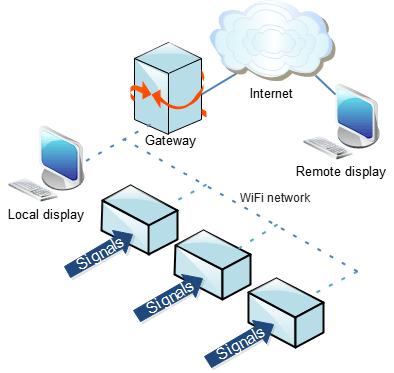
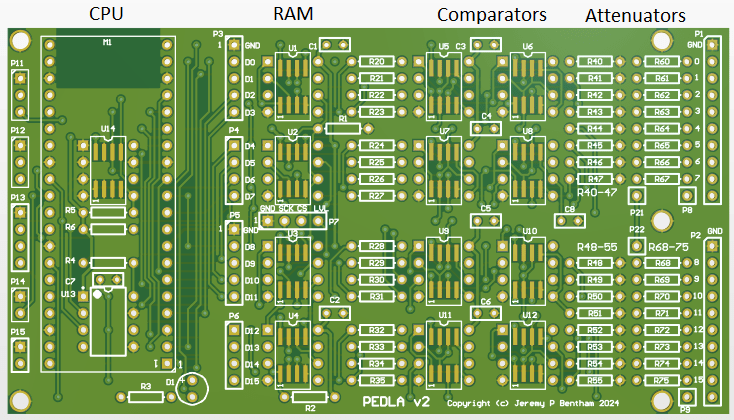


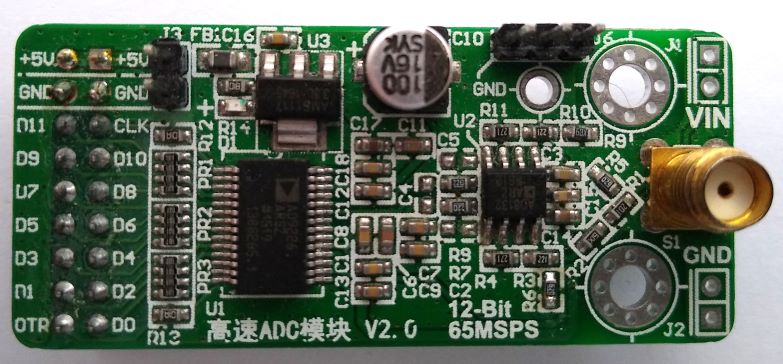


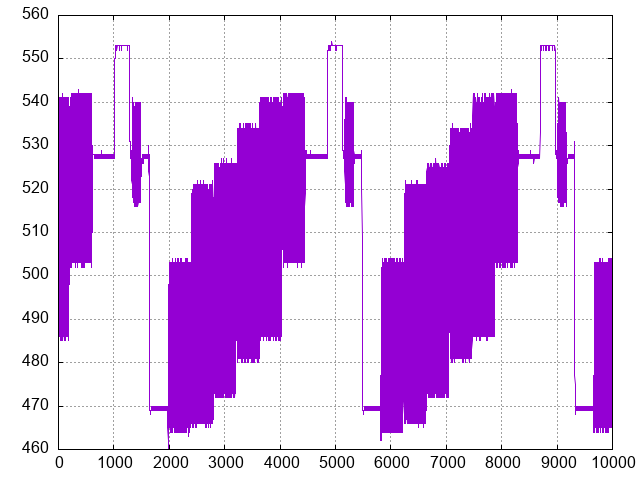

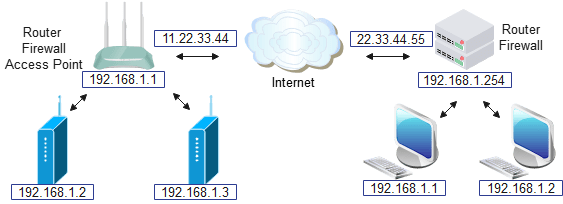
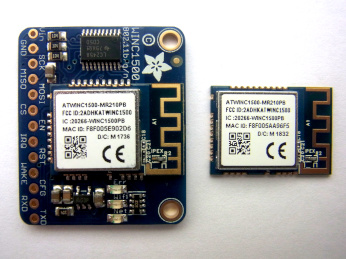


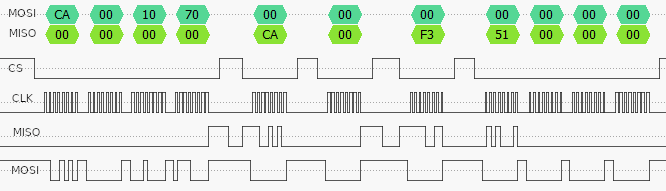


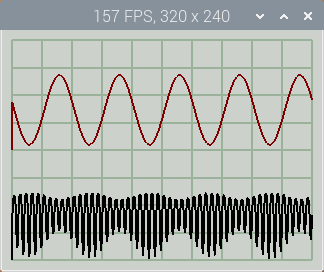
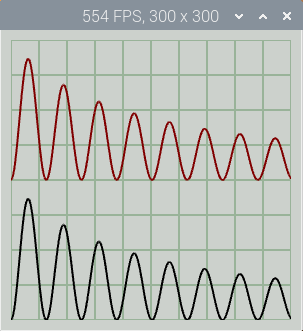
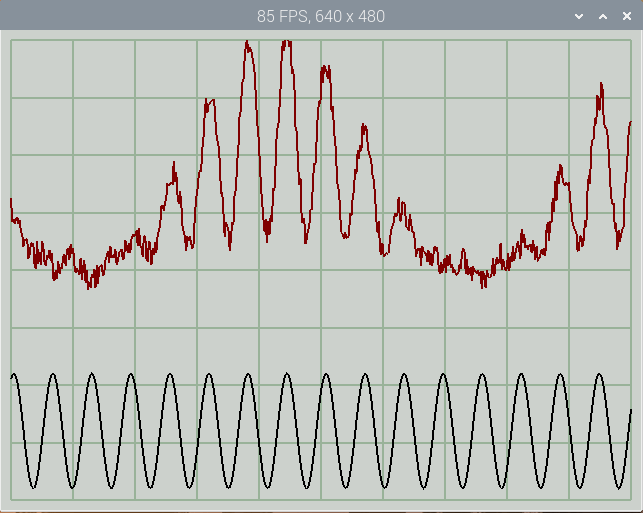


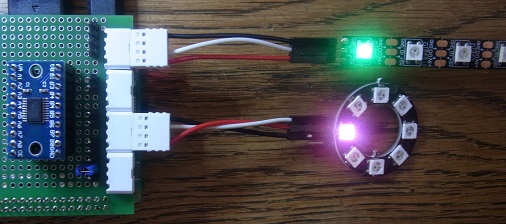


 Lean2
Lean2 