In a previous post, I described ‘EDLA’, a WiFi-based logic analyser unit, that uses a Web-based display. That version used an ESP32 to provide WiFi connectivity; the PEDLA uses a Pi PicoW module instead.
Hardware
PEDLA circuit board
The hardware is similar to the previous version; aside from the CPU change, the main addition is a 24LC256 serial EEPROM, that is used to store the non-volatile configuration parameters. The Pico flash memory can’t be used for this task, since it is bulk-erased at the start of every programming cycle. The parameters are set using a simple serial console interface.
Firmware
The firmware is written in C; networking is implemented using the picowi WiFi driver, combined with the Mongoose TCP/IP stack; follow these links for more information. The source code is on github here.
Copyright (c) Jeremy P Bentham 2024. Please credit this blog if you use the information or software in it.
Mongoose TCP/IP is comprehensive easy-to-use TCP/IP software stack, produced by Cesanta Software Ltd.
In its simplest form, you just include 2 library files in your project, then can add a Web server using only 20 lines of source code, see the details here. The code is fully open-source, and the documentation is excellent; the only downside for some projects might be that a (low cost) license is required for commercial usage, but this is a reasonable request, given the amount of work that has gone into this high-quality package. Non-commercial projects can use the software for free, within the standard GPL licensing conditions.
The package supports the Pi Pico RP2040 CPU as standard, and there is an example program using the Wiznet W5500 Ethernet controller, the source code is available here. There is also an example of WiFi connectivity on the Pico-W, using the standard Raspberry Pi Application Programming Interface (API) but the result is quite complex, so I’ve replaced that API with my high-speed WiFi drivers, to produce a fast, flexible, and easy-to-use solution for TCP/IP on the Pico-W.
Mongoose
An unusual feature of the Mongoose TCP/IP software stack is that it isn’t tied to any operating system (OS); not only can run under Windows, Linux or a Real Time Operating System (RTOS), but it can also work completely standalone, with no OS at all. This is achieved by eliminating all the usual tasks, threads, semaphores, mutexes etc., and running everything within a main polling loop. This makes the code uniquely portable, and it works work well with my Picowi WiFi drivers, since they are also based on a polling methodology.
If there is no OS, how can Mongoose handle the request for Web server files, since the file-system doesn’t exist? The answer is that ‘static’ files (i.e. files that don’t change) can be embedded into the source code, and they will be returned as if they came from a conventional OS. Dynamic files can be returned by intercepting the file request, and creating a response on-the-fly.
In its simplest form, all the Mongoose source-code is in a single file, mongoose.c, with a single header file, mongoose.h, making integration into an existing code-base really easy; it is just necessary to call the polling function as often as possible, and handle the (optional) callbacks when a request is received by the Web server.
MG PicoWi
The starting-point for my project is the tutorial for Pico Ethernet using the W5500 chip, but there are some important differences between Ethernet and Wifi connectivity:
Link failures. It is highly unusual for an Ethernet link to fail, since it uses a relatively secure plug-and-socket connection. Wireless links are much less secure, since they are competing for use of a shared medium (a specific radio channel) which can become very congested, leading to a high failure rate.
Security. Since the communications medium is open to all, it is necessary to establish a secure link, as a precaution against eavesdroppers. There are various schemes in use; at the time of writing, the most common is Wi-Fi Protected Access 2 (WPA2), with WPA3 just starting to become available.
Negotiation. As a result of the above, there is a significant amount of negotiation between the unit (known as a ‘station’ or STA) and a central hub (known as an Access Point or AP) when a unit wishes to join a WiFi network, and there is the distinct possibility of failure, e.g. if the STA has the wrong WPA encryption key. Compare this with Ethernet, where is it just a question as to whether the cable is plugged in to both units or not i.e. the network is ‘up’ or ‘down’.
The above points just refer to the establishment of a Wifi link between STA and AP, but there may be other negotiations as well, most notably obtaining an Internet Protocol (IP) address using Dynamic Host Configuration Protocol (DHCP). So it is important to have a robust mechanism for handling low-level network faults, and a way of informing higher-level code that the low-level link is broken, so nothing can be sent or received. I’ve also indicated a visual indication of the connection status, flashing the on-board LED at a fast rate if disconnected, slowly if connected.
Initialising the WiFi interface
The WiFi chip on the Pi Pico W is the CYW43439, and it contains 2 CPUs, with the attendant memory and peripherals. As a result, initialising the chip is quite complex; for example, it is necessary to load 230 KB of firmware into its memory every time it is powered up. My Picowi project describes the chip initialisation in considerable detail; if you want to learn about the low-level hardware & software interfaces, see part 1 and part 2 of that project.
Once the firmware has been loaded, and the chip CPUs are running, then there are many more commands to configure the interface; these are also sent by the PicoWi software. In the event of an error, there isn’t any corrective action that can be taken, apart from power-cycling the chip, and repeating the whole initialisation process.
Joining a network
The software connects to a WiFi network, that is specified by:
SSID. This is the Service Set Identifier, a string broadcast by the Access Point (AP) containing the network name. This is not to be confused with the Basic Service Set Identifier (BSSID); this is the low-level Media Access and Control (MAC) address of the AP, which is not needed.
Encryption protocol. This specifies the method that will be used to secure the WiFi transmissions. If the network is ‘open’, then there is no security, and the transmissions can easily be monitored and intercepted. The early security protocols such as WEP (Wired Equivalent Privacy) provide minimal protection, so the more modern WPA (Wi-Fi Protected Access) is generally used, with its successors WPA2 and WPA3.
Password. This is the secret encryption key used to encode & decode the transmissions; for WPA it is a string with a length from 8 to 64 characters.
It is not unusual for the network connection attempt to fail, so the code is contained within a loop, and a retry is performed after a suitable delay.
Transmission and reception.
The Mongoose stack is designed to handle a variety of network drivers, that are specified using a single structure with pointers to functions for initialisation, transmission, reception, and network state reporting:
The transmit & receive functions call the corresponding functions within PicoWi:
// Transmit WiFi data
static size_t mg_wifi_tx(const void *buf, size_t buflen, struct mg_tcpip_if *ifp)
{
    size_t n = event_net_tx((void *)buf, buflen);
    return  n ? buflen : 0;
}
// Receive WiFi data
static size_t mg_wifi_rx(void *buf, size_t buflen, struct mg_tcpip_if *ifp)
{
    int n = wifi_poll(buf, buflen);
    return n;
}
It is important to realise that the polling of the WiFi chip isn’t just to receive data, it is also to receive other ‘events’, such as notifications of the network state. Furthermore, Mongoose does not call this function if the network is ‘down’, so there is a risk that the network will be permanently stuck in the ‘down’ state, since the WiFi chip isn’t being polled for events to show the network is ‘up’.
The solution to this problem is to include additional polling in the main loop:
if (!mif.driver->up(0))
    wifi_poll(0, 0);
This polls the WiFi interface if it isn’t reported as ‘up’, so that the change-of-state can be detected. The zero parameters ensure that in the ‘down’ state, any incoming network data is discarded, since nothing useful can arrive until the the network has been joined.
Polling
To those unfamiliar with embedded systems, the extensive use of polling might seem to be counter-productive, resulting in a much slower response to network events – wouldn’t it be quicker to use interrupts?
The answer to this question comes from a deeper understanding of what actually happens within a multi-tasking system. To give an interrupt-driven system a quick response-time, it is important that the interrupt hander doesn’t do much; it has to rapidly save the incoming data, without doing much processing, in order to be ready for the next message. So it will set a semaphore, that will wake up another process that decodes the message format and prepares a response, which is put in a queue for transmission. Then another context-switch will pass control to a transmit routine, to send the response out. It is important to ensure that the hardware isn’t being accessed by 2 routines at the same time, so mutual exclusion (‘mutex’) flags have to be used to guarantee this.
This logic is quite complex, and due to its dynamic nature, is difficult to test & debug; an error can cause the network driver to stall, until an idle-timer expires, and triggers code that tries to resolve the situation.
For this reason, the overall simplicity of single-threaded polled code can appear quite attractive; interrupts can still be used for real-time processing (such as scanning a keypad) whilst the network code keeps running in the background.
Web server
The Web server (web_server.c) is described in considerable detail in the Mongoose documentation, so there is little I can add. If you log in using one of the given identities, there is a demonstration of various features, but sadly the most interesting (such as Firmware Update) are just dummy functions; extra code is needed to make these operational.
Bulk data transfer
I have previously said that the Web server can provide static (read-only) files from its compiled-in filesystem, and small dynamic files by intercepting the file request callback, and generating the HTML code on-the fly. However there is another use-case; what happens if we want to return a very large file on-the-fly, for example, a picture from a Web camera? Cesanta have provided a ‘huge response’ example, but it involves chopping up the data into smaller sections, and reassembling them on the client using Javascript. I’d like to display the image by simply pointing the browser at its location, so this technique isn’t suitable.
There is an alternative method; just emulate a filesystem containing the file we want to send. When accessing the file, Mongoose starts by issuing a ‘stat’ call to get the data length & timestamp, then follows with an ‘open’ call, multiple ‘read’ calls, and a ‘close’ call. It is easy to intercept these file calls, since they are function pointers in a file API structure:
This is a port of the mongoose Web server and device dashboard onto the Pi PicoW, using the picowi WiFi driver in place of the conventional lwIP code.
The network details are hard-coded in the firmware, so the file ‘mg_wifi.c’ needs to be edited, to change the default network name (SSID) and password.
It may also be necessary to change the network security setting, the options are:
I have had difficulties with the WPA2_WPA and WPA3_WPA2 settings, so have generally found it best to use PSK with WPA, WPA2 or WPA3.
There is a serial console, with transmit data on pin 1 of the PicoW module, at 115200 baud. When the unit powers up, the on-board LED will flash rapidly, and the console will display something similar to the following:
WiCap v0.26
Using dynamic IP (DHCP)
Detected WiFi chip
Loaded firmware addr 0x0000, len 228914 bytes
Loaded NVRAM addr 0x7FCFC len 768 bytes
MAC address 28:CD:C1:00:C7:D1
Joining network testnet
WiFi wl0: Nov 24 2022 23:10:29 version 7.95.59 (32b4da3 CY) FWID 01-f48003fb
Joined network
IP state: UP
IP state: REQ
IP state: READY, IP: 10.1.1.78, GW: 10.1.1.1
The dynamic IP address will depend on the settings of your network Access Point.
Once the unit has connected to the WiFi network, the LED will flash more slowly (1 Hz); it should respond to network pings, and the Web server will be available on the usual port 80.
This project describes the creation of the software for a vehicle speedometer. It measures the frequency of a signal that is proportional to speed, but I’m also using the opportunity to explore two possible techniques for measuring frequency with high accuracy using an RP2040 processor.
Unusually, I’m going to use the RP2040 PWM (Pulse Width Modulation) peripheral to count the clock pulses. PWM is normally used to generate signals, not measure them, but the RP2040 peripheral has an unusual feature; it can be use to count pulse-edges, namely the number of low-to-high or high-to-low transitions of an input signal. If we start this counter, and stop after a specific time (which is commonly known as ‘gating’ the counter) then we obtain the frequency by dividing the count by the time.
The RP2040 documentation uses the unusual term ‘slice’ to denote one of the PWM channels, where each slice has 2 ‘channels’ (A and B) that are associated with specific I/O pins, as follows:
Slice 0 channel A uses GPIO 0, Slice 0 channel B uses GPIO 1
Slice 1 channel A uses GPIO 2, Slice 1 channel B uses GPIO 3
Slice 2 channel A uses GPIO 4, Slice 2 channel B uses GPIO 5
..and so on..
When generating PWM signals both channels can be used, but when counting edges we must use the ‘B’ channels, so an odd GPIO pin number.
The PWM counter isn’t difficult to set up, using the standard Pico hardware interface library:
The sleep_msec() call isn’t very accurate, its timing will depend on other activities the RP2040 is performing (such as USB interrupts).
During the sleep_ms() call the CPU is just wasting time, doing nothing; if we want to do something else (such as scanning a button input) then we’ll have to use a timer interrupt for that, which will further reduce the accuracy of the sleep timing.
The count is a 16-bit number, so we must choose a gate-time that ensures the counter won’t overflow.
To fix points 1 & 2 we need the gating timer to be implemented in hardware, and we can use another PWM ‘slice’ for this purpose; it is basically acting as an up-counter fed from a known clock, and when it times out, we halt the counter PWM, so its value is fixed.
To achieve good accuracy, there should also be a hardware link between the timeout of the timer PWM and the stopping of the counter PWM, so it won’t matter what code the CPU is executing at the time. Fortunately the timer PWM can trigger a DMA (Direct Memory Access) cycle when it times out, and we can use this cycle to update the counter PWM control register, stopping the counter. This means that once the two PWM slices are started (counter & timer) no more CPU intervention is required, until the data capture is finished.
Initialising the gate time & DMA is a little more complicated:
The PWM wrap settings deserve some explanation; since the hardware register is 16 bits, the obvious choice is to set the timer wrap value to 65536 or less, but this means the longest gate-time is 65536 * 256 / 125 MHz = 134 msec. However, by selecting ‘phase correct’ mode, the PWM device counts up to the wrap value, then back down again, before triggering the DMA. So the wrap value effectively becomes 17 bits wide, and we can set a gate time of 250 msec, as in the code above.
To run a capture cycle, it is only necessary to give the DMA controller the address of the register to be modified (the counter PWM ‘csr’ register) and start both PWM slices simultaneously.
To get read the counter value, we need to wait until the DMA cycle is complete, then stop the timer and access the count register.
// Get pulse count
int counter_value(void)
{
    while (dma_channel_is_busy(gate_dma_chan)) ;
    pwm_set_enabled(gate_slice, false);
    return((uint16_t)pwm_get_counter(counter_slice));
}
There is still the problem of the counter potentially overflowing if there is a high-frequency input; this could be solved using a PWM overflow interrupt, but personally I prefer to poll the count value to check for overflow, for example:
uint counter_lastval, counter_overflow;

// Check for overflow, and check if capture complete
bool counter_value_ready(void)
{
    uint n = pwm_get_counter(counter_slice);

    if (n < counter_lastval)
        counter_overflow++;
    counter_lastval = n;
    return (!dma_channel_is_busy(timer_dma_chan));
}
A capture cycle that is protected against counter overflow could now look like:
counter_start();
while (!counter_value_ready())
{
    // Insert code here to be executed while waiting for value
}
printf("%u Hz\n", frequency_value());
Reciprocal measurement
The ‘count-the-edges’ technique described above works well for reasonably fast signals (e.g. 1 kHz and above), but at lower frequencies it is quite inaccurate, so an alternative technique is used, which is known as ‘time-interval’ or ‘reciprocal’ measurement.
Instead of counting the number of transitions in a given time, the new technique measures the time between the transitions, for one or more cycles; the inverse of this time is the frequency.
We have already seen how the RP2040 PWM peripheral can be used to count pulses and generate DMA requests; if the ‘wrap’ value is set to zero, then the PWM will generate a DMA request for every positive-going transition of the input signal. This DMA cycle can be used to copy the 32-bit microsecond value from a timer register into an array. So we end up with an array of microsecond timing values, and the inverse of these is the frequency.
The modifications to the previously-described code aren’t substantial, we just need to modify the counter ‘wrap’ value, and set up the DMA transfers of the timing values.
The first 2 definitions give the number of cycles to be captured, and the length of time to wait for the edges to arrive. These may be tuned as required; a slow signal will require a long capture time, for example a 1 Hz signal needs at least 2 seconds to be sure of capturing 2 edges. Conversely, achieving high accuracy on a fast signal will require a large array, since the result is calculated from the average of all the values.
// Get average of the edge times
int edge_timer_value(void)
{
    uint i=1, n;
    int total=0;

    dma_channel_abort(timer_dma_chan);
    pwm_set_enabled(counter_slice, false);
    while (i<NUM_EDGE_TIMES && edge_times[i])
    {
        n = edge_times[i] - edge_times[i-1];
        total += n;
        i++;
    }
    return(i>1 ? total / (i - 1) : 0);
}

// Get frequency value from edge timer
float edge_freq_value(void)
{
    int val = edge_timer_value();
    return(val ? 1e6 / val : 0);
}
Since DMA has been used to capture the data, the sleep timing is completely non-critical; it can be increased to accommodate slower input signals, or reduced to provide a quicker answer with faster signals.
However, as mentioned above, the use of ‘sleep’ does render the CPU unresponsive for that duration, which is a problem if you want it to do other things, e.g. scan for button-presses. A simple way of fixing this issue (without resorting to interrupts) is to create a polled timer, that keeps track of the elapsed time, and returns a ‘true’ value when there is a timeout.
// Return non-zero if timeout
bool ustimeout(uint *tickp, uint usec)
{
    uint t = time_us_32(), dt = t - *tickp;

    if (usec == 0 || dt >= usec)
    {
        *tickp = t;
        return (1);
    }
    return (0);
}
Before using this timer, we call the function with a pointer to a ‘uint’ variable, and a zero microsecond value; this initialises the variable with the current time. Thereafter, we just call the function with the desired timeout value, and it will return ‘true’ on timeout. The main loop becomes:
uint edge_ticks;

while (true)
{
    memset(edge_times, 0, sizeof(edge_times));
    edge_timer_start();
    ustimeout(&edge_ticks, 0);
    while (!ustimeout(&edge_ticks, EDGE_WAIT_USEC))
    {
        // Insert code here to be executed while waiting for value
    }
    printf("Frequency %5.3f Hz\n", edge_freq_value());
This code can be used to measure very low frequencies; for example, with the gate time of over 2 seconds, it is possible to measure the 1 PPS (1 Pulse Per Second) signal from a GPS module, to within 6 decimal places. This is useful for checking the accuracy of the Pico microsecond timer, since the PPS signal is locked to the very accurate satellite clocks.
Running the code
The source code is available on Github here. There is a single C source file (picofreq.c), with a definition at the top to choose between edge-counter and edge-timer (reciprocal) measurements, then some definitions for the two methods:
// Set zero to use edge-counter, 1 to use edge-timer
#define USE_EDGE_TIMER      0

// Definitions for edge-counter
#define TIMER_PRESCALE      250     // 8-bit value
#define TIMER_WRAP          125000  // 17-bit value
#define SAMPLE_FREQ         (125000000 / (TIMER_PRESCALE * TIMER_WRAP))

// Definitions for edge-timer
#define NUM_EDGE_TIMES      11
#define EDGE_WAIT_USEC      200001
In edge-counter mode, you need to select values that give you the required gate time, bearing in mind the prescaler value is 8 bits, and the wrap value is 17 bits. The settings above give a gate-time of 250 * 12500 / 125000000 = 0.25 seconds, which is close to the maximum.
For the edge-timer, the definitions are the number of edges to captured, and the overall time to wait. In the example above, the frequency is calculated using the average of 10 time-difference values, with a waiting time of 0.2 seconds. To gain maximum accuracy from fast signals, it will be necessary to increase the number of edges; conversely, if you want to measure a slow signal such as the 1 Hz output from a GPS, then the waiting-time needs to be increased to over 2 seconds.
In either mode, the program prints the frequency on the default serial console (115k baud on GPIO pin 0), and toggles the Pico on-board LED. If you are using the Pico-W wireless variant then the LED is driven by the CYW43439 WiFi chip, and it is much more complex to control, so if you want to retain this feature, an external LED may be used on any convenient pin number.
The GPIO pin definitions are:
#define FREQ_IN_PIN         7
#define GATE_TIMER_PIN      0
The frequency input can be any odd-numbered GPIO pin, as discussed above. The gate timer pin definition is just a convenient way of specifying a PWM slice, so the above definition selects slice 0 channel A. Since GPIO pin 0 is defined as a serial output, there is no clash between the serial & PWM signals; the PWM output signal is discarded.
To build and run the code, I have included a minimal CMakeLists.txt, the only addition being the enabling of all warnings:
This generates a uf2 file in the ‘build’ directory that can be programmed into the Pico using the normal method (holding the pushbutton down while powering up, then drag-and-drop using the USB filesystem) but personally I find it much more convenient to use the the Pico debug probe, and in case you are using the Windows VS Code front-end, I have included the standard launch.json and settings.json files in a .vscode subdirectory, since I’ve found these to be essential for using VS Code. To download & debug the code, just hit ctrl-shift-D to bring up the debug window, then F5. If you are using and alternative debug adaptor, it will probably be necessary to modify launch.json, but the variety of options are too complex to be described here.
Copyright (c) Jeremy P Bentham 2023. Please credit this blog if you use the information or software in it.
A Web camera is quite a demanding application, since it requires a continuous stream of data to be sent over the network at high speed. The data volume is determined by the image size, and the compression method; the raw data for a single VGA-size (640 x 480 pixel) image is over 600K bytes, so some compression is desirable. Some cameras have built-in JPEG compression, which can compress the VGA image down to roughly 30K bytes, and it is possible to send a stream of still images to the browser, which will display them as if they came from a video-format file. This approach (known as motion-JPEG, or MJPEG) has a disadvantage in terms of inter-frame compression; since each frame is compressed in isolation, the compressor can’t reduce the filesize by taking advantage of any similarities between adjacent frames, as is done in protocols such as MPEG. However, MJPEG has the great advantage of simplicity, which makes it suitable for this demonstration.
Camera
The standard cameras for the full-size Raspberry Pi boards have a CSI (Camera Serial Interface) conforming to the specification issued by the MIPI (Mobile Industry Processor Interface) alliance. This high-speed connection is unsuitable for use with the Pico, we need something with a slower-speed SPI (Serial Peripheral Interface), and JPEG compression ability.
The camera I used is the 2 megapixel Arducam, which is uses the OV2640 sensor, combined with an image processing chip. It has I2C and SPI interfaces; the former is primarily for configuring the sensor, with the latter being for data transfer. Sadly the maximum SPI frequency is specified as 8 MHz, which compares unfavourably with the 60 MHz SPI we are using to communicate with the network.
The sensors require a large number of i2c register settings in order to function correctly. These are just ‘magic numbers’ copied across from the Arducam source code. The last block of values specify the sensor resolution, which is set at compile-time. The options are 320 x 240 (QVGA) 640 x 480 (VGA) 1024 x 768 (XGA) 1600 x 1200 (UXGA), e.g.
A single frame is captured by writing to a few registers, then waiting for the camera to signal that the capture (and JPEG compression) is complete. The size of the image varies from shot to shot, so it is necessary to read some register values to determine the actual image size. In reality, the camera has a tendency to round up the size, and pad the end of the image with some nulls, but this doesn’t seem to be a problem when displaying the image.
// Read single camera frame
int cam_capture_single(void)
{
    int tries = 1000, ret=0, n=0;

    cam_write_reg(4, 0x01);
    cam_write_reg(4, 0x02);
    while ((cam_read_reg(0x41) & 0x08) == 0 && tries)
    {
        usdelay(100);
        tries--;
    }
    if (tries)
        n = cam_read_fifo_len();
    if (n > 0 && n <= sizeof(cam_data))
    {
        cam_select();
        spi_read_blocking(CAM_SPI, 0x3c, cam_data, 1);
        spi_read_blocking(CAM_SPI, 0x3c, cam_data, n);
        cam_deselect();
        ret = n;
    }
    return (ret);
}
Reading the picture from the camera just requires the reading of a single dummy byte, then the whole block that represents the image; it is a complete JFIF-format picture, so no further processing needs to be done. If the browser has requested a single still image, we just send the whole block as-is to the client, with an HTTP header specifying “Content-Type: image/jpeg”
The following image was captured by the camera at 640 x 480 resolution:
MJPEG video
As previously mentioned, the Web server can stream video to the browser, in the form of a continuous flow of JPEG images. The requires a few special steps:
In the response header, the server defines the content-type as “multipart/x-mixed-replace”
To enable the browser to detect when one image ends, and another starts, we need a unique marker. This can be anything that isn’t likely to occur in the data stream; I’ve specified “boundary=mjpeg_boundary”
Before each image, the boundary marker must be sent, followed by the content-type (“image/jpeg”) and a blank line to mark the end of the header.
Timing
The timing will be quite variable, since it depends on the image complexity and network configuration, but here are the results of some measurements when fetching a single JPEG image over a small local network, using binary (not base64) mode:
Resolution (pixels)
Image capture time (ms)
Image size (kbyte)
TCP transfer time (ms)
TCP speed (kbyte/s)
320 x 240
153
10.2
4.4
2310
640 x 480
292
25.6
10.9
2350
1024 x 768
321
49.1
21.5
2285
1600 x 1200
420
97.3
42.4
2292
Web camera timings
The webcam code triggers an image capture, then after the data has been fetched into the CPU RAM buffer, it is sent to the network stack for transmission. There would be some improvement in the timings if the next image were fetched while the current image is being transmitted, however the improvement will be quite small, since the overall time is dominated by the time taken for the camera to capture and compress the image.
Using the Web camera
There is only one setting at the top of camera/cam_2640.h, namely the horizontal resolution:
It is important to note that a new image capture is triggered every time the Web page is accessed, so any attempt to simultaneously access the pages from more than one browser will fail. To allow simultaneous access by multiple clients, a double-buffering scheme needs to be implemented.
Transmission Control Protocol (TCP) is an important next step in the PioWi protocol stack; it opens the way to various network applications, such as the ubiquitous Web server.
In this post I’ll be introducing a fast Web server, that can be used for intensive data-transmission duties; in the next post it’ll be used to implement a Web camera with still- and video-image capabilities.
TCP
At first sight, TCP may look quite simple to implement; it adds reliability to the network transmissions by establishing a ‘connection’ between 2 systems, with each side tracking the other’s transmissions, and acknowledging receipt. However, there are various subtleties to the TCP protocol that make it very challenging to implement, namely:
Out-of-order arrival. Since there is no fixed path for the data blocks to move across the network, a newer block may arrive after an older one.
Data flow. A unit that sends data must regulate its flow so as to not overwhelm the receiver.
Disorderly shutdown. When the data transfer is complete, sender and receiver will attempt to shut down the connection in an orderly fashion, but sometimes this will fail, leaving a connection half-open.
Buffering. The data sender won’t know if its data has been received until an acknowledgement is received from the receiver, so it must buffer the data just in case it has to be resent.
Symmetry. Although one system ( the ‘client’) initiates communication with another (the ‘server’), once the connection is established it is completely symmetrical, with either side being able to send & receive the data, or terminate the connection.
Multiple connections. Servers are usually required to handle multiple simultaneous connections, from multiple clients.
It is well worth reading the TCP specification RFC9293; implementing a full-scale TCP stack is a complex task, so the initial focus of this post will be on a server that primarily sends data – it receives requests from clients, but is optimised for the sending of bulk data from server to client.
State machine
TCP state machine
The behaviour of the TCP stack is controlled by a sate machine, that processes open/close/acknowledgement signals from the remote system, and open/close signals from a higher-level application, and decides what to do next. The signals from the remote system are in the form of binary flags, most notably:
SYN: open a connection (synchronise)
ACK: acknowledge a transmission
FIN: close a connection (finish)
RST: reject a transmission (reset)
Since the connection is symmetrical, both sides have to receive a SYN to make the connection, and a FIN to close that connection. Here is a sample transaction, showing how a Web client and server might transfer a small Web page:
Sample TCP client-server transaction
The server has a permanently-open port (‘passive’ open) that is ready to accept incoming connection requests. The client application sets up the connection by sending a SYN to the server, which responds with SYN + ACK, then the client sends an ACK to confirm. Both sides now consider the connection to be ‘established’, and either side can start sending data. In the case of a Web browser, the client sends an HTTP-format request for a Web page; the details of that request will be explained later.
After the server acknowledges the request, it sends 2 data blocks as a response, which the client acknowledges using a single ACK. In this example I’ve then shown the client closing the connection by sending a FIN, which is acknowledged, then confirmed by the server sending a FIN, however in many cases there will be a more sizeable exchange of data, and the connection might be kept open for further requests and responses, to avoid the (very significant) overhead of opening and closing the connection.
TCP sequence number and window size
Both sides of the TCP connection need to keep track of the data sent & received; this is done with a ‘sequence number’, that essentially points to the current starting position of the data within a virtual data buffer, with 3 extra complications:
The SYN and FIN markers each count as 1 extra data byte.
The first transmission doesn’t have a sequence number of zero; a pseudo-random value is used, to reduce the likelihood of the current data blocks being confused with blocks that might be left over from a previous transaction.
The number is 32 bits wide. and wraps around when the maximum value is exceeded.
To avoid congestion, there must some way for a unit to signal how much buffer space it has left; this is done by the ‘window size’ parameter in the TCP message. This value isn’t necessarily a reflection of the actual space available, as there is a danger that a small value will cause a lot of small data blocks to be generated (which is very inefficient), rather than waiting for a good-sized space to be available.
Message format
The protocol header has source & destination port numbers (similar to UDP), also the sequence & acknowledgement numbers and window size, that are needed for error handling and flow control. The flags are a bit-field containing SYN, ACK, FIN, RST and other indications.
/* ***** TCP (Transmission Control Protocol) header ***** */
typedef struct tcph
{
    WORD  sport,            /* Source port */
          dport;            /* Destination port */
    DWORD seq,              /* Sequence number */
          ack;              /* Ack number */
    BYTE  hlen,             /* TCP header len (num of bytes << 2) */
          flags;            /* Option flags */
    WORD  window,           /* Flow control credit (num of bytes) */
          check,            /* Checksum */
          urgent;           /* Urgent data pointer */
} TCPHDR;

#define TCP_DATA_OFFSET (sizeof(ETHERHDR) + sizeof(IPHDR) + sizeof(TCPHDR))

#define TCP_FIN     0x01    /* Option flags: no more data */
#define TCP_SYN     0x02    /*           sync sequence nums */
#define TCP_RST     0x04    /*           reset connection */
#define TCP_PUSH    0x08    /*           push buffered data */
#define TCP_ACK     0x10    /*           acknowledgement */
#define TCP_URGE    0x20    /*           urgent */
The checksum is similar to UDP in that it includes a ‘pseudo-header’ with source & destination IP addresses.
/* ***** Pseudo-header for UDP or TCP checksum calculation ***** */
/* The integers must be in hi-lo byte order for checksum */
typedef struct              /* Pseudo-header... */
{
    IPADDR sip,             /* Source IP address */
          dip;              /* Destination IP address */
    BYTE  z,                /* Zero */
          pcol;             /* Protocol byte */
    WORD  len;              /* UDP length field */
} PHDR;
HTTP
TCP can be used to carry a wide variety of higher-level protocols, but a frequent choice is Hypertext Transfer Protocol (HTTP), that is used by a Web browser to request data from a Web server.
An HTTP request consists of:
A request line, specifying the method to be used, the resource to be accessed, and the HTTP version number. A query string may optionally be appended to the resource name, to provide additional requirements.
Optional HTTP headers, or header fields, specifying additional parameters
A blank line, marking the end of the header
A message body, if needed
The server responds with:
A status line, with a status code and reason phrase, indicating if the resource is available.
HTTP headers, or header fields, giving information about the resource, and the server that is providing it.
Web browsers have a create tendency to store (‘cache’) and re-use Web pages, which is a major problem if we are trying to display ‘live’ data, so the NOCACHE header can be used to tell the browser not to cache the resource data.
A browser can handle a wide range of data formats, but only if it is informed which format has been used. The CONTENT headers clarify this, and are essential for displaying the data correctly.
A feature of modern Web browsers is that they block ‘cross-site scripting’ by default. This means that the browser can’t insert data from one server, whilst displaying a page from another. This is very important when dealing with high-security applications such as banking, to prevent a rogue site from impersonating a legitimate site by displaying portions of its pages. It also forces all the pages and data to be hosted on a single Web server, which can be a nuisance for embedded systems with limited capabilities; it is better to host the static Web pages on another site, so the embedded system just has to provide the sensor data to be displayed on those pages. The ORIGIN_ANY header enables this, by allowing the data to be used by any other Web site.
The MULTIPART definition is useful for defining a video stream, that consists of a sequence of still images. The video server I’m creating uses Motion JPEG (MJPEG) which is just a stream of JPEG images, so the browser needs an indication as to where one image ends, and the next begins. So MULTIPART specifies a (hopefully unique) marker that can be sent after each frame as a delimiter, that triggers the browser to display the last-received frame, and prepare to receive a new one. The end-result is that the still images are displayed as a continuous stream, emulating a conventional video file, albeit with a larger file-size, due to the absence of inter-frame compression.
Web server API
Programming a Web server in C can get quite complicated, especially when we’re not running a multi-tasking operating system. The usual model is for each connection to ‘block’ (i.e. stall) until data is available, but that isn’t feasible in a single-tasking system.
So instead I’ve created an event-oriented system, where a callback function is registered for each Web page:
These handler functions are only called if the relevant Web page is requested, so they don’t consume any resources until that happens.
If the page just has some simple static text, that is loaded into a buffer, and a socket closure is requested:
// Handler for test page
int web_test_handler(int sock, char *req, int oset)
{
    static int count = 1;
    int n = 0;

    if (req)
    {
        printf("TCP socket %d Rx %s\n", sock, req);
        sprintf(temps, "<html><pre>Test %u</pre></html>", count++);
        n = web_resp_add_str(sock,
            HTTP_200_OK HTTP_SERVER HTTP_NOCACHE HTTP_CONNECTION_CLOSE
            HTTP_CONTENT_HTML HTTP_HEADER_END) +
            web_resp_add_str(sock, temps);
        tcp_sock_close(sock);
    }
    return (n);
}
The ‘req’ parameter is the browser text requesting the resource, which can be parsed to extract the parameter values from a query string.
The ‘oset’ parameter is used when the Web response doesn’t fit into a single response message. It tracks the current position within the data buffer, which normally is equal to the total amount of data so far, but under error conditions, it will step back to an earlier value. A typical usage is to use the value as an index into a data buffer, not forgetting the HTTP response header, which is at the start of the first data block. The following code returns a stream of blocks for each image, until all the image has been sent, which triggers a new multipart header and image capture:
#define TCP_MAXDATA   1400

// Handler for single camera image
int web_cam_handler(int sock, char *req, int oset)
{
    int n = 0, diff;
    static int startime = 0, hlen = 0, dlen = 0;

    if (req)
    {
        hlen = n = web_resp_add_str(sock,
            HTTP_200_OK HTTP_SERVER HTTP_NOCACHE HTTP_CONNECTION_CLOSE
            HTTP_CONTENT_JPEG HTTP_HEADER_END);
        dlen = cam_capture_single();
        n += web_resp_add_data(sock, cam_data, TCP_MAXDATA - n);
    }
    else
    {
        n = MIN(TCP_MAXDATA, dlen + hlen - oset);
        if (n > 0)
            web_resp_add_data(sock, &cam_data[oset - hlen], n);
        else
            tcp_sock_close(sock);
    }
    return (n);
}
Test Web server
web_server.c is a test program to demonstrates the ability of a Web server to return large amounts of data at high speed (over 20 megabits per second). It transfers dummy binary data in text format (base-64) or in raw binary.
It has the following Web pages:
status.txt
This is a simple status message with dummy parameters in JSON format, e.g.
This demonstrates how dynamic numeric values could be propagated from server to client.
data.txt
This demonstrates the transfer of a large binary block using base-64 encoding, which converts every 3 bytes into 4 ASCII characters. This technique is used when we want to avoid the complication of handling raw binary.
The microsecond timer on the Pico is used to record the start & ending times of the data transfer, so as to print the data rate on the Pico serial console.
data.bin
This transfers blocks of data in pure binary format, and the throughput rate is reported.
default
The default Web page just returns the string ‘test’ and a number that increments with every access, to show that the page isn’t being cached.
Running the Web server
By default, the server will try to connect to the default Wifi network (‘testnet’) so you will probably need to change the definition at the top of the server code to match your network name and password.
If you are using the Pi development environment described in the introduction, then compiling and running the Web server requires just 2 steps:
make web_server
./prog web_server
When it boots, the server will report its IP address on the serial console, e.g. 192. 168.1.240. Enter that address into a Web browser, to see the (really simple) default page, with a number that increments every time you re-fetch the page:
To see the raw JSON-format status page, access status.txt:
You can also view the start of the base-64 format data, though this isn’t very enlightening:
To demonstrate how the status & data information can be decoded and displayed, I have included an HTML file web/display.html, which is an adaptation of my ‘EDLA’ logic analyser code.
Before loading this file, you need to edit the IP address at the top to match your Pico server, and also select binary or base-64 mode for the transfer:
const remip = "192.168.1.240", bin_mode = true;
The resulting display shows a logic-analyser-style display of the incoming data, with the text from the status file underneath. The graphic is much too dense to be any use, but it does show how a large block of data can be transferred and displayed with remarkable speed.
So far I have used a large number of custom functions to configure and control the WiFi networking, but before adding yet more functionality, I need to offer a simpler (and more standard) way of doing all this programming.
When it comes to network programming on Linux or Windows systems, there is only one widely-used Application Programming Interface (API), namely Network Sockets, also known as Internet Sockets. A socket is an endpoint on the network, defined by an IP address & port number; in previous parts, I have used sockets to construct DHCP & DNS clients, and now will use them in a general-purpose programming interface.
UDP & TCP, Client & Server
To recap on the difference between User Datagram Protocol (UDP) & Transmission Control Protocol (TCP), also Client & Server:
UDP allows you to send blocks of data across the network, the maximum block size generally being around 1.5 kBytes. There is no synchronisation between sender & receiver, and no error handling, so there is no guarantee that the data will arrive at the destination.
TCP starts with an exchange of packets to synchronise the two endpoints, and thereafter the transfer is bidirectional and stream-orientated; it acts like a transparent pipe between the sockets, carrying arbitrary numbers of bytes from one socket to the other. When the transfer is complete, either side can close the connection, but the closure will only be complete when both sides acknowledge it.
A client initiates contact with a server, by sending UDP or TCP traffic to a well-known port on that system.
A server takes possession of (‘binds to’) a specific UDP or TCP port number, and runs continuously, waiting for a client to initiate contact.
I’m starting with the simplest of these options, namely a UDP server.
UDP server
To create a server socket, it is just necessary to issue a socket() call, followed by bind() to take possession of a specific port, by providing an initialised structure. The same code applies for both Linux, and my RP2040 socket API:
#define PORTNUM  8080    // Server port number
#define MAXLEN   1024    // Maximum data length

int server_sock;
struct sockaddr_in server_addr, client_addr;

server_sock = socket(AF_INET, SOCK_DGRAM, 0);
if (server_sock < 0)
{
    perror("socket creation failed");
    return(1);
}
memset(&server_addr, 0, sizeof(server_addr));
server_addr.sin_family    = AF_INET;
server_addr.sin_addr.s_addr = INADDR_ANY;
server_addr.sin_port = htons(PORTNUM);
if (bind(server_sock, (struct sockaddr *)&server_addr, sizeof(server_addr)) < 0)
{
    perror("bind failed");
    return(1);
}
You may be surprised at the use of 2 structures, namely sockaddr_in, and sockaddr. The former is specific to Internet Protocol, whereas the latter is general-purpose, capable of being used with other network protocols. The structure has to be filled in with the address family (Internet Protocol) the desired IP address (zero for any), and the port number, byte-swapped to big-endian.
The code then enters an endless loop, waiting for a a datagram to be received, printing the data (on the assumption it is text), and returning a text string in response:
printf("UDP server on port %u\n", PORTNUM);
while (1)
{
    memset(&client_addr, 0, sizeof(client_addr));
    addrlen = sizeof(client_addr);
    n = recvfrom(server_sock, buffer, MAXLEN-1, 0,
        (struct sockaddr *)&client_addr, &addrlen);
    if (n > 0)
    {
        buffer[n] = 0;
        printf("Client %s: %s\n", inet_ntoa(client_addr.sin_addr), buffer);
        n = sprintf(buffer, "Test %u\n", testnum++);
        sendto(server_sock, buffer, n, MSG_CONFIRM,
            (struct sockaddr *)&client_addr, addrlen);
    }
}
It may seem strange to set ‘addrlen’ every time we go round the loop; this is for safety, as recvfrom() can potentially modify its value. Also, there is no guarantee that the incoming string is null-terminated, so a null is added at the end of the datagram, just in case.
Blocking
The above code ‘blocks’ on the receive function, that is to say it waits indefinitely until the data arrives, which is standard practice on Linux or Windows sockets – it is sensible when we have a multi-tasking operating system, but inconvenient if we are restricted to a single task, as the CPU can’t run any other code while waiting for incoming data.
There are various ways round this limitation, for example Linux has a ‘select’ function that allows you to poll the interface, checking if any incoming data is available. Alternatively, we can set a timeout on the socket read, for example 0.1 seconds (100,000 microseconds):
To demonstrate this functionality, we can add a useful feature whereby the LED is flashed every time an access to the server is made; if we set the timeout to 1000 microseconds, then the timeouts give us a convenient millisecond timer. The following code does a rapid flash of the LED until the unit joins the Wifi network, then a quick blink every 2 seconds, plus a flash every time the server is accessed.
sock_set_timeout(server_sock, 1000);
while (1)
{
    memset(&client_addr, 0, sizeof(client_addr));
    addrlen = sizeof(client_addr);
    n = recvfrom(server_sock, buffer, MAXLEN, 0,
        (struct sockaddr *)&client_addr, &addrlen);
    if (n > 0)
    {
        buffer[n] = 0;
        printf("Client %s: %s\n", inet_ntoa(client_addr.sin_addr), buffer);
        n = sprintf(buffer, "Test %u\n", testnum++);
        sendto(server_sock, buffer, n, 0, (struct sockaddr *)&client_addr, addrlen);
        msec = 0;
    }
    else
    {
        msec++;
        if (msec == 1)
            wifi_set_led(1);
        else if (msec == 100)
            wifi_set_led(0);
        else if (msec == 200 && !link_check())
            msec = 0;
        else if (msec == 2000)
            msec = 0;
    }
}
Test program
See the introduction for details on how to rebuild and program the udp_socket_server application into the Pico.
The simplest way to test the server is using the netcat application, that can easily be installed on the Raspberry Pi using ‘apt install’; you just need to note the IP address of the Pico as reported on the serial console, and enter it into the netcat command line, e.g. for an address of 192.168.1.240:
echo -n "hello" | nc -4u -w1 192.168.1.240 8080
The server will respond with an incrementing test number, e.g.
Test 1
Alternatively, here is a simple Python client program:
# Simple UDP client example
import time, socket

addr = "192.168.1.240", 8080
data = 'test'

while True:
    client = socket.socket(socket.AF_INET, socket.SOCK_DGRAM)
    client.settimeout(1)
    client.sendto(str.encode(data), addr)
    print("Tx: " + data);
    try:
        resp, server = client.recvfrom(1024)
    except socket.timeout:
        resp = None
    print("Rx: " + "timeout" if not resp else resp.decode('utf-8'))
    time.sleep(2)
# EOF
In part 5, we joined a WiFi network, and used ‘ping’ to contact another unit on that network, but this was achieved by setting the IP address manually, which is generally known as using a ‘static’ IP.
The alternative is to use a ‘dynamic’ IP, that a central server (such as the WiFi Access Point) allocates from a pool of available addresses, using Dynamic Host Configuration Protocol (DHCP); this also provides other information such as a netmask & router address, to allow our unit to communicate with the wider Internet.
IP addresses and routing
So far, I’ve just said that an IP address consists of 4 bytes, that are usually expressed as decimal values with dotted notation, e.g. 192.168.1.2, but there is some extra complication.
Firstly it is important to note I’m using version 4 of the protocol (IPv4); there is a newer version (IPv6) with a much wider address range, but the older version is sufficient for our purposes, and easier to implement.
Next it is important to distinguish between a public and private IP address.
Public: an address that is accessible from the Internet, generally assigned by an Internet Service Provider (ISP)
Private: an address used locally within an organisation, that is not unique; generally assigned from the blocks 192.168.x.x, 172.16.x.x or 10.x.x.x
The address we’ll be getting from the DHCP server is probably private; if we are accessing the Internet, there will be one or more network devices (‘routers’) that perform public-to-private translation, and also security functions (‘firewalls’) to block malicious data.
If our unit has an IP address it wishes to contact, how does it know what to do? It just has to determine if the target address is local or remote by applying a netmask. For example if our unit is given the address 192.168.1.1 with netmask 255.255.255.0, then a logical AND of the two values means that our local network (known as a ‘subnet’) is 192.168.1. If the unit we’re contacting is on that subnet (i.e. the address begins with 192.168.1) then we just send out a local ARP request to convert their IP address into a MAC address, and start communicating.
If the target address isn’t on the same subnet (e.g. 192.168.2.1, 11.22.33.44, or anything else) then our unit contacts a router (using the address given in the DHCP response) and relies on the router to forward the data appropriately.
In the diagram above, there are networks with public addresses 11.22.33.44 and 22.33.44.55, and they both have private addresses in 192.168.1.x subnetworks; the job of the router is to move the data between these subnetworks by performing Network Address Translation (NAT) between them.
If unit 192.168.1.3 wants to contact 22.33.44.55 it will check the netmask, and because the target isn’t on the same subnetwork, the data will be sent to the router 192.168.1.1, which will forward it over the Internet.
If 192.168.1.3 wants to contact 192.168.1.2, ANDing with the netmask will show that they are both on the same subnet, so the data will be sent directly, bypassing using the router.
However, if 192.168.1.3 wants to send the data to 192.168.1.1 on the remote network, how does the router know what to do? The simple answer is “it doesn’t”, as addresses on the 192.168.1.x subnet aren’t unique, and there will be thousands (or millions!) of units with that same address around the world. Also the netmask clearly indicates that 192.168.1.1 must be on the same subnet as 192.168.1.3, so the data will be sent locally to 192.168.1.1, whether it exists or not; if it doesn’t exist, that’ll be flagged up by the ARP request failing.
There are various workarounds for this ‘NAT traversal’ problem, for example 192.168.1.3 sends the data to the router 22.33.44.55, which is configured to copy incoming data to 192.168.1.1, but there are major security risks associated with opening up a system to unfiltered Internet traffic, so for the purposes of this blog, I’m assuming that our unit will only be communicating with other units on the same subnetwork, or publicly-available systems on the Internet.
The above example assumes there is a single router for all outgoing traffic, and this is generally the case on a WiFi network, where the Access Point also acts as a router. However, on more complex networks there can be multiple routers to provide alternative routes to other networks or the Internet.
Client and server
The most common model for communication between two systems is client-server. The server runs continuously, waiting for a client to get in contact. The client uses a specific communications format (a ‘protocol’) to establish a link (‘connection’) to the server. The connection persists for as long as is needed to exchange the data, then it is closed by both sides.
Simpler protocols can dispense with the connection, but still retain the client-server model; for example, to fetch the time with Network Time Protocol (NTP) you just send a single message to a time server, and get a single message back with the time. This ‘connectionless’ approach means that a single ‘stateless’ server can handle very large numbers of clients, since it doesn’t have to track the state of its clients; an incoming request has all the information needed to send the response.
UDP message format
So there are two distinct ways for a client to communicate with a server; one creates a persistent connection, with both sides tracking the flow of data, and re-sending any data that is lost in transit: this is Transmission Control Protocol (TCP). The other way is User Datagram Protocol (UDP), which has no such tracking, or error correction; just send a block of data and hope it arrives.
This uncertainty means that, if faced with a choice, many programmers reject UDP as being too unreliable, however it does have a very important place in the suite of TCP/IP protocols, not least because it is used for DHCP.
A DHCP transmission consists of the following:
Ethernet header
IP header
UDP header
DHCP header
DHCP option data
We’ve already used the Ethernet and IP headers when sending an ICMP (ping) message, this time we’re stacking on a UDP header.
/* ***** UDP (User Datagram Protocol) header ***** */
typedef struct udph
{
    WORD  sport,            /* Source port */
          dport,            /* Destination port */
          len,              /* Length of datagram + this header */
          check;            /* Checksum of data, header + pseudoheader */
} UDPHDR;
There is a 16-bit length, which shows the total length of the header plus any data that follows, and a 16-bit checksum, which is calculated in an unusual manner; it incorporates the UDP header, parts of the IP header, and all the data that follows. The way this is calculated is to create a pseudo-header containing the relevant IP parts:
/* ***** Pseudo-header for UDP or TCP checksum calculation ***** */
/* The integers must be in hi-lo byte order for checksum */
typedef struct              /* Pseudo-header... */
{
    IPADDR sip,             /* Source IP address */
          dip;              /* Destination IP address */
    BYTE  z,                /* Zero */
          pcol;             /* Protocol byte */
    WORD  len;              /* UDP length field */
} PHDR;
So the UDP code has to prepare two headers, though the pseudo-header is only used for checksum calculation, and can be discarded after that is done.
Another notable feature of the UDP header is the source & destination port numbers, and these deserve some explanation.
A port number can identify a specific service on a server; for example port 80 identifies an HTTP web server, and 67 is a DHCP server. These are ‘well-known’ port numbers and are in the range 0 to 1023. Ports numbered 1024 to 49151 are also used for specific server functionality that isn’t part of the original set, so are known as ‘registered’. The remaining numbers 49152 to 65535 are ‘dynamic’ ports, that are used temporarily by client applications.
When a client wishes to communicate with a server, it will obtain a dynamic port from its operating system, and use that port for the duration of a transaction, releasing it when the transaction is complete. In contrast, a server will generally monopolise a well-known or registered port on a permanent basis, though some servers additionally open up a dynamic port on a short-term basis to handle a specific interaction with the client, such as a file transfer.
Unusually, the DHCP server & client are both assigned well-known numbers, namely UDP 67 and 68. You may see these identified as BOOTP ports, since DHCP is based on the older BOOTP protocol, with some additions.
DHCP message format
DHCP is a 4-step process:
Discover: the unit broadcasts a request asking for network parameters, such as an IP address it can use, also a router address, and subnet mask.
Offer: the server responds with some proposed values, that the unit can accept or reject.
Request: the unit signifies its acceptance of the proposed values
ACK: the server acknowledges the request, indicating that the parameters have been assigned to the unit.
Once the parameters have been assigned, the server will generally attempt to keep them unchanged, such that every time the unit boots, it will get the same IP address. However, this is not guaranteed, and a busy server with a lot of temporary clients will be forced to re-use addresses from units that haven’t been active for a while.
The message format is based on the older protocol BOOTP:
typedef struct {
  	BYTE  opcode;   			/* Message opcode/type. */
	BYTE  htype;				/* Hardware addr type (net/if_types.h). */
	BYTE  hlen;					/* Hardware addr length. */
	BYTE  hops;					/* Number of relay agent hops from client. */
	DWORD trans;				/* Transaction ID. */
	WORD secs;					/* Seconds since client started looking. */
	WORD flags;					/* Flag bits. */
	IPADDR ciaddr,				/* Client IP address (if already in use). */
           yiaddr,				/* Client IP address. */
           siaddr,				/* Server IP address */
           giaddr;				/* Relay agent IP address. */
	BYTE chaddr [16];		    /* Client hardware address. */
	char sname[SNAME_LEN];	    /* Server name. */
	char bname[BOOTF_LEN];		/* Boot filename. */
	BYTE cookie[DHCP_COOKIE_LEN];   /* Magic cookie */
} DHCPHDR;
When making the initial discovery request, many of these values are unused; the ‘cookie’ is filled in with a specific 4-byte value (99, 130, 83, 99) that signal this is a DHCP request, not BOOTP. Then there is a data field with ‘option’ values; each entry has one byte indicating the option type, one byte indicating data length, and that number of data bytes. The options I use in the discovery request are a byte value of 1, indicating it is a discovery message, and 4 parameter values, indicating what should be provided by the server (1 for subnet mask, 3 for router address, 6 for nameserver address and 15 for network name).
The resulting offer from the server probably includes much more than we asked for; this is what my server returns:
    Option: (53) DHCP Message Type (Offer)
    Option: (54) DHCP Server Identifier (192.168.1.254)
    Option: (51) IP Address Lease Time (7 days)
    Option: (58) Renewal Time Value (3 days, 12 hours)
    Option: (59) Rebinding Time Value (6 days, 3 hours)
    Option: (1) Subnet Mask (255.255.255.0)
    Option: (28) Broadcast Address (192.168.1.255)
    Option: (15) Domain Name ("home")
    Option: (6) Domain Name Server (192.168.1.254)
    Option: (3) Router (192.168.1.254)
    Option: (255) End
You’ll see that the Access Point 192.168.1.254 is acting as a router and nameserver; we’ll be looking at the Domain Name System (DNS) in the next part of this blog.
If the unit wants to accept these proposed settings, it must send a request containing the proposed IP address. This can have the same format as the discovery, with a byte value of 3, indicating it is a request message, and a the 4-byte address value:
// DHCP request options
DHCP_MSG_OPTS dhcp_req_opts =
   {53, 1, 3,               // Msg len 1 type 3: request
    50, 4, {0, 0, 0, 0},    // Address len 4 (copied from offer)
    255};                   // End
Assuming all is OK, the ACK response from the server will be similar to the offer, maybe with more values added (such as vendor-specific information), so an important part of the receiver code is the scanning of the parameters to find the values that are needed.
State machine
If we were in a multi-tasking environment, the DHCP process might basically consist of a sequence of 4 function calls, each function stopping (‘blocking’) until it is complete:
Since we don’t currently have multi-tasking, we can’t adopt this approach, as it would block any other code from running, and in the event of an error, one of these functions might stall indefinitely. Instead, we have to adopt a ‘polled’ approach, where we keep on re-visiting this process to see what (if anything) has changed. The key to this is to have a single ‘state’ variable that reflects what has happened, e.g. it has a value of 1 when we have sent the discovery, 2 when we have received an offer, and so on.
The polling of the DHCP state also incorporates a timeout, that is triggered in the event of an error; with a simple 4-step protocol like this, we can just restart the process from the beginning, rather than trying to work out where the error occurred.
Example program
There is one example program dhcp.c that fetches IP addresses and netmask from a DHCP server, and prints the result:
This allows you to see the message-passing; it isn’t unusual to receive duplicate messages, and in the DHCP OFFER above. The ARP display is also enabled so you can see the router using ARP to check the newly-assigned address.
It will be necessary to change the default SSID and PASSWD to match your network; for details on how to build & load the application, see the introduction.
In part 4, the wireless chip was connected to a WiFi network, so it can now send & receive data on that network, but we still have to encode the data for transmission, and decode it for reception.
We’re using a ‘full MAC’ chip, so all the low-level WiFi interfacing is handled within the chip. When transmitting, it encrypts our data, and adds the necessary 802.11 headers so that it will accepted by the network access point; when receiving, the headers are stripped off and the data is decrypted before being passed over to the Pico CPU.
This doesn’t just make our encoding & decoding tasks easier, it also ensures that the transmissions fully conform to the (exceedingly complex) 802.11 rules; if your interest is in creating non-standard wireless transmissions, then I’m afraid this project will be of no help.
TCP/IP
The suite of protocols used for data transmission over the Internet are generally known as Transmission Control Protocol / Internet Protocol, or TCP/IP. We’ll only be using a small subset of these protocols, and the initial task is just to handle Address Resolution Protocol (ARP) and Internet Control Message Protocol (ICMP). This will allow us to send & receive diagnostic ‘ping’ messages, and do some simple benchmarks by communicating with another system.
TCP/IP uses a three-tier addressing system; at the highest level, there are names with dotted notation, such as iosoft.blog or http://www.google.com. To access the computer at this address, two further steps are required:
a Domain Name System (DNS) database lookup is used to convert the name into an Internet Protocol (IP) address, which has 4 numeric values in dotted notation, for example 192.168.5.1
an Address Resolution Protocol (ARP) message is sent out on the network, with a request to convert the remote unit’s IP address into a Media Access and Control (MAC) address, which has 6 bytes, that are normally printed with a colon separator, e.g. 28:CD:C1:00:12:34
The first of these will be tackled in the next part of this project; for now, I’m assuming that the unit has obtained an IP address from somewhere, and knows the IP address of another unit it wishes to communicate with, for example the WiFi access point.
Address Resolution Protocol (ARP)
This is probably the simplest of all TCP/IP protocols; the unit broadcasts a request in a specific format, giving the IP address it wants to contact, and if any unit on the same ‘subnet’ has that address, then it will respond with its 6-byte MAC address. That is used for outgoing messages, but for incoming messages our unit must listen out for ARP broadcasts, and if a request matches its IP address, it should respond with the MAC address.
The ARP message format can be encapsulated within a C structure:
typedef unsigned char  BYTE;
typedef unsigned short WORD;
typedef unsigned int   DWORD;
typedef BYTE MACADDR[MACLEN];
typedef unsigned int IPADDR;

/* ***** ARP (Address Resolution Protocol) packet ***** */
typedef struct
{
    WORD hrd,           /* Hardware type */
         pro;           /* Protocol type */
    BYTE  hln,          /* Len of h/ware addr (6) */
          pln;          /* Len of IP addr (4) */
    WORD op;            /* ARP opcode */
    MACADDR  smac;      /* Source MAC addr */
    IPADDR   sip;       /* Source IP addr */
    MACADDR  dmac;      /* Destination MAC addr */
    IPADDR   dip;       /* Destination IP addr */
} ARPKT;
This is the first of many C structures for TCP/IP, and I’ve chosen to define 8, 16 and 32-bit values as BYTE, WORD and DWORD for clarity.
To broadcast this message, we need to add on Ethernet header, giving a source MAC address (the MAC address of our unit, as reported by the WiFi chip) the destination MAC address (broadcast, which is all-ones, i.e. FF:FF:FF:FF:FF:FF) and a protocol ID, which indicates that we’re sending an ARP packet.
/* Ethernet (DIX) header */
typedef struct {
    MACADDR dest;               /* Destination MAC address */
    MACADDR srce;               /* Source MAC address */
    WORD    ptype;              /* Protocol type or length */
} ETHERHDR;
#define PCOL_ARP    0x0806      /* Protocol type: ARP */
#define PCOL_IP     0x0800      /*                IP */
There are a lot of similarities between the higher level of wired (Ethernet) and wireless (802.11) protocols, so it makes sense that both use the same network address structure.
Creating an ARP request is really just a fill-in-the-blanks exercise:
All network data is in big-endian format (most-significant byte first), but the RP2040 processor is little-endian, so the 16-bit values need to be byte-swapped.
To transmit the message, all that is needed is to add on the SDPCM layer for the WiFi chip, and copy it into an outgoing message buffer:
// Transmit an ARP frame
int ip_tx_arp(MACADDR mac, IPADDR addr, WORD op)
{
    int n = ip_make_arp(txbuff, mac, addr, op);

    return(ip_tx_eth(txbuff, n));
 }

// Send transmit data
int ip_tx_eth(BYTE *buff, int len)
{
    return(event_net_tx(buff, len));
}
// Transmit network data
int event_net_tx(void *data, int len)
{
    TX_MSG *txp = &tx_msg;
    int txlen = sizeof(SDPCM_HDR)+2+sizeof(BDC_HDR)+len;

    display(DISP_DATA, "Tx_DATA len %d\n", len);
    disp_bytes(DISP_DATA, data, len);
    display(DISP_DATA, "\n");
    txp->sdpcm.len = txlen;
    txp->sdpcm.notlen = ~txp->sdpcm.len;
    txp->sdpcm.seq = sd_tx_seq++;
    memcpy(txp->data, data, len);
    if (!wifi_reg_val_wait(10, SD_FUNC_BUS, SPI_STATUS_REG,
            SPI_STATUS_F2_RX_READY, SPI_STATUS_F2_RX_READY, 4))
        return(0);
    return(wifi_data_write(SD_FUNC_RAD, 0, (uint8_t *)txp, (txlen+3)&~3));
}
The transmit data length is rounded up to the nearest 4 bytes, as the WiFi DMA controller only works handles complete 4-byte words.
ARP reception
An incoming message will arrive as an ‘event’ from the WiFi chip, and a handler function first checks that it is valid:
If the incoming message is an ARP request, then the receiver function transmits an appropriate response. If it is a response, the resulting MAC address is saved, for use in future transmissions:
// Receive incoming ARP data
int ip_rx_arp(BYTE *data, int dlen)
{
    ETHERHDR *ehp=(ETHERHDR *)data;
    ARPKT *arp = (ARPKT *)&data[sizeof(ETHERHDR)];
    WORD op = htons(arp->op);

    if (arp->dip == my_ip)
    {
        if (op == ARPREQ)
            ip_tx_arp(ehp->srce, arp->sip, ARPRESP);
        else if (op == ARPRESP)
            ip_save_arp(arp->smac, arp->sip);
        return(1);
    }
    return(0);
}
Ping
Ping request & response format
Having obtained the 6-byte MAC address of a unit we wish to communicate with, what can we send to it? The obvious choice is a diagnostic ‘ping’, that echoes back the data we send, and measures the round-trip time.
Ping uses the Internet Control Message Protocol (ICMP), with an IP header for the address information:
/* ***** ICMP (Internet Control Message Protocol) header ***** */
typedef struct
{
    BYTE  type,         /* Message type */
          code;         /* Message code */
    WORD  check,        /* Checksum */
          ident,        /* Identifier */
          seq;          /* Sequence number */
} ICMPHDR;
#define ICREQ           8   /* Message type: echo request */
#define ICREP           0   /*               echo reply */

/* ***** IP (Internet Protocol) header ***** */
typedef struct
{
    BYTE   vhl,         /* Version and header len */
           service;     /* Quality of IP service */
    WORD   len,         /* Total len of IP datagram */
           ident,       /* Identification value */
           frags;       /* Flags & fragment offset */
    BYTE   ttl,         /* Time to live */
           pcol;        /* Protocol used in data area */
    WORD   check;       /* Header checksum */
    IPADDR sip,         /* IP source addr */
           dip;         /* IP dest addr */
} IPHDR;
#define PICMP   1           /* Protocol type: ICMP */
#define PTCP    6           /*                TCP */
#define PUDP   17           /*                UDP */
Creating an ICMP request largely consists of filling in the values within these structures, and adding some arbitrary data on the end, but there are some issues to bear in mind:
As with ARP, all values are big-endian (most significant byte first) so byte-swaps are needed
Potentially the IP message (known as a ‘datagram’) may travel very long distances, with a large number of ‘hops’ between computers, and each of these hops will have a maximum data size it can accommodate, which is known as a Maximum Transmission Unit (MTU). To allow a large datagram to be sent across a link with a smaller MTU, there is a technique called ‘IP fragmentation’, whereby the transmission is chopped up into smaller parts, and the parts are reassembled at the receiving end. For simplicity, we won’t initially support fragmentation, which means we have an MTU of around 1.5K bytes.
There is a checksum across the IP header and ICMP data, and this is calculated using a method that performs identically on big-endian and little-endian processors.
/* Calculate TCP-style checksum, add to old value */
WORD add_csum(WORD sum, void *dp, int count)
{
    WORD n=count>>1, *p=(WORD *)dp, last=sum;

    while (n--)
    {
        sum += *p++;
        if (sum < last)
            sum++;
        last = sum;
    }
    if (count & 1)
        sum += *p & 0x00ff;
    if (sum < last)
        sum++;
    return(sum);
}
Ping reception
If the unit has received a unicast ICMP request, then it should return a response to the sender that basically copies everything in the request, but with the source & destination addresses swapped, and the message type changed from request to reply. Theoretically, the ICMP checksum needs to be re-computed, but as it is just a sum of 16-bit words, it isn’t affected by the address swap. So we can just re-use the existing checksum, adjusted for the change from the request value of 8 to the response value of 0:
// Receive incoming ICMP data
int ip_rx_icmp(BYTE *data, int dlen)
{
    ETHERHDR *ehp=(ETHERHDR *)data;
    IPHDR *ip = (IPHDR *)&data[sizeof(ETHERHDR)];
    ICMPHDR *icmp = (ICMPHDR *)&data[sizeof(ETHERHDR)+sizeof(IPHDR)];
    int n;

    if (display_mode & DISP_ICMP)
        ip_print_icmp(ip);
    if (icmp->type == ICREQ)
    {
        ip_add_eth(data, ehp->srce, my_mac, PCOL_IP);
        ip->dip = ip->sip;
        ip->sip = my_ip;
        icmp->check = add_csum(icmp->check, &icmp->type, 1);
        icmp->type = ICREP;
        n = htons(ip->len);
        return(ip_tx_eth(data, sizeof(ETHERHDR)+n+sizeof(ICMPHDR)));
    }
    else if (icmp->type == ICREP)
    {
        ping_rx_time = ustime();
    }
    return(0);
}
Example program: ping.c
This program generates pins every 2 seconds, and responds to incoming ping requests. It uses a hard-coded IP addresses, for itself and the target of the outgoing pings:
‘myip’ should be set to a suitable unused IP address on your subnet (e.g. 182.168.1 in the above example); you can check if an address is unused by pinging it.
‘hostip’ should be set to the address of another unit on the network that can accept pings, or the address of the WiFi Access Point.
You’ll also need to set the name & password for the WiFi network you are using:
// The hard-coded password is for test purposes only!!!
#define SSID                "testnet"
#define PASSWD              "testpass"
See the PicoWi introduction for a description of the build process, and the connection of a serial console to see the diagnostic messages.
The LED will flash rapidly for a few seconds until the device is connected to the network; it will then switch on when a ping is sent, and off when it is received; on my network, the ping time is generally quite short, so only a brief flash is visible if everything is working correctly.
Ping times
On an Ethernet network, it is usual to see fast & repeatable values for the ping round-trip time. However wireless networks aren’t as predictable, since all units that are on the same radio channels will be competing for air-time, not just with your network, but any other networks within range.
So the response time will vary, depending on the activity of any networks sharing the same WiFi channels; here is a a typical example of 20 pings, using the time reported on the Pico console:
Round-trip time for PicoWi ping
A ping time of 1.2 milliseconds is quite respectable, considering that a Pi 4 on the same network takes a minimum of 1.9 ms.
The graph was plotted using GNUplot; if you want to replicate it, the console output is captured to pings.txt, then pre-processed using awk:
This script should also work with the console output of Linux pings. The result is then fed to GNUplot; the command-line has been split into 4 for clarity:
gnuplot -e "set term png size 420,240 font 'sans,8'; \
  set title 'Ping time'; set grid; set key noautotitle; \
  set ylabel 'Time (ms)' offset 2; set output 'pings.png'; \
  plot 'pings.csv' with boxes"
By the end of part 3, the WiFi chip was up & running, and as a simple test of WiFi operation, we’ll next scan the neighbourhood for WiFi networks, then attempt to join a network.
Scanning a network
As a quick check of wireless functionality, it can be useful to scan for WiFi networks within range. Before starting that, we need to send some IOCTL commands to configure various parameters, such as the network band.
The main problem with IOCTL calls is their sheer variety, that might require data in a specific format, or maybe no data at all. I haven’t been able to find a document that describes them, the only publicly-available documentation seems to be the source code . So when developing, it is quite possible to use the wrong IOCTL command, or send it the wrong data, and we need a way of reporting the error, without adding a lot of print function calls.
All my IOCTL functions return 0 if there wasn’t a reply, and -1 if the response indicated an error, so we can just chain commands using the short-circuit AND functionality to ensure execution will stop when an error occurs, and print the last IOCTL command that was executed:
We can check the code functioning by forcing an error, e.g. temporarily reducing the timeout value for a command such as ‘bcn_li_dtim’ to zero, in which case the code reports the following which, although somewhat terse, does indicate the source of the problem:
IOCTL error: cmd 263 SET bcn_li_dtim
To start a scan, we need one more IOCTL, with an data structure that sets some more parameters:
After that command is sent, we should receive several responses in the form of events; at least one from each WiFi network in range. The scan event handler has to byte-swap any 16 or 32-bit values, since they are in ‘network’ byte-order (big-endian); the handler function was described in the previous part of this blog.
It isn’t unusual for the same network to be reported more than once, e.g.
In the tests I have done, the total time from power-up to receiving the last scan entry is around 2.1 seconds, which is surprisingly fast, considering how much chip-initialisation has been required.
Joining a network
This requires a large number of IOCTL commands to set up the WiFi interface, and there is little point in my listing all of them here, so I’m concentrating on specific settings of interest.
Country: this is required in order to set domain-specific parameters. I’m taking the easy way out, and specifying a country code of ‘XX’, which is a common set of world-wide characteristics.
Multicast: there is one MAC address set to 01:00:5E:00:00:FB which is the standard for IP v4
Power saving: this is disabled by default, but can be compiled in if required, though it does significantly increase WiFi response times, as the device will sleep when idle, and takes some time to wake up & respond.
Authentication: this uses a WPA2 pre-shared key, stored in plaintext, which is a major weakness in network security.
Network name: the SSID is also stored as plaintext.
Once the network join has been initiated, we receive a stream of events to show progress. These can be viewed by calling set_display_mode with DISP_EVENT. A typical joining sequence might be:
Join secure network:
  Rx_EVT  87 ASSOC_REQ_IE,  flags 0, status 0, reason 0
  Rx_EVT   3 AUTH,          flags 0, status 0, reason 0
  Rx_EVT  88 ASSOC_RESP_IE, flags 0, status 0, reason 0
  Rx_EVT   7 ASSOC,         flags 0, status 0, reason 0
  Rx_EVT  16 LINK,          flags 1, status 0, reason 0
  Rx_EVT   1 JOIN,          flags 0, status 0, reason 0
  Rx_EVT   0 SET_SSID,      flags 0, status 0, reason 0
  Rx_EVT  46 PSK_SUP,       flags 0, status 6, reason 0
  ..then Rx_DATA for broadcast/multicast network traffic..

Automatic reassociation after joining a network:
  Rx_EVT  46 PSK_SUP,       flags 0, status 6, reason 14
  Rx_EVT  87 ASSOC_REQ_IE,  flags 0, status 0, reason 0
  Rx_EVT   3 AUTH,          flags 0, status 0, reason 0
  Rx_EVT  88 ASSOC_RESP_IE, flags 0, status 0, reason 0
  Rx_EVT   9 REASSOC,       flags 0, status 0, reason 0
  Rx_EVT  16 LINK,          flags 1, status 0, reason 0
  Rx_EVT  46 PSK_SUP,       flags 0, status 6, reason 0
  Rx_EVT   1 JOIN,          flags 0, status 0, reason 0
 ..then Rx DATA flow continues..

Join open network (no security):
  Rx_EVT  87 ASSOC_REQ_IE,  flags 0, status 0, reason 0
  Rx_EVT   3 AUTH,          flags 0, status 0, reason 0
  Rx_EVT  88 ASSOC_RESP_IE, flags 0, status 0, reason 0
  Rx_EVT   7 ASSOC,         flags 0, status 0, reason 0
  Rx_EVT  16 LINK,          flags 1, status 0, reason 0
  Rx_EVT   1 JOIN,          flags 0, status 0, reason 0
  Rx_EVT   0 SET_SSID,      flags 0, status 0, reason 0
  ..then Rx_DATA for broadcast/multicast network traffic..

SSID not found:
  Rx_EVT   0 SET_SSID,      flags 0, status 3, reason 0

Password incorrect:
  Rx_EVT  87 ASSOC_REQ_IE,  flags 0, status 0, reason 0
  Rx_EVT   3 AUTH,          flags 0, status 0, reason 0
  Rx_EVT  88 ASSOC_RESP_IE, flags 0, status 0, reason 0
  Rx_EVT   7 ASSOC,         flags 0, status 0, reason 0
  Rx_EVT  16 LINK,          flags 1, status 0, reason 0
  Rx_EVT   1 JOIN,          flags 0, status 0, reason 0
  Rx_EVT   0 SET_SSID,      flags 0, status 0, reason 0
  Rx_EVT  46 PSK_SUP,       flags 0, status 8, reason 15
  Rx_EVT  46 PSK_SUP,       flags 0, status 8, reason 14
  ..then the same sequence repeated..
The ‘status’ values are common to all the events:
0: success
3: no networks
6: unsolicited
8: partial
The ‘reason’ values are specific to an event, for example in PSK_SUP, 14 means that a de-authentication request has been received, and 15 indicates that a timeout of the pre-shared key handshake has occurred.
Also there is no guarantee that the events will arrive in this order; for example, when I tested on a different Access Point, the last 3 events were PSK_SUP, JOIN, and SET_SSID.
I have also tested the responses to network events:
Orderly shutdown of WiFi at the access point:
  Rx_EVT  12 DISASSOC_IND,  flags 0, status 0, reason 8
  Rx_EVT   3 AUTH,          flags 0, status 5, reason 0
  Rx_EVT  46 PSK_SUP,       flags 0, status 6, reason 0
  Rx_EVT  16 LINK,          flags 0, status 0, reason 2

Restore WiFi after orderly shutdown:
  Rx_EVT  87 ASSOC_REQ_IE,  flags 0, status 0, reason 0
  Rx_EVT   3 AUTH,          flags 0, status 0, reason 0
  Rx_EVT  88 ASSOC_RESP_IE, flags 0, status 0, reason 0
  Rx_EVT   9 REASSOC,       flags 0, status 0, reason 0
  Rx_EVT  16 LINK,          flags 1, status 0, reason 0
  Rx_EVT  46 PSK_SUP,       flags 0, status 6, reason 0
  Rx_EVT   1 JOIN,          flags 0, status 0, reason 0
  ..then the data flow resumes..

Power-down of the access point:
  Rx_EVT  16 LINK,          flags 0, status 0, reason 1

Restore power to the access point:
  Rx_EVT  16 LINK,          flags 0, status 0, reason 1
  Rx_EVT  87 ASSOC_REQ_IE,  flags 0, status 0, reason 0
  Rx_EVT   3 AUTH,          flags 0, status 0, reason 0
  Rx_EVT  88 ASSOC_RESP_IE, flags 0, status 0, reason 0
  Rx_EVT   9 REASSOC,       flags 0, status 0, reason 0
  Rx_EVT  16 LINK,          flags 1, status 0, reason 0
  Rx_EVT  46 PSK_SUP,       flags 0, status 6, reason 0
  Rx_EVT   1 JOIN,          flags 0, status 0, reason 0
  ..then the data flow resumes..

Network unavailable on startup:
  Rx_EVT   0 SET_SSID,      flags 0, status 3, reason 0

Network becomes available after startup:
  Nothing!

Try to join a secure network, using no security
  Rx_EVT   0 SET_SSID,      flags 0, status 0, reason 0
So the good news is that the WiFi chip can automatically reconnect to the network under some circumstances, but the bad news is that it will not always reconnect, and I can find no single event showing if the device is connected or not. Rather than attempting to decode the events in detail, I’ve used an overall timeout for joining a network (default 10 seconds); if that fails there is a rest period (currently also 10 seconds) before the next re-connection attempt.
Example programs
There are two examples; see the introduction for details of how to re-build and run the code.
scan.c does a single scan, and returns a list of networks found. The result returned by the WiFi chip is displayed as-is, so may contain duplicates.
join.c joins a given network, reporting on progress; the network name and password must be entered in the source code:
#define SSID                "testnet"
#define PASSWD              "testpass"
The on-board LED flashes at 5 Hz prior to connection, and at 1 Hz when connected.
In the next part I’ll start using TCP/IP protocols.
Part 2 described how the CYW43439 WiFi chip is initialised, but used an IOCTL call and an event check without explaining what these are, or how they work, so now is the time to rectify that deficiency.
An IOCTL (Input/Output Control) call is sent by the Pico host CPU (RP2040) to the ARM CPU in the WiFi chip, to read or write configuration data, or send a specific command. An event is an unsolicited block of data sent from the WiFi CPU to the host; it can be a notification that an action is complete, or some data that has arrived over the WiFi network.
IOCTLs
A simple example of an IOCTL is a request for the 6-byte WiFi MAC address.
This sends the IOCTL command GET_VAR, with a string to identify the item of interest, and a timeout in milliseconds.
#define WLC_GET_VAR 262

// Get data block from IOCTL variable
int ioctl_get_data(char *name, int wait_msec, uint8_t *data, int dlen)
{
    return(ioctl_cmd(WLC_GET_VAR, name, strlen(name)+1, wait_msec, false, data, dlen));
}
The request must be packed into a structure, for transmission the the WiFi CPU; this has 2 headers, the first is an ‘SDIO/SPI Bus Layer’ (SDPCM) header, followed by an IOCTL header:
The first two 16-bit words of the SDPCM header contain the data length, and its bitwise inverse, then the most important fields are:
Chan: a number identifying which ‘channel’ is associated with the data: IOCTL channel is 0, event is 1, and data is 2.
Hdrlen: the length of the SDPCM header plus any padding. My code doesn’t use any padding, but the response from the WiFi chip often has a lot of padding.
Flow & Credit: used to track the WiFi buffer utilisation
This is followed by the IOCTL header, with a command number (262 for GET_VAR) and a data length value.
The whole message plus data is written to the SPI interface:
// Do an IOCTL transaction, get response
// Return 0 if timeout, -1 if error response
int ioctl_cmd(int cmd, char *name, int namelen, int wait_msec, int wr, void *data, int dlen)
{
    IOCTL_CMD *cmdp = &ioctl_txmsg.cmd;
    int txdlen = ((namelen + dlen + 3) / 4) * 4, ret = 0;
    int hdrlen = sizeof(SDPCM_HDR) + sizeof(IOCTL_HDR);
    int txlen = hdrlen + txdlen;

    memset(cmdp, 0, sizeof(ioctl_txmsg));
    cmdp->sdpcm.notlen = ~(cmdp->sdpcm.len = txlen);
    cmdp->sdpcm.seq = sd_tx_seq++;
    cmdp->sdpcm.chan = SDPCM_CHAN_CTRL;
    cmdp->sdpcm.hdrlen = sizeof(SDPCM_HDR);
    cmdp->ioctl.cmd = cmd;
    cmdp->ioctl.outlen = txdlen;
    cmdp->ioctl.flags = ((uint32_t)ioctl_reqid++ << 16) | (wr ? 2 : 0);
    if (namelen)
        memcpy(cmdp->data, name, namelen);
    if (wr && dlen>0)
        memcpy(&cmdp->data[namelen], data, dlen);
    wifi_data_write(SD_FUNC_RAD, 0, (void *)cmdp, txlen);
    ..continued below..
The code now waits for a response, but it is important to note that the first response it receives may be associated with a completely different request, or network data. So it is essential to check that the response matches the command, and if not, keep on checking for a matching response.
    ..continued from above..
    while (wait_msec>=0 && !(ret=ioctl_resp_match(cmd, data, dlen)))
    {
        wait_msec -= IOCTL_POLL_MSEC;
        usdelay(IOCTL_POLL_MSEC * 1000);
    }
    return(ret);
}

// Read an ioctl response, match the given command, any command if 0
// Return 0 if no response, -1 if error response
int ioctl_resp_match(int cmd, void *data, int dlen)
{
    int rxlen=0, n=0, hdrlen;
    IOCTL_MSG *rsp = &ioctl_rxmsg;
    IOCTL_HDR *iohp;

    if ((rxlen = event_read(rsp, 0, 0)) > 0)
    {
        iohp = (IOCTL_HDR *)&rsp->data[rsp->cmd.sdpcm.hdrlen];
        hdrlen = rsp->cmd.sdpcm.hdrlen + sizeof(IOCTL_HDR);
        if (rsp->rsp.chan==SDPCM_CHAN_CTRL &&
            (cmd==0 || cmd==iohp->cmd))
        {
            n = MIN(dlen, rxlen-hdrlen);
            if (data && n>0)
                memcpy(data, &rsp->data[hdrlen], n);
            if (cmd)
            {
                if (iohp->status)
                    n = -1;
            }
        }
    }
    return(cmd==0 ? rxlen : n>0 ? n : 0);
}
You’ll note that the response has been obtained using the ‘event_read’ function, which handles all incoming data (solicited or unsolicited) from the WiFi interface; it will be described in detail below.
The IOCTL response has a similar format to the request, except that it generally has a lot of padding after the SDPCM header. This means that (unlike the transmit message) the receiver has to decode the SDPCM header ‘hdrlen’ value, in order to know how much padding has been added in front of the IOCTL header.
In addition to the IOCTL GET_VAR call that reads the value of a variable, given its name as a string, and its partner SET_VAR that writes a new value to that variable, there nearly 300 other IOCTL calls, such as SET_ANTDIV (command 64) which controls the antenna diversity, or UP (command 2) which is used to activate the WiFi interface.
Events
The WiFi chip signals an event when it has something to report to the host processor, for example it has succeeded in joining a WiFi network, or it has just received a data packet from that network.
As discussed above, there is a time-delay associated with any IOCTL command, so the IOCTL response might arrive within a stream of other events. So my code treats any incoming message as a potential event, and establishes its purpose by decoding the SDPCM header.
This raises the question of how the host CPU knows that there is an incoming event; the answer is that it can poll the BUS_SPI_STATUS_REG, to see if the ‘function 2 packet available’ flag is set. Alternatively, to avoid excessive polling cycles, the host can just check the IRQ line (described in part 1) and if that is high, there is an event pending. I use a combined approach; check the IRQ line, but is there hasn’t been any event for 10 milliseconds, check the status register:
#define SPI_STATUS_LEN_SHIFT            9
#define SPI_STATUS_LEN_MASK             0x7ff

// Get ioctl response, async event, or network data.
int event_get_resp(void *data, int maxlen)
{
    uint32_t val=0;
    int rxlen=0;

    val = wifi_reg_read(SD_FUNC_BUS, SPI_STATUS_REG, 4);
    if ((val != ~0) && (val & SPI_STATUS_PKT_AVAIL))
    {
        rxlen = (val >> SPI_STATUS_LEN_SHIFT) & SPI_STATUS_LEN_MASK;
        rxlen = MIN(rxlen, maxlen);
        // Read event data if present
        if (data && rxlen>0)
            wifi_data_read(SD_FUNC_RAD, 0, data, rxlen);
        // ..or clear interrupt, and discard data
        else
        {
            val = wifi_reg_read(SD_FUNC_BUS, SPI_INTERRUPT_REG, 2);
            wifi_reg_write(SD_FUNC_BUS, SPI_INTERRUPT_REG, val, 2);
            wifi_reg_write(SD_FUNC_BAK, SPI_FRAME_CONTROL, 0x01, 1);
        }
    }
    return(rxlen);
}
The status register has a flag to indicate data is available on function 2 (the radio interface), and also a length value, indicating how many bytes there are to read. Once that has been read in, the SDPCM header is checked, and the data after that header is copied into a buffer.
// Get ioctl response, async event, or network data
// Optionally copy data after SDPCM & BDC headers into a buffer, return its length
int event_read(IOCTL_MSG *rsp, void *data, int dlen)
{
    int rxlen=0, n=0, hdrlen;
    SDPCM_HDR *sdp=&rsp->cmd.sdpcm;
    BDC_HDR *bdcp;

    if ((rxlen = event_get_resp(rsp, sizeof(IOCTL_MSG))) >= sizeof(SDPCM_HDR)+sizeof(BDC_HDR))
    {
        if ((sdp->len ^ sdp->notlen) == 0xffff)
        {
            hdrlen = sdp->hdrlen;
            bdcp = (BDC_HDR *)&rsp->data[hdrlen];
            hdrlen += sizeof(BDC_HDR) + bdcp->offset*4;
            n = MIN(dlen, rxlen-hdrlen);
            if (data && n>0)
                memcpy(data, &rsp->data[hdrlen], n);
        }
    }
    return(dlen>0 ? (n>0 ? n : 0) : rxlen);
}
At the top of these function calls is the polling function, which stores the SDPCM values in a local structure (EVENT_INFO), and takes appropriate action with the data. The reason why a local structure is used is that the event header is in ‘network’ byte-order, which is big-endian (most-significant byte first), so the data is byte-swapped before being stored locally.
Since there may be multiple event handlers, and the the the polling function can’t know which one is the correct destination for the event, it calls each one in turn, stopping when one returns a non-zero value, indicating that it has accepted the event.
// Poll for async event, put results in info structure
int event_poll(void)
{
    EVENT_INFO *eip = &event_info;
    IOCTL_MSG *iomp = &ioctl_rxmsg;
    ESCAN_RESULT *erp=(ESCAN_RESULT *)rxdata;
    EVENT_HDR *ehp = &erp->eventh;
    int n = event_read(iomp, rxdata, sizeof(rxdata));

    if (n > 0)
    {
        eip->chan = iomp->rsp.sdpcm.chan;
        eip->flags = SWAP16(ehp->flags);
        eip->event_type = SWAP32(ehp->event_type);
        eip->status = SWAP32(ehp->status);
        eip->reason = SWAP32(ehp->reason);
        eip->data = rxdata;
        eip->dlen = n;
        if (eip->chan == SDPCM_CHAN_CTRL)
            display(DISP_EVENT, "\n");
        else if ((eip->chan==SDPCM_CHAN_EVT || eip->chan==SDPCM_CHAN_DATA) &&
            n >= sizeof(ETHER_HDR)+sizeof(BCMETH_HDR)+sizeof(EVENT_HDR))
            ok = event_handle(eip);
    }
    return(ok);
}
Handling an event
The code calls handler functions in turn, until one returns a non-zero value, indicating it has accepted the event.
#define MAX_HANDLERS    10
typedef int (*event_handler_t)(EVENT_INFO *eip);
event_handler_t event_handlers[MAX_HANDLERS];
int num_handlers;

// Run event handlers, until one returns non-zero
int event_handle(EVENT_INFO *eip)
{
    int ret=0;

    for (int i=0; i<num_handlers && !ret; i++)
        ret = event_handlers[i](eip);
    return(ret);
}
An event handler is called with a pointer to the EVENT_INFO structure, which basically contains a copy of the SDPCM header information (in the correct byte-order) and a pointer to the data after that header. The function must return zero if it hasn’t recognised the event. As an example, here is a simple handler that displays the result of a network scan:
// Handler for scan events
int scan_event_handler(EVENT_INFO *eip)
{
    ESCAN_RESULT *erp=(ESCAN_RESULT *)eip->data;
    int ret = eip->chan==SDPCM_CHAN_EVT && eip->event_type==WLC_E_ESCAN_RESULT;

    if (ret)
    {
        if (erp->eventh.status == 0)
        {
            printf("Scan complete\n");
            ret = -1;
        }
        else
        {
            printf("%s '", mac_addr_str(erp->info.bssid));
            disp_ssid(&erp->info.ssid_len);
            printf("' chan %d\n", SWAP16(erp->info.channel));
        }
    }
    return(ret);
}
Note that the ESCAN_RESULT data is in ‘network’ byte-order, so needs to be byte-swapped before being displayed.
This handler has to be added to the array of handlers using a function call:
add_event_handler(scan_event_handler);
This allows you to implement your own event handlers, in addition to, or instead of, the functions I have provided.
Enabling events
There are over 140 possible events, and by default they are disabled; we need to enable those we are interested in, such as network authentication & joining, so we can detect any problems.
The enabling process uses a (very large) bitfield, each bit indicating whether an event is enabled or disabled; the resulting byte array is sent to the WiFi CPU using an IOCTL call.
I have used an unusual method to specify the events that are to be enabled; a macro is used to store the event number, and a string corresponding to the event name. This means that I can display event names (instead of numbers) on a diagnostic console, which is very useful to show any problems.
// Storage for event number, and string for diagnostics
typedef struct {
    int num;
    char *str;
} EVT_STR;
#define EVT(e)      {e, #e}

const EVT_STR join_evts[]={EVT(WLC_E_JOIN), EVT(WLC_E_ASSOC), EVT(WLC_E_REASSOC),
    EVT(WLC_E_ASSOC_REQ_IE), EVT(WLC_E_ASSOC_RESP_IE), EVT(WLC_E_SET_SSID),
    EVT(WLC_E_LINK), EVT(WLC_E_AUTH), EVT(WLC_E_PSK_SUP),  EVT(WLC_E_EAPOL_MSG),
    EVT(WLC_E_DISASSOC_IND), EVT(WLC_E_DISASSOC_IND), EVT(-1)};
In the next part of this project we’ll be scanning and joining a network.
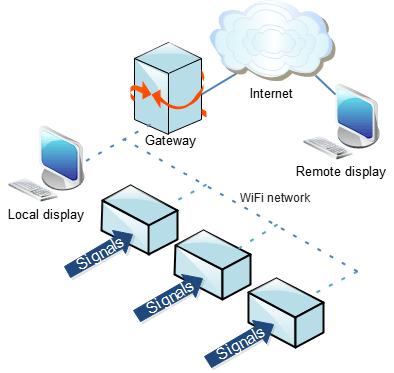
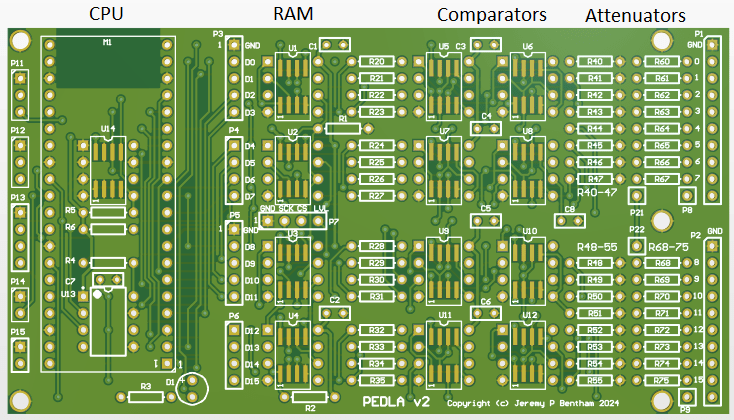
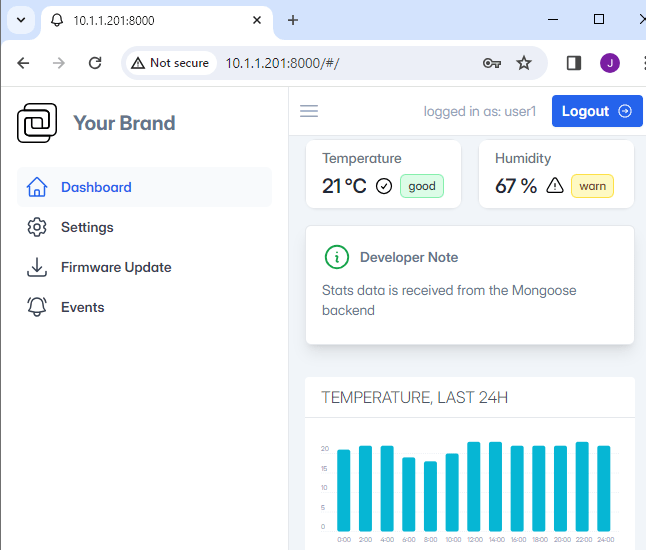
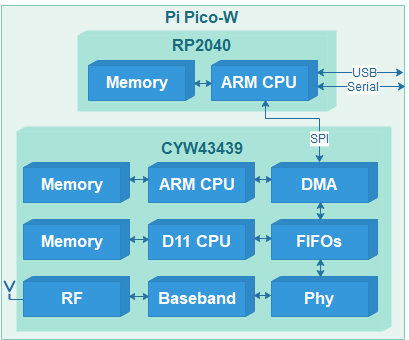



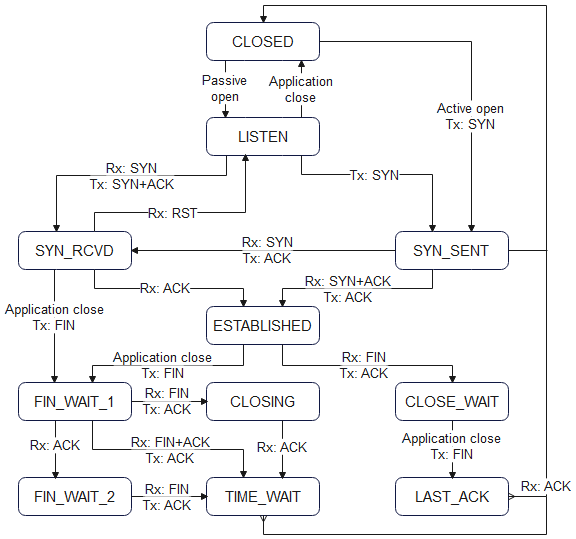
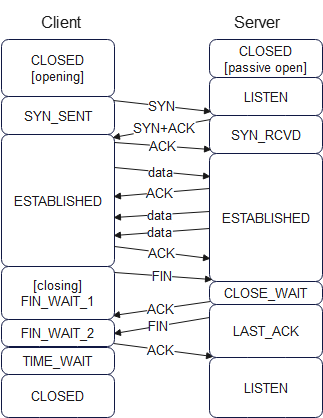
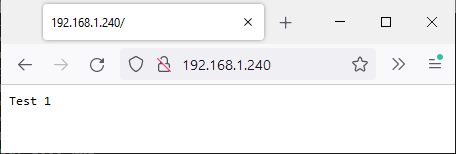
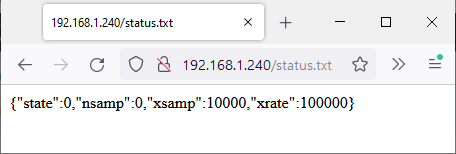
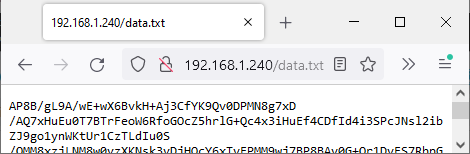
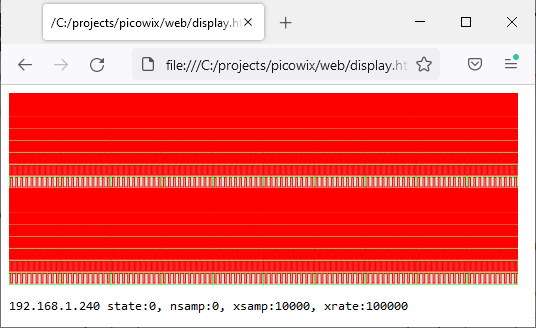


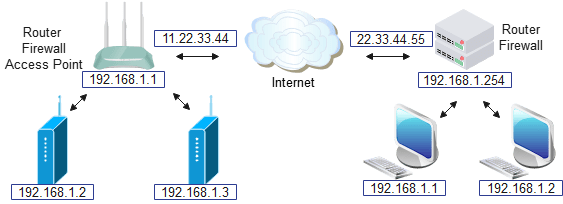


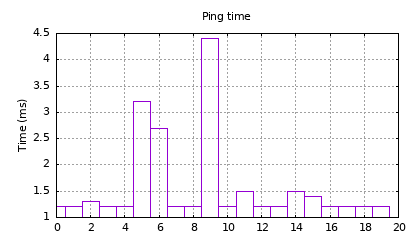
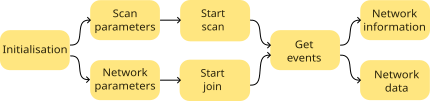
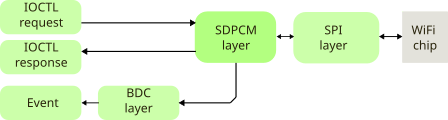
 Lean2
Lean2 